---
title: "Get started with Sync and Mercadolibre"
---
## Step 1: Activate the Sync product
At the top right of your Bolder admin panel, you will find a button to switch between your active Bolder products and access your Bolder account panel.
When you open "view/configure products" you will see the active services of your Bolder account. Here you can activate the Sync product and then go to its panel.
## Step 2: Activate and set up the Mercadolibre service
Once in the Sync panel, the first thing to do is go to "Settings" and find the service you want to activate, in this case Mercadolibre. To complete the activation process you must log in to your Mercadolibre account
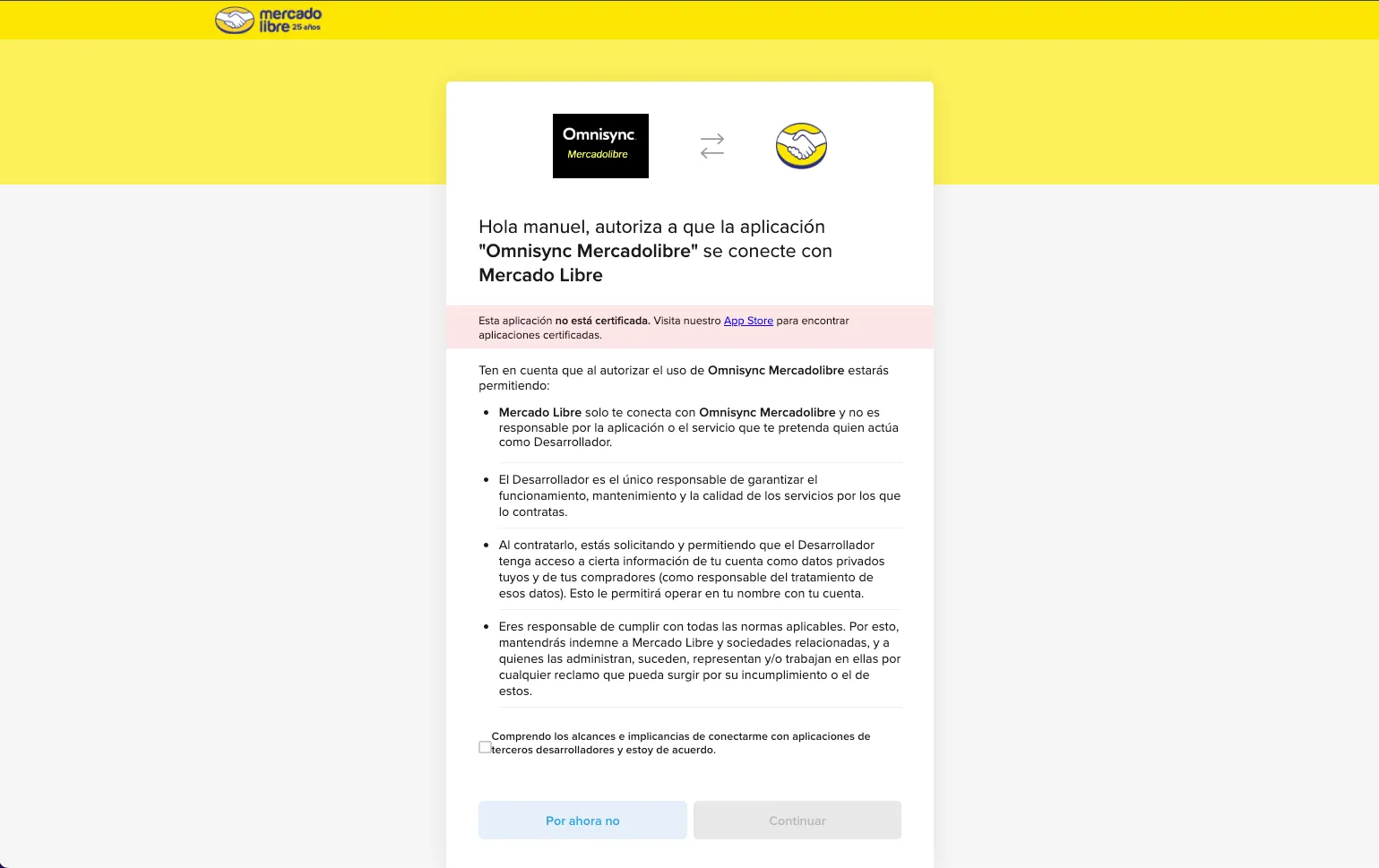
After logging in you will need to authorize the connection between Sync and your Mercadolibre account.
## Step 3: Create the Mercadolibre channel
After authorizing your account it will be active and you can start the process of creating and setting up the Mercadolibre channel.
> **Note**
>
> To create a channel you must have at least 2 active services, since they need to interact with each other, for example: Your Bolder store.
You can define the following syncs between your active services:
- **Stock sync:**
Choose a service and then the warehouse to update the stock of your products.
- **Price sync:**
Choose among your active services and their price lists to update the price of products on Mercadolibre.
- **Order sync:**
Choose the service where you want your Mercadolibre orders to go, so you can manage them.
If you don't need one, for example *prices*, you can define them directly from Mercadolibre, but still use stock and/or order sync.
> **Note**
>
> If you activate **stock** sync, it is important that the same service has **order** sync active.
>
> **Why? Let's say:**
>
> Product stock on Mercadolibre is updated from the stock available for the same SKU in Bolder: if stock goes down in Bolder, it will also go down on Mercadolibre.
>
> When you sell on Mercadolibre, the units of the order's SKUs are naturally deducted, but the active stock sync will run and set the product(s) back to the current stock in Bolder. Therefore, Bolder must receive these orders so it can deduct the stock of the order's SKUs and then update the stock on Mercadolibre.
>
> This completes the cycle: no matter where the sale happens, these two channels will have the same stock.
### Information about your active channel
By authorizing Sync to access your Mercadolibre account, you can see in real time the orders and products, whether or not they are synced with another service from Sync.
### Information about syncs.
**For price and stock**
If a Mercadolibre SKU is not found in the connected service, the sync will not happen.
**For orders:**
Unlike stock and price sync, the order will be created with all its items whether or not the SKUs exist in the chosen service. For those that do exist, the stock will be deducted.
### Sync timing
- **Order sync**
Immediate, synced via Webhook. When an order is placed on Mercadolibre, it is reported immediately to Bolder or another service and, as a result, the stock of its items is deducted.
- **Stock sync**
Every 20 minutes, since it is a manual stock change made directly in a product's settings and not the result of an order.
- **Price sync**
Prices are synced every 20 minutes.