---
title: "Add-ons"
---
A feature that lets you change how a product is bought by adding **extra options**, which can be added to the cart quickly and easily, to improve the original purchase.
### Example
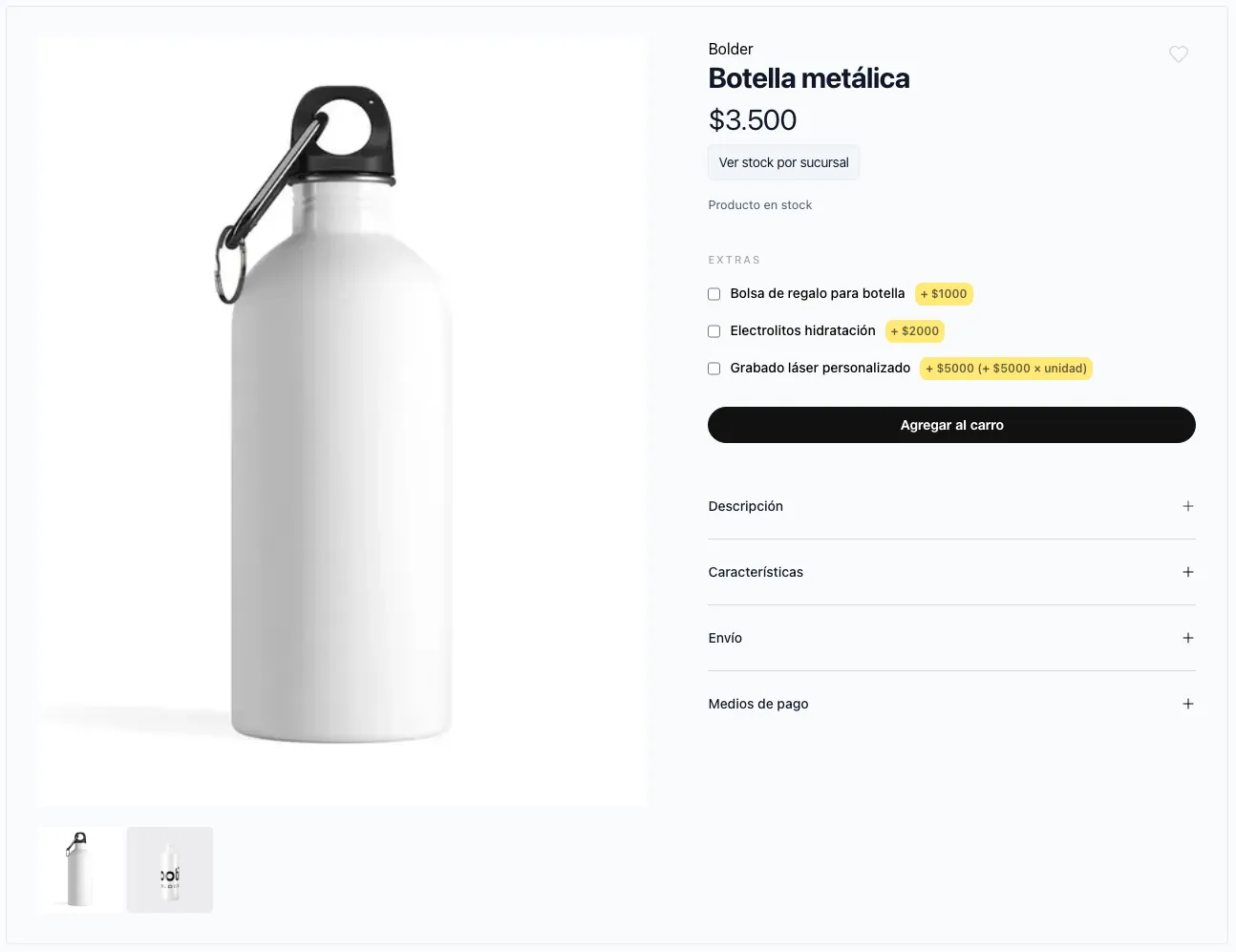
We have the product "metal bottle".
This product has 3 add-ons turned on to upgrade the purchase
- Gift bag for bottle $1000
- Hydration electrolytes (powder) $2000
- Laser engraving
The last one is a change to the base product, where you need to add specific details to personalize it.
- Bottle message (name or phrase)
- Typography (multiple choice field): Bold, Light, Normal
- Engraving position (multiple choice field): Horizontal, Vertical
In the video you can see how the product is added without add-ons, and by selecting each one of them.
**Extras are not required**, so the customer can continue their purchase without adding them, or choose the one(s) they find appealing for their purchase.**
## Activation and initial setup
To turn on this feature:
Go to the Bolder admin panel.
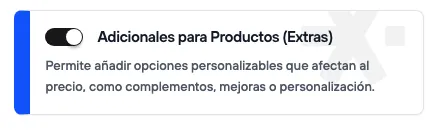
Go to the Addons and Integrations section, in the *Product Catalog* category, and turn on **Product Add-ons (Extras)**
Once it is active, you can open its settings directly from the Products > Add-ons menu
# Setting up an add-on
### Turning on the component
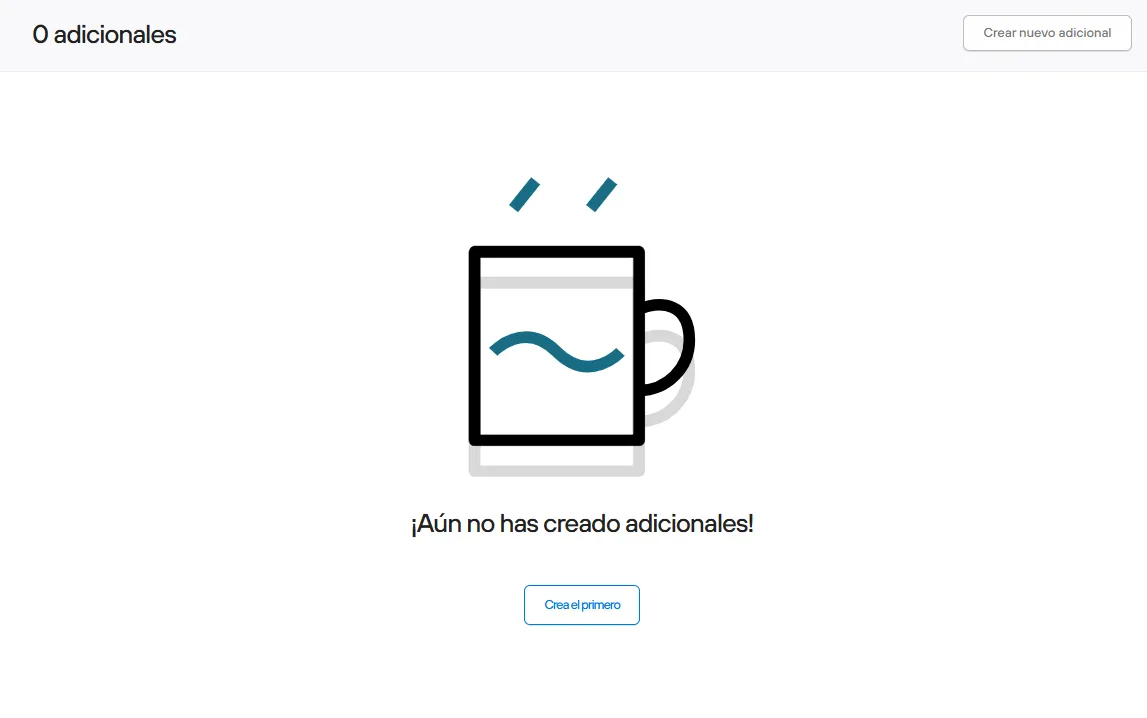
From the admin > in the products section > you can go into add-ons to create and set them up.
## Setting up an add-on
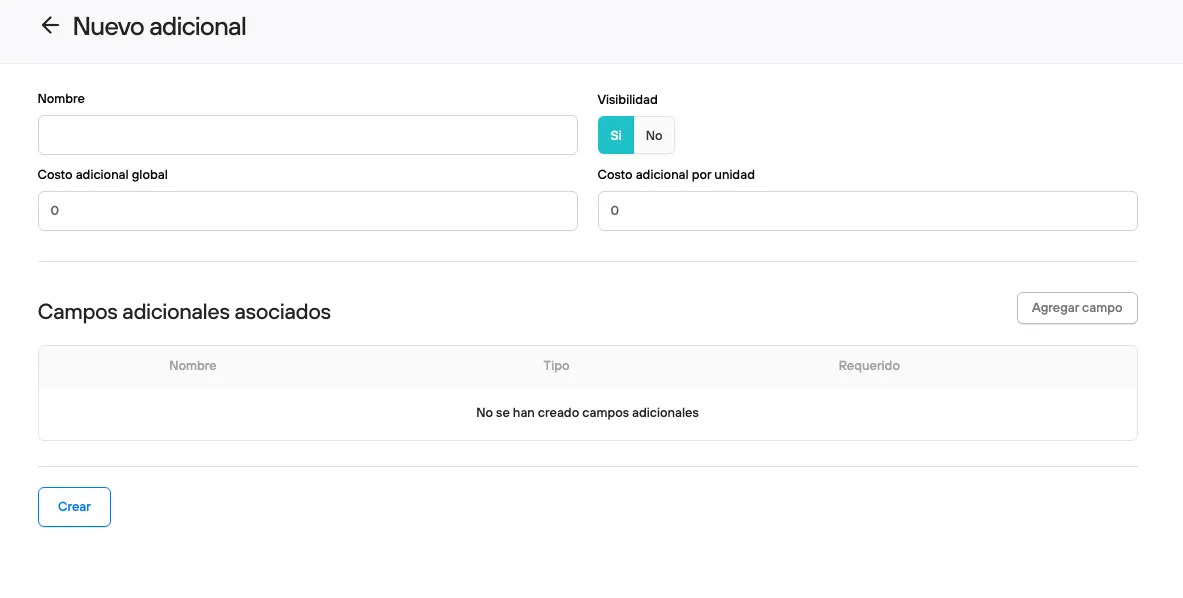
**Name:** Name of the add-on, as users see it in the store.
**Visibility:** Yes/No, option to show or hide the extra on the product
**Global extra cost:** If the add-on has a single price that does not change with the units added to the cart of the base product, it will only add one charge to the total.
If I buy 1 or 10 units of the product, the value of the extra is the same.
But if there is both a global cost and an extra cost per unit, the global cost is charged as a base + the extra cost of each unit of the base product.
**Extra cost per unit:** If the add-on has a price per unit purchased of the base product, it is charged in the same proportion of units.
If I buy 10 units, the value of the extra is counted 10 times.
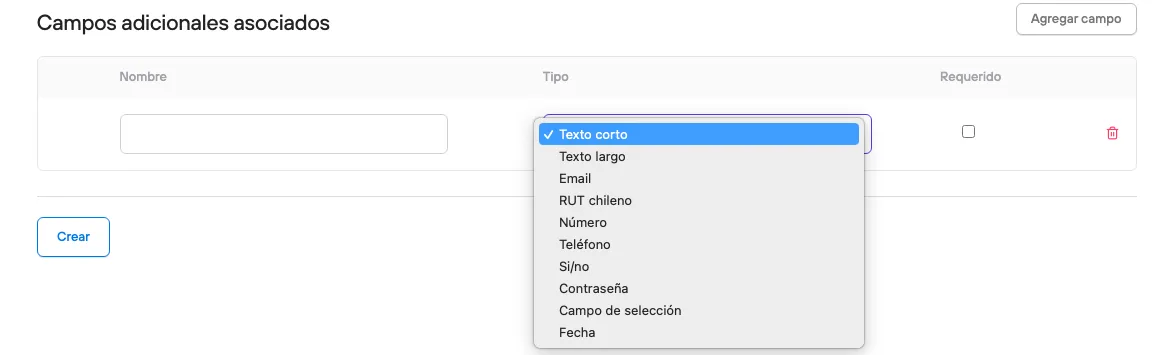
**Associated additional fields:** Here you can add the fields the customer needs to fill in: Short text - Long text - Email - Chilean RUT - Number - Phone - Yes/no - Password - Selection field - Date.
## Add-ons view
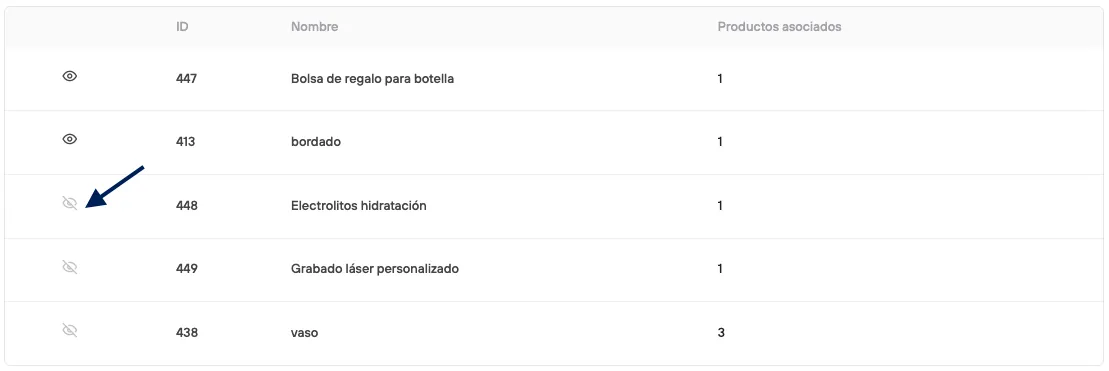
Once you have created your add-ons, you will see the list.
Here you can see their status directly and the products that have this extra linked.
When you open the details you will see the same initial information, and the products with direct access
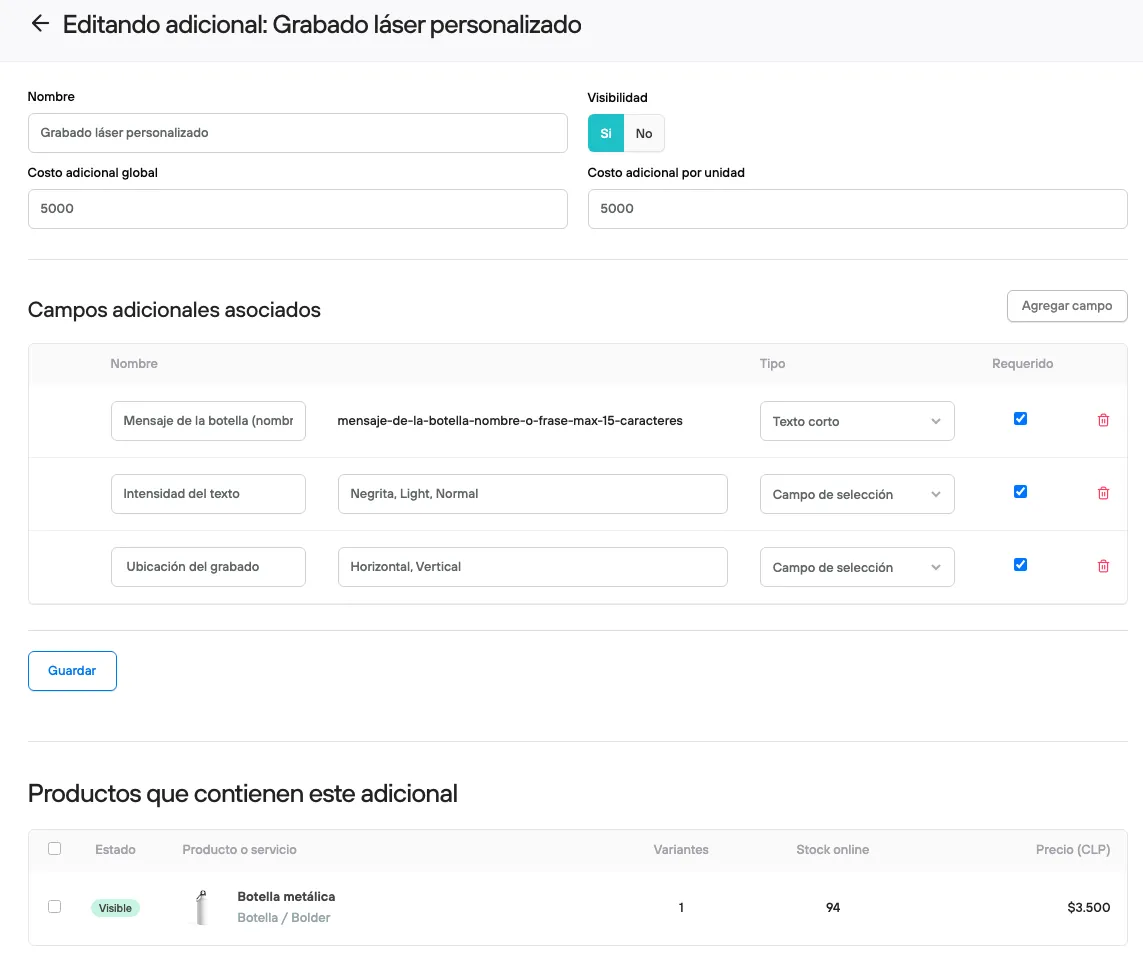
In this image you can see how the fields for the laser engraving from the previous example are set up.
## Adding the add-on to the product
To add an add-on to a product, open the product and go to **Relations.** In the Add-ons section, choose the ones you created earlier.
From this view you can also edit an add-on again if needed.
You can also create a new add-on directly from the product.
To remove or unlink the add-on from a product, delete it from this same product view.
**With 'Add-ons', every sale can become a chance to sell more.**