
Subscriptions
A subscription lets your customers receive products on a recurring basis, through an automatic periodic payment.
Unlike a one-time purchase, subscriptions offer comfort and convenience, since the purchase arrives automatically, with scheduled deliveries of selected products, all without placing a new order and going through the whole purchase flow again.
Requirements to activate it
- To use this feature you need the Standard Plan or the Pro Plan. You can contact our team to check your plan or change it.
- To enjoy the benefits of subscriptions, you need the Webpay OneClick (PST) payment method, a payment gateway designed to make recurring payments easier to manage. (You must sign up for this service directly with Transbank. See here how to activate it in your Bolder store). Webpay OneClick offers a fast and secure payment system, which ensures a smooth, uninterrupted buying experience for you and your customers.
Activation and initial setup
To turn on this feature:
-
Log in to the Bolder admin panel.
-
Go to the Addons and Integrations section, in the Recurring revenue category, and turn on Subscribable Products

-
Once it is on, a new entry will be added to your side menu, Subscriptions
If you only turn on Subscribable Products, you will see Subscriptions
If you also have Membership plans, you will see Subscriptions and plans
First steps
When you turn on the feature, a new view will be available on all products: Subscriptions.
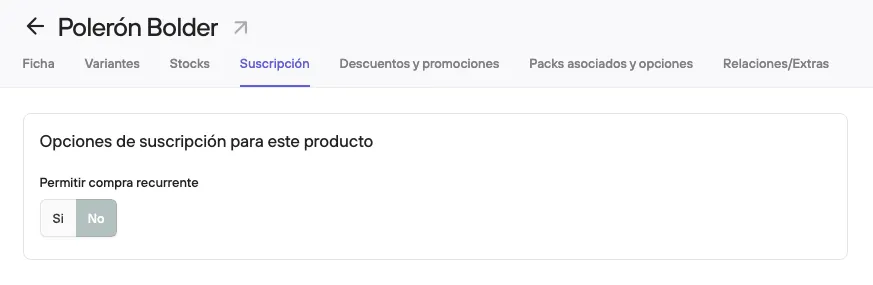
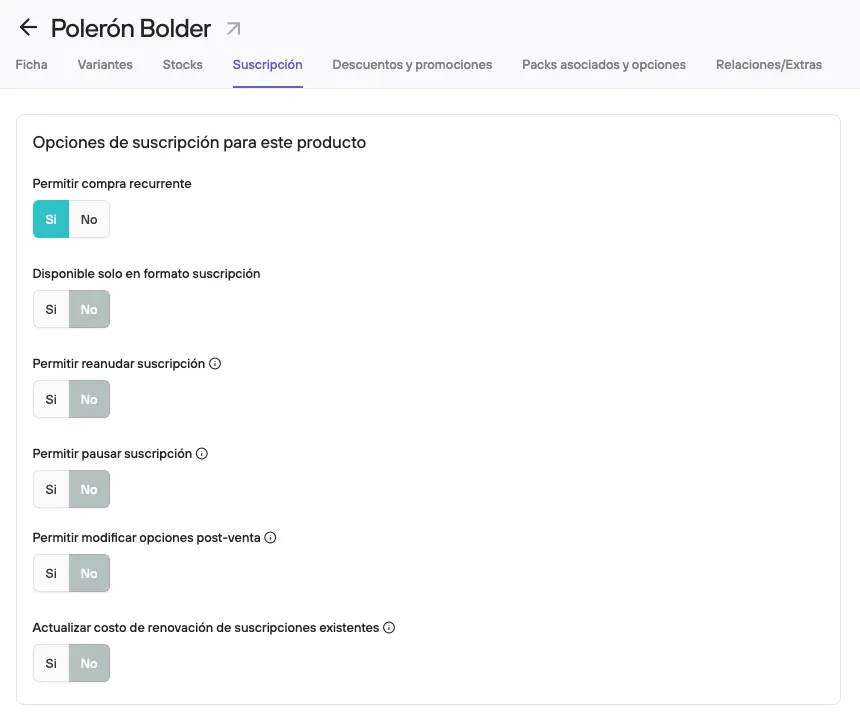
When you enable recurring purchase on a product, several settings become available that let you define how the subscription will behave over time, both for your operation and for the customer experience.
The main options available are:
-
Available only as a subscription: lets you set whether the product is sold exclusively under this model, with no one-time purchase option.
-
Allow resuming subscription: Lets your customers resume their subscription if it was canceled after a failed charge.
-
Allow pausing subscription: Lets your customers pause this subscription for a maximum number of billing intervals.
-
Allow changing options after sale: Lets your customers change the options or items after signing up for a subscription, including items with an extra charge.
-
Update renewal cost of existing subscriptions: lets you apply price changes to subscriptions that are already active in their next billing cycles.
Cost changes will apply to current and future subscriptions, and when you make the change you have the option to notify customers who have active subscriptions.
These settings give you more control over how your subscriptions work, letting you adapt them to different business models and levels of flexibility for your customers.
Basic subscription information
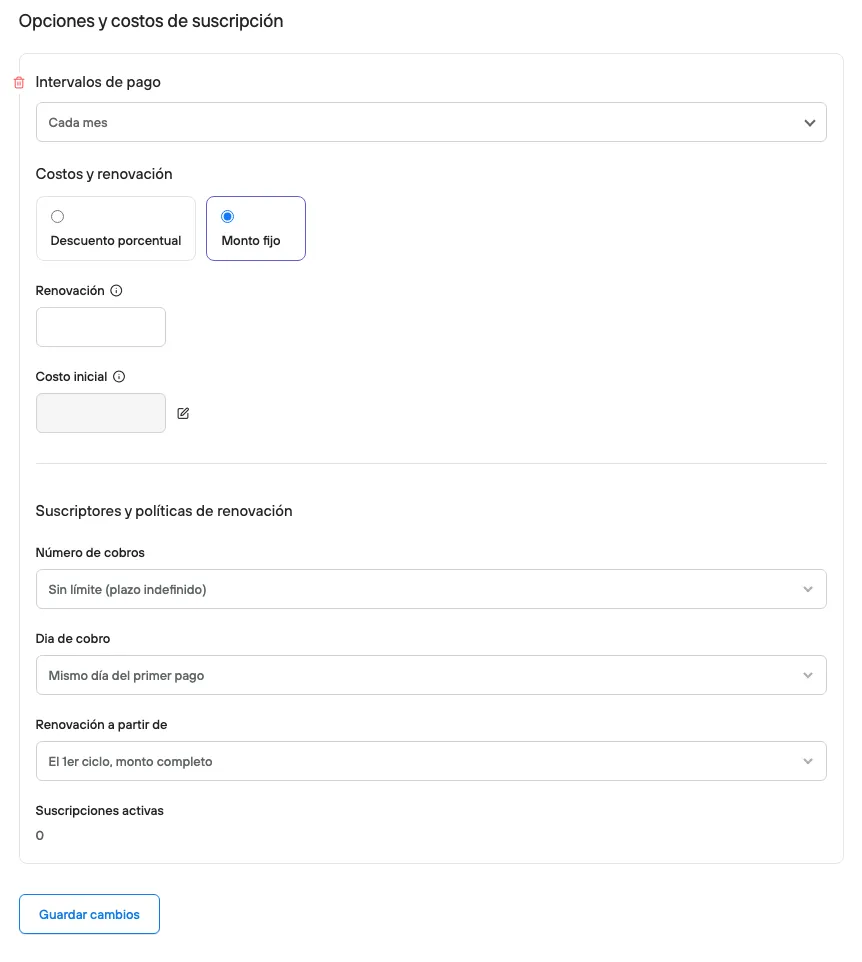
Once the subscription is enabled, you need to define how charges will be applied and how often the service repeats. This includes the payment interval (for example, monthly), the price type (percentage discount or fixed amount), and the initial and renewal charge values. You can also set rules such as the number of cycles, the billing day, and from when the renewal starts to apply. These settings let you shape the subscription to fit your business model and ensure a consistent experience for the customer.
Subscription options and costs
Here you define the amounts and billing intervals under which you want to offer this subscription.
Intervals can be weekly, monthly and even yearly.
- Payment interval: The intervals of future charges can be weekly, monthly and even yearly.
- Billing: Day of the month on which charges will be made. Does not apply to weekly interval subscriptions.
- Initial cost: The amount the customer pays when the subscription is created (when adding it to the cart and completing the order)
- Renewal: The amount the customer pays at each billing interval after the first purchase, in which they pay the initial cost (for example, once a month).
- Charges - Starting from: If you want to limit how long a subscription lasts, you can enter a maximum number of charges.
- If the charge starts
From the **1st cycle**This number is in addition to the first charge (if you select 2 charges, the customer will receive 3 in total: the initial cost + 2 renewals) - If the charge option is
From the **2nd cycle**Charges will be made according to the number set. Here, the first purchase does count as part of the subscription, but the first renewal charge is skipped.
- If the charge starts
- Active: Here you will see the number of active subscriptions that have bought this subscription product.
Items in the subscription
In this section you enter the items that will make up the subscription you offer, as well as the images that best show the subscription. The items are existing products in your store.
Here you can add items for a preset subscription, or you can create a subscription with customizable items, so the customer can build it to their liking.
The total stock of available subscriptions is determined by the unit stock of each of the products that make it up.
Once your subscription is created, you will be able to view and edit it.
What does the created subscription look like to the customer?
Following the example created, this is how a subscription-type product would look to your customers: