

Enable Webpay Oneclick as a payment method
Transbank offers different types of service to implement its payment gateway on your site. We recommend signing up for Webpay Oneclick in PST mode (under a contract between Bolder and Transbank).
The benefit of the PST option is that you don’t need to go through a technical certification, which can take longer because there is a validation process to activate the payment method.
You can sign up with your representative or from the Transbank website.
Signup steps
Go to Transbank and click the “I want to be called” button
In this section you will find the question “Where do you want to sell?”. Choose the option “On your website”
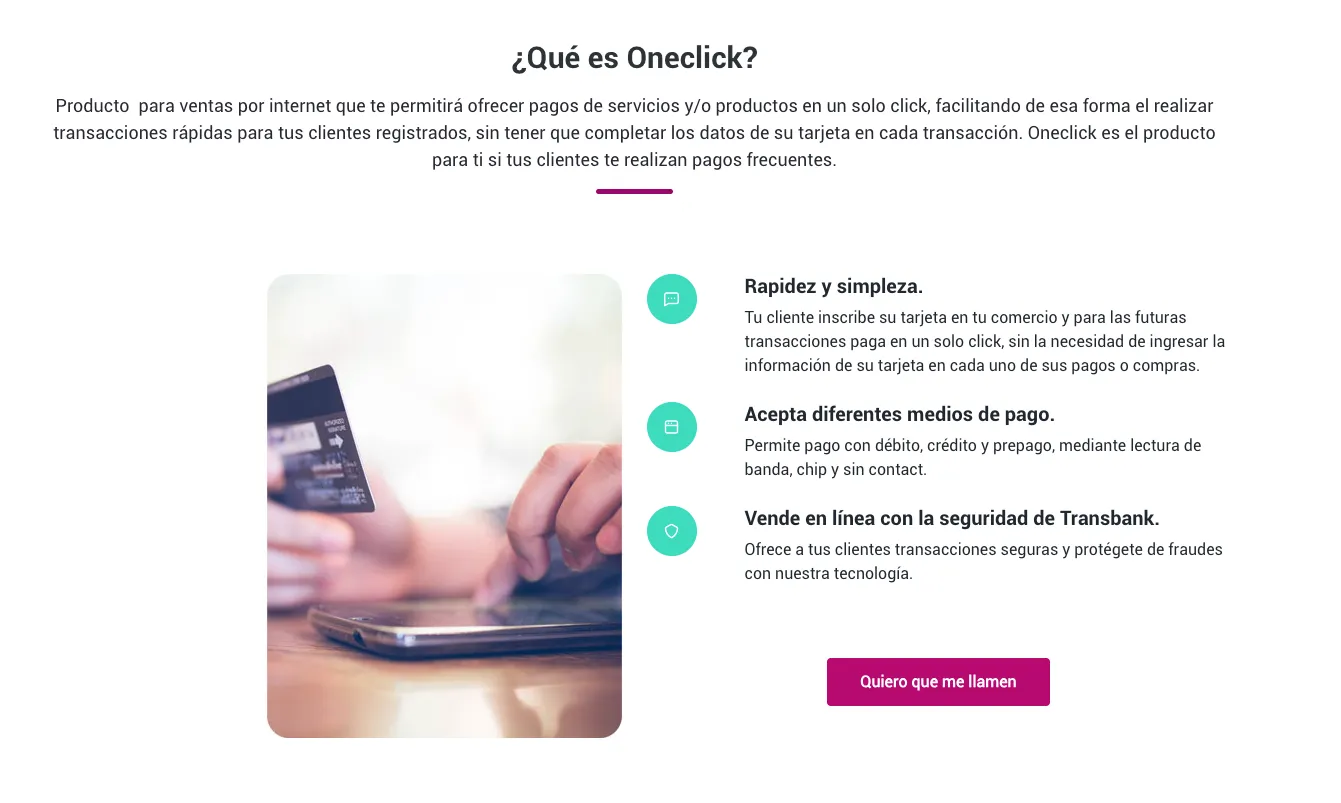
When the representative asks, tell them you want to sign up for Webpay Oneclick under the PST (technology service provider) mode, associated with Bolder. It is very important to pass this information along, because it allows the Oneclick mode to be integrated into your store.
Once the affiliation process is done, depending on how long Transbank takes to process the information, you will receive your merchant code by email.
Turn on Webpay Oneclick PST in your Bolder store
With the information from the previous step, log in to your Bolder admin panel and go to Preferences **>** Purchase options **>** Payment methods
In the payment method selector choose Webpay Oneclick (PST)
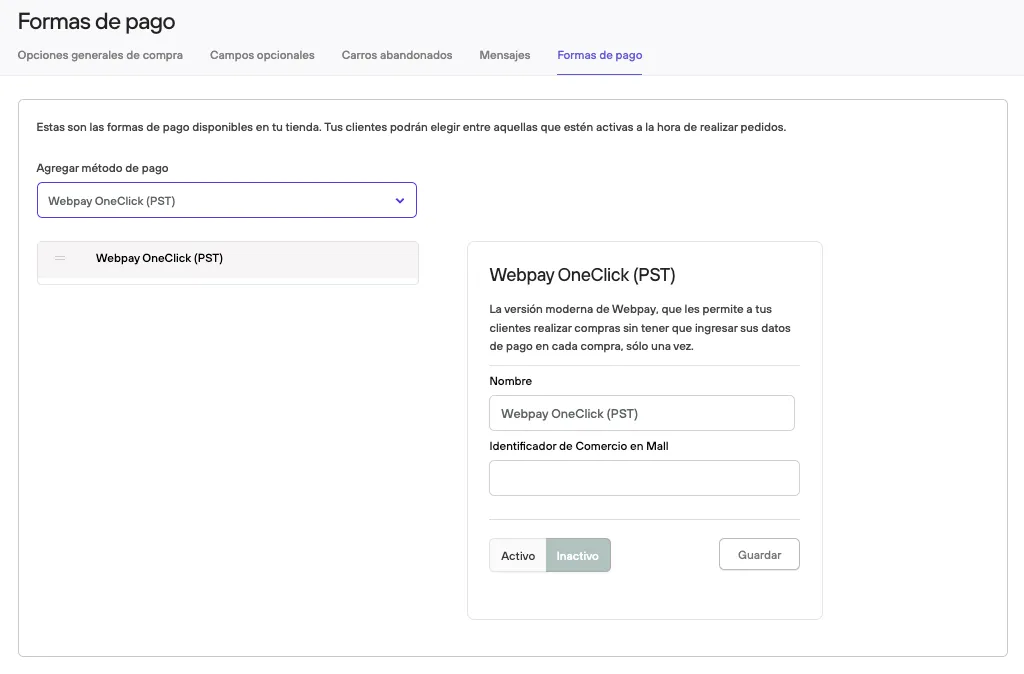
Fill in the merchant code that Transbank gave you, then press Active and Save.
Before making it available to your customers, we recommend placing a test purchase and checking that everything works correctly (and that the amount paid reached the account set up in Transbank).