

Google / Github login
The feature that lets customers create an account or log in to your Bolder site using external credentials, without having to create a new password.
It is designed to reduce friction at sign-up, improve conversion and offer a faster, more secure way to access.
Activation and initial setup
-
From the Admin panel, go to Addons and integrations and activate
Social login
-
Once active, you must configure which option you will make available on the site: from the addon, you can go to configure, or you can also do it from Preferences > General options > Customer registration.
-
In the Social login section, you can activate Google and/or Github, and you will need to enter the required credentials.
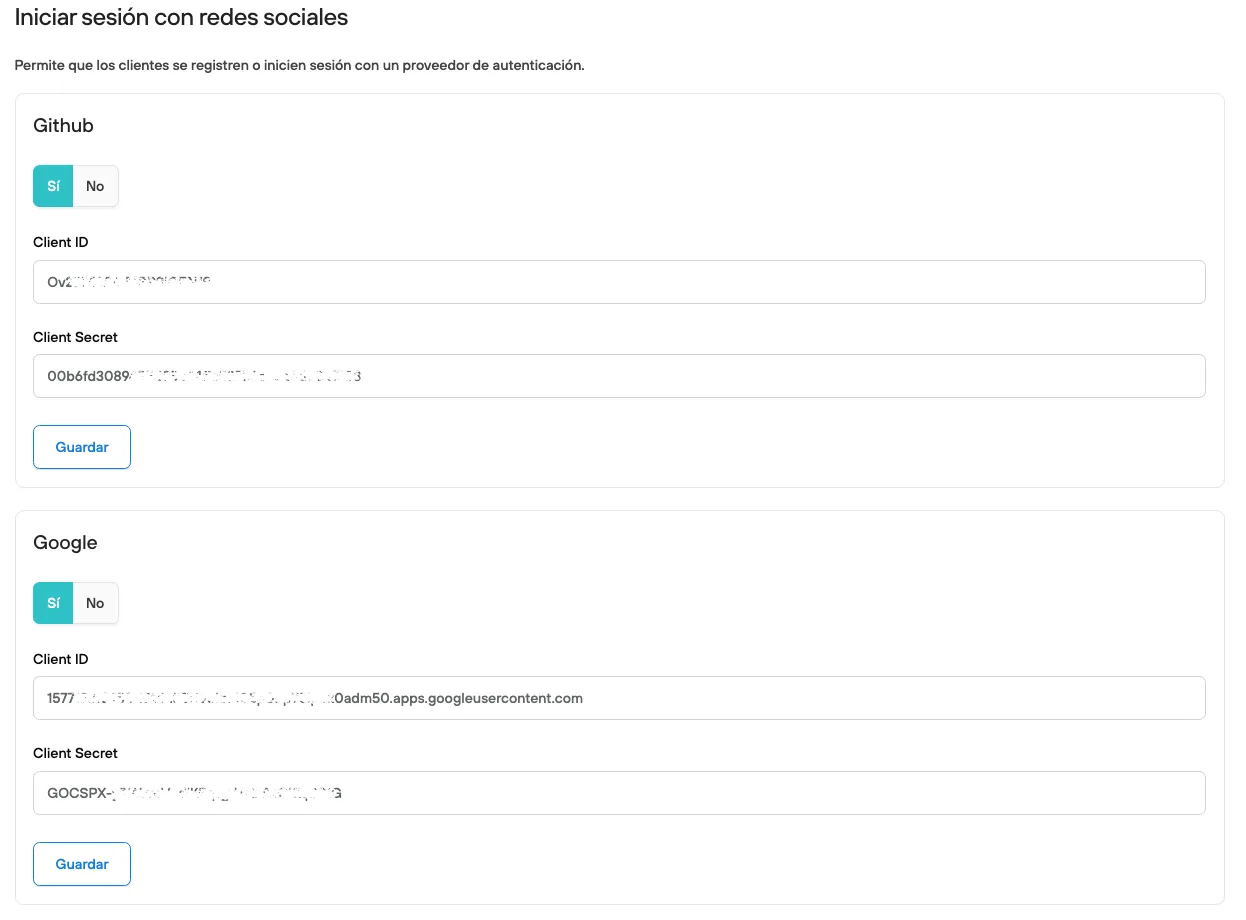
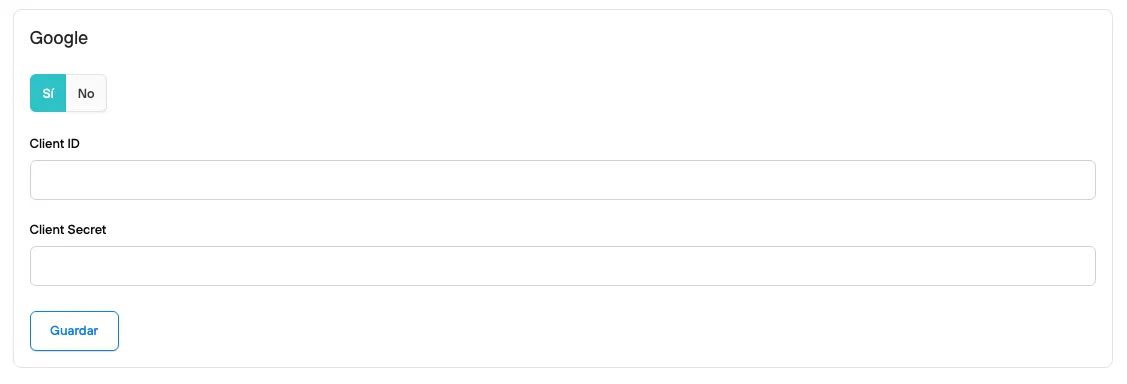
Activating Google login
Social login works through OAuth 2.0. This means Bolder delegates authentication to Google or GitHub and securely receives the user’s identity in return.
Step 1 — Create a project in Google Cloud (Google Login)
- Go to the Google Cloud Console.
- Select an existing project or create a new one.
- You will be redirected to the project dashboard.
- In the top left corner, open the menu (≡) and go to APIs & Services > Credentials.
- Click Create credentials > OAuth client ID.
- If this is your first time, set up the OAuth consent screen following Google’s instructions.
Step 2 — Configure the OAuth client ID (Google)
-
Select Web application as the application type.
Under Authorized JavaScript origins, add your domain:
- https://www.tutienda.com - here you must use your site’s URL
-
Under Authorized redirect URI, add:
https://tutienda.com/auth/google\_oauth2/callback
here you must replace it with your site’s URL +
/auth/google_oauth2/callback -
Click Create.
A modal will open with the Client ID and Client Secret, the credentials needed to activate it
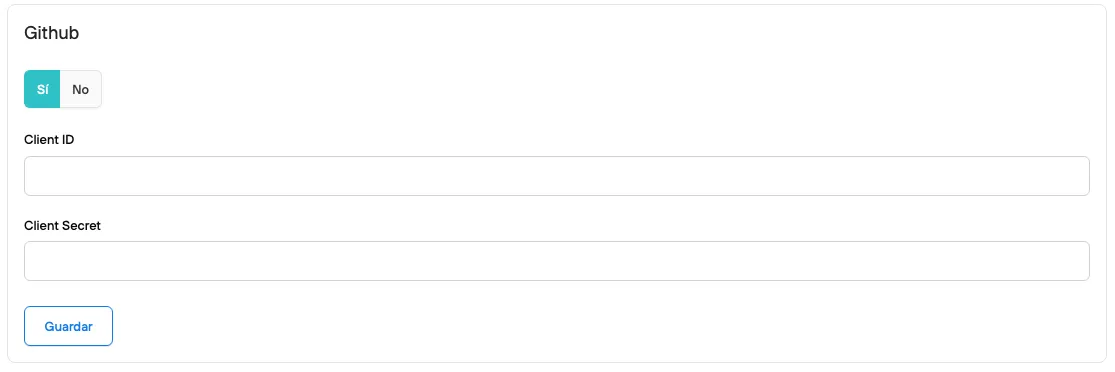
Activating Github login
- Go to GitHub > Settings > Developer settings > OAuth Apps.
- Click Register a new OAuth app.
- Fill in the required fields:
- Application name: the name of your site or project.
- Homepage URL: https://your-domain.com
- Authorization Callback URL: https://your-domain.com/auth/github/callback
- Select Register application.
- Copy the Client ID generated on your application’s general page.
- Click Generate a new client secret
- Enter these credentials to complete the activation
Once you activate and set up social login, these options will be visible in your store