

Customer groups
A set of customers who share common traits. By organizing customers into groups, it’s easier to identify their members and to set up exclusive commercial conditions for each group and its members.
Customer group features
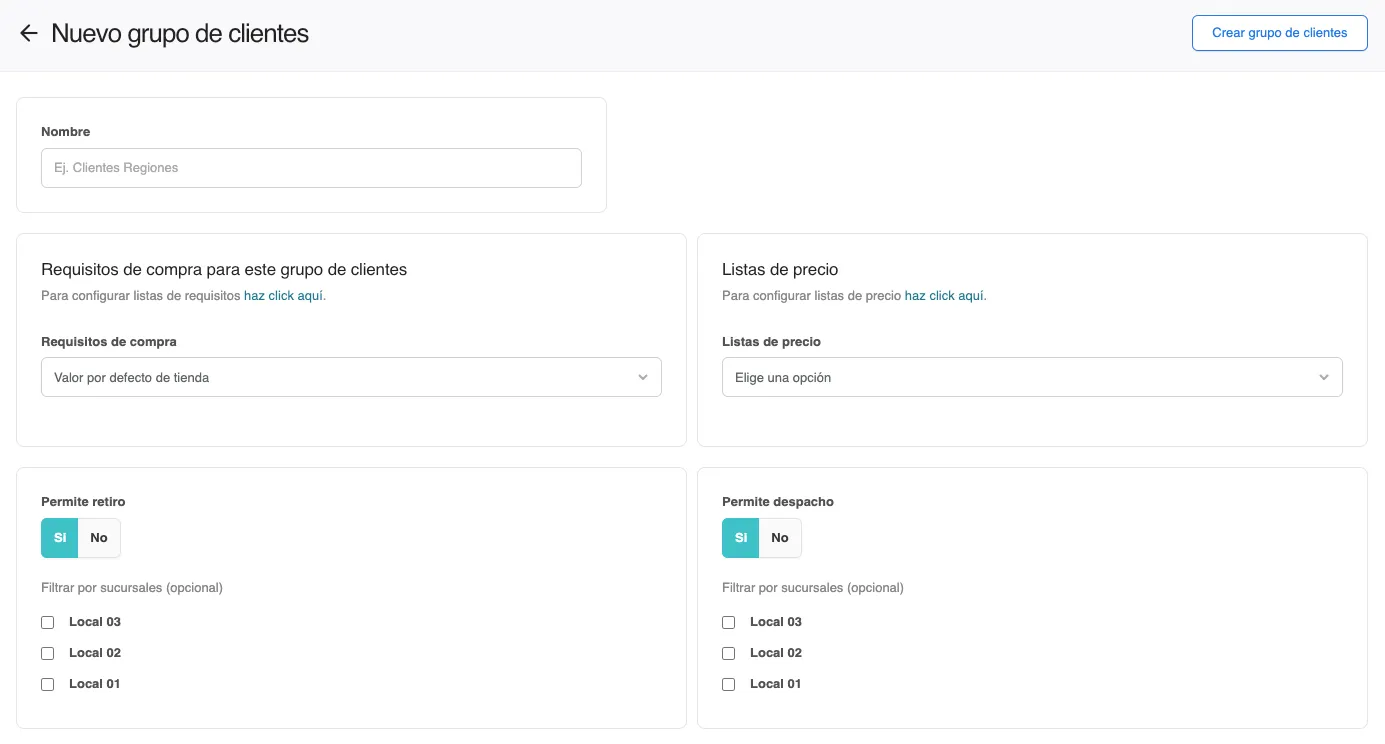
- Group name: Each group has a name and a unique id
- Price lists: Define specific prices that will apply to products when a customer in that group makes a purchase.
- Purchase requirements: Set conditions that customers in the group must meet to be able to buy.
- Limited delivery options: Restrict delivery options (shipping and pickup) to certain branches, depending on the group’s needs.
Important considerations
- Group uniqueness: A customer can only belong to one customer group. Each group is tied to a price list, purchase requirements and an exclusive branch setup, so letting a customer be a member of more than one group would cause conflicts during checkout.
- Price list flexibility: A price list can be linked to several customer groups, so you can offer the same prices to different groups while keeping each group’s conditions.
- Branch setup: You can deny pickup or shipping to the customers of a group, or limit the options (shipping or pickup) to specific branches, as long as those branches are enabled in the delivery settings under Preferences.
Understanding the branch setup
Depending on your business, you may need to limit the use of your branches to certain customers during checkout. For each delivery option in each branch you have two settings that cover every scenario: “Available for customer groups” and “Exclusive to customer groups”
Case 1: branch available to everyone
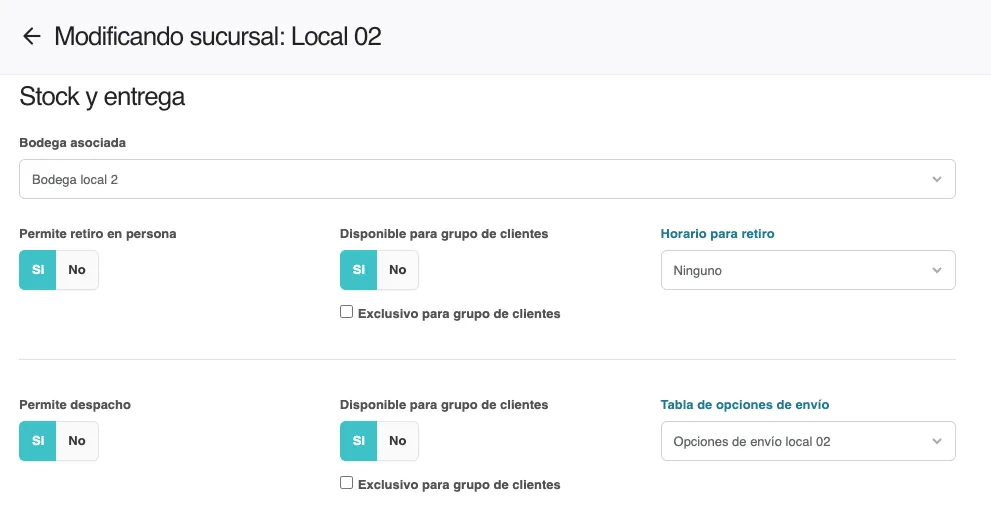
Each delivery option, In-person pickup and Shipping, has an “Available for customer groups” setting that is set to “Yes” by default. This means that when you allow Pickup or Shipping, the branch will be available to all customers as long as the group’s setup allows it (see case 2).
Case 2: available to customers without a group and only to some customers with groups
If the branch is “available for customer groups”, it depends on each group’s setup whether pickup or shipping is allowed for the group’s members. If it is, you can limit, if needed, which of the available branches are used for each delivery type.
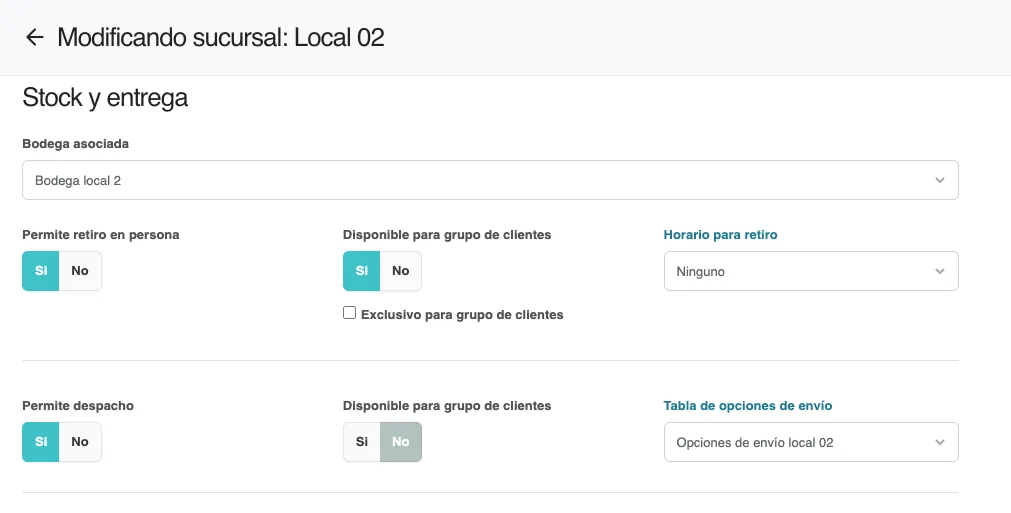
Here is an example: I want my branch named “Local 2” to be available for pickup to all my customers, with or without a group, and at the same time I want only customers without a group to be able to ship from the branch “Local 2”
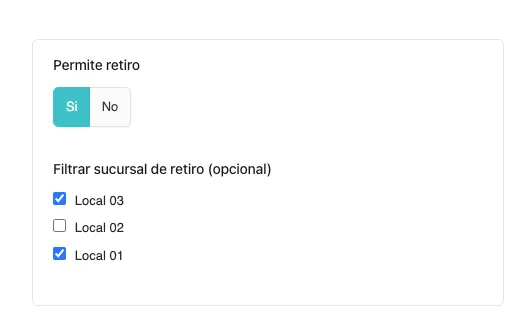
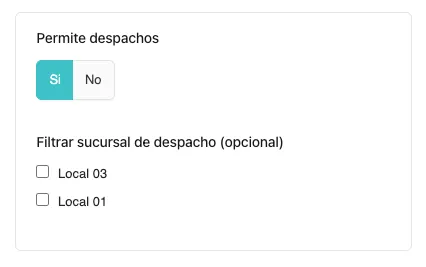
As a result, when I go to the group settings I will see “Local 02” among the branches that allow pickup, along with two more. However, even though it’s available, I don’t want to offer pickup there to this specific customer group, but I do want to make the pickup branch available to other groups. So I check the branches “Local 01” and “Local 03”.
On the other hand, for the shipping block, even though the group allows it, I won’t see “Local 02” among the available options. This is because the branch’s base setup says it is not available for customer groups, in this group and in all groups. So I will only see the branches Local 01 and Local 03 listed.
Case 3: branch with a delivery option used exclusively by customers WITHOUT groups (B2C)
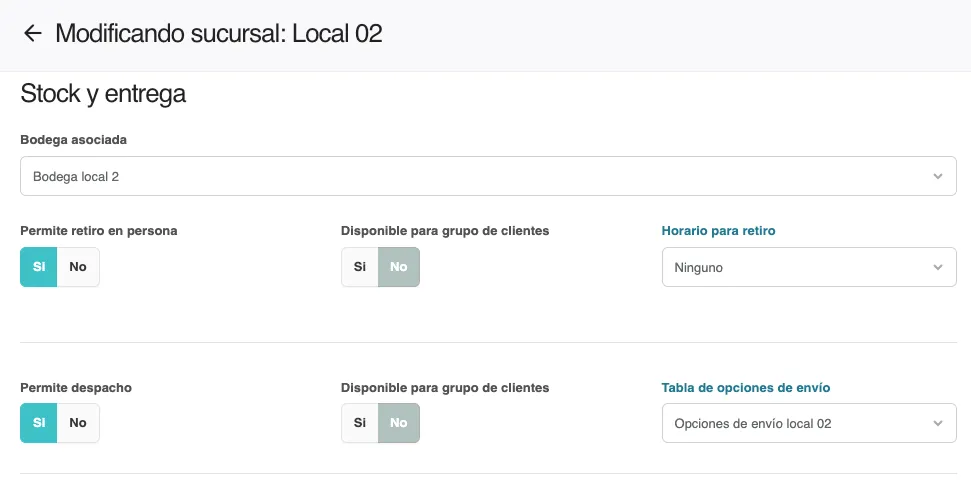
When you allow pickup or shipping in your branch, you can set both options to “No” for availability to customer groups. That way, the branch will have delivery options exclusive to customers without a customer group.
Case 4: branch with a delivery option used exclusively by customers WITH groups (B2B)
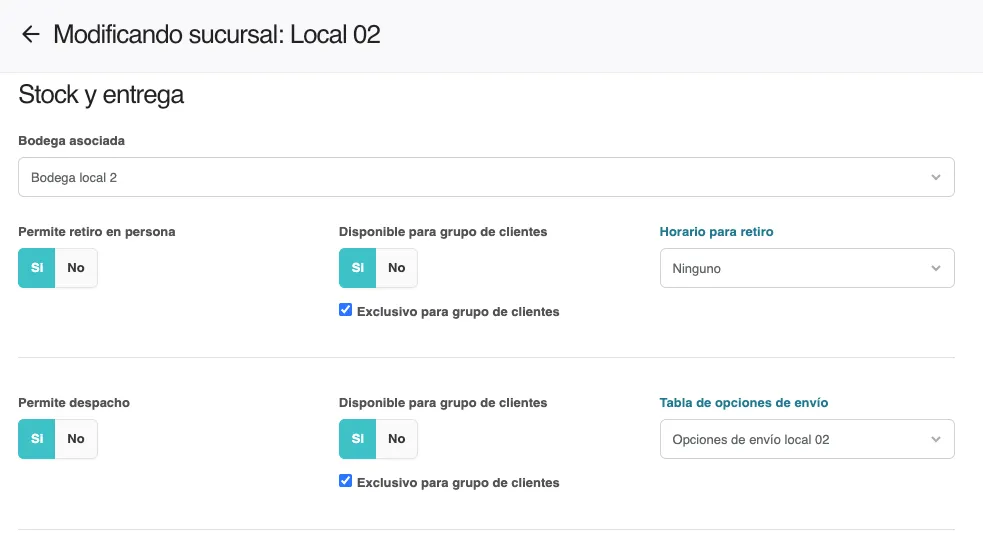
When you allow pickup or shipping and also allow use by customer groups, you will see the “Exclusive to customer groups” checkbox. It is unchecked by default. When you check it, your customers without a group won’t be able to ship or pick up from this branch, depending on the setup you want.
Access and management
- Access: You can reach the Customer groups section from the “Customers” tab at the top right or directly from the “Customers” submenu.
- Linking customers: You can link several customers to a group in bulk from the contacts section or directly from the Customer group screen.
- Moving between groups: You can move customers from one group to another, carrying over the group’s specific conditions, with bulk actions by selecting the contact from the customer group or from a price list linked to the contact’s group.