Requirement lists
A feature that lets you create lists that set specific rules or conditions that must be met to place successful orders.
Using requirement lists is optional, and they can be set up as needed to apply to:
- General purchase options, requirements the customer must meet in the cart and checkout.
- Customer groups, requirements for wholesale purchases or specific customer segments.
- Payment methods, to make options available depending on whether requirements are met.
- Enabling the invoice option for the order.
- Activating the order review flow.
Activation and initial setup
Initial setup
To create requirement lists and use this feature, go to the Bolder admin panel.
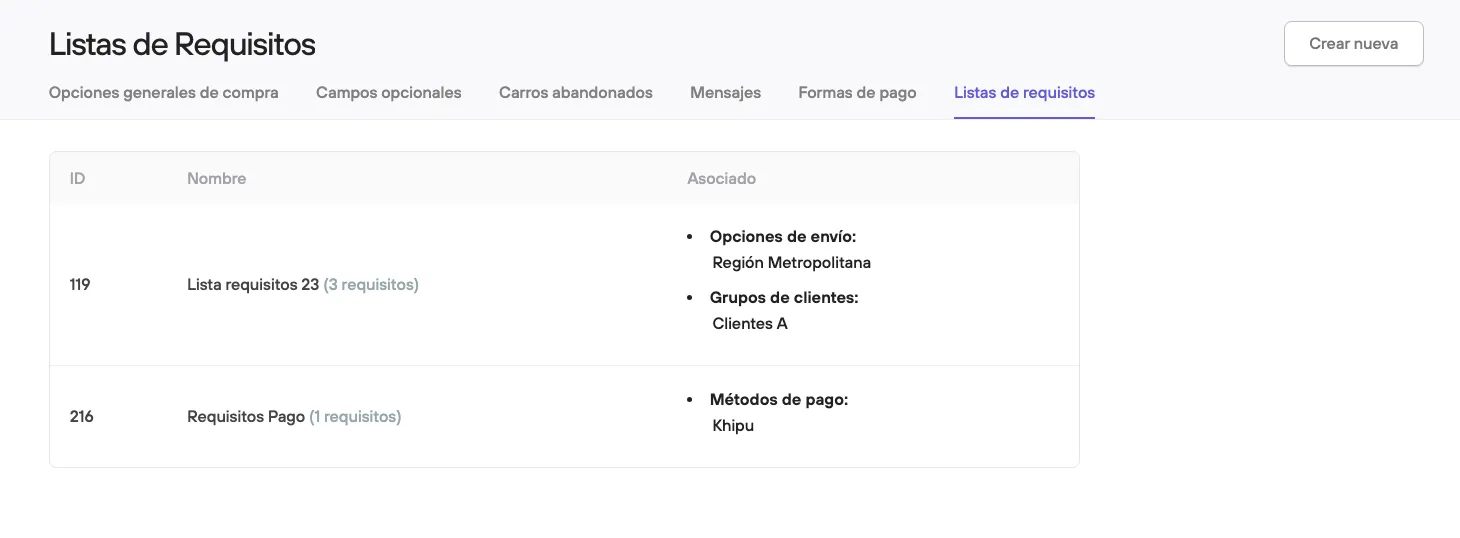
Go to Preferences > Purchase options > Requirement lists > Create new.
Once you choose a name, the list will be created and you will need to add the different requirement types to it.
Requirement types
Minimums and maximums for
- Total cart amount (minus discounts)
- Net amount
- Total units
- Units by type (any type or a specific one)
- Units by product (any product or a specific one)
- Units by variant (any variant or a specific one)
- Items/lines in cart (count by variant)
Presence of a product from the group
Among the items added to the cart there must be a:
- Specific product
- Product linked to a specific collection
- Product of a specific type
- Product of a specific brand
- Product with a specific tag
Absence of a product from the group
Among the items added to the cart there must not be a (absence of):
- Specific product
- Product linked to a specific collection
- Product of a specific type
- Product of a specific brand
- Product with a specific tag
Like the requirement type “presence of a product from the group”, it can be repeated multiple times with different groups and values in the same requirement list.
Applying requirements
Purchase requirements are a set of conditions that you can optionally link to:
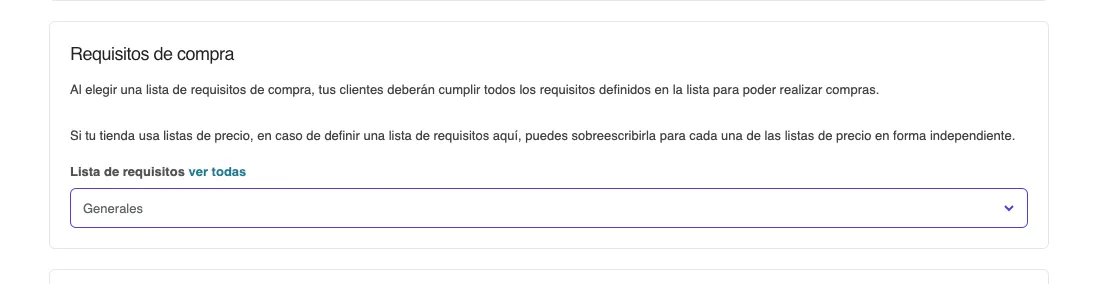
1. General purchase options
When you link a requirement here, your customer or their order must meet it to move on to checkout.
You can only link one requirement list as purchase requirements, so you need to manage all the conditions in it and keep it up to date.
2. Customer group
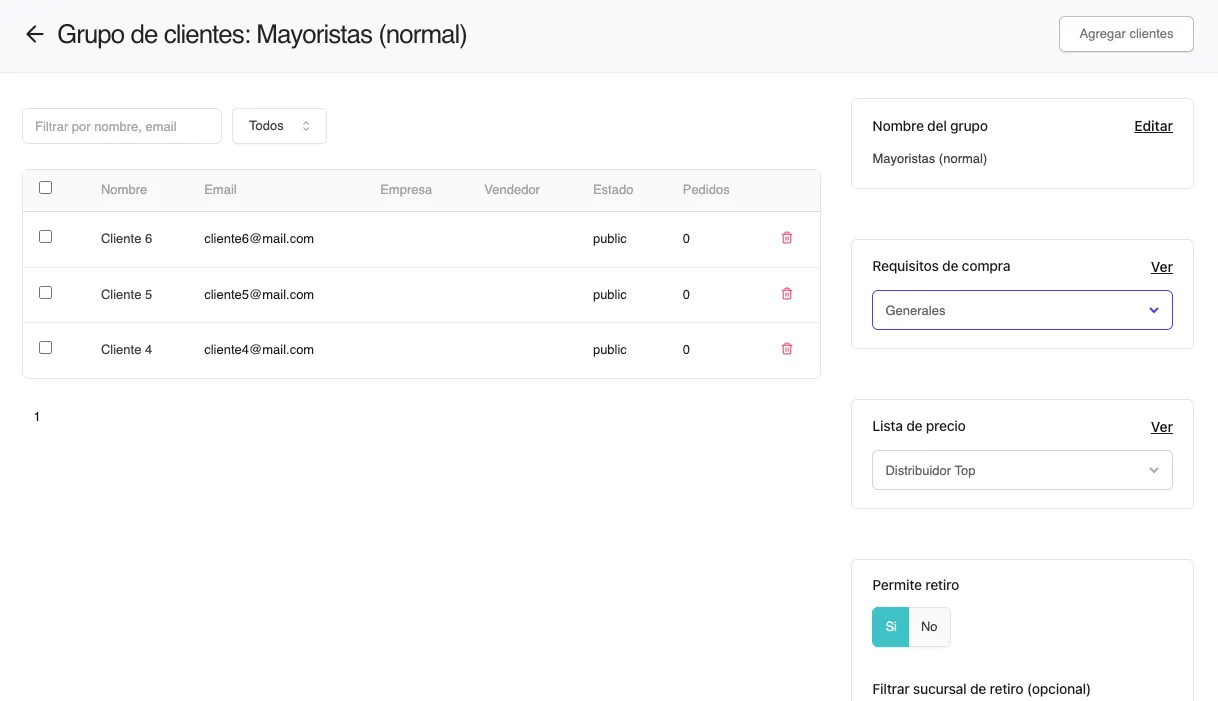
When you link a requirement list to a group, all its members must meet it to move on to checkout.
3. Payment methods
You can link a requirement list to a payment method:
When met: Your customer can use it without problems.
When not met: This option will not be offered at checkout.
3. Shipping options
You can link a requirement list to a shipping option:
When met: Your customer can use it without problems.
When not met you can decide to:
- Offer it with a percentage surcharge on the total shipping amount.
- Offer it with a fixed surcharge.
- Not offer it.
4. Option to request an invoice
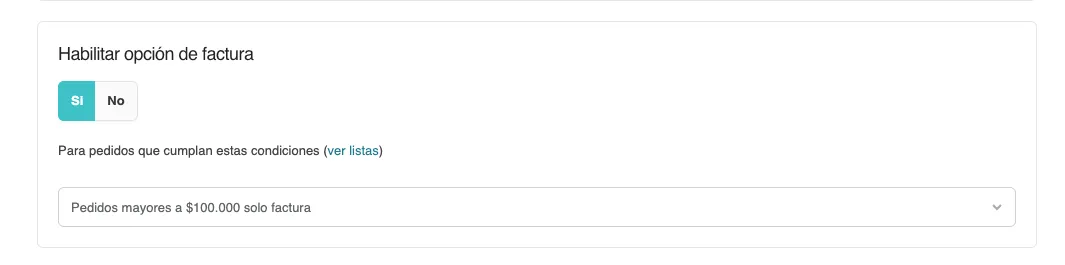
You can link a requirement list to the “Enable invoice option” setting. When met, your customers will see the option to request an invoice on their orders.
5. Order review flow
You can link a requirement list to the “Enable review flow” setting. When met, orders will go into this special flow.
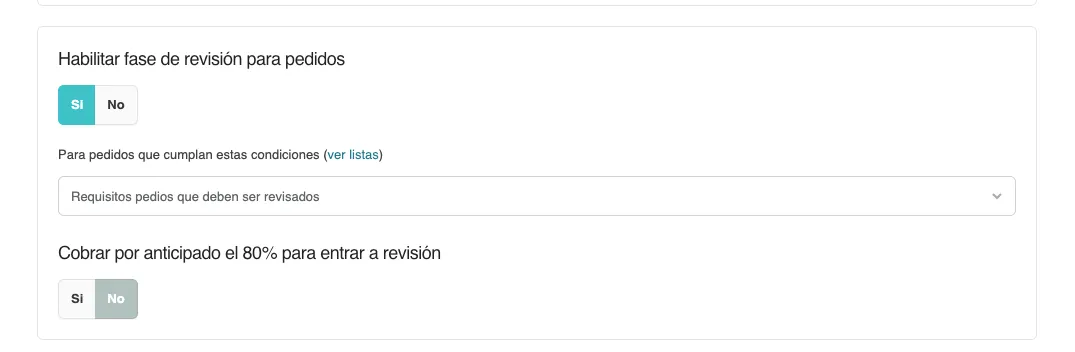
Once you have created your requirement lists, you will see the number of requirements and whether the list is linked to any of the features covered above.