Bsale
Sync your Bolder ecommerce with Bsale
Bolder’s native integration with Bsale connects both platforms via API, with no intermediate tools or custom development. If you are already managing your product stock, prices and electronic invoicing on this platform, you can connect quickly.
Operations currently available in Sync
- Stock sync: Bsale sends the stock level per warehouse. Bolder updates its inventories automatically.
- Price sync: Bsale sends price lists. Bolder updates the prices of the corresponding products.
- Orders and tax documents: Bolder sends orders to Bsale so that electronic tax documents (receipts, invoices) are generated.
Initial setup and activation
Prerequisites before you start:
- Role: You must have Administrator permissions on your Bolder site
- Bsale API token: Request the access token from your Bsale account before you start the setup
- Sync: You must have the Sync service active. It is a central panel to monitor and control all connections with marketplaces and external platforms.*
- Invoicing manager: Required only if you will enable the issuing of electronic tax documents - You must have the Invoicing service, or Invoicing manager, active.*
* Check the costs associated with activating and running these services in your account
Activation steps:
-
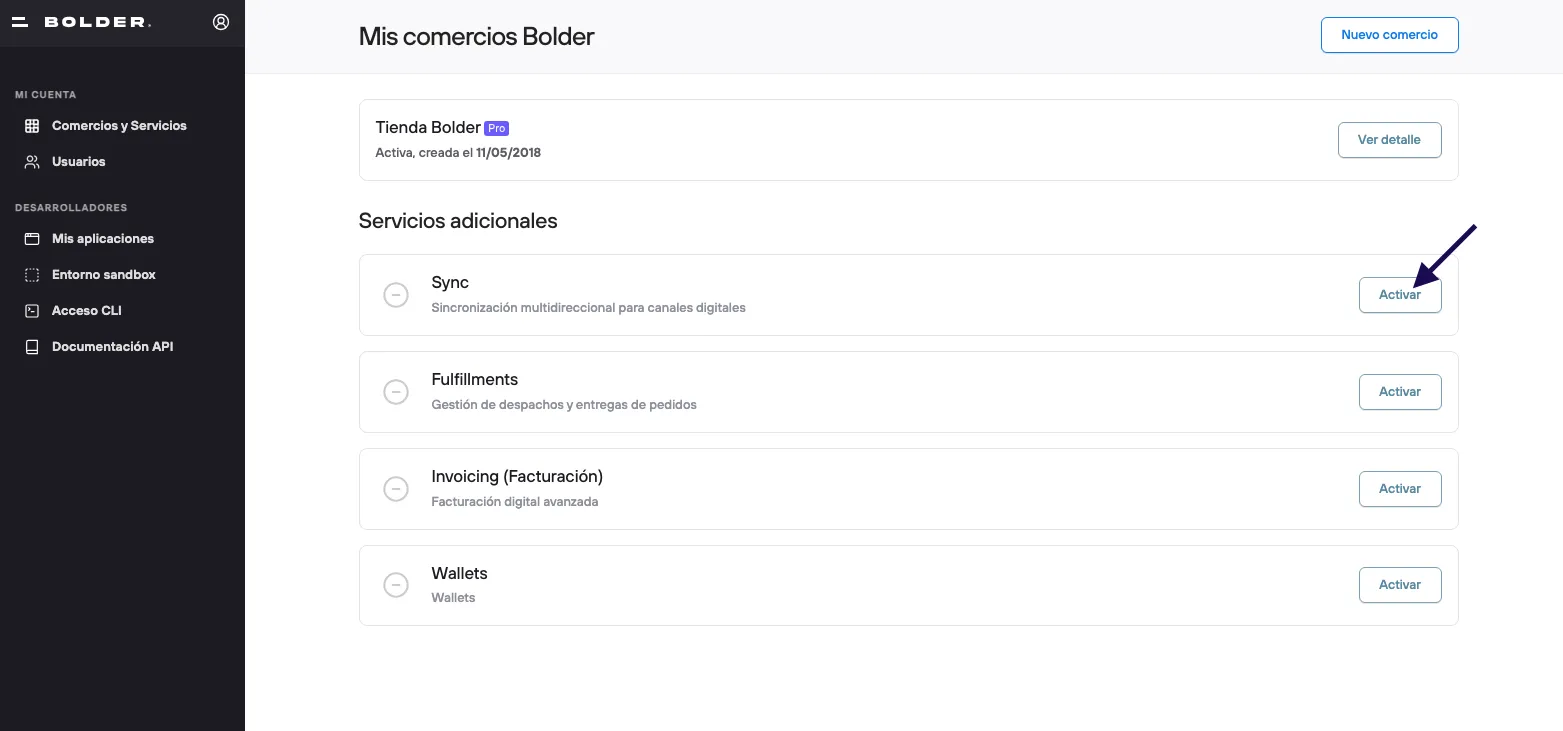
To activate the service, go to your Bolder account and activate the Sync service.
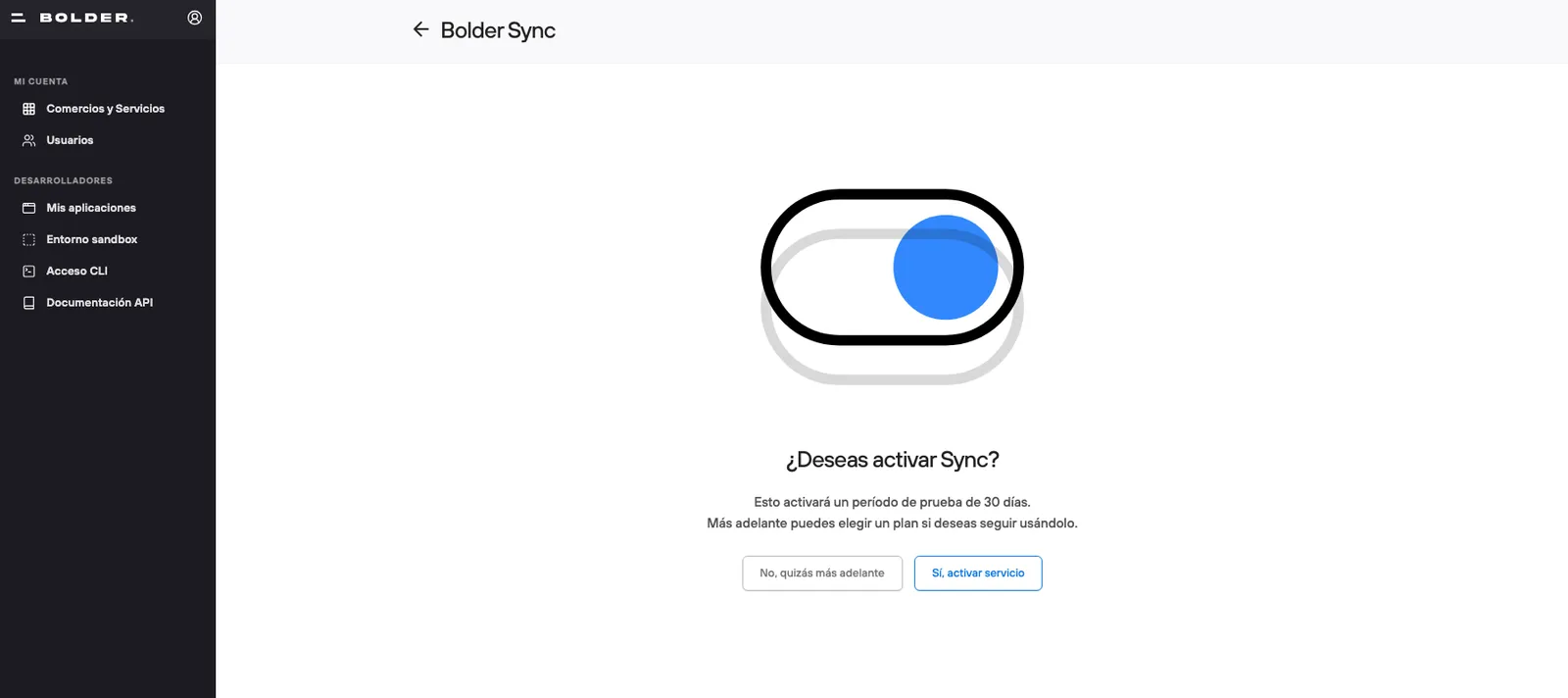
- Then, from the admin panel go to Addons and Integrations > Sync and activate the service in the Bolder admin panel

-
Now, after reloading, you will have a new entry in the admin panel: Connections.
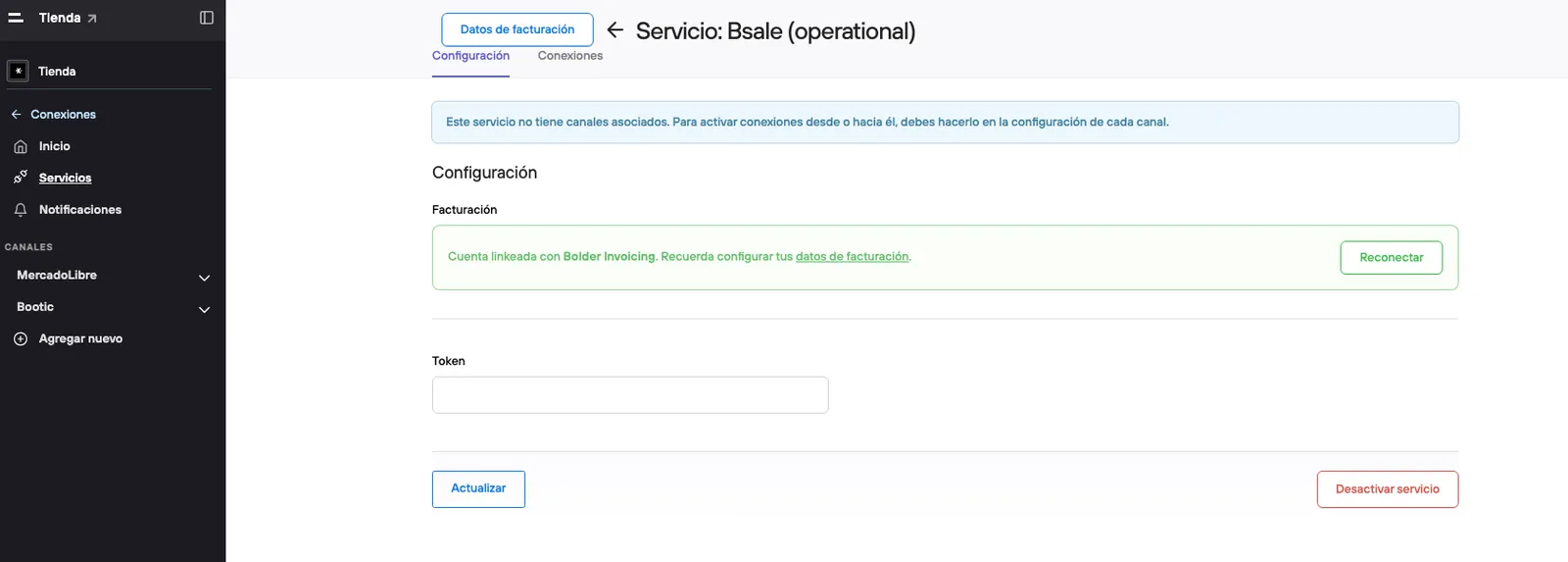
Here, go to the Services section > and activate Bsale

-
Once it is active, enter the API token provided by Bsale and click Update.
-
Then, in the Channels section, activate Bolder

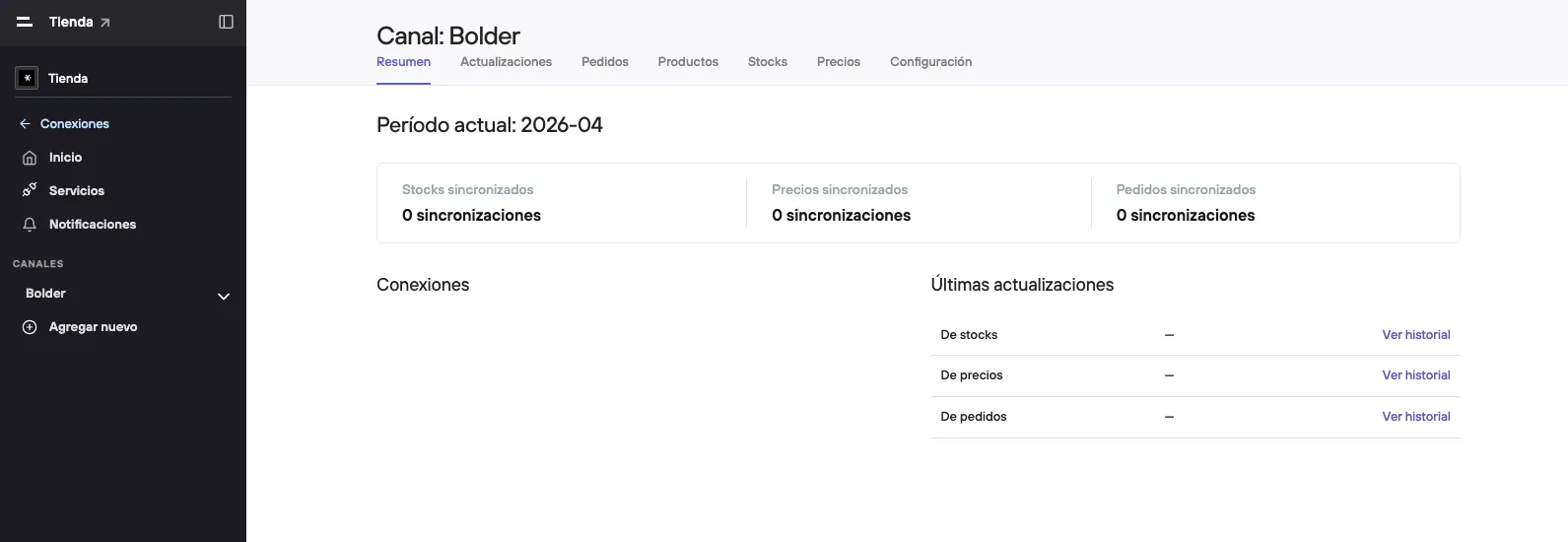
-
Click Settings inside the Bolder channel to activate each available sync
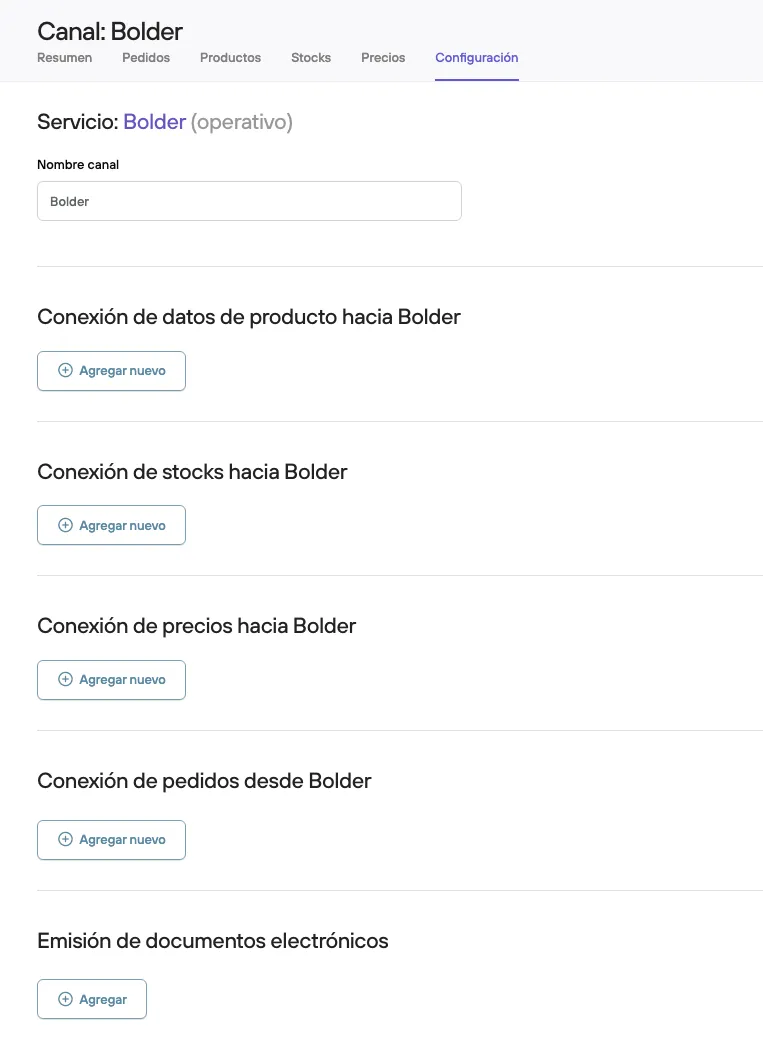
Stock connection to Bolder
You must define at least one warehouse rule, indicating:
- Source warehouse (Bsale): the warehouse from which Bsale will send the stock
- Destination warehouse (Bolder): the warehouse in Bolder that will receive that information
You can add multiple rules to map different warehouses between both platforms. Click Add warehouse for each additional combination.
Price connection to Bolder.
For each price rule you must select:
- Source price list (Bsale): the list the price will be taken from
- Destination price list (Bolder): the list in Bolder that will be updated with those values
As with warehouses, you can set up multiple rules to handle different lists (for example, retail price vs. wholesale price).
Issuing electronic tax documents (receipts or invoices)
Turn on the Generate document in Bsale option. This option also requires the Invoicing manager to be active in your Bolder account. Once it is on, for each order confirmed in Bolder, Bsale will generate the corresponding tax document and update the stock by deducting the units sold.
If you don’t have this connection active, you will have to do the inventory up to date in Bsale so the stock stays balanced (considering it will have no data on the units sold).
The connection of product data to Bolder and the connection of order data from Bolder are not available for syncing with Bsale. These settings apply to other services.
Once the channels are set up correctly, the Bsale sync with your Bolder store will be operational.
Once the integration’s connections are active, the product sync will start running automatically.
Channel: Bsale
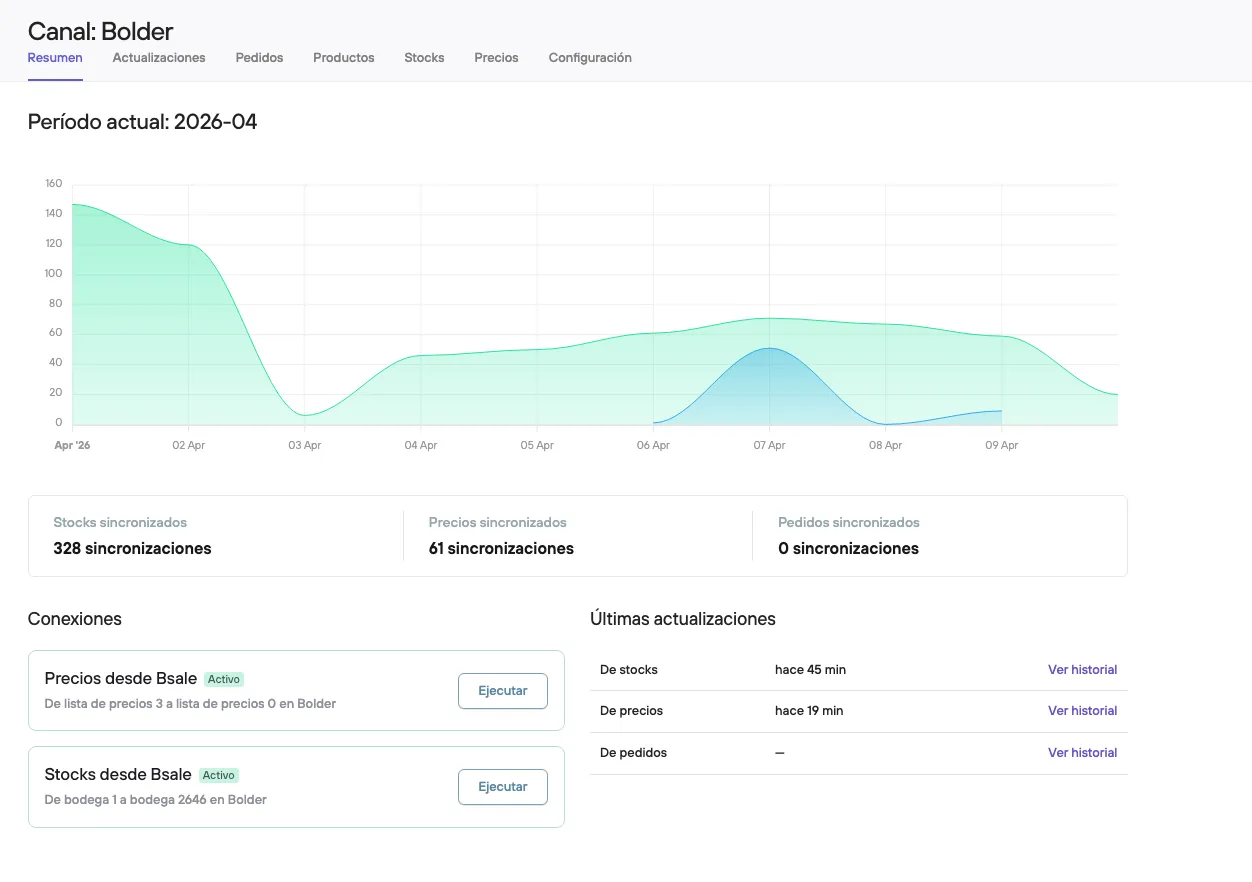
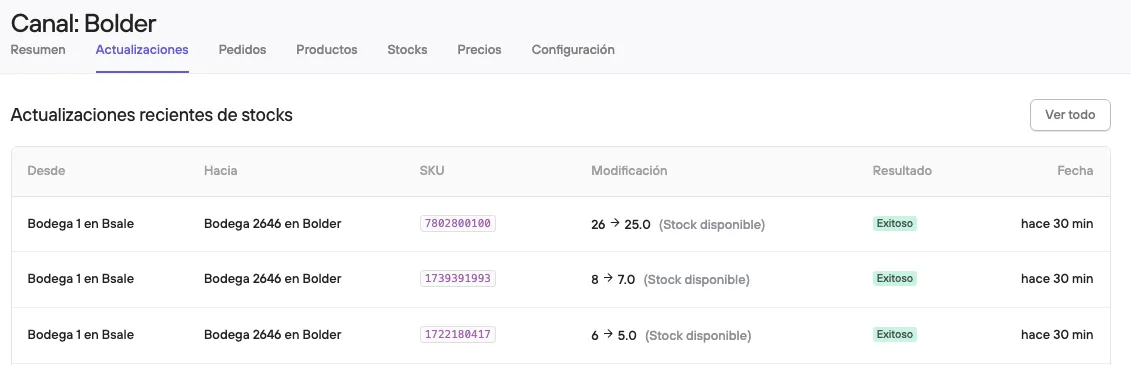
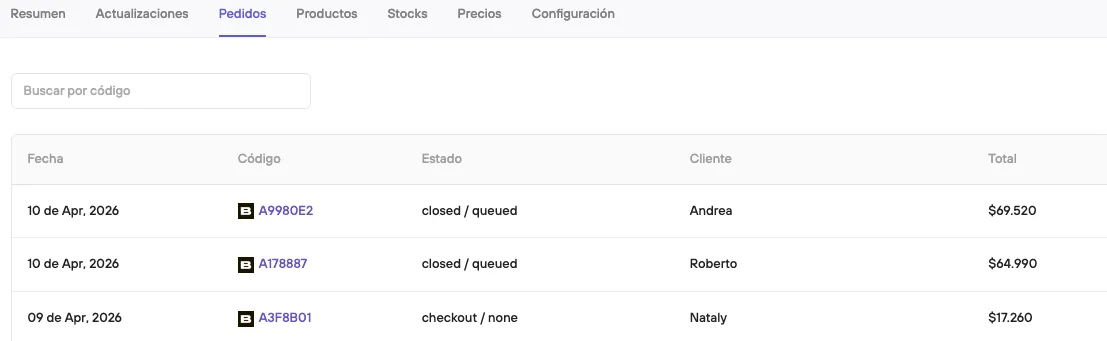
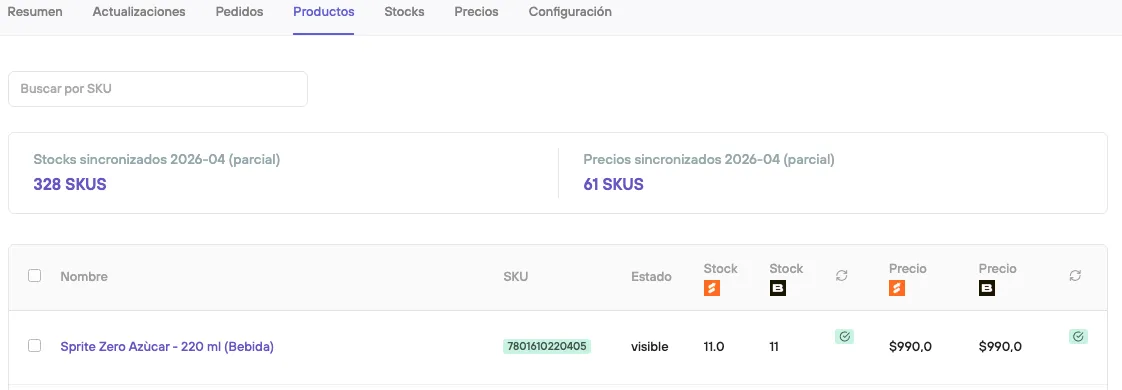
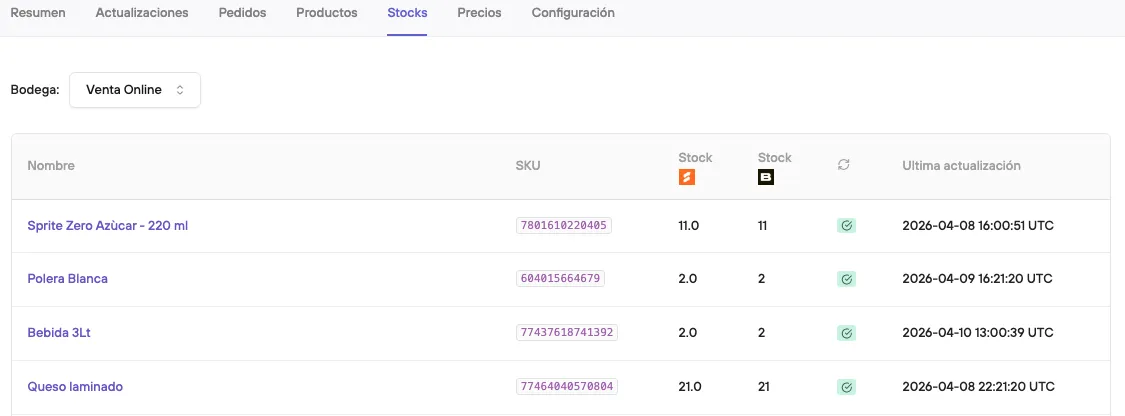
In the Sync admin panel, under Channels > Bolder, you can review the information associated with the integration, such as the latest updates generated, the status of the updates, and recent changes made.
From here you can also force connection runs when needed.