Suppliers
Description
Bolder Suppliers is an easy-to-use platform where you can manage your products and the orders tied to a Bolder store.
Steps to activate and use your account
-
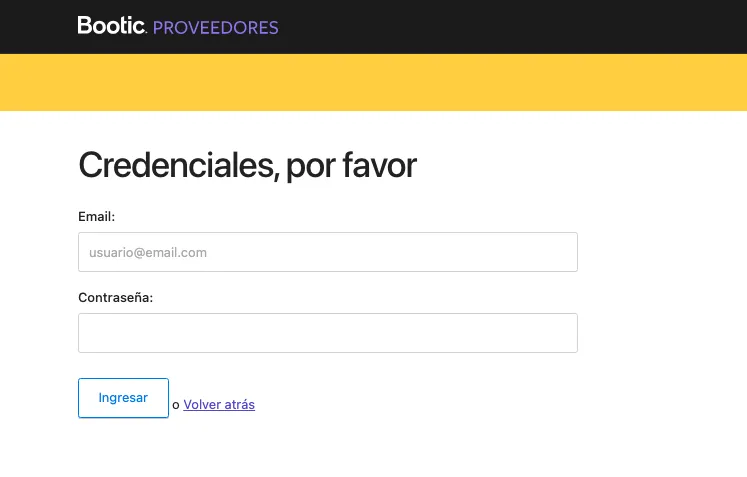
The store administrator must give you your access credentials so you can log in with your email and password.
https://providers.onbolder.com/providers/login
-
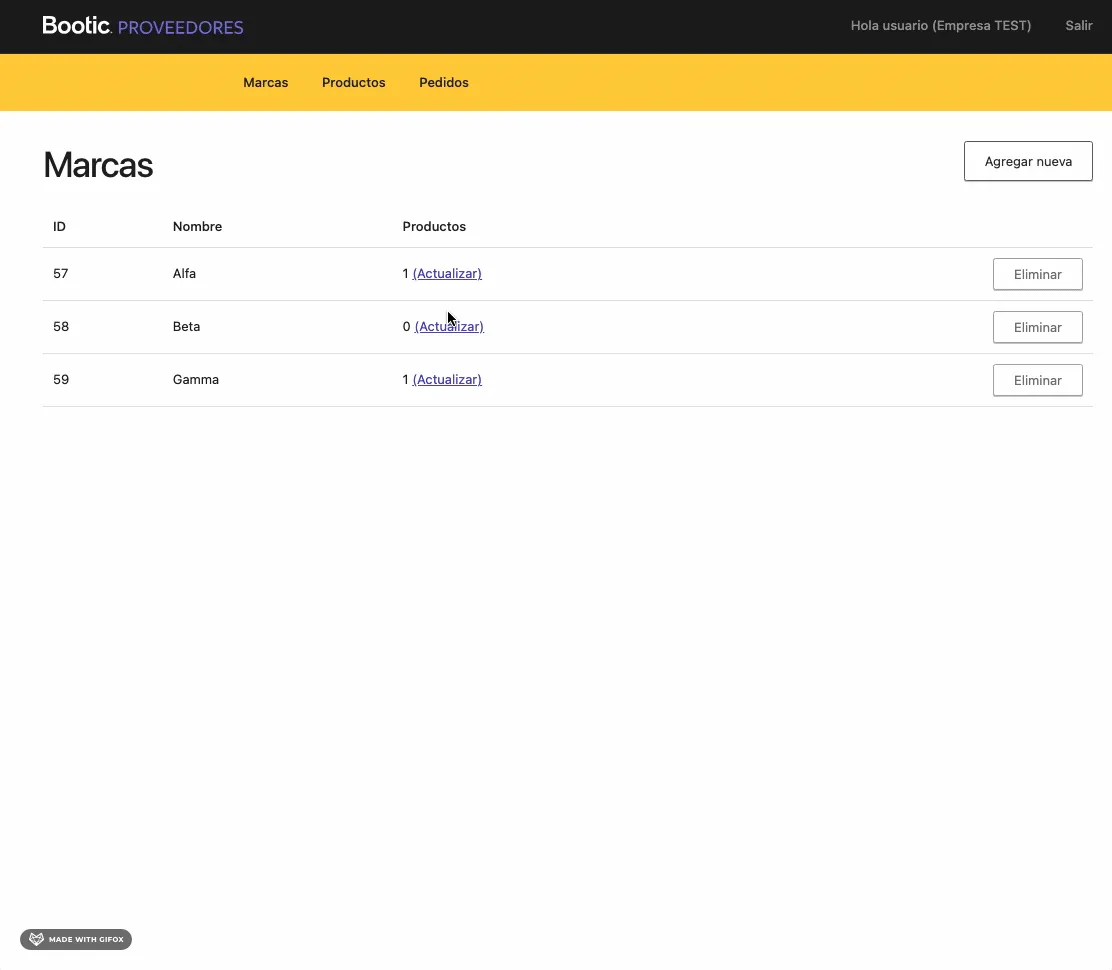
Once you log in to your panel, you will find 3 sections in the menu: Brands, products, and orders.
The first thing you must do to create your products in the store is to define the brand.
If you sell products under your own brand, you can create just that one, but if you sell multiple products from different brands, we suggest creating each of them.
-
Once you have created your brand or brands, you can continue with creating products.
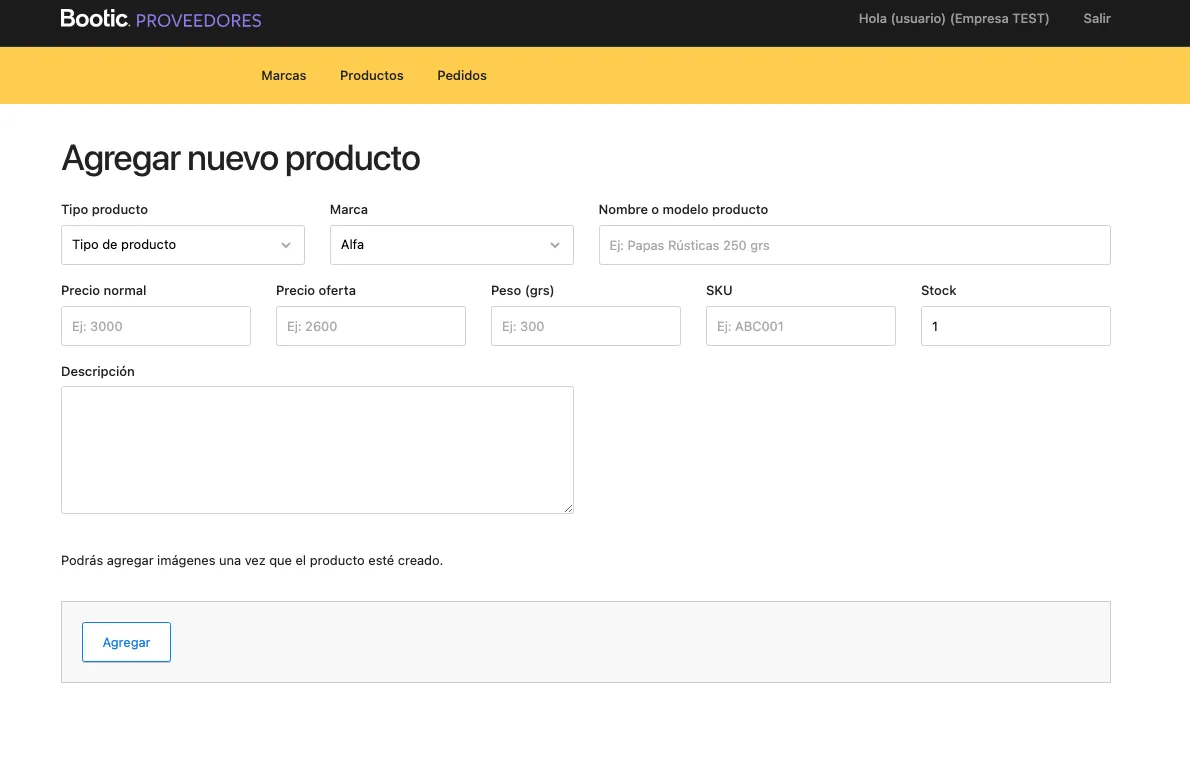
Products menu > Add new.
Here you must fill in the requested fields. All this information will be visible in the store once the listing is approved.
- Product type: General classification of the product. You must confirm it with the administrator.
- Brand: Here you can use the brands you created in step 1.
- Product name or model: Public name of the product. It must be real and descriptive.
- Regular price: Selling price of the product
- Sale price: Optional field. If present, this value replaces the regular price.
- Weight in g: Actual weight of the product, required to calculate shipping
- SKU: Unique identifier. It must be verified with the administrator.
- Stock: Number of units available for sale. It must always be kept up to date.
- Description: Detailed information about the product
-
Once the product is created, you must add the images for it, in the format the administrator indicates.
-
Once the product is created on the platform, you must coordinate with the administrator so they approve the listing and the products become visible on the site.
-
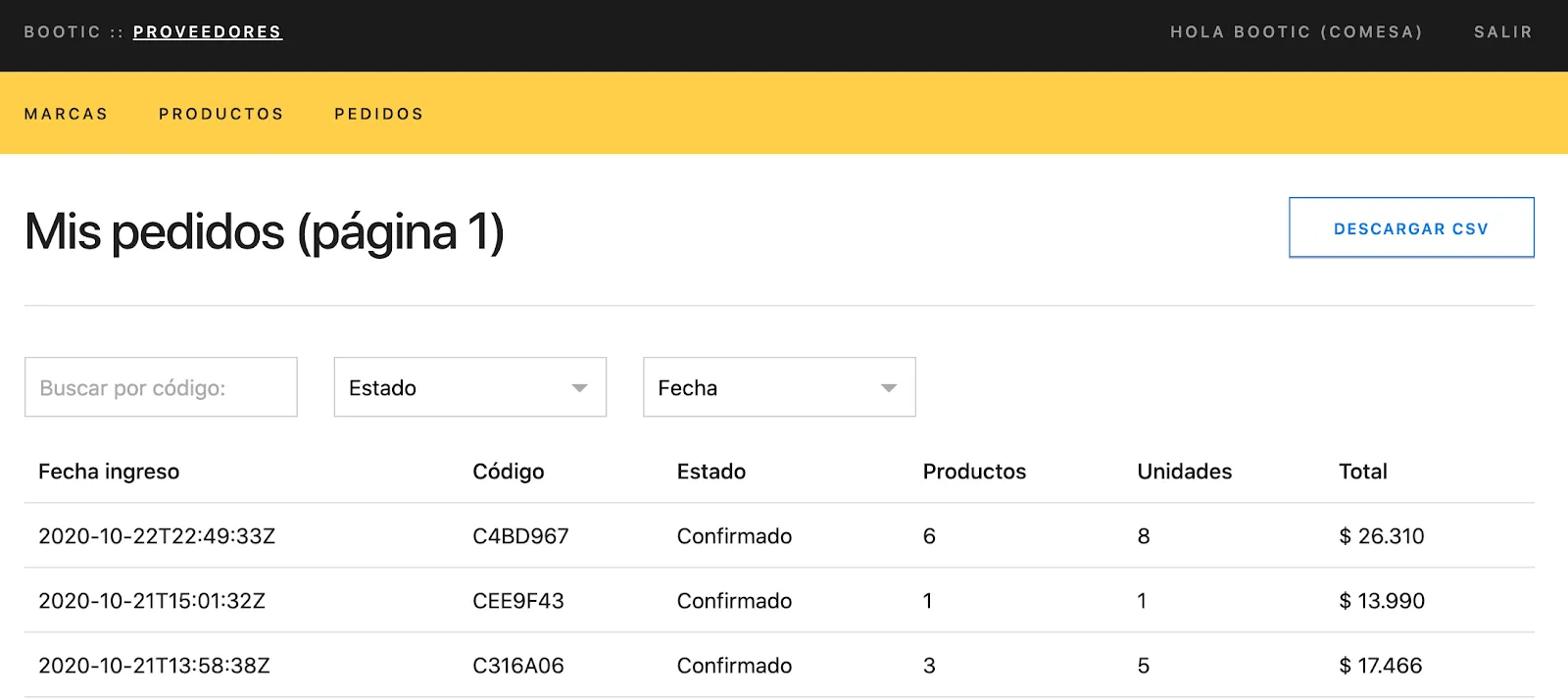
Once your products are visible and available for sale, you can review the orders that include your products.
-
Date received: The date the order was entered into the system. This does not mean a purchase was made on that date, since that depends on the order’s state.
-
Code: The order’s identification number
-
State: The financial status of the order
- Pending payment: Order entered in the system, but no payment recorded yet
- Confirmed: Order paid successfully
- Completed: Order paid and delivered to/received by the customer
- Canceled
-
Products: Number of products (your own) included in the order
-
Units: Units of each product (your own) included in the order
-
Total: Total amount in the store’s currency, usually CLP
-