

Calendars
A feature that lets you manage blocking days according to your operation’s needs. For holidays, contingencies, special events, or to customize shipping options, you can make adjustments directly in the calendar, changing availability as needed.
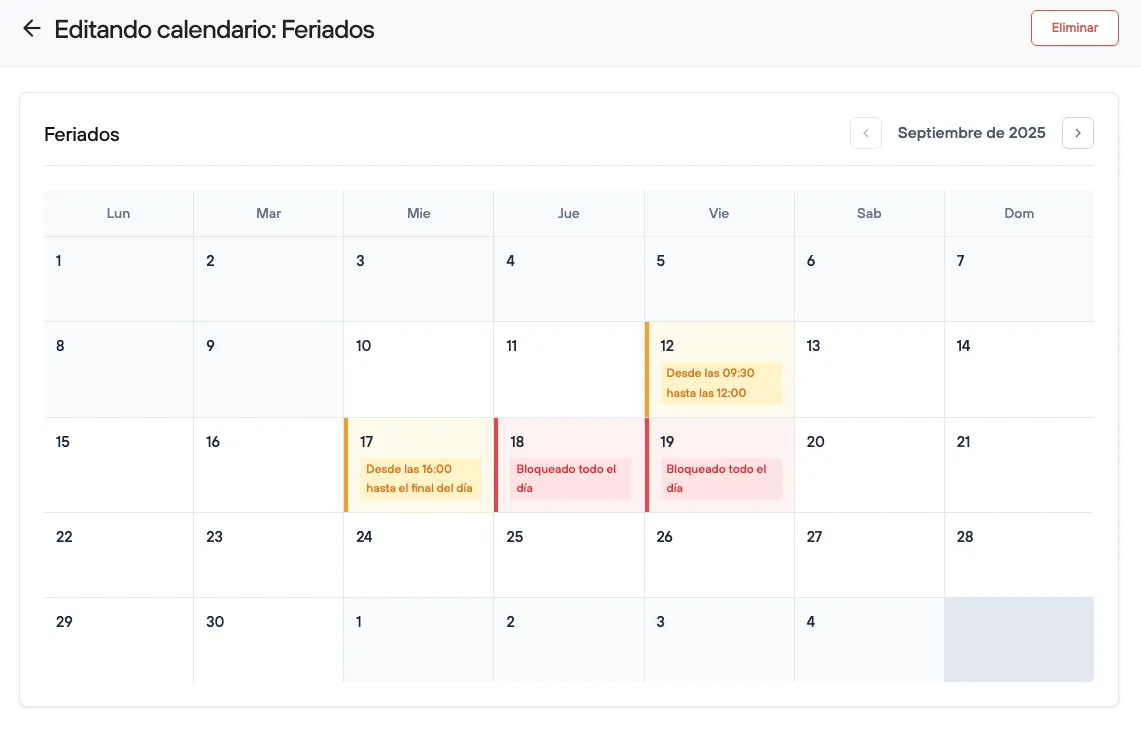
With calendars, you can control your availability of schedules and delivery windows, and also define blocking periods for promotions.
Initial setup
From the admin panel, go to Preferences > Delivery options > Calendars to start the setup.
To create one, you only need to enter a unique name, then schedule blocks and link it to the corresponding feature.
In general, we recommend having a single calendar that groups all the settings linked to your store, for example a “Holidays” calendar, but if you need different settings, you can create as many as you need.
When you open the calendar you created, you can perform 3 actions:
-

Block the whole day: A block that restricts the entire day. When you create a block, the selected day is marked in red and shows “Closed all day”. Here you can add an informational description for internal use.
-
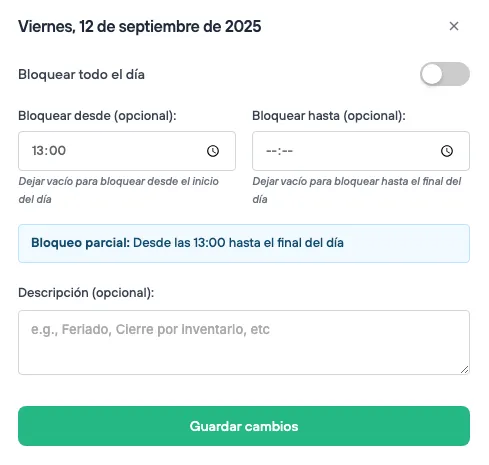
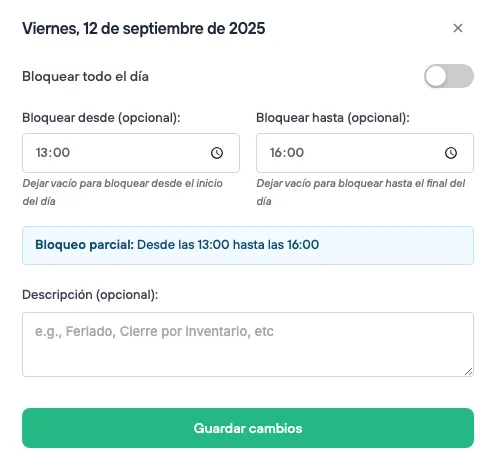
Schedule a block: This option lets you define a specific time to block availability. Once scheduled, the day is marked in yellow and the time when the block applies is shown. You can also add an informational description for internal use. The block can run from a specific time until the end of the day, or over a specific time block.
This type of block serves two purposes: it makes the scheduled time block unavailable and also blocks the whole day once the set time arrives.
Keep in mind that this setting will automatically block availability for the selected day on all previous days and also on the same day, within the set hours.
-
Unblock: Enables the blocked day or time again. By default, the whole calendar is unblocked. The day must be in its original color.
To make a day available again, just remove the changes you made and save. These adjustments only apply to the current day and future days.
When you link a calendar to its corresponding settings, you can block specific dates quickly and easily, without having to change the existing setup. You only need a few clicks to select the dates you want to block.
Block pickup or shipping days for orders: Calendar in schedules and delivery windows
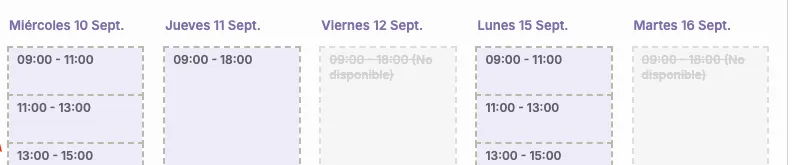
If you already have your order preparation and dispatch logistics in place, with clear preparation times or schedules that are visible to your customers, this setting will be relevant for blocking specific dates.
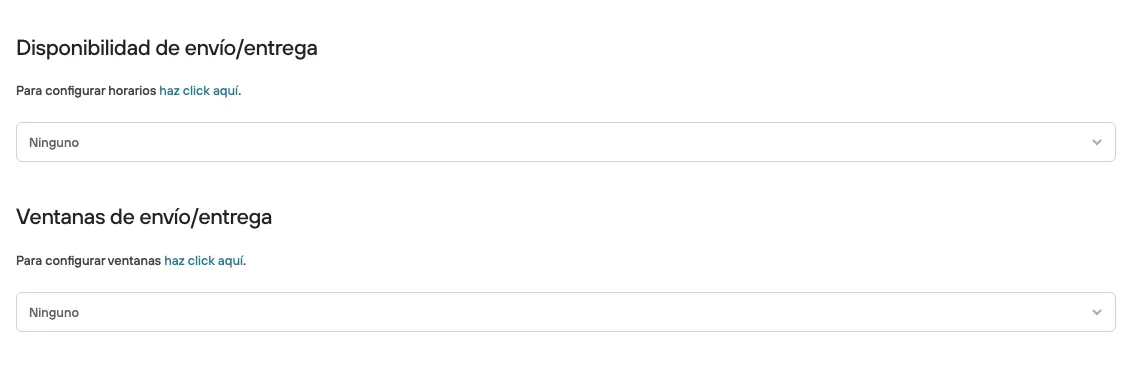
Shipping options can work with specific availabilities and/or windows. Open the shipping option and you will find them at the bottom.
-
Shipping/delivery availability: Here you can set a delivery schedule you created.
-
Delivery schedules: These are the time ranges during which you want to offer a specific shipping option.
The periods defined in each schedule determine when that option will be visible to the customer. That is, the customer can only see and select the shipping or pickup option if they place their order within the days and hours set beforehand.
For example, an express shipping option can be available only Monday to Friday, between 10:00 and 16:00.
-
-
Shipping/delivery windows: Here you can set a delivery window you created.
-
Delivery windows: These are time blocks the customer can select to receive their order or pick it up in store on a specific date.
The periods set in each window are shown to the customer when they choose the corresponding shipping option, letting them select the exact day and time slot that suits them best for delivery or pickup.
For example, the customer can choose which day and time they want to receive their order.
-
So, if what you want is to block a particular day or period, you must review your delivery schedules and windows.
Since the shipping option is linked to a schedule or window, the calendar is linked in those.
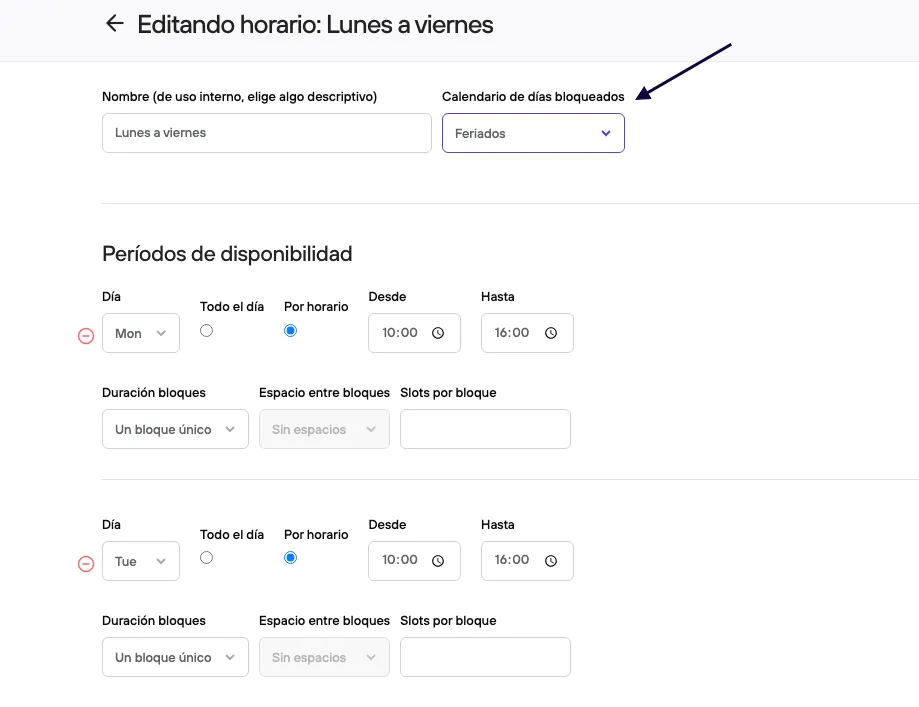
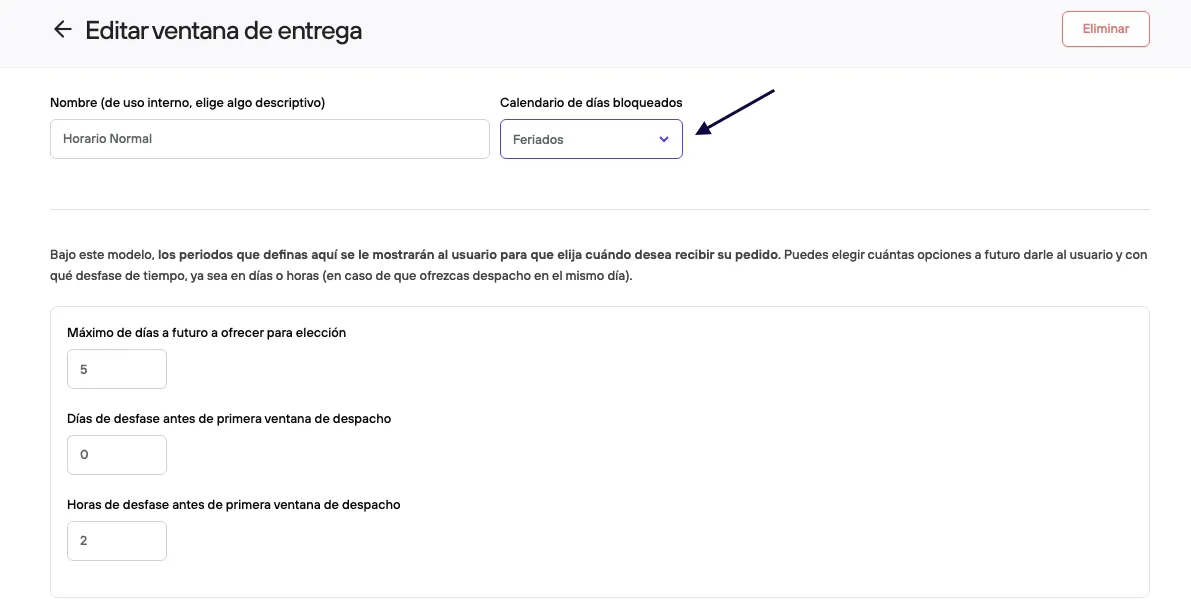
Once the calendar is linked under blocks in the delivery schedule or window, you only have to apply the block on the specific dates.
Calendar in Promotions
The blocking calendar can also be linked to promotions. This is especially useful when a promotion is active permanently or for long periods of time.
If you need to temporarily suspend a promotion’s availability on specific dates, you can link it to a blocking calendar.
This way, you avoid having to turn it on or off manually each time, saving time and reducing possible operational errors.
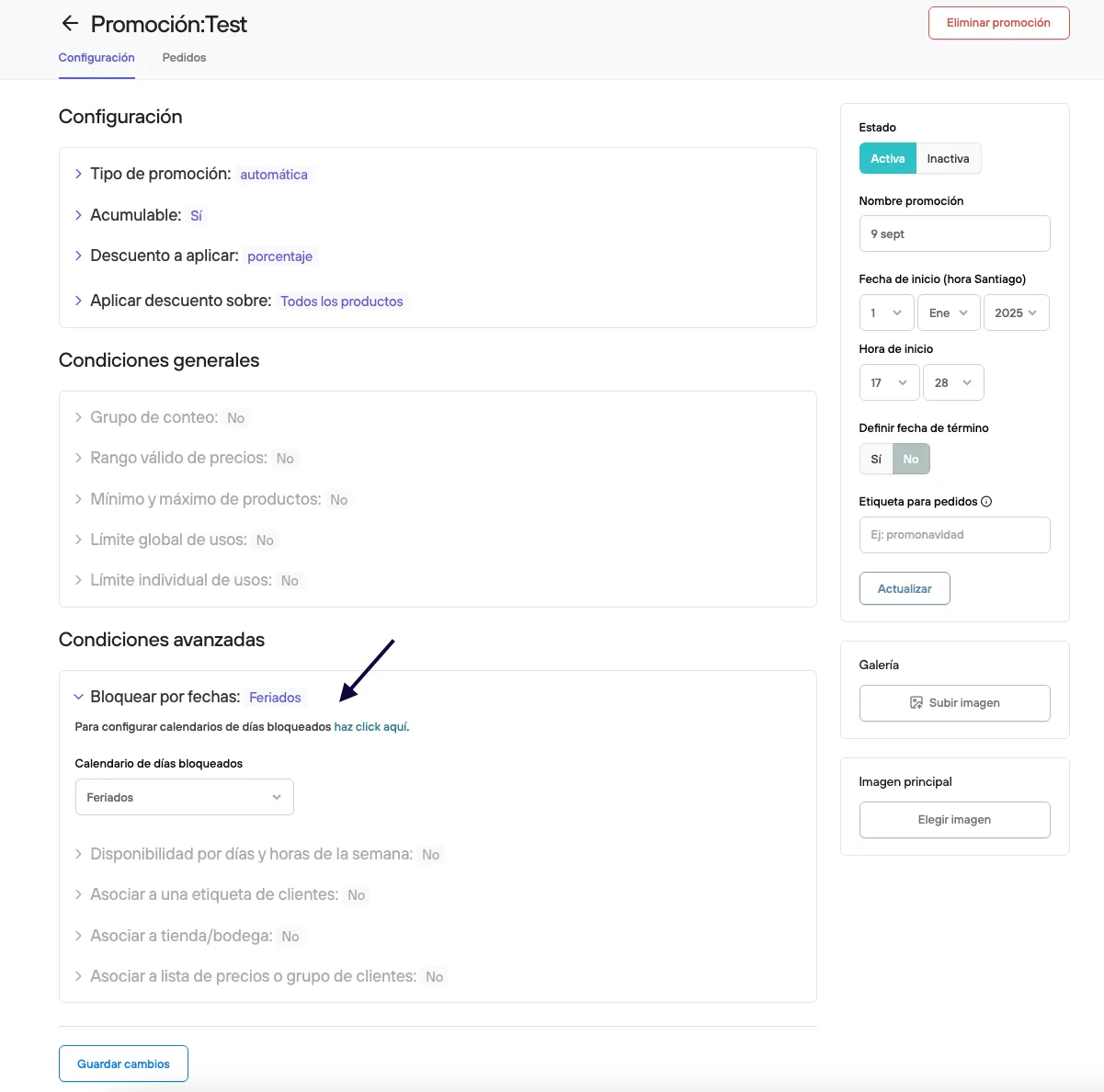
Once you have created your calendar, from the panel, go to Promotions and open the promotion you need to block. Once inside, go to the section Advanced conditions > Block by date, and select the calendar to link. Remember to save your changes before closing.
Being transparent about promotion validity, schedules, and availability for shipping and pickup during closures or holidays is key to ensuring a good customer experience.