

Fulfillments
Fulfillments is a Bolder feature that generates shipping labels automatically, validating addresses and letting you print them easily, all from the same place, regardless of the courier you use.
Activation and initial setup
Activate the feature
- Go to the Bolder admin panel.
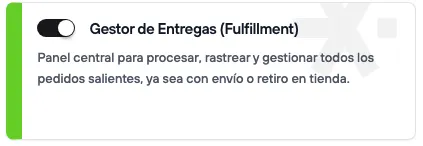
- Go to the Addons and Integrations section and, in the Stock & fulfillment category, activate Fulfillments
- Once it is active, you can open its settings directly.
Fulfillments information setup
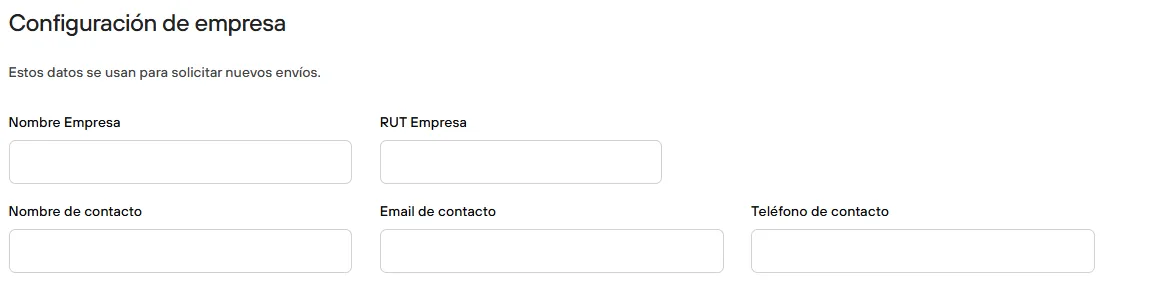
When you open Fulfillments, you must fill in the information that will be used to generate new labels and/or shipping requests.
Company settings:
- Company name
- Company tax ID (RUT)
- Name of the contact in charge of the app
- Contact email
- Contact phone
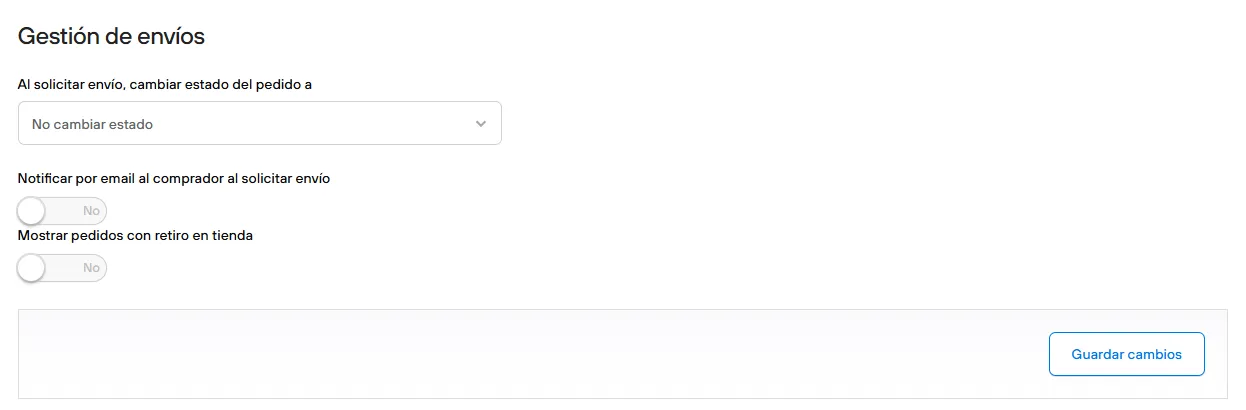
Shipping settings:
Here you can set how order states behave when a shipment is requested, and whether these changes are notified to the customer so they have more control and can track their purchase.
Packaging setup
Depending on the commercial agreement you have with the courier, or the type of product you sell, you can define packaging to generate shipments.
If you don’t have a default packaging setup, you can manually set each parameter (width, height, length) for each order.

Courier setup
The last setup step to start operating is to select and connect the couriers you will use. When you select the company, the credentials to enter will appear. They vary by courier and by the service you contracted with them.
The following are currently available*:
- Alasxpress
- BlueExpress
- Cabify
- Chilexpress
- ChilespressRest
- CorreosChile
- Enviame
- FedEx
- HCGroup
- Justo
- Motopartner
- PedidosYa
- Shipit
- Starken
- UberDirect
*Some couriers may require prior validation. Our support team is ready to help you confirm their activation.
Shipping options setup
From the Bolder admin > Preferences > Delivery options > Shipping options and costs, you must create and/or configure each of the shipping options that will be available for your orders.
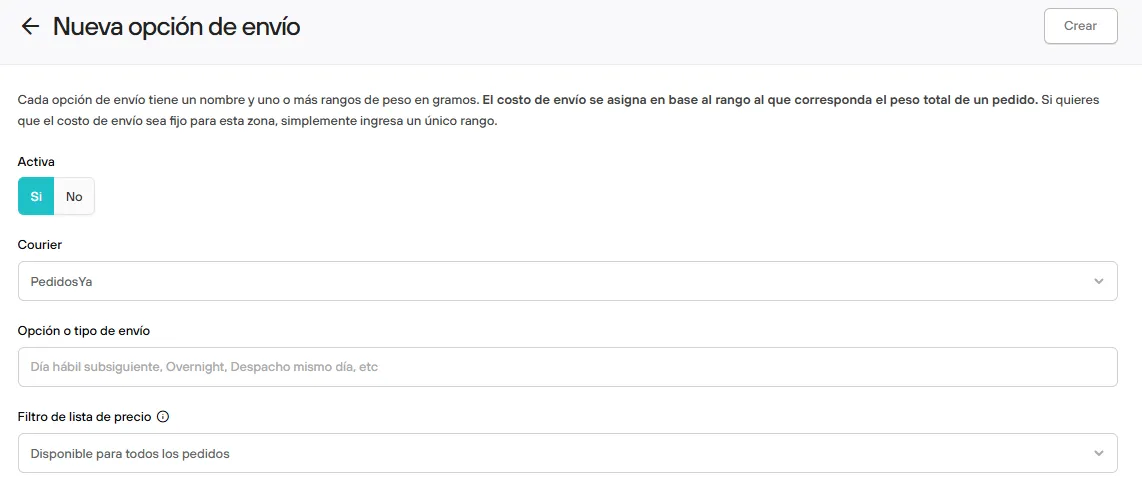
When you create or edit a shipping option, you can select the integrated courier it will work with. That way, when an order comes in with this shipping option, you can manage it directly.
If you don’t set this on the shipping option, or you have multiple courier options, you can select the shipping company directly from the order management in Fulfillments.
In every case, regardless of the courier being used, your customer will always have to pay the shipping cost you set when creating the shipping option, so we recommend keeping them updated to the real or average value you have agreed with the company.
Manage and request order shipments
Once your credentials are active, you can start generating shipping labels or requesting shipments for your orders. You can work directly from Fulfillments, or from the admin, in each order’s detail.
In Fulfillments, in the Orders section, you will see all the orders that have been confirmed in your e-commerce store, depending on whether the purchase uses shipping or in-store pickup.
If you have set up the shipping option with its courier, you will also see the logo of the associated company here.
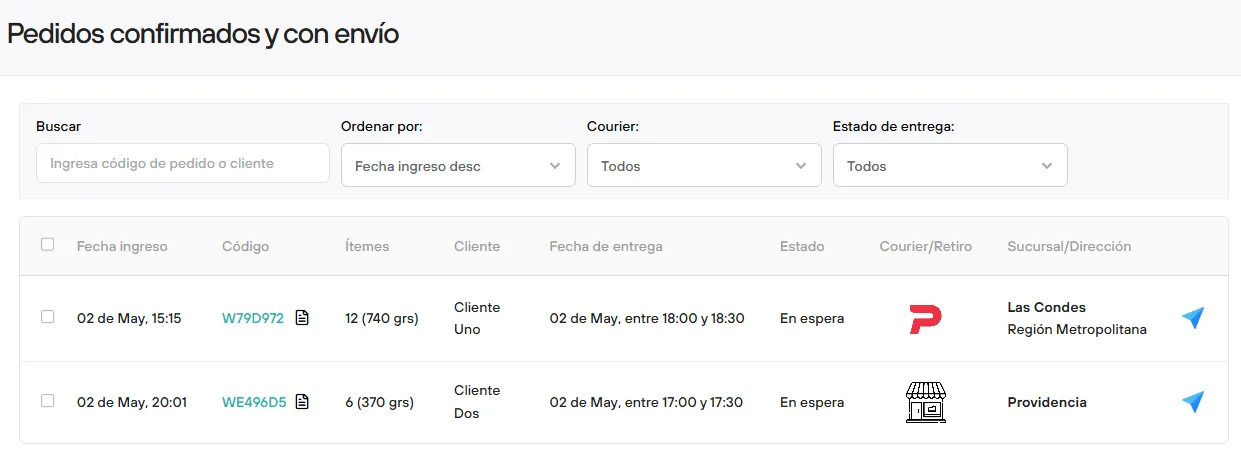
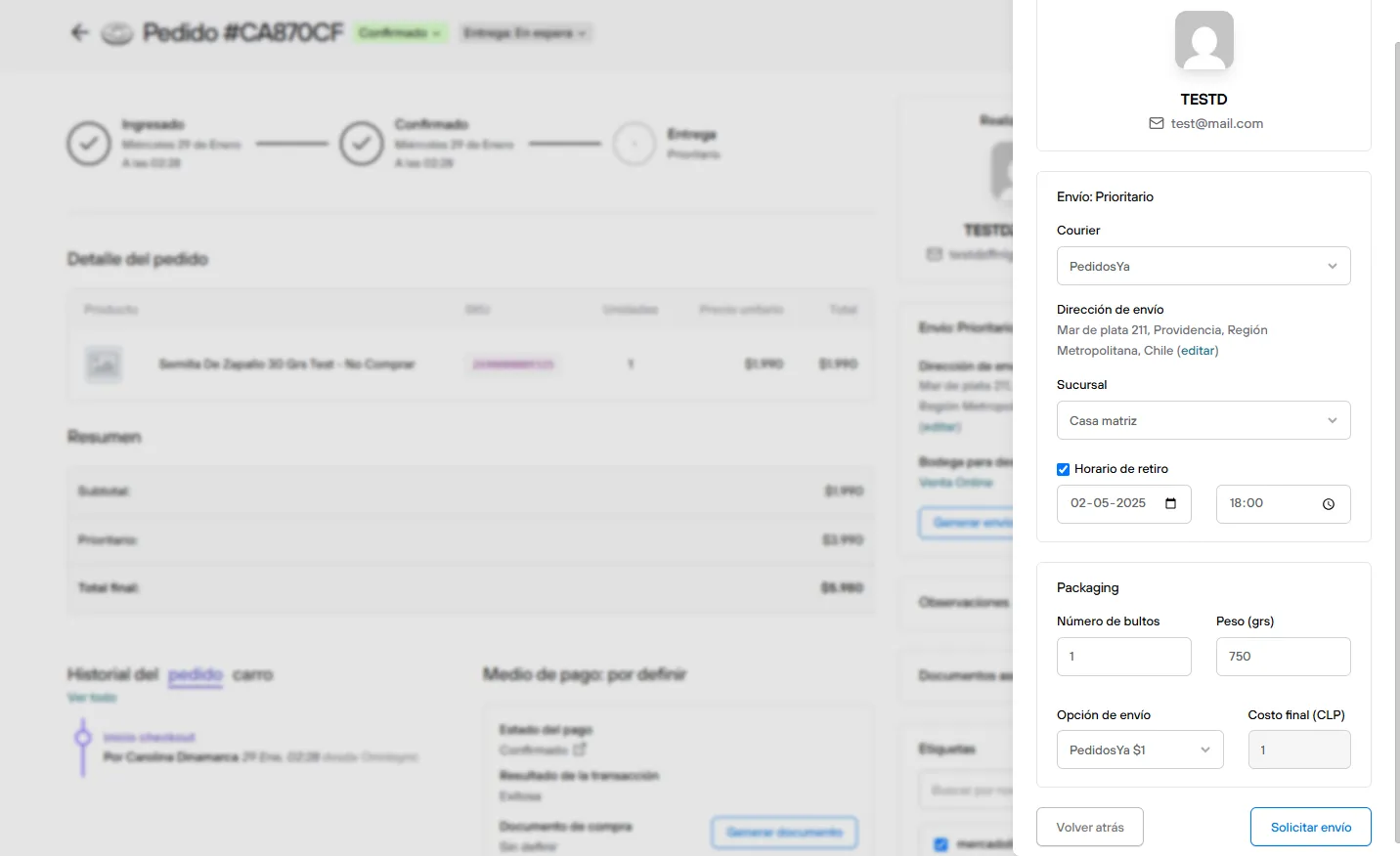
By clicking the blue arrow next to the shipping address, you can see the order detail and the package setup, and request the shipment.
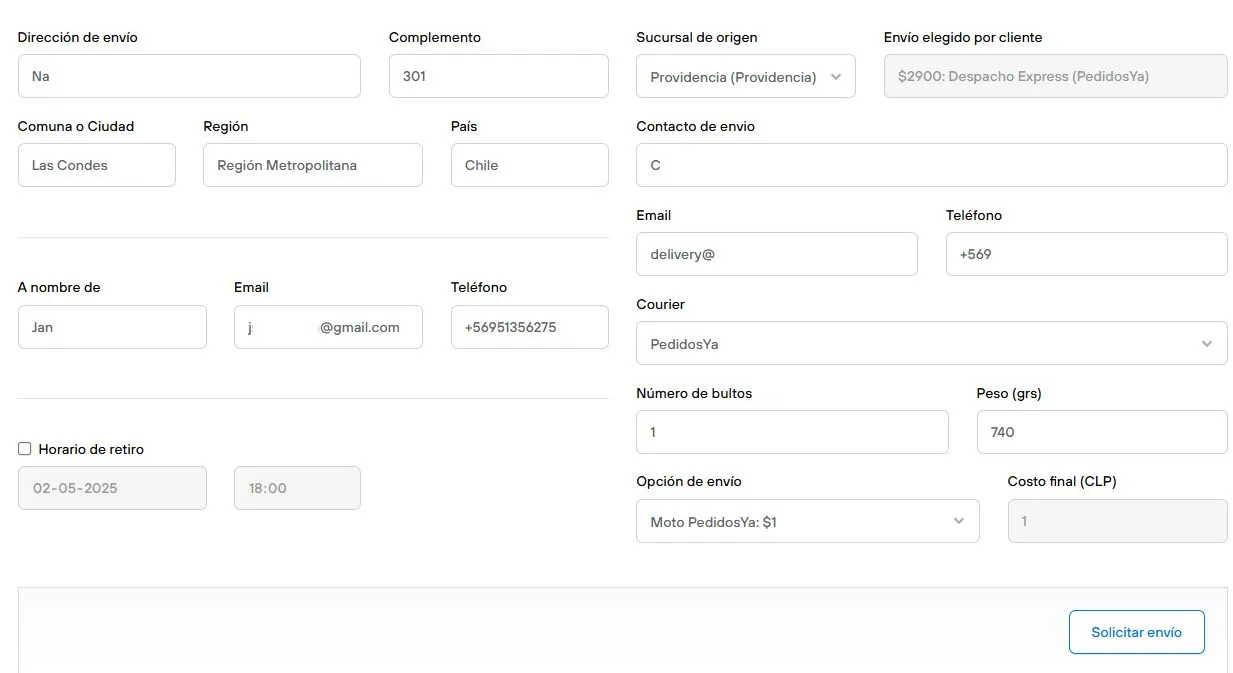
The Courier field will be prefilled only if the shipping option has this information. If you change the shipping company, or it wasn’t set beforehand, you can select it at this step.
When you click request shipment, the label will be generated, if applicable, and the shipment will be requested from the courier.
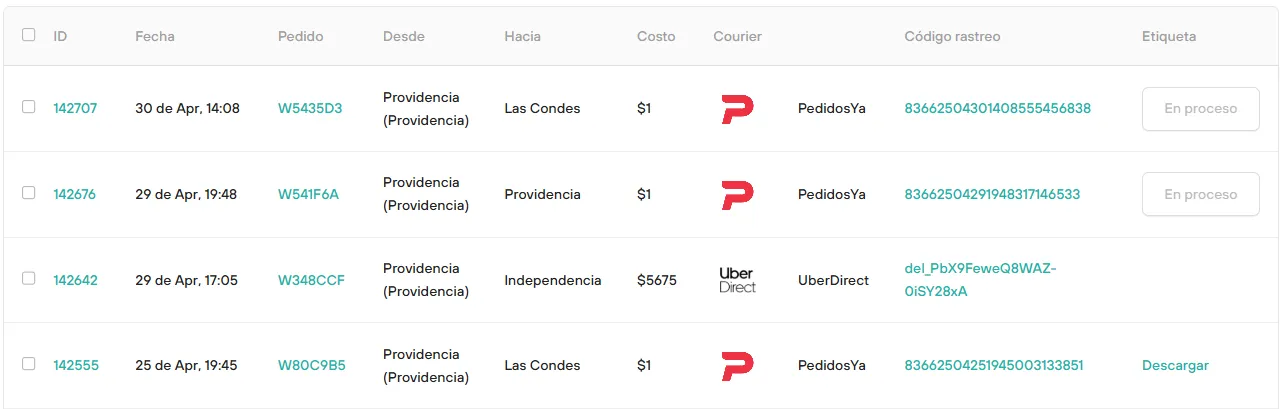
For shipments that have already been requested, you can check their status and tracking details in the Fulfillments section.
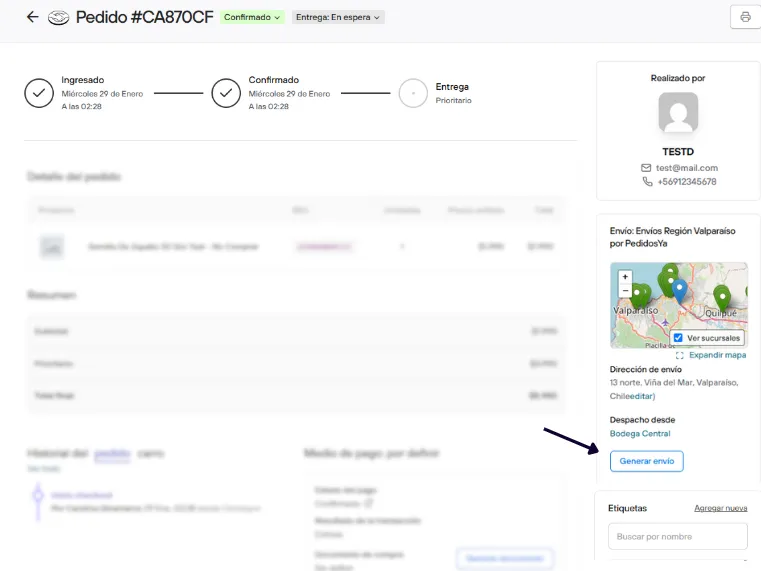
From the admin, in the detail view of a confirmed order, you can also generate the shipment.
On the left side, in the shipping address details, the Generate shipment button will be available.
Optimize your last-mile shipping with just one click: manage the pickup of your products quickly and ensure fast delivery to your customers