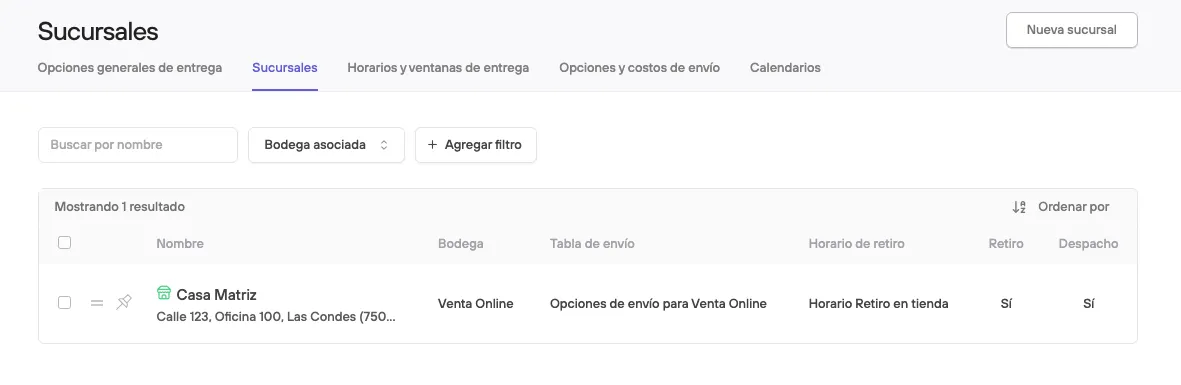
Branches
Branches are physical or virtual locations from which you can manage stock, process orders and coordinate pickups or shipments.
Setting up your branches properly will let you:
- Optimize logistics by automatically assigning orders to a specific branch.
- Offer in-store pickup, or pickup at different points, a feature customers value highly when they want to save time or avoid shipping costs.
- Control inventory by location, for more precise stock management that avoids overselling or unnecessary stockouts.
- Personalize the customer experience by showing relevant information such as address, opening hours and availability by location, in the case of a physical point.
Activation and initial setup
To sell to the public, you need to have a branch created and active.
From the admin panel, go to preferences > Delivery options > Branches.
Here you will find the branch created by default for your site, and you can create new ones.
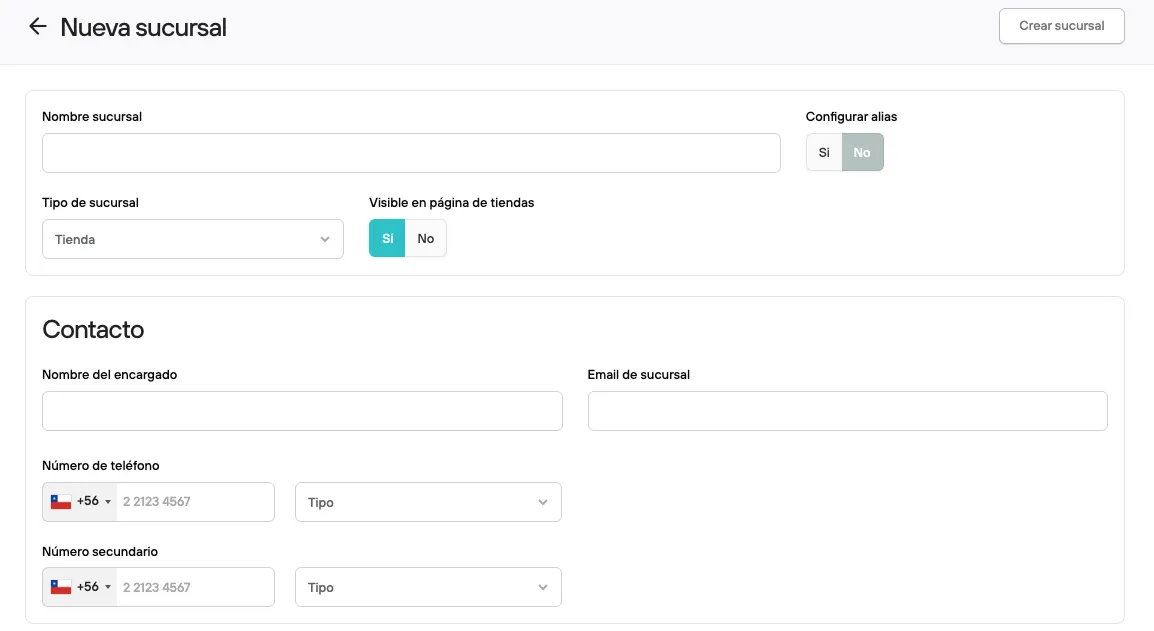
Creating a new Branch
When you create a branch in the system, you will need to fill in some key fields that identify it and define how it works.
Branch information
- Branch name: The official name that identifies the branch, both for internal use and for customers.
- Alias: A simplified version of the name, which can be used to identify the branch in a shorter or more technical way.
- Branch type: Defines the role or function of the branch within the operation. It can be classified as store, office or warehouse.
- Visible on stores page: Lets you decide whether this branch will be shown publicly on the branches page
Contact
These fields let you set the relevant contact details for each branch, which makes internal communication, customer support or logistics coordination easier:
- Manager name: Name of the person in charge of the branch. This can be useful for internal questions, order tracking or assigning responsibilities. This field is optional.
- Branch email: Contact email specific to the branch. It can be a more direct way to reach customer service.
- Primary and secondary phone numbers: Direct contact numbers for the branch. We recommend including a primary phone and, if possible, a secondary number as a backup, especially if there is customer service or pickup coordination on site. This field is optional.
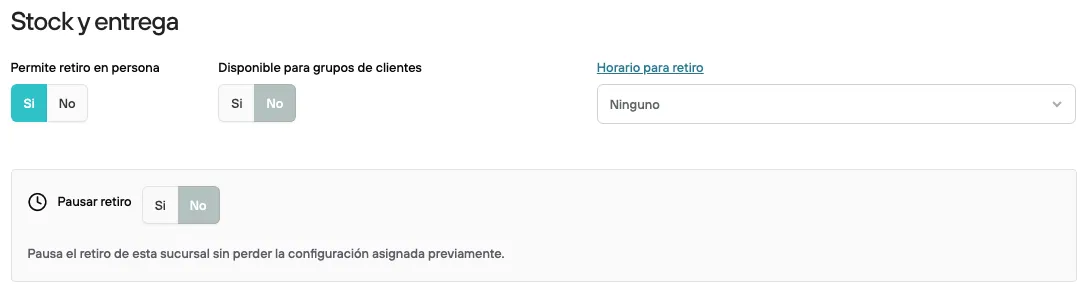
Stock and delivery
This section defines how stock and pickup or shipping operations will be handled from the branch.
About in-store pickup:
- Warehouse linked to the branch: This field will be editable only if you operate with more than one warehouse. Here you must select the warehouse that will be linked to this branch. This determines where available stock is deducted from for orders assigned to this location.
- Allow in-person pickup: Defines whether this branch will offer in-person pickup to customers. If turned on, users will be able to select this branch as a pickup point when they buy.
- Available for customer group: This feature applies only to stores that operate with Customer groups, or a Wholesale channel. Here you define whether this branch will be exclusive to customer groups, available to the general public, or to both.
- Pickup hours: In this field you can link a schedule table in which you have defined the days and time slots available for in-store pickup. This makes sure customers know exactly when they can come to pick up their orders, and prevents pickups outside business hours. This field is optional. If you leave it as None, you can let your customers know via notification when their orders are ready for pickup.
- Pause: Once in-store pickup is active, you can temporarily turn off the feature without deleting it or hiding it from your customers.
About shipping:
- Offer shipping: Defines whether this branch can be used as a shipping origin. If turned on, the system will consider this location for shipping orders to customers, based on stock availability and the logistics rules you have set up.
- Available for customer group: Lets you restrict shipping from this branch to certain customer groups, or make it exclusive to them. If turned off, the branch will not be considered for shipments to those segments.
- Delivery options table: Here you must link a delivery options table you have already created. This lets you define precisely which options and specific conditions each order will have.
- Pause: This option lets you temporarily suspend shipping from this branch without affecting other features
Branch address
For logistics to run smoothly and for your customers to have all the information clearly, it is key to enter each branch’s address correctly.
- Country
- Region, province or state
- City, district or commune
- Street and number
- Apartment, building, comments, etc.
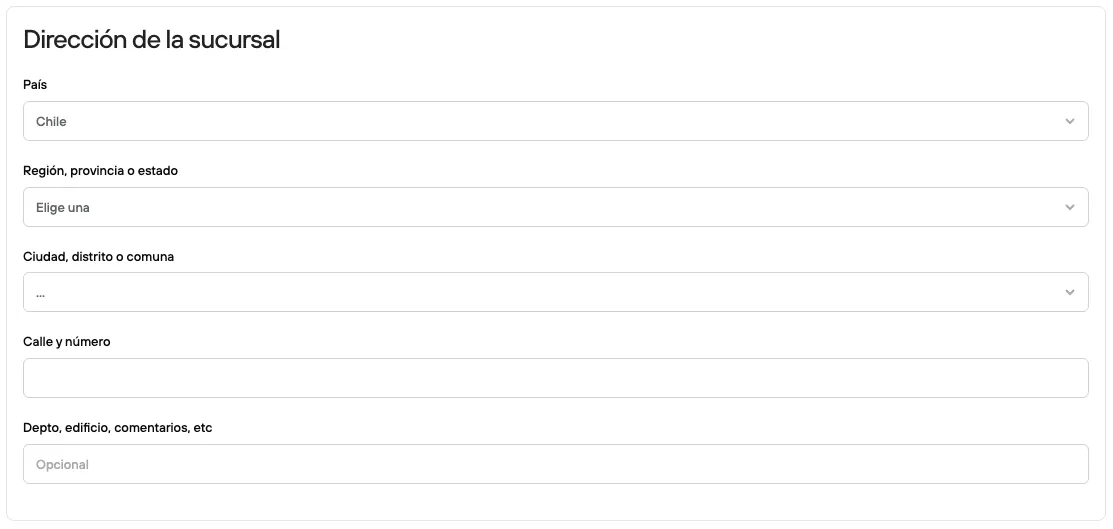
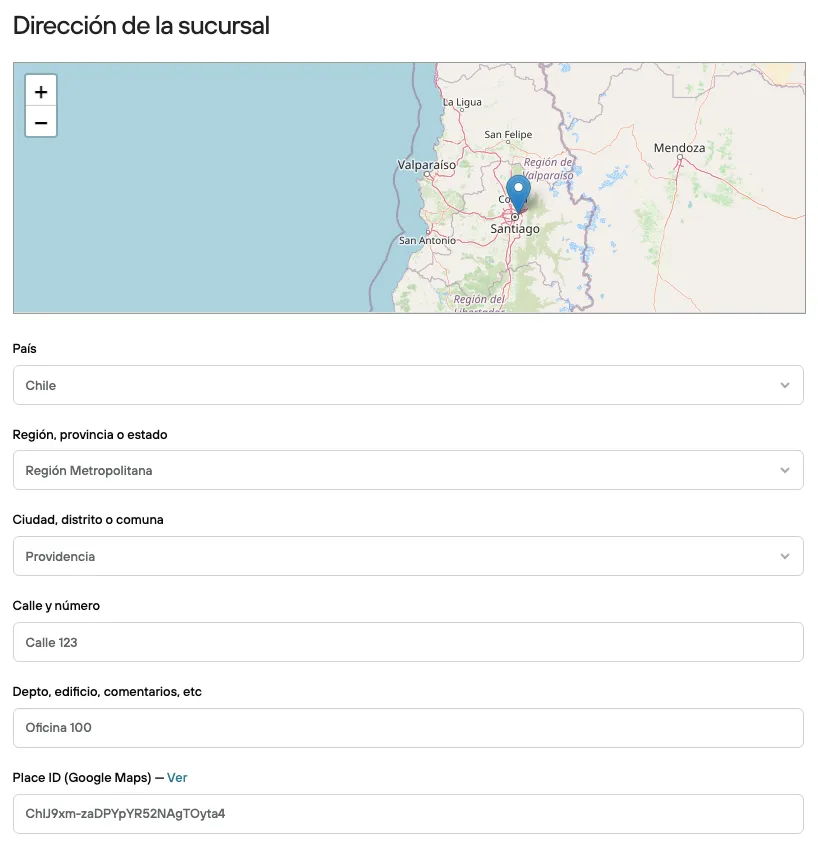
Once you save this information, the map will be generated and shown, along with the Place ID field and value, the unique code that Google assigns to each place or address to easily identify it in its maps and services.
Opening hours
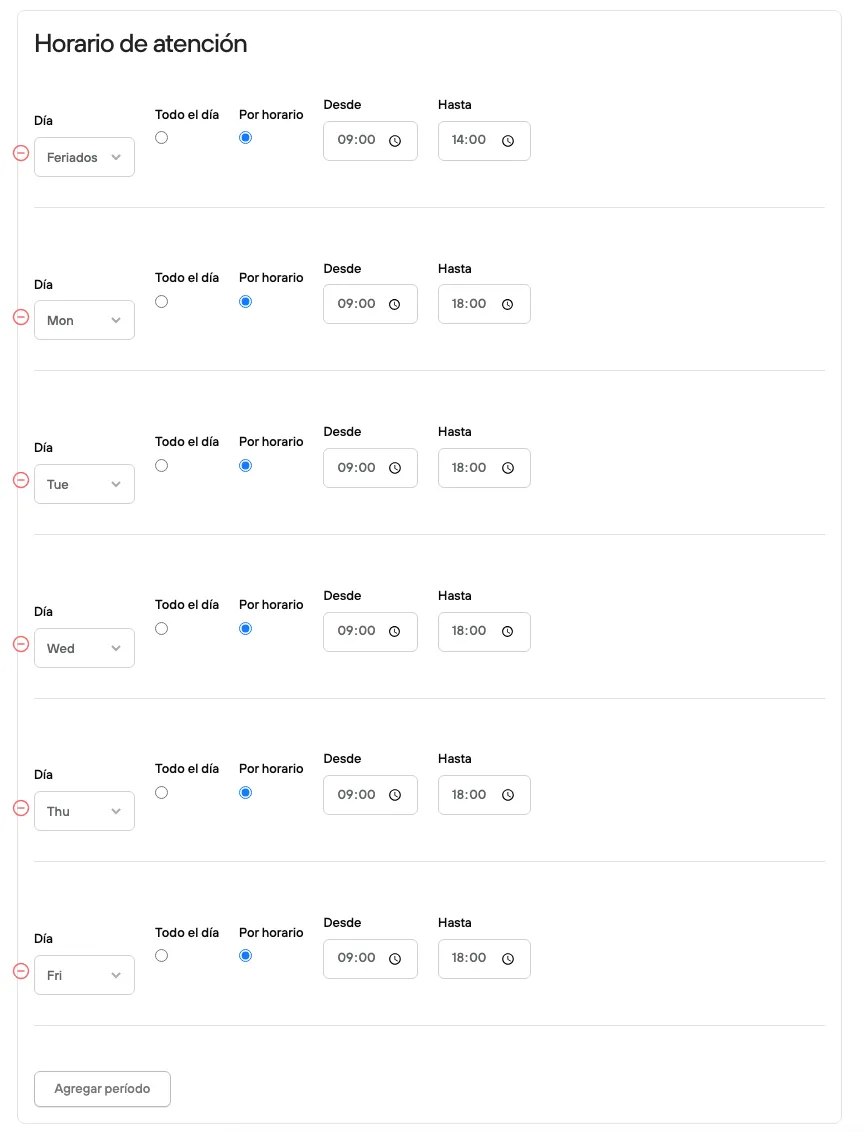
The hours set on the branch are independent of shipping or pickup operations, and are meant to give clear information to customers who want to visit the physical location, or want more information about when they can get in touch.
Here you can add days and time slots when the branch is open to the public, from Monday to Sunday, all day or by schedule. You can also create hours for holidays.
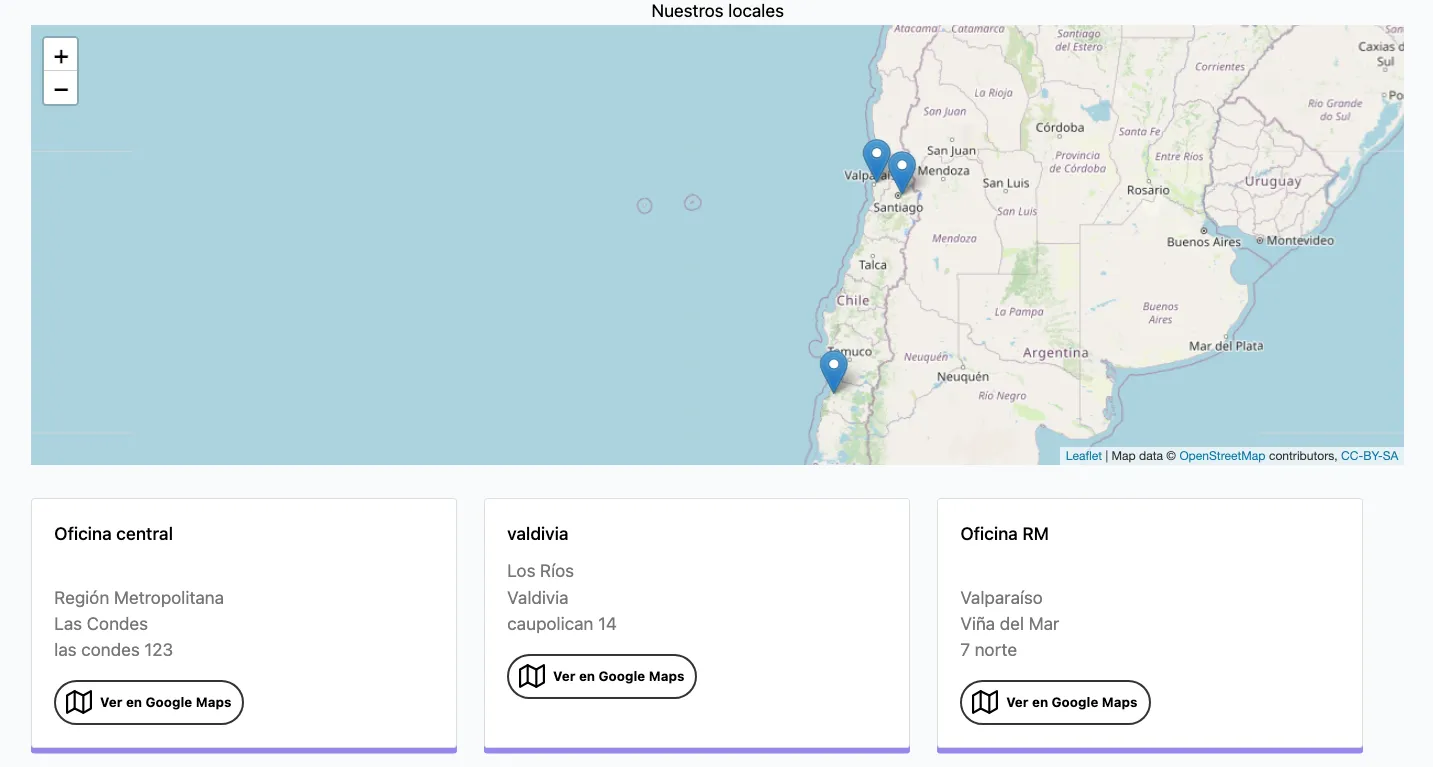
Stores page
Once you have created your branches, you can use the native view that groups this information