Design Editor
Customize design
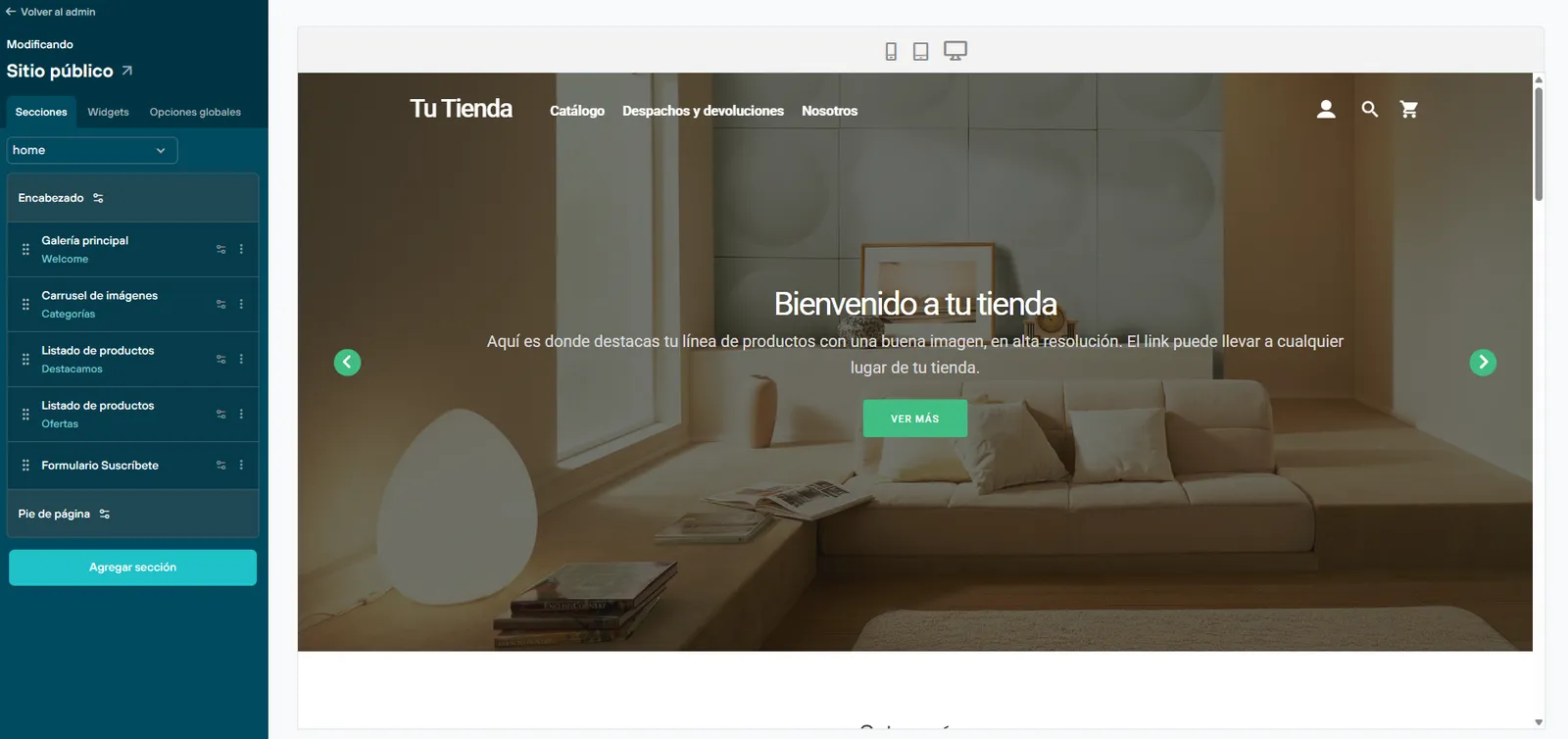
For all new stores, and for existing stores thinking of renewing their interface, our design editor lets you customize a store by adding, dragging and configuring sections for the different pages of your store.
Widgets
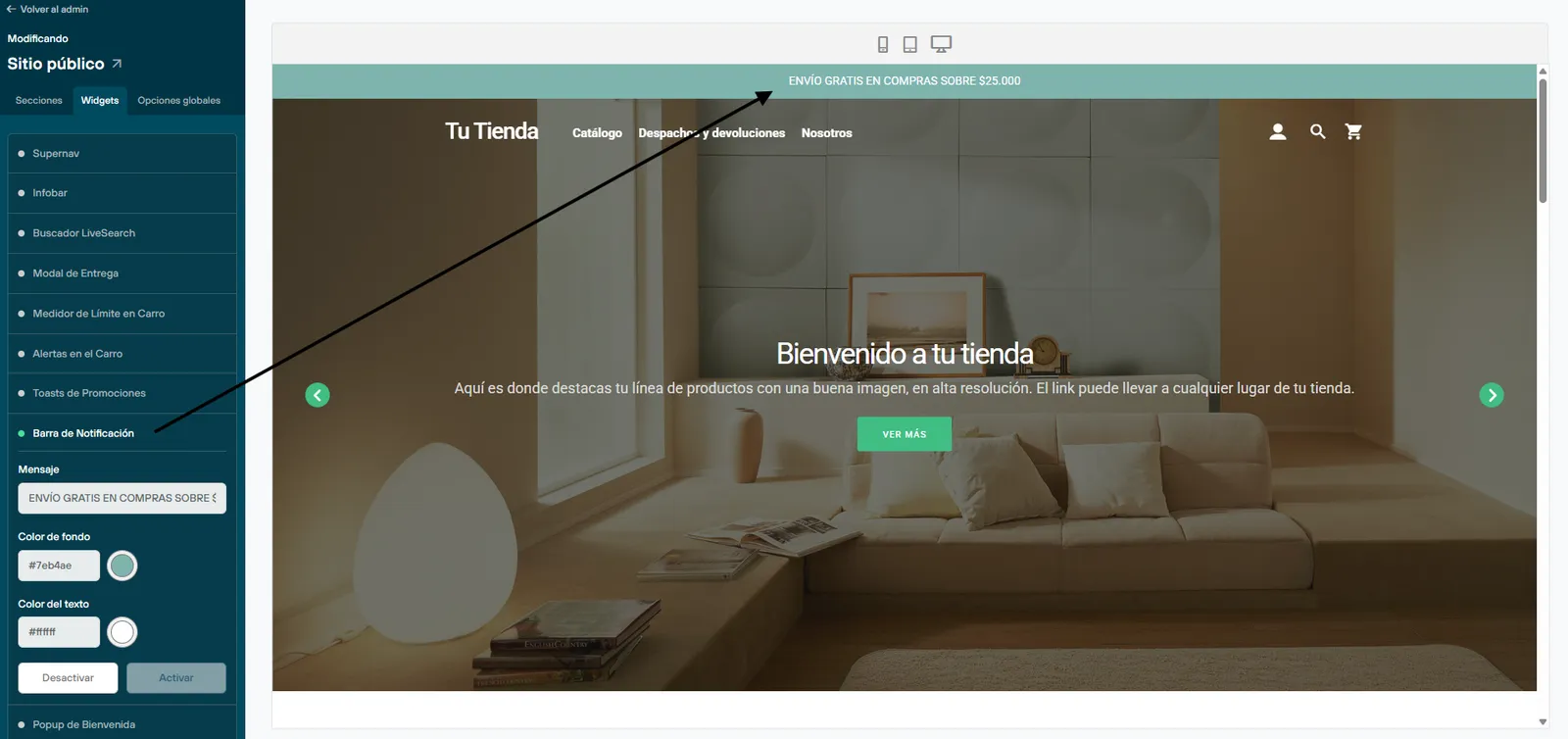
The editor also lets you set global options and turn on widgets, such as showing a welcome popup, turning on a contact button or showing a message in the top bar, easily and without touching any code.
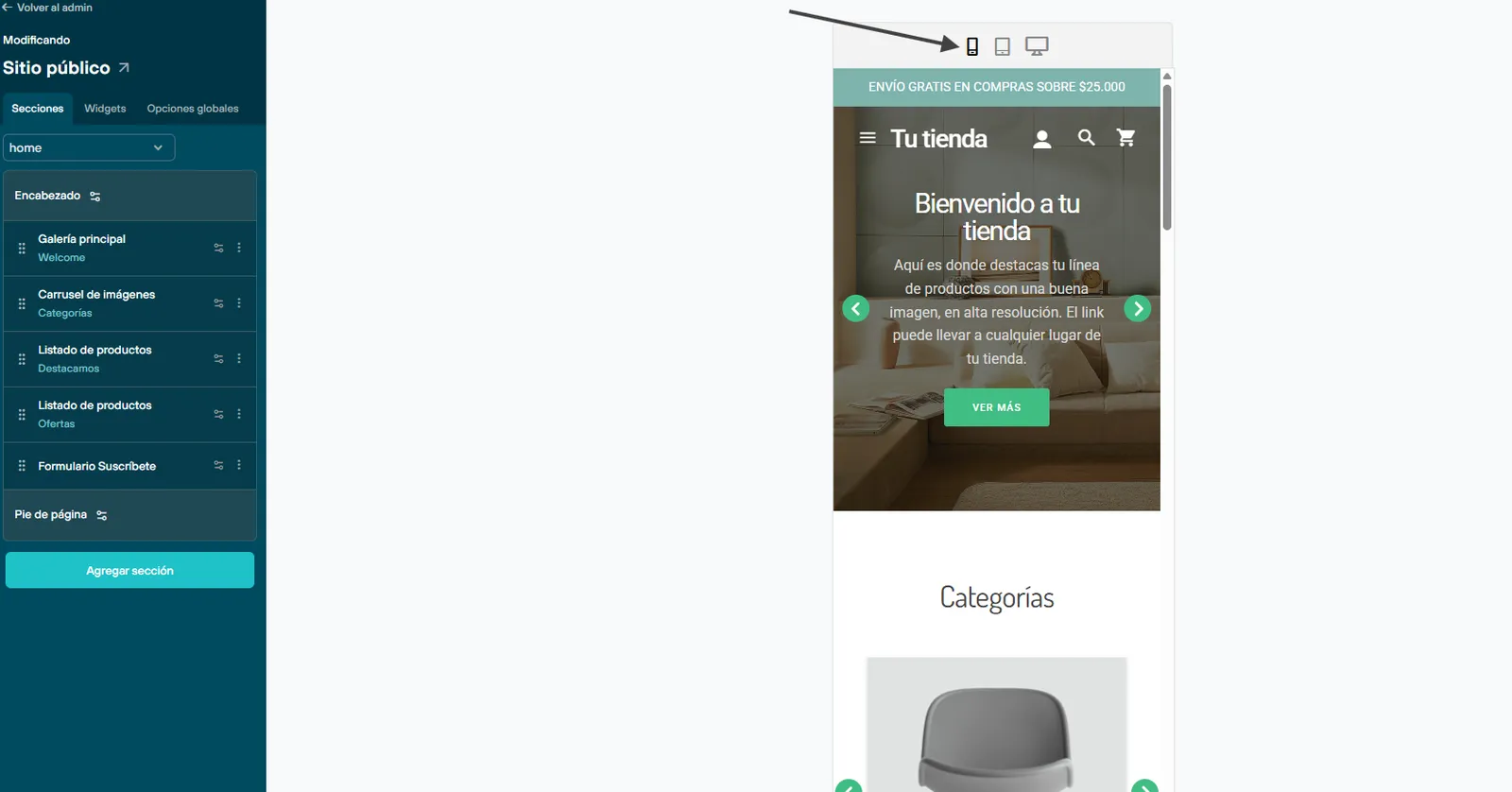
You can also preview your changes on different devices, to make sure the new design works well on every screen size. You can see the desktop version, medium screens, and small devices for the mobile version.
Open the Design Editor
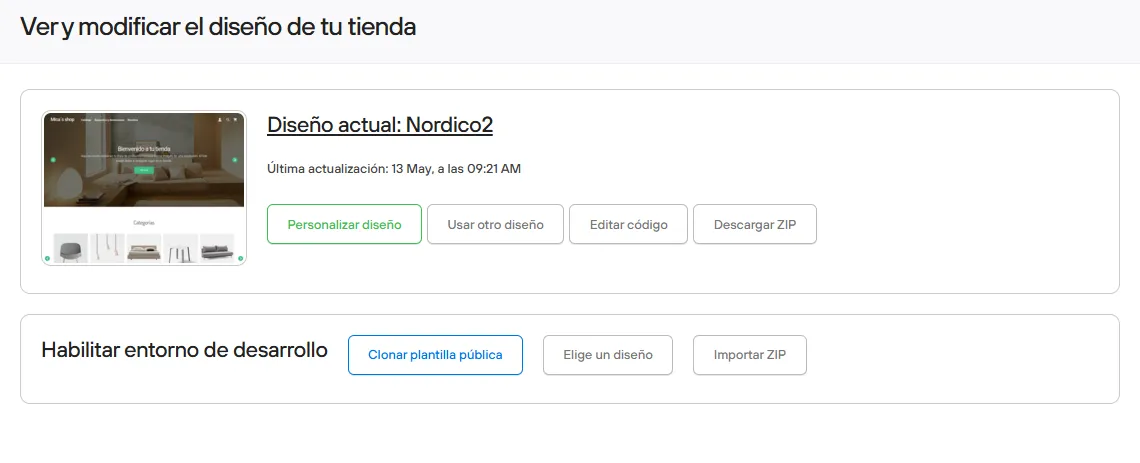
After you log in to your store’s admin, click the Design tab, then click the “Customize design” button in the environment you want.
In the first section you can edit the real, current view of your site, so every change you make in the design editor shows up in your store in real time.
Below your site’s current design, you can create a development environment for changes that need more time and detail, so you can work with more confidence.