Preferences: General options
When you go to the admin panel > Preferences section > General options, you can review and set up your site’s information: general options, users, notifications and recipients, and redirects.
General options
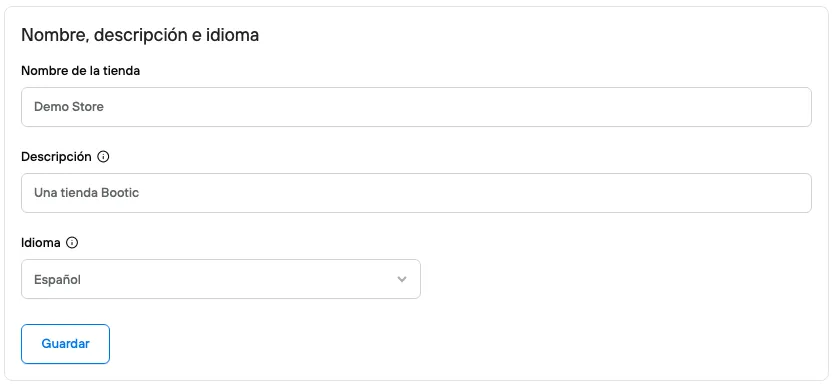
Name, description and language
- Name: name of the store
- Description: Short description of the site; here you explain what your store is about. This description will appear in Google search results.
- Language: General language for the buttons and texts shown in the contact forms and the payments section.
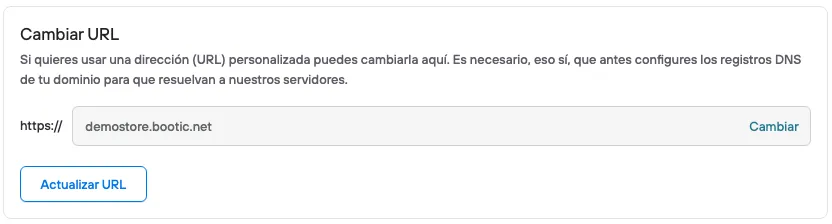
Change URL
Here you will see the public URL of your site. This is usually already set up once we activate your Bolder store. If you need changes, they have to be handled so that the DNS records point to our servers.
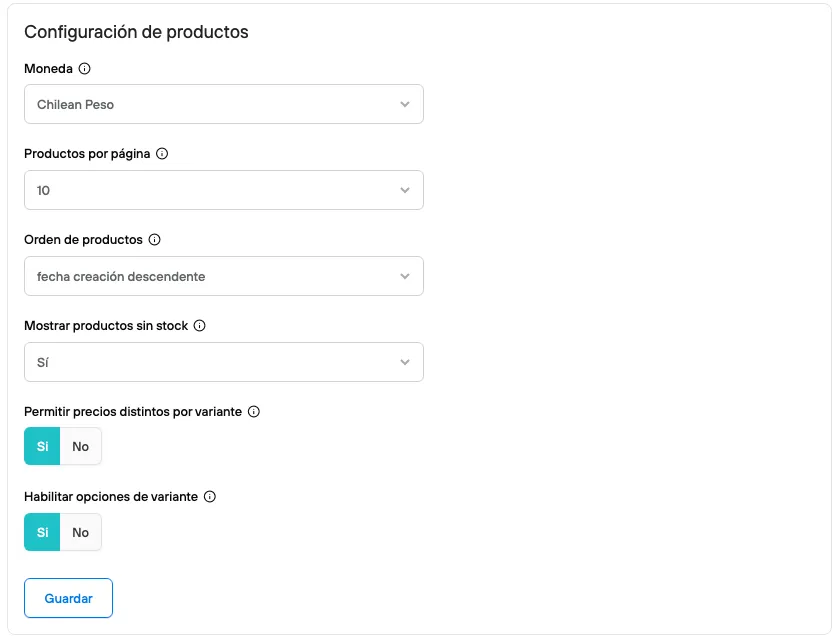
Product settings
- Currency: Currency in which your products will be sold
- Products per page: Number of products shown per page in the different collections of your site.
- Product order: Default order of products in the store.
Remember that collections can have a different order than the default.
- Show out-of-stock products: Option to show or hide products that are out of stock,
There are different options here if you do want to keep them visible. This only applies to online stock, not when the user switches to another location or store.
Advanced product options
- Allow different prices per variant: Lets you set different prices for the different variants of a product.
- Enable variant options: Lets you define options for your variants.
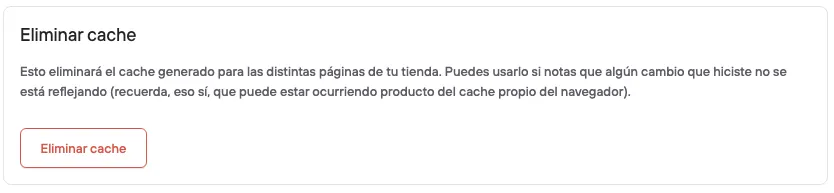
Clear cache
If you have made changes to your store and, even after reloading the site and checking from other sessions or in incognito mode, you notice the changes are not showing, this option can help you clear the cache created for the different pages of your store.
Logo and Favicon
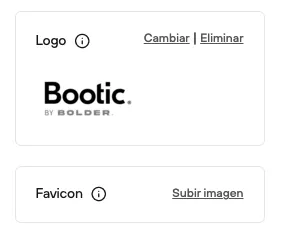
Here you upload both files, your business logo and favicon.
The logo is one of the most important elements of the visual identity of any ecommerce store. It is the first thing visitors link to your brand, so make sure it is in the best possible quality. We recommend uploading it as a PNG with a transparent background, at a maximum width of 500px.
The favicon, on the other hand, is the small icon that appears in the browser tab, on both desktop and mobile. It should be a square image at least 32 px wide, in PNG format.
Users
Here you can manage the users who will have access and management capabilities on the platform. Users can have different permission levels, depending on their roles and responsibilities.
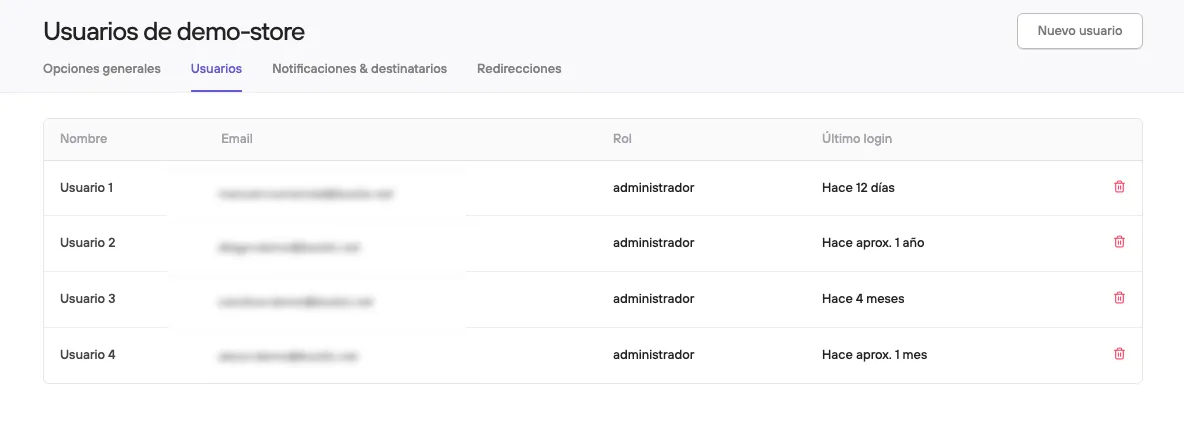
In the table you can see all the users of your store, their associated login email, their role (which shows their level of access), the date of their last login, and finally the option to delete.
In this section you can also create new users.
Notifications and recipients
Here you will find the general settings for the notifications sent from your store to customers, and also the ones that users receive.
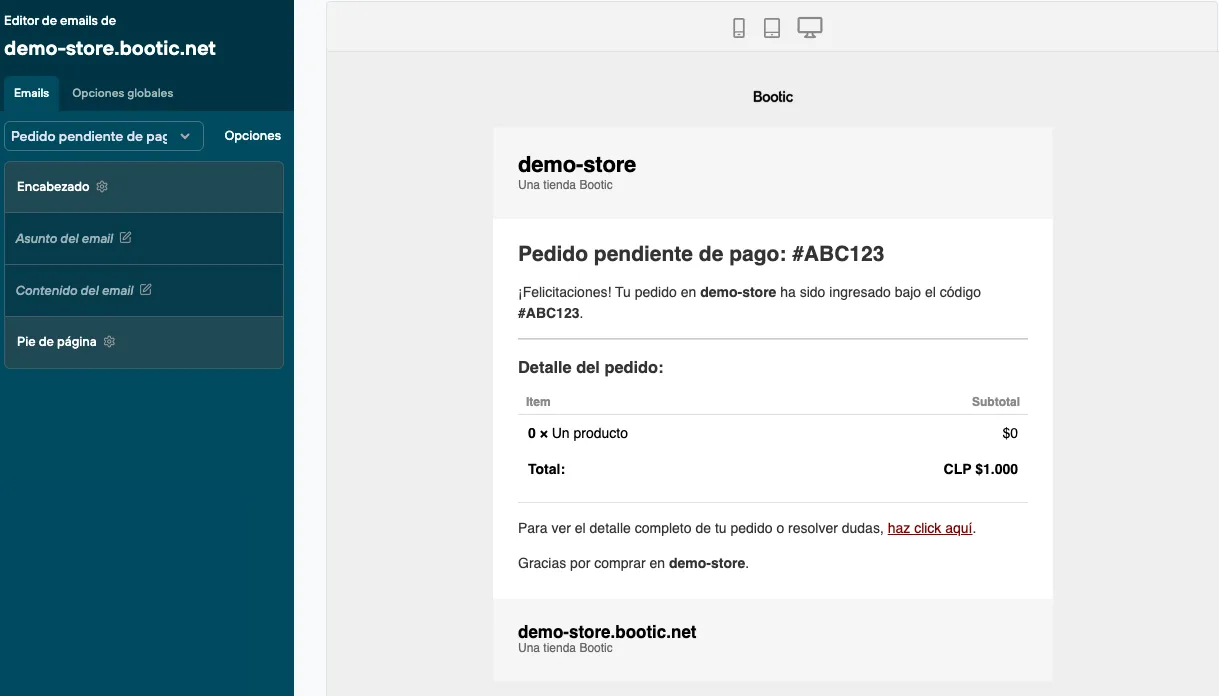
Email editor:
In this editor you can see all the notifications that can be sent from your site.
Notifications tied to the status of a customer’s account, notifications about order status changes, product restock notifications, and membership information.
Sending emails
Settings for the sender of the notifications sent to your customers. The sender you set will be the visible name customers see in the emails they receive.

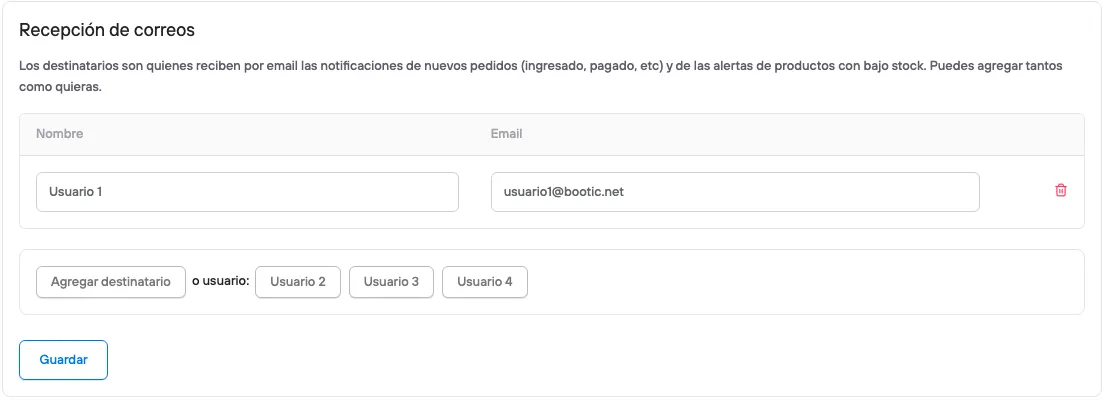
Receiving emails
This section is for the notifications received internally.
Here you decide which users will receive by email the notifications for new orders (placed, paid, etc.) and the low stock alerts. You can add as many users as needed.
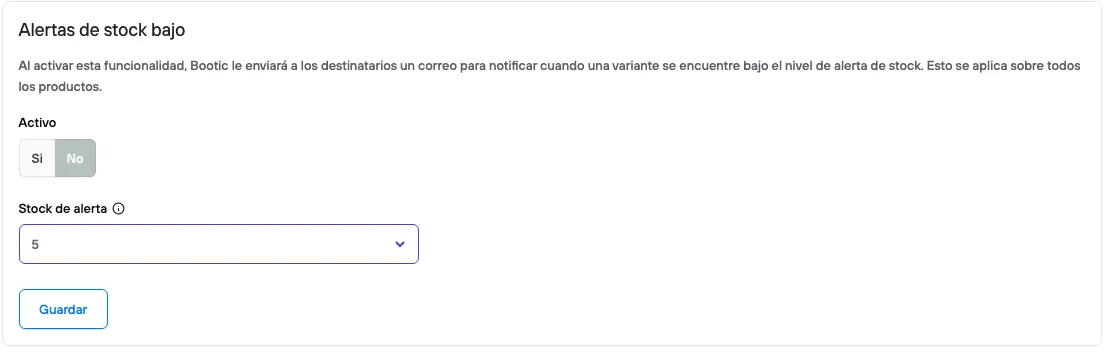
Low stock alerts
A feature that notifies the store’s users when a product variant has a low stock level. Here you can turn it on and set the alert level between 2 and 30 units.
Order exports
Here you can see additional settings for downloading your order spreadsheet.
This depends on any additional integrations you may have with other platforms, such as couriers in charge of shipping.

Redirects
Lets you manage how users navigate your site and keep browsing and buying smooth when you change a particular URL.