

Navigation Menus
Your store’s navigation menus
The navigation links of your site are contained in “menus”.
Inside a menu you can create as many links as you want, reorder them, assign them a level or move them to another menu.
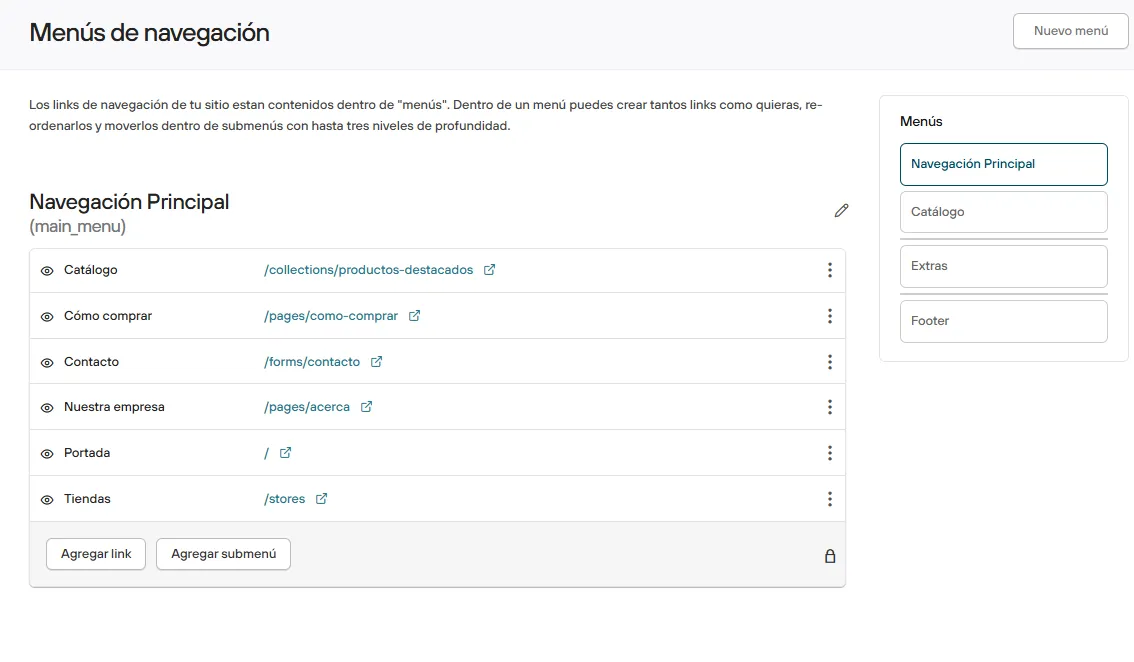
When you enter this section you will find the list of menus you have created. Depending on how each one is used, there are different fields where you can enter information, as well as buttons to run specific actions:
Main settings
-
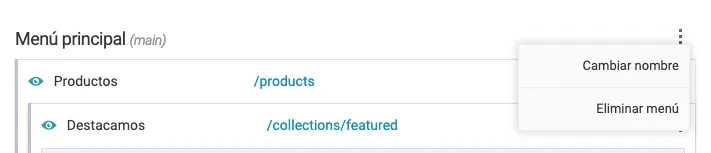
Rename or Delete: by pressing the 3 buttons next to the menu name you can do either of these two actions.
-
Add link: when you press this button, a window opens where you select the type of link to include in the menu. The link type can range from an external URL to something as specific as a collection filtered by a product type.
-
Add submenu: when you press this button, a window opens to create a new level. Up to 3 levels are currently allowed.
-
Change order: pressing the lock icon at the bottom of the level you want lets you change the order of the menu links.

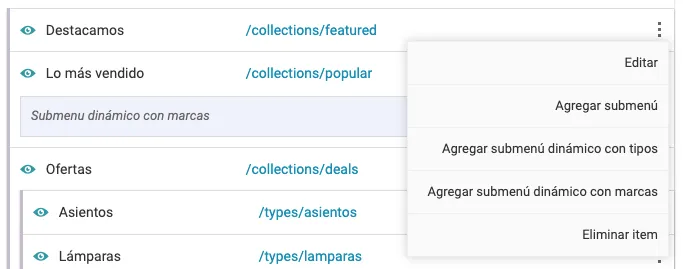
- Edit or Delete: by pressing the 3 buttons next to the menu link you can edit the link you created or delete it.
- Visible / Not visible: pressing the eye icon next to the name lets you define whether it is visible in the store.
- Dynamic submenu by type: if one of the links on the 1st or 2nd level is a collection, you can press the 3 buttons next to the menu link to generate a submenu that includes all the product types in that collection.
- Dynamic submenu by brand: if one of the links on the 1st or 2nd level is a collection, you can press the 3 buttons next to the menu link to generate a submenu that includes all the brands of the products in that collection.
By pressing the New menu button you can create a new one and give it a title. After it is created, the new menu will appear at the bottom of the list.
Go to the next article >