

Change prices in bulk
Make your product prices stand out!
If you want to change prices in bulk, or run sales on multiple products, this information will help you.

To apply this data, you need to use these columns:
- Unique product identifier (id - sku - or variant_id, depending on the case)
- regular_price for the regular price
- sale_price for the sale price
Step 1: Download the products spreadsheet
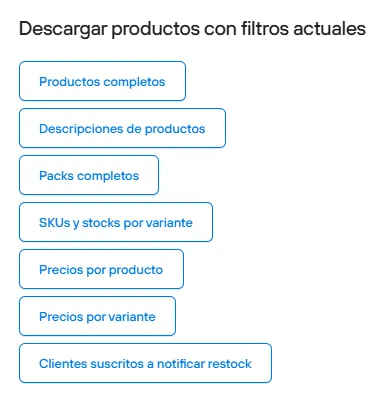
In the Products section, go to the end of the list and you will find the option to export products. You can download the full products file, or only the prices spreadsheet (by product or by variant, if you have products with more than one variant).
Step 2: Import the data into Google Sheets
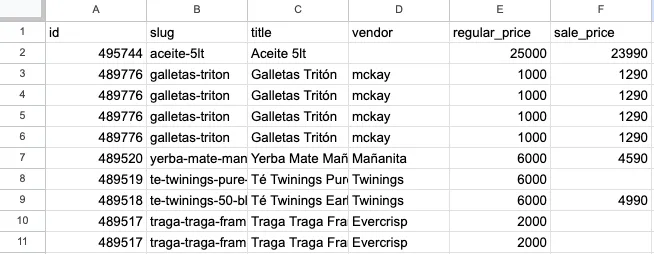
We always recommend working with Google Sheets, because it automatically detects the column formats and doesn’t cause any problems when you import the data back into the admin.
IMPORTANT:
If your products have more than one variant, you need to work with variant_id and sku, specifying the price for each variant. Check the details of this information here.

The safest way to make changes is to have the product information available in the spreadsheet. So even if some fields aren’t required for the upload, if you don’t have experience making these changes, we suggest using this structure: id, variant_id, title, regular_price and sale_price
Step 3: Edit the information
With the data imported, you can now change the prices. Keep in mind that you can only edit; you can’t add or delete records. Also avoid formatting the cells. Values must be whole numbers without dots.
Step 4: Download the spreadsheet
Give the file a name and make sure you select the right format:
From File > Download > Comma-separated values (CSV)
File > Download > Comma Separated Values
The worksheet will be downloaded with the updated information.
Step 5: Upload to Products

Finally, go to the Products section of your store and drop the file exported from Google Sheets with the new prices.
If you only want to change the regular price of the products, leave the sale price column empty.