

Bulk product uploads
Doing a bulk product upload requires precision and attention to detail, since all the information, from descriptions to prices and attributes, must be carefully checked to ensure it displays and works correctly on the platform, avoiding errors that could affect the user experience and the operation of your business.
Understanding how important this is, at Bolder we have several operations that we have refined so you can work with more confidence and autonomy when making changes, and so reduce the margin of error.
Recommendations before doing a bulk upload
-
Group the products you want to modify.
For any type of upload, we always recommend working with a limited set of products, using only the products you are going to modify. Ideally, you should never work with the full spreadsheet of all the products in your store.
To do this you can create a collection. If there are many products, you can do it with a simple bulk upload. See the step-by-step guide here.
-
Download the spreadsheet that is useful for the change
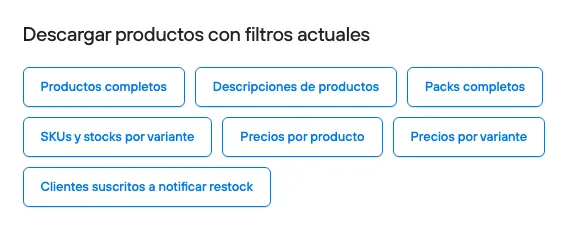
When you export the collection or group of products you are going to work with, you can choose the download option.
- Complete products: This spreadsheet includes all the information associated with each product and its variants. We recommend using it for changes to product information that applies to all variants (vendor, collections, type, tags, attributes, etc.)
- Product descriptions: This spreadsheet includes the
idunique identifier of the products,titletheir name, and thedescriptioncolumn, which corresponds to each product’s description.- Complete packs: This spreadsheet downloads the complete information of the packs. These are not included in other spreadsheets.
- SKU and stock by variant: This spreadsheet identifies each product
idand its variantsvariant_id, along with the stock associated with the main warehouse and any other existing warehouses.- Prices by product: This spreadsheet includes the product identifier, but not its variants’. It includes the general sale price and price list prices in wholesale stores. We recommend using it only for products that have a single variant. Do not use it if you have multiple variants with different prices.
-Prices by variant: This spreadsheet includes the identifier of the product and of each of its variants. It includes the general sale price and price list prices in wholesale stores. We recommend using it to make bulk price changes with multiple variants.
- Customers subscribed to restock notifications: This spreadsheet includes the identification of the customer who subscribed to receive restock notifications, the date they subscribed, and the product of interest.
-
Back up the unchanged spreadsheet
Once you download your spreadsheet, we suggest backing it up. If there are errors in the information or in the upload, it can help you recover the original information.
-
Do one upload for each operation
If you need to change descriptions and prices, it is best to do it in separate processes, since the operations are different for each action you need to perform. You will also be able to check that each upload is processed correctly.
Available operations
We have 8 operations available, depending on the information in the file to import and the components active in your store.
1.Import (Create) products
If you are looking to add products to your catalog, this is the option.
This operation lets you create new products and their respective variants.
Do not use this operation to update existing products.

For this operation to be available, you must drag a file that has the title column and any additional information you want to upload to the product. See more information here
2.Update existing products
When you select this option, the information of existing products will be updated, grouping them by id or slug.
This operation does not change prices or stock; it only affects information such as attributes*, collections, types, tags, and weight, in bulk. It also does not create new products (so there is no risk of duplicates), but it does create variants if it can’t find them (via variant_id, sku, or variant_title)
When you create a product with variants, even though they are all different items, they will be created under the same id, since at a general level they share the same collections, types, tags, attributes, description, name, and slug information.
Since the modification in this operation is at the information level, you can work with Id or Slug. No other product identifier is needed in the spreadsheet, because the change will be made on that identifier.
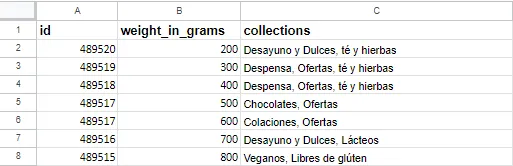
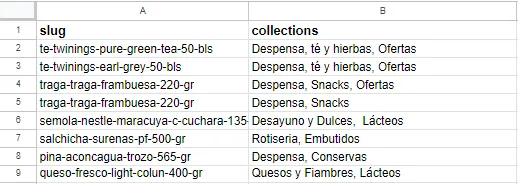
The CSV or XLSX file must contain, in its columns, the Id or Slug information along with the columns that need to be modified for the operation to run, as shown in the examples.
3.Update variant prices and stock
Updating variant prices and stock is one of the most frequently performed operations, so we focused on making this process easier by mitigating all the existing failure factors on the user side.

To make changes to STOCK and PRICE, there are two ways to work, depending on your products’ variants.
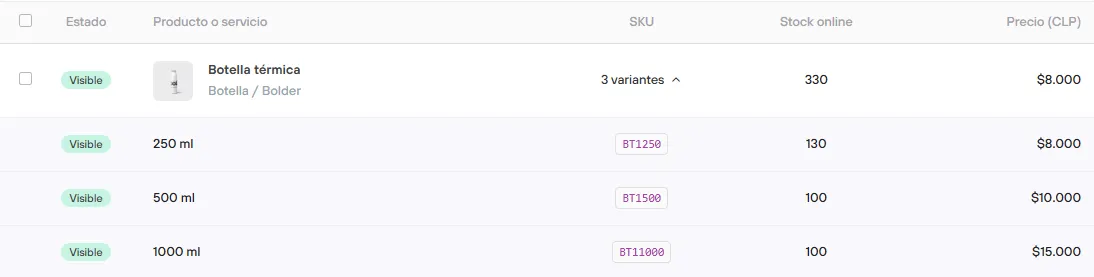
Case 1: Products with more than one variant and different prices
It lets you set different prices at the variant level (rather than a single product price for all its variants)
If this is the case for your products, you must do the price and stock update using the product identification id and the variant identification variant_id, which lets you identify each variant individually. Otherwise, if you use only the id or slug, the change will not run, since these products will be skipped or only the first variant will be updated.
It is important to remember that with this feature we can also set a different price for each variant, so it is essential that your spreadsheet includes the price of all available variants, even if you want to keep the same value for all of them. Otherwise, only the variants whose variant_id you include will be updated, and the rest will not be included in the update.
Case 2: Products with one or more variants, but with the same value
If your store has products with a single variant, or products with multiple variants that have the same value, you can work the spreadsheet with the product id, since when one of the variants is modified, all of them will change in the same way the main id is modified.
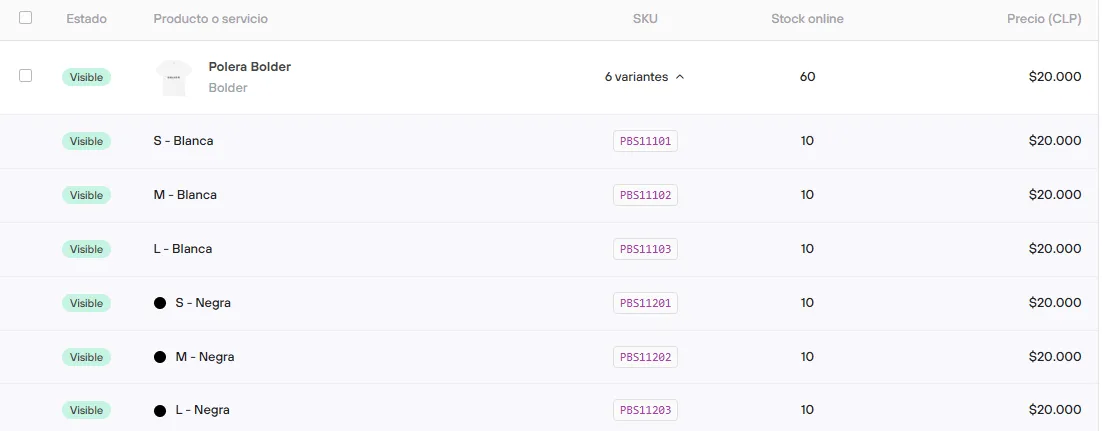
In summary, to update prices and stock for products with variants, we suggest:
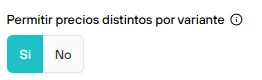
Check your store’s products and how their prices are set up. A simple check is to review, in preferences, the general options for allowing different prices by variant
4.Update variant stock
This operation is available to update variant stock, whether online or by warehouse.

If you have products with more than one variant, you must work with the variant_id column to make the change to each variant. Otherwise, no change will be made to them.
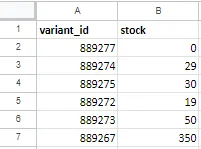
If you have products with more than one variant, you can also change the stock of each variant via the SKU of existing products.
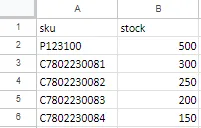
5.Update variant stock in batches (beta)
It lets you update variant stock in batch mode.
Please note that this feature is still in Beta.

6.Update prices of products without variants
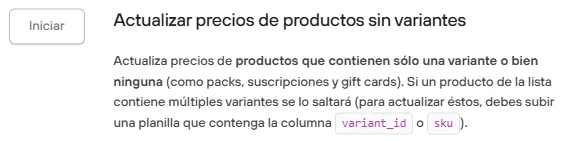
If you need to change the regular price or sale price of products that have only one variant or none (subscriptions, packs, and gift cards have no variant), you can use this option with the product id and the column with the price to modify.
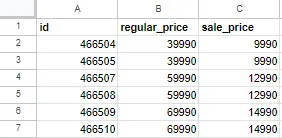
If you want to set a sale price while keeping the current values, you must import the file with the columns id, regular_price, and sale_price.
If you are updating prices (not sale prices), you must upload the file with the id and regular_price columns. If you include the sale_price column, it must be empty.
If you use this operation to update a list of products that include variants, those items will be skipped.
7.Update prices of products without variants
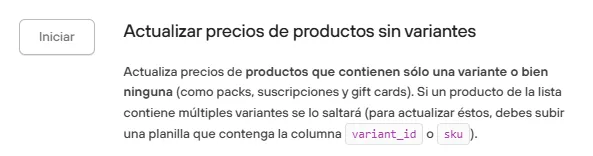
Update prices of products (with one or no variants), packs, subscriptions, and gift cards.
To work with your upload spreadsheet, you can use the id and the prices that will be modified.
An operation exclusively for deleting products.
This option must never be used to update products

Import failures
Changes not reflected
If you already imported your spreadsheet and the operation is marked as successful, but you don’t see your changes reflected, it may be due to:
-The choice of operation. You must be clear about which variables you want to modify in bulk, and those columns must be present in the file.
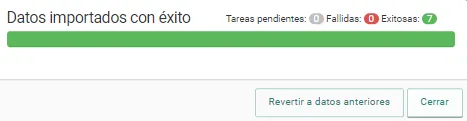
Failed upload
If, after running the operation, the upload shows errors, it may be due to:
Data mismatch
-There was no data match, whether by id, slug, or sku.
-The operation was not chosen correctly.
-The file is damaged, or not in the right format.

We hope this information helps with the next bulk uploads you do in your store.
If you have questions during the process, you can contact help@onbolder.com