Products
Products, the foundation of your Bolder store
A product is, essentially, an item with a name and a price that customers can buy through your store.
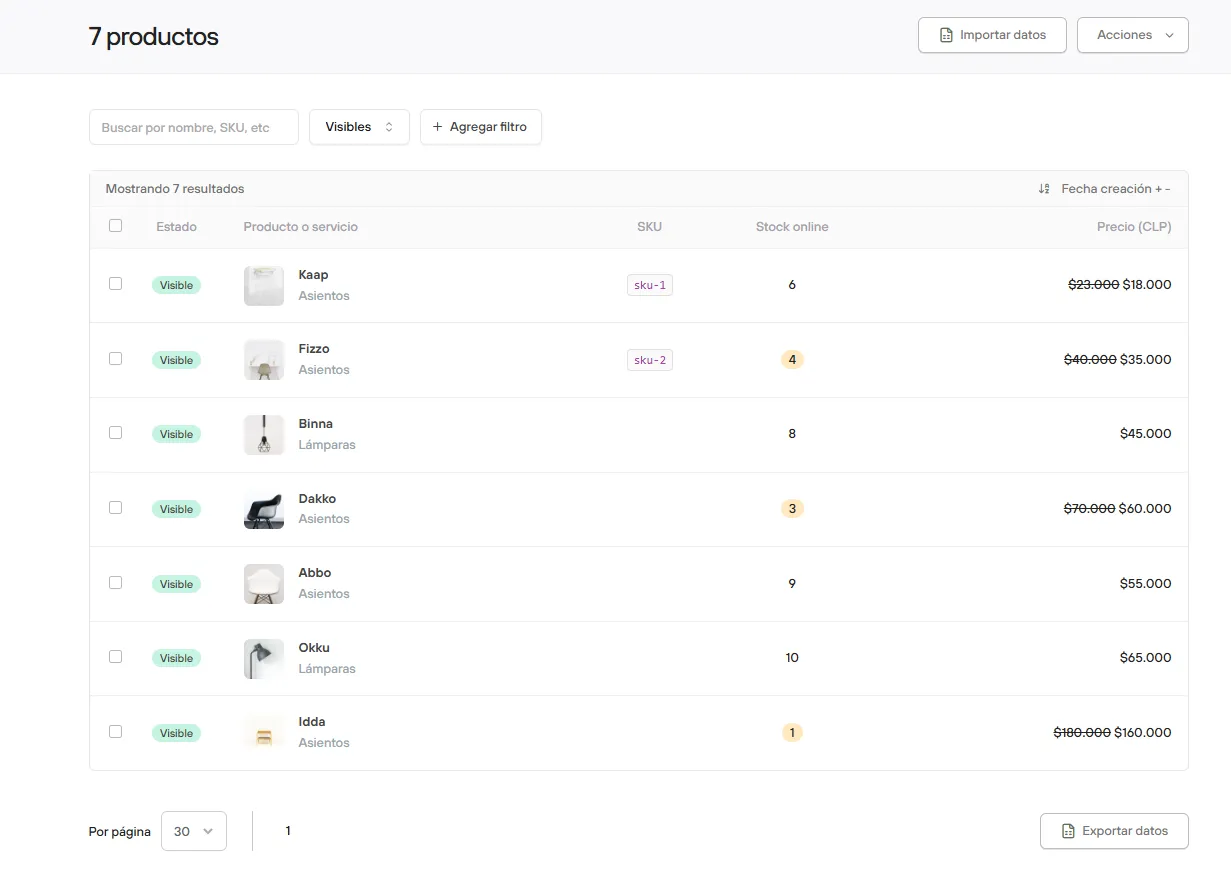
From the Products menu you can, among other things, create new products, edit existing ones and delete the ones you no longer need. You can also manage how they are organized through types, collections, brands, tags, and other options.
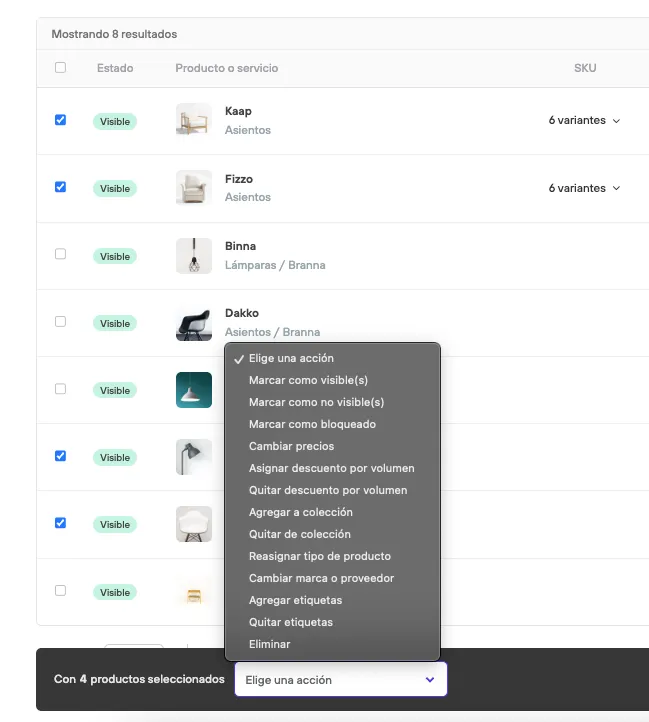
As in the previous sections, you can also run bulk actions here. These actions are:
- Mark products as visible/not visible, to set whether they show up in your store.
- Mark as blocked (visible, but not available for sale)
- Add to/Remove from a collection (What is a collection?).
- Reassign product type (What are product types?).
- Assign/Remove volume discounts.
- Change brand or supplier
- Add/Remove tags.
- Change prices.
- Delete products
Import and export data
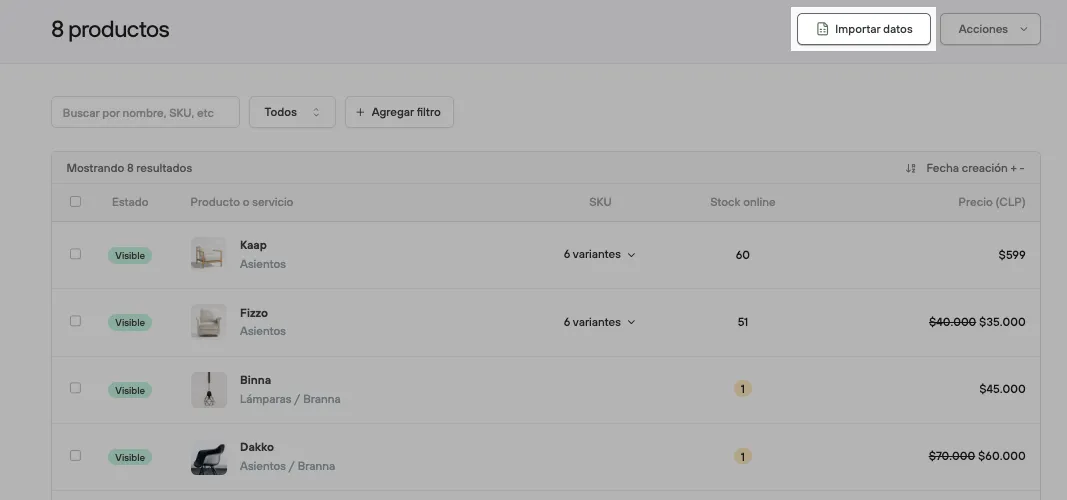
One of the most important bulk actions is data import. With it you can upload new products or update existing products.
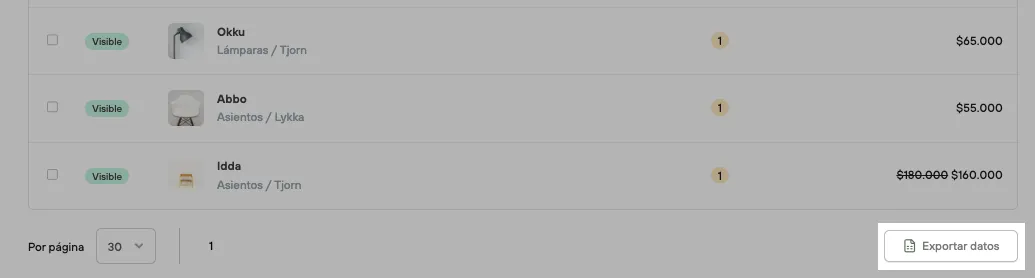
At the bottom of the page, by clicking Export data for products you can get the complete product information in different formats, based on the filters selected at the top of the panel. These spreadsheets will help you update fields of existing products.
Product details
From the product list, click the product name to open its details.
In this view you will find the following editable fields:
- Product name and URL
- Product type
- Brand or supplier
- Description
- Status
- Delivery settings
- Collections
- Tags (How are they linked to related and similar products?).
- Attributes
- Image and file management
Also, using the action buttons at the top of the product page you can:
- View the product in the store
- Clone the product
- Delete the product
And in the tabs, also at the top, you can reach the sections described below.
Variants
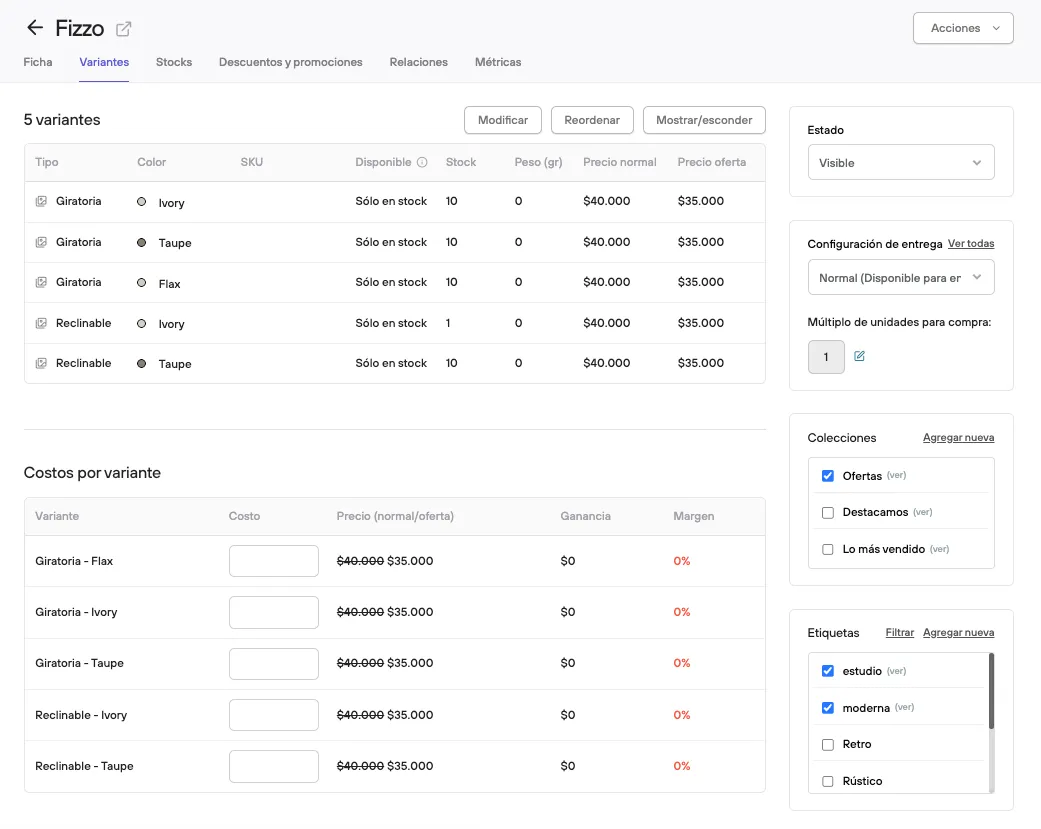
This shows the list of variants for each product (by default each product has one variant). When you click edit you can do the following:
- Change the variant name.
- Change the SKU.
- Set availability (Always YES/NO).
- Available stock.
- Weight in grams.
- Regular price.
- Sale price.
You can also change the order in which variants are shown, decide whether to hide any of them, and even assign the cost of each variant so you can see the profit from selling each one.
Stock
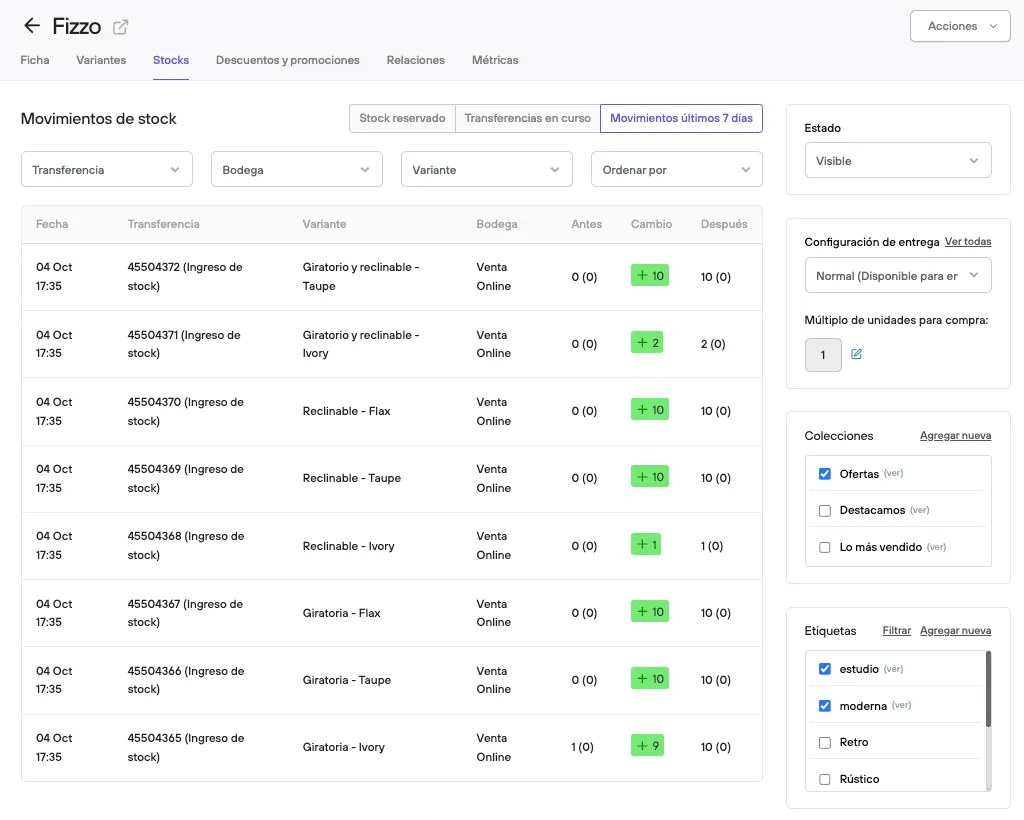
This shows the stock movements for each product, with information on stock coming in or going out for each variant.
Discounts and promotions
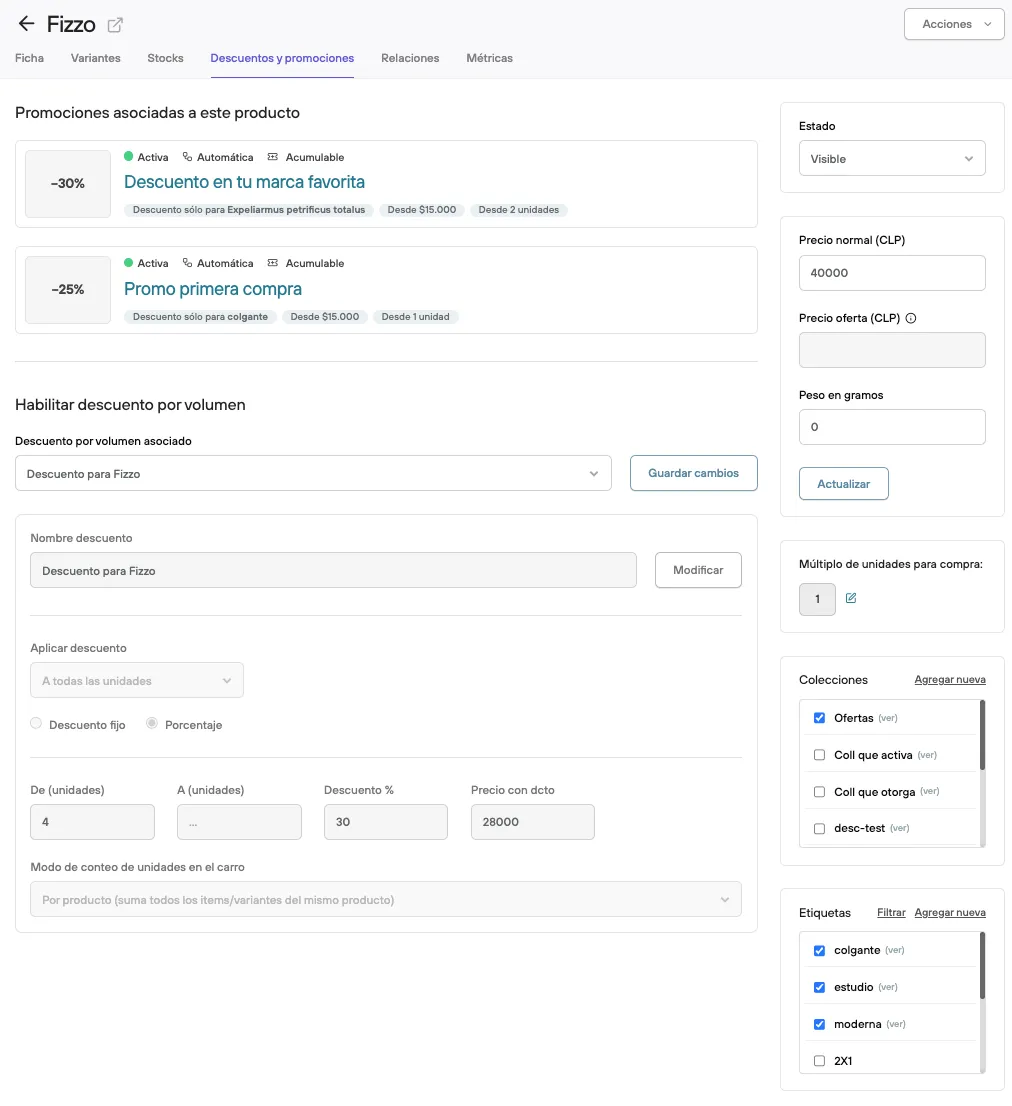
Here you will find the details of the promotions that apply to the product, and in particular the details of the volume discount linked to it.
Relations
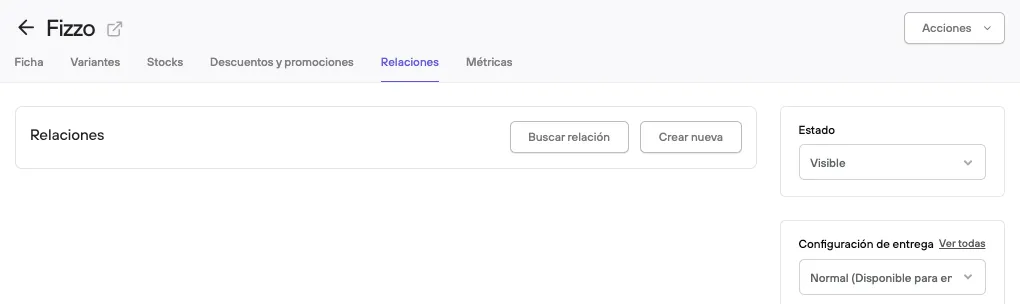
If you have this feature turned on, in this tab you will find the details of the relations created for or assigned to the product.
Metrics
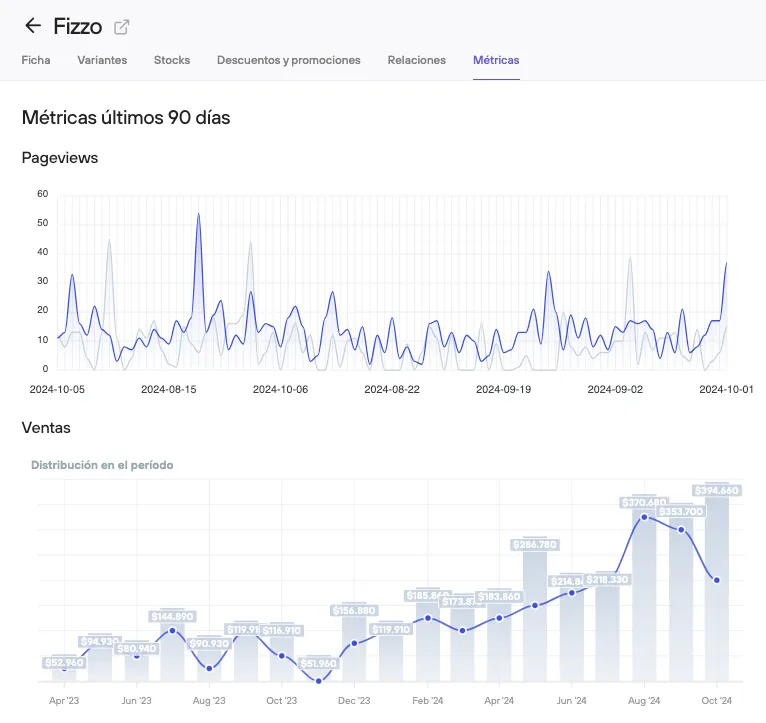
In this tab you will find a dashboard with relevant information about direct visits to the product page, sales in the same period of time, and the ranking of complementary products in recent purchases.