

Product packs
Packs: smart product combinations
A pack is a group of products sold together, with the goal of offering a more complete and convenient shopping experience.
Packs can include complementary products, limited editions or combinations designed to make the customer’s choice easier, so they don’t have to search separately, by giving specific products more visibility.
A pack can be made up of:
-
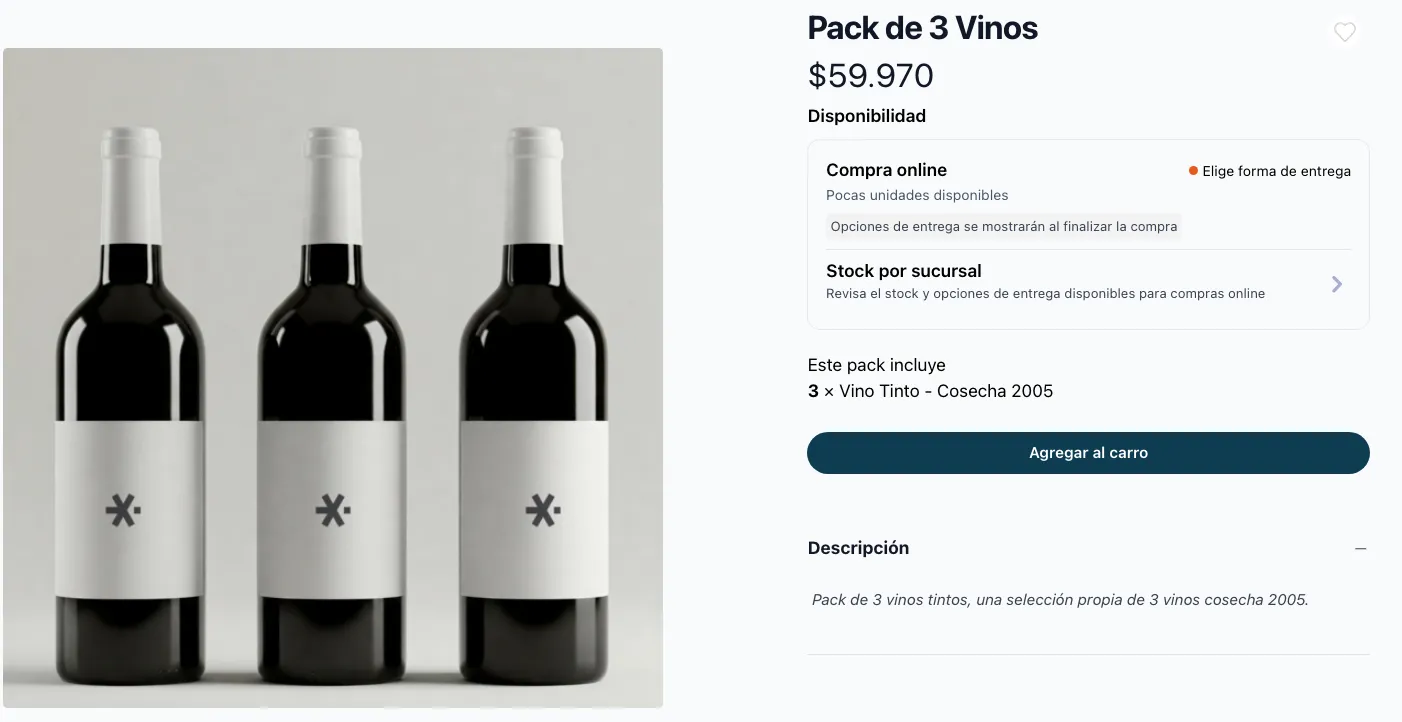
Items: The pack is made up of fixed, predetermined products.
When adding it to the cart, the customer takes home the products included in the pack.
Example: “Pack of 3 red wines, our own selection of 3 wines from the 2005 vintage”.
-
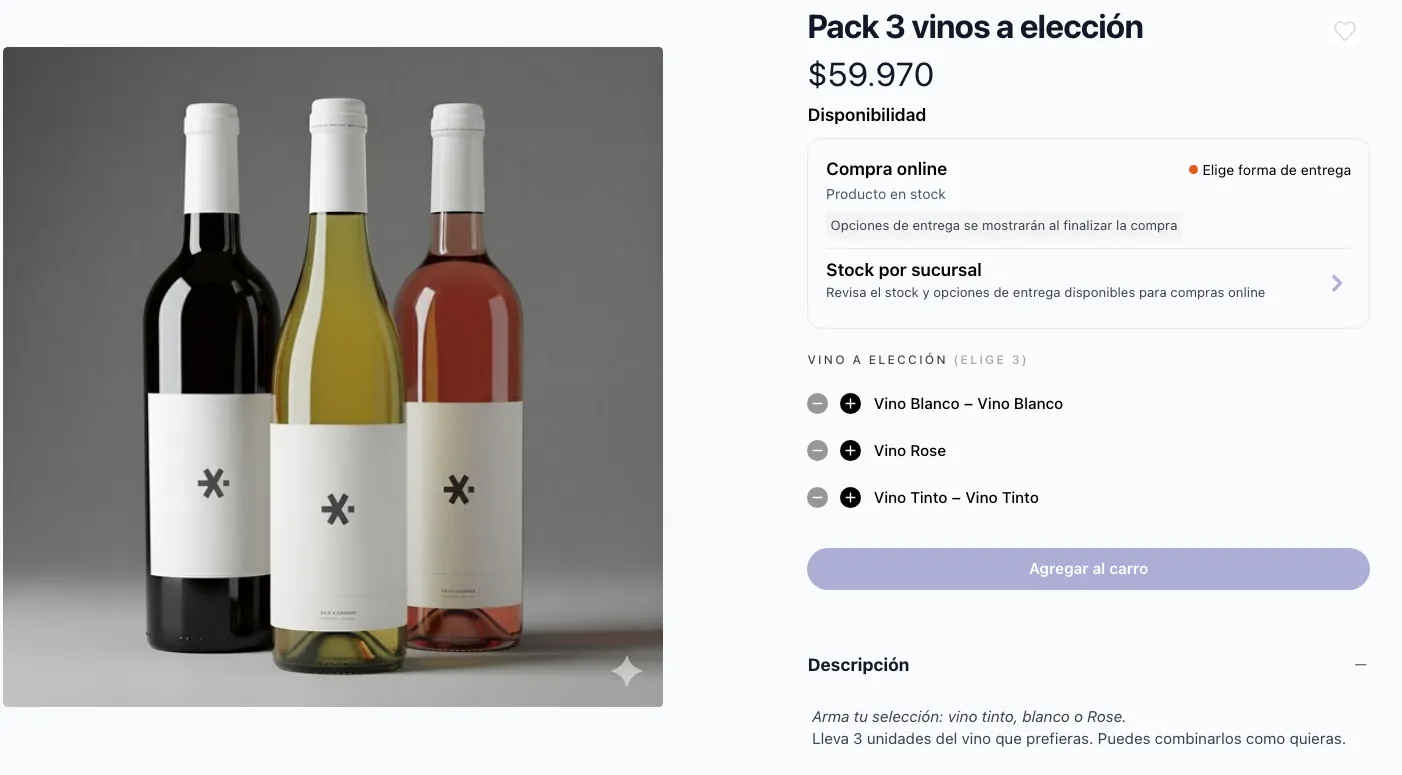
Configurable options: The pack lets the customer choose which products to take from predefined options.
The customer must choose the products before they can add it to the cart.
Example: “Pack of 3 wines of your choice: red, white or rosé. Build your selection”.
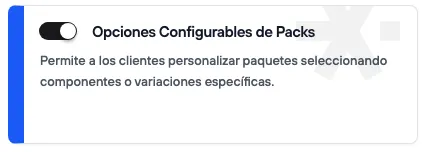
The feature for working with a pack made up of items only is available by default in the admin panel. If you need to work with configurable options, you must first turn on the Pack Configurable Options component:
- Go to the Bolder admin panel.
- Go to the Addons and Integrations section, and in the Product Catalog engagement category, turn on Pack Configurable Options.
- Once it is on, you can open its settings directly when creating a pack, or from Products > Pack Options.
Steps to create a pack
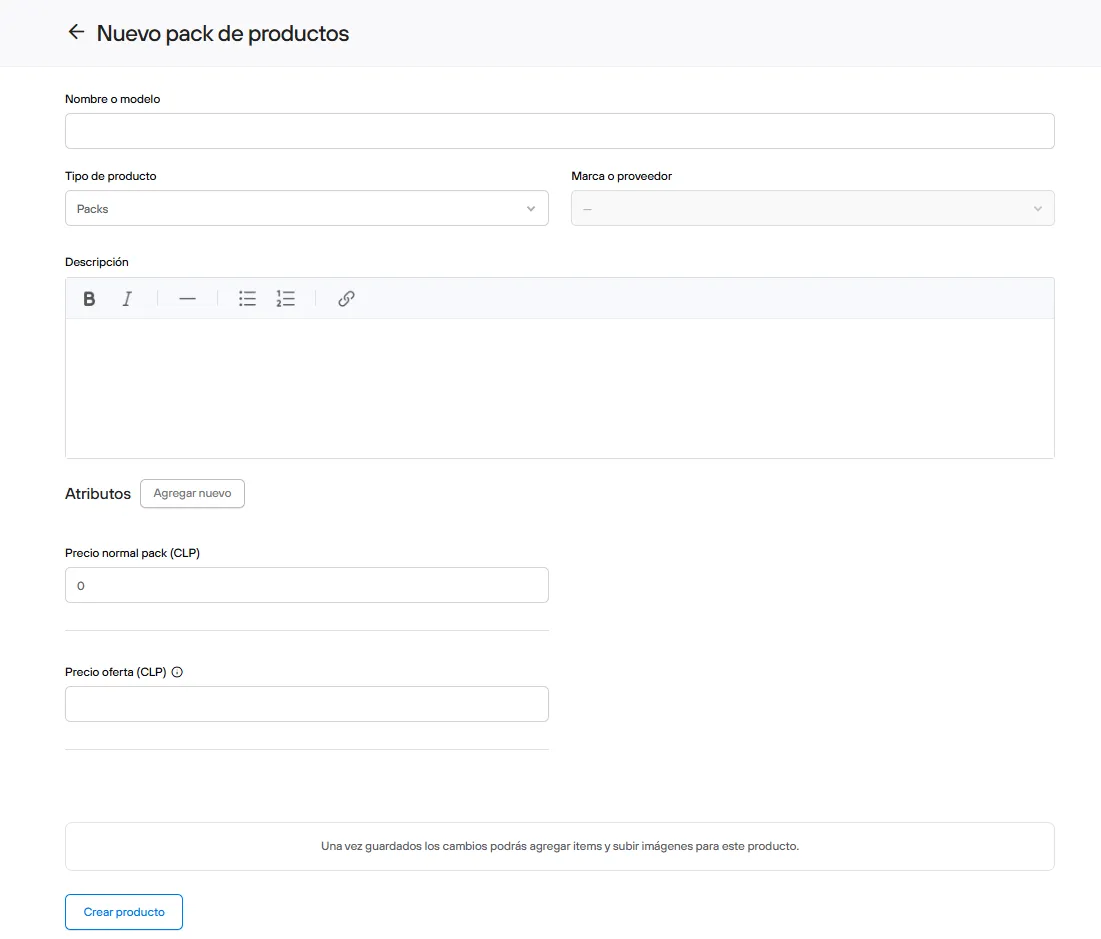
From the admin panel > Products > Actions: New Pack.
A pack is a new product type, and as such, creating it needs many of the usual details you enter when creating a new product, before moving on to the pack-specific settings.
General pack information
- Name or model: The name of the pack you are creating. It will be shown to your customers in the store.
- Product type: Automatically set to the Packs product type. It cannot be changed.
- Brand or supplier: Depends on the products that make up the pack. If the products in the pack are from the same brand, that brand is assigned automatically. If the products are from different brands, the pack will have no brand.
- Description (optional): Information about the pack. We recommend including relevant information that helps your customer decide to buy.
Once the general pack information is complete, you must define the price type:
-
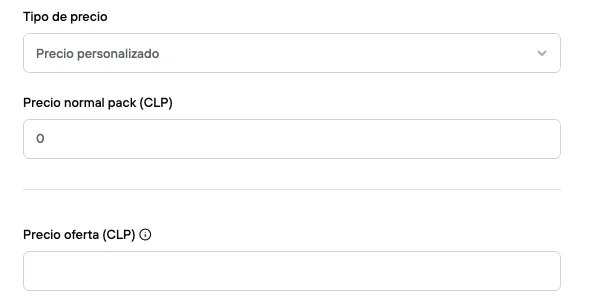
Custom price: A price set by the business. When you choose this option, you must set the pack’s regular price, and optionally a sale price.
This option is useful for packs with fixed items and packs with options (where the customer can choose between different options).
-
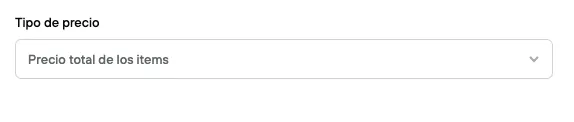
Total price of the items: This option calculates the pack price automatically.
The price is determined from the selling price of the products that make up the pack.
If any of the products has a sale price, that is the one used as the basis for the pack price.
This option does not apply discounts.
It should only be used for packs with fixed items, not for packs where the customer chooses freely. If you include options, they will be offered as free options.
-
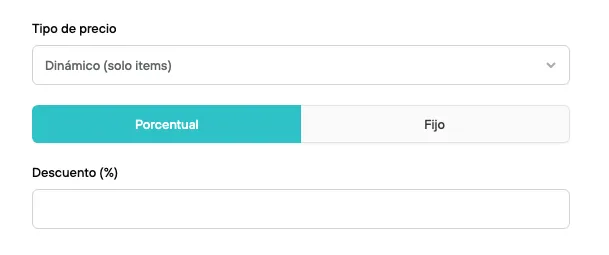
Dynamic (items only): This option lets you create product packs with a percentage discount (a percentage off the selling price %) or a fixed discount (a set amount of money off the selling price $), calculated automatically on the value of the products that make up the pack.
Since this option covers “items only”, the calculation is based on the price of the fixed products. If you add products with options, they will not be counted in the final value.
-
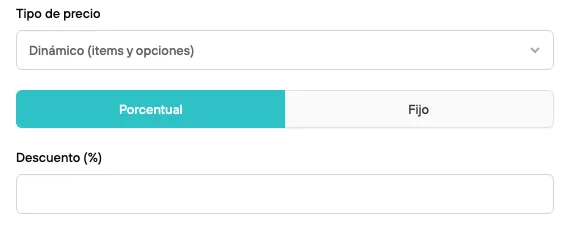
Dynamic (items and options): This option lets you create product packs with a percentage discount (a percentage off the selling price %) or a fixed discount (a set amount of money off the selling price $), calculated automatically on the value of the products that make up the pack.
Unlike the previous option, this one applies to packs that contain fixed products (items) and options.
The product price will show as “From $…” and the final price will only be shown in the cart.
Once you select the price type, you can create the pack and continue with the setup.
You can now edit or add more information, such as collections, tags and images.
-
Add the items and options to choose from
Once the product is created, go to the Items and options to choose from tab.
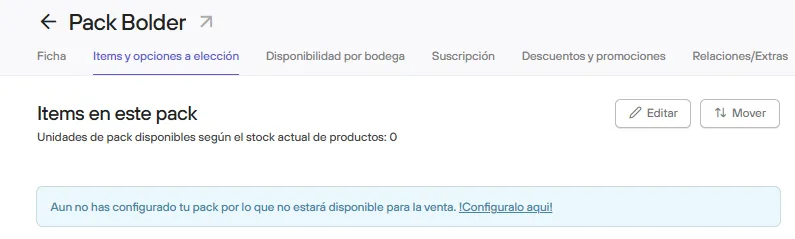
When you start this setup you will have two options, which can be independent or work together.
-
Add product: These are the items, or products that come by default in the pack.
For this option, the selector for the product to include in the pack opens. Once selected, you can define which variant of the product is offered and how many units of that variant the pack will include.
You can repeat this process as many times as needed to include all the products you want.
-
Add customizable option: Defines the product options the customer can choose from.
Once you select the customizable option, you can use one you created earlier or create a new one from the pack itself.
You can create your packs with as many items and customizable options as you need.
Once your pack is ready, we always recommend checking the changes in the public view, to make sure the price and products show up as expected.
Stock management
Since packs are created from products that already exist in your store, stock is deducted from each product individually.
Each pack sold shows a breakdown of the products that make it up, with their respective stock deduction. The pack is never counted as an additional or independent product.
Keep in mind that, unlike regular products, a pack does not have a SKU. Its unique identifier is its ID. If you work with integrations for stock management, we recommend checking that the information is sent correctly so stock is deducted and/or invoiced properly.
For a pack with fixed products, the number of units available for sale is limited by the variants that make it up.
If one product has 100 units and the other has 3, only 3 packs can be offered for sale
For a pack with variable products, the logic is the same, but the pack’s total stock can vary depending on the combination the customer chooses.
How packs appear in orders
As the store admin, in addition to the pack name, you see the details of the individual products that make it up.
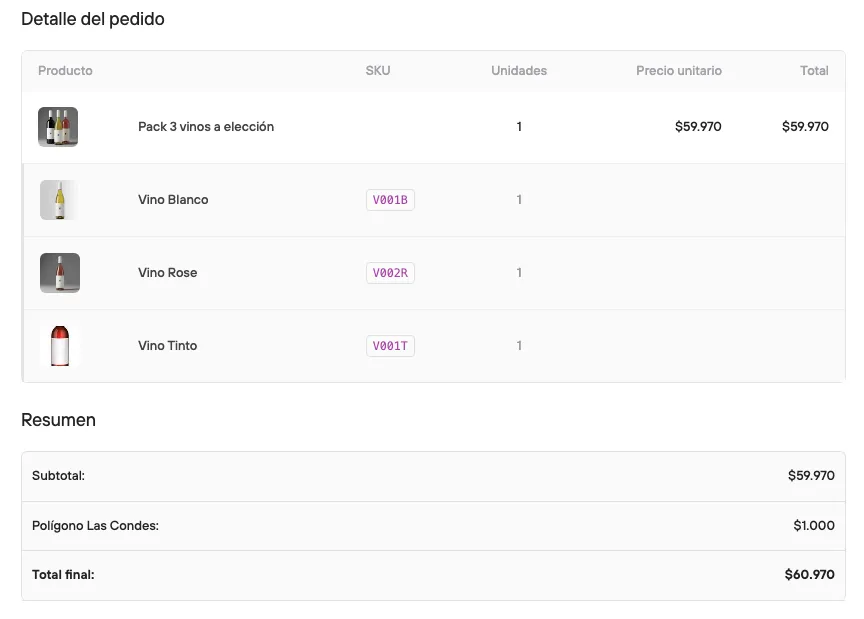
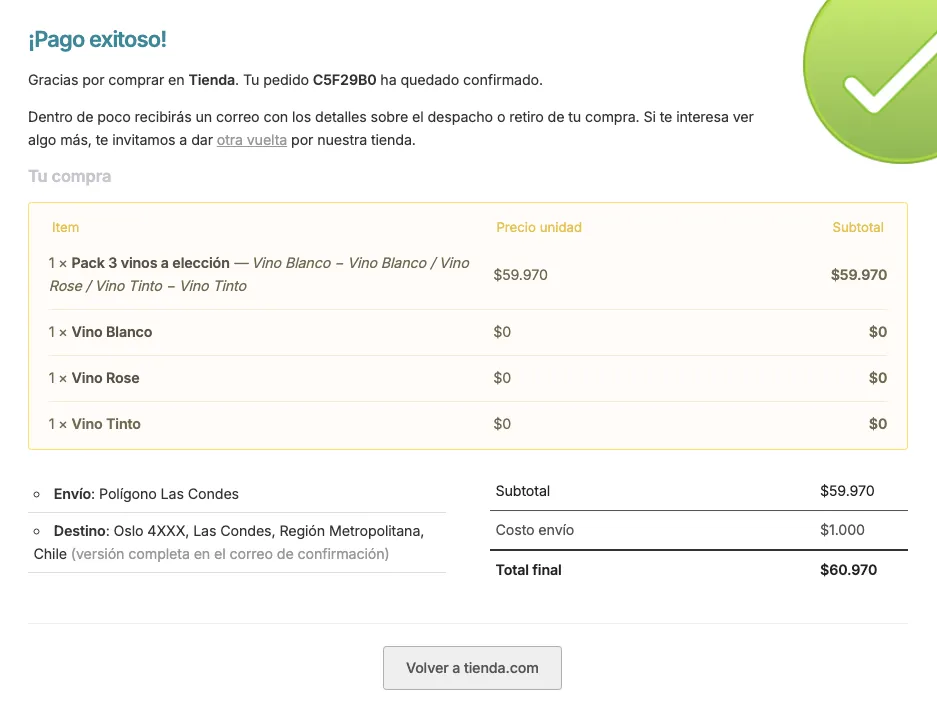
For the customer, both at checkout and in the emails they receive, the pack name and the variants that make it up are shown:
We invite you to try this component in your store and keep improving your customers’ shopping experience. If you run into any problem when creating a pack, write to support