

Change the display order of products
Sort your products strategically
Changing the order of the products in each collection can be a very important move, especially when we want to showcase low-selling products or new products.
Change the general product order
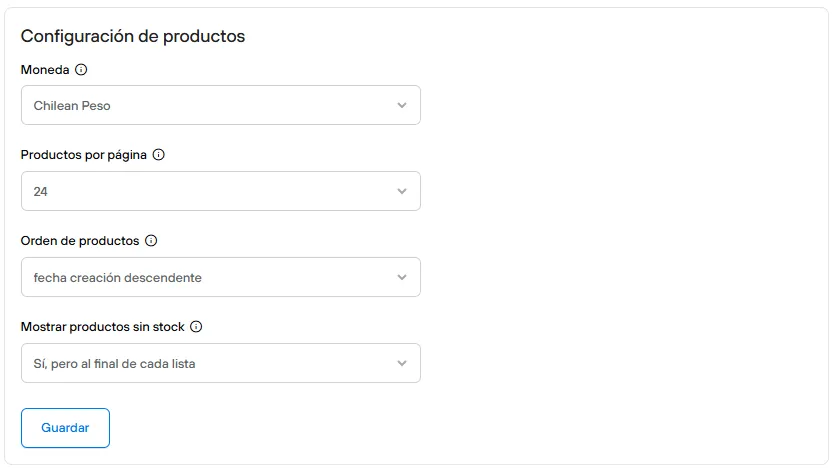
From the admin > Preferences > General options, in the Product settings section, you can set the default order for your e-commerce store.
Custom order in collections
Even if your store already has an order that applies to all products, collections have the option to have a different custom order.
There are several ways to customize the order, and to do so you first need to open the collection you want to change.
Once inside the collection, you have 3 options to change it:
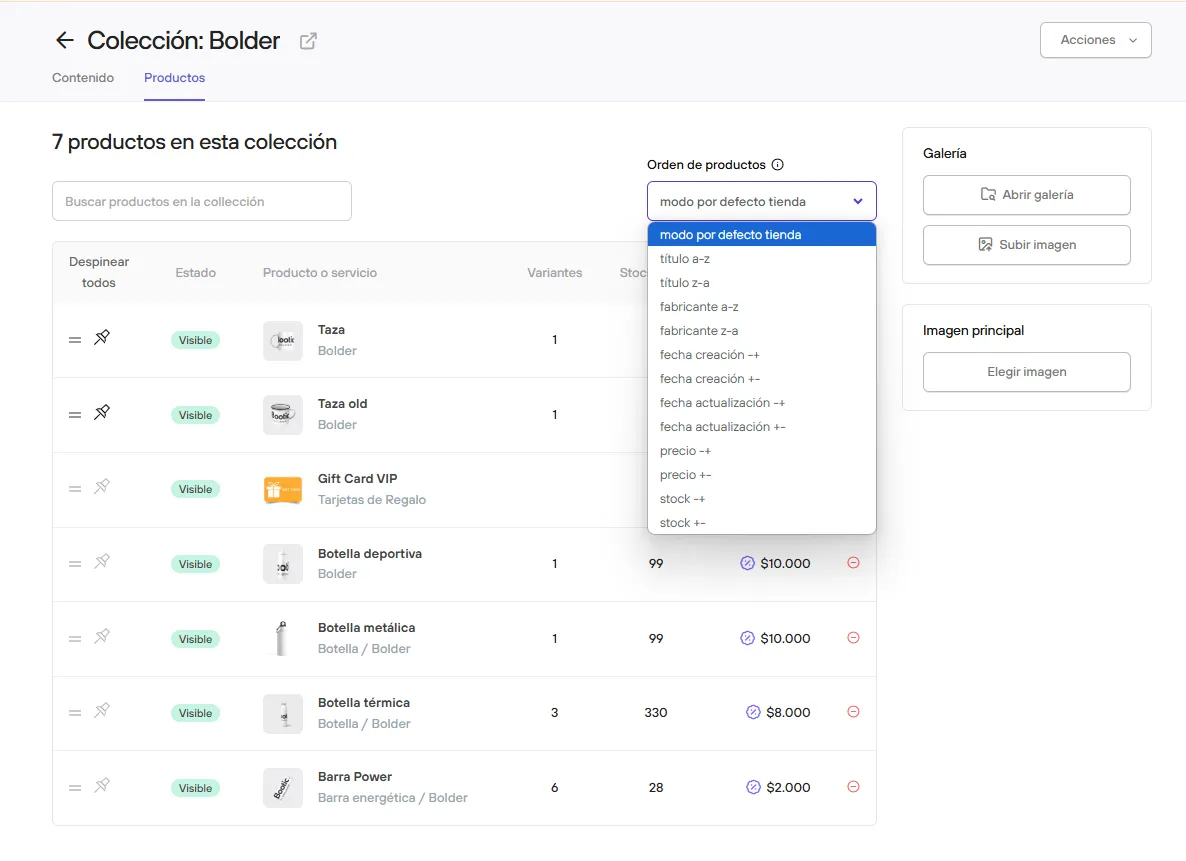
- Selecting the product order from the selector.
-
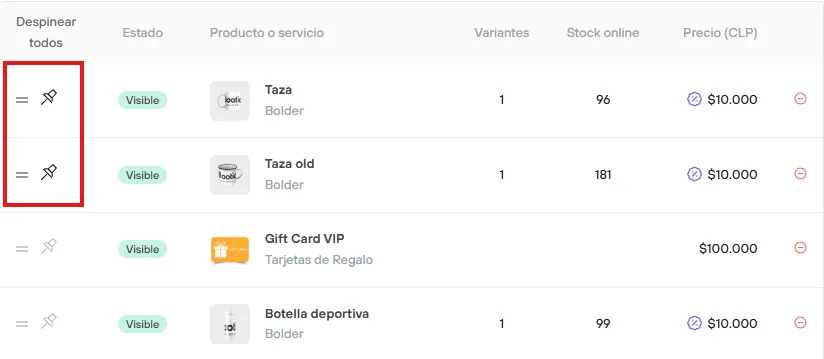
Pinning products so they appear at the top of the view (regardless of the selected order).
This makes only the pinned products show first in the collection, and the rest will be shown according to the store’s default order.
-
Sorting products with a bulk upload
Recommended steps:
- In products, filter by the collection you will work on and download the complete products spreadsheet.
- Import the file into Google Sheets to open the spreadsheet.
- Edit the spreadsheet to keep only the first 3 columns, deleting the rest of the information.
- Work in this spreadsheet to set the order you want for the collection. Remember not to leave blank rows.
- Once the order is ready, download the file in CSV format.
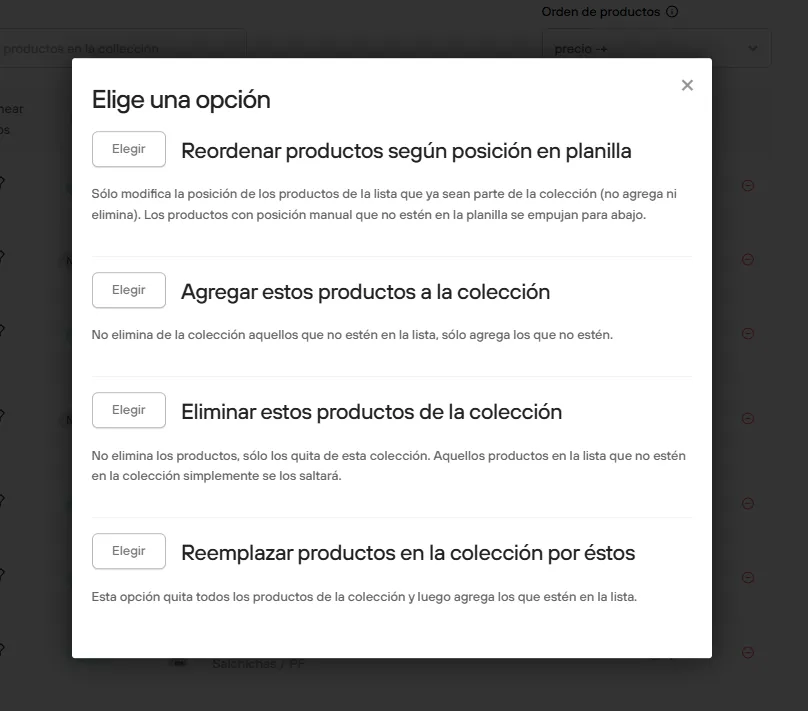
- From the collection view, drag the file in and select the first operation: Reorder products by position in spreadsheet.
This way you can give your products a custom order more easily.
Only by working from collections can you give your products a different custom order.