Filters with comma-separated attributes

We have had this for a while, but not everyone was using it: comma-separated attributes, which generate filters, usually in the sidebar of the view that lists your products or services (categories, collections, and other product groups).
Working with these special attributes requires detailed conditions when managing products and services. In the download spreadsheet, it is not enough to just separate with commas the different values associated with attributes (the filter generators). You must follow these steps:
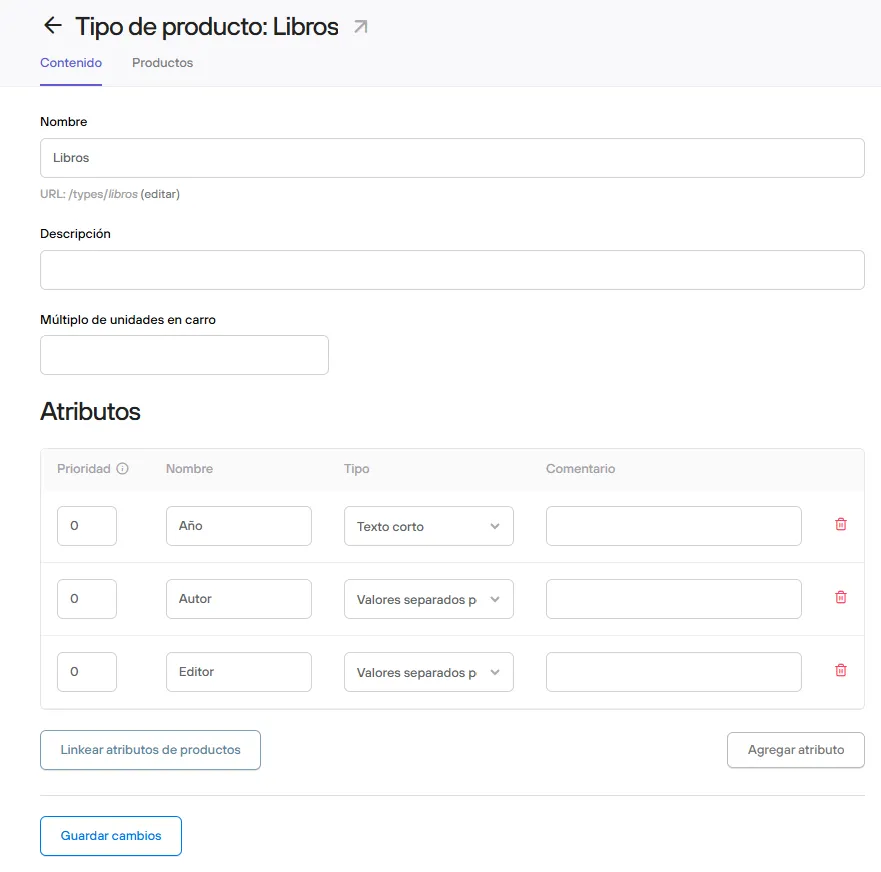
Step one: make sure the comma-separated attribute is created and assigned to the product type
Once you open the product types view https://panel.onbolder.com/admin/product_types, you will see all the types on your website. For example, if you wanted to assign a comma-separated attribute to a product type called Editor (which you know can sometimes be more than one), make sure it is created. If it already exists, or is at least assigned to one, you can create the attribute and set it to be comma-separated.
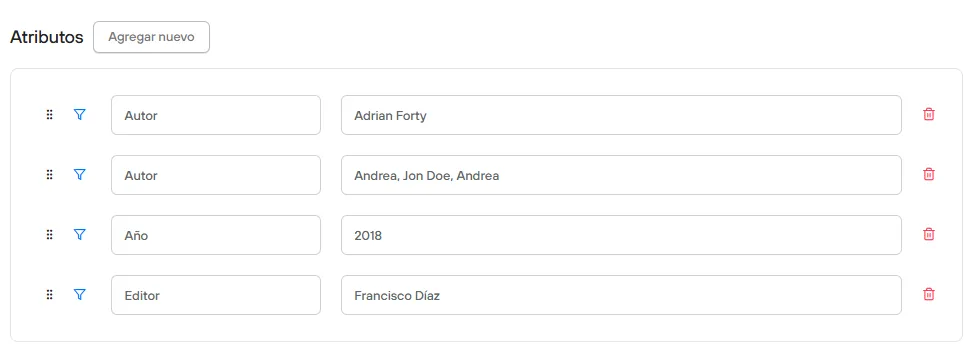
Step two: check how the filter or attribute behaves.
If you already did step one for certain product types, there should be no problem here. However, when you create new products and assign the different types in which the desired attribute (Editor in this case) applies.
Step three: run the “Link attributes” action
You will need to use a new button that appears in this view, “Link attributes”. Behind the scenes, this button runs an update that replaces the old attributes with the new ones so they adapt and follow the correct separation.