

Remove sale prices in bulk
If you took part in Cyber, or ran a sale price campaign that has already ended, this information will help you go back to the original price of your products.

There are two ways to make this change in bulk, via CSV or from the panel.
Remove sales via CSV
[This is the most recommended option, since here you can make sure you set the right price for each product and its variants, without errors]
Download the prices spreadsheet by variant, ideally filtering by the products that currently have a sale price (e.g., the cyber collection).
Once you have the spreadsheet imported into Google Sheets, delete the values in the sale_price column. Leave the cells blank (without deleting the column name), and do not write “0”.
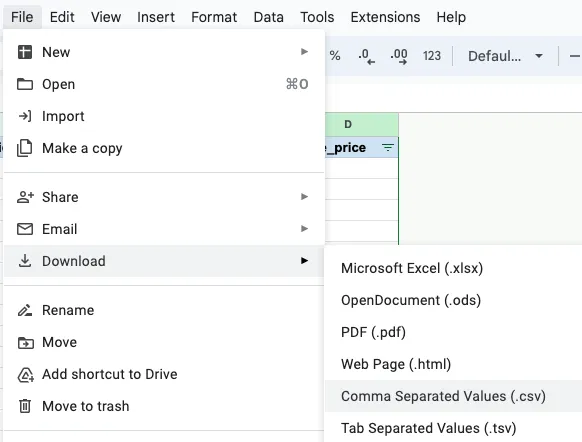
Save the file again in CSV format
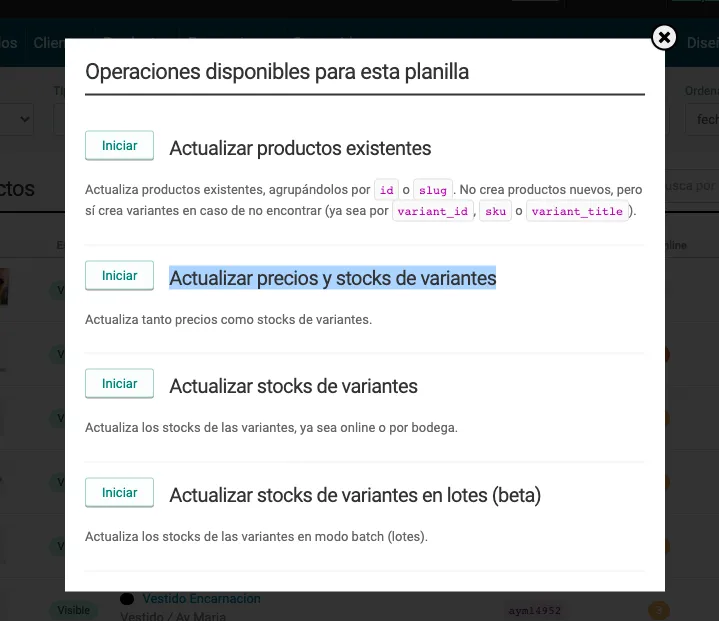
In your panel, in the PRODUCTS section, drag or import this spreadsheet.
Here you must choose the option “Update variant prices and stocks”, and that’s it! You just need to wait for the changes to show up in the store.
Remove sales from the panel
[Before doing this, we recommend downloading the products spreadsheet as a backup]

From the panel > in products > you must filter the collections/tags that contain the products with sale prices.
Make sure the products have their real price set before making the changes.
Select all the products on the page or the ones you want to modify, then select the “Change Prices” operation, and under Sale price choose “Remove”.
IMPORTANT: This operation must be done for each page of products (if you want to remove them all and have more than one page of products to modify)
We hope this information is useful for making the changes you need!
If you need help with this task, you can contact our support team, telling them which method you used to make the change and attaching the corresponding spreadsheets.