

Download product, order and customer data
Exportable spreadsheets
In Bolder you can download spreadsheets with the complete or customized information for orders, products and customers.
You will find this option at the bottom of each of these pages.
When you export the files, you can choose between different file types
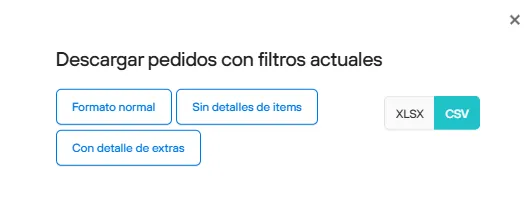
Export orders:
In the standard format, without item details, or with extra details.
You can also get this spreadsheet in XLSX format.
Export the products spreadsheet
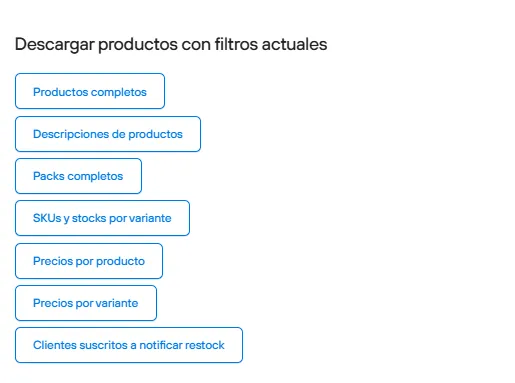
For products there are multiple download options.
Full products, product descriptions, pack spreadsheet, SKUs and stock by variant, prices by product, prices by variant, and the spreadsheet of customers subscribed to restock notifications.
Export the customer list
The customer spreadsheet has only one version available.

Depending on the filters you apply in each view, you will get partial information limited to those same filters.
If the file isn’t very large, the download will start automatically in your browser.
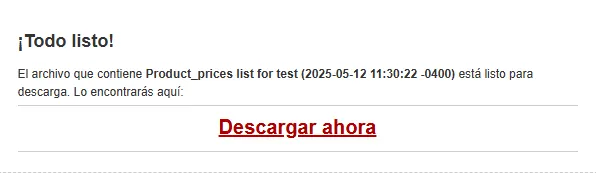
If you are working with very large spreadsheets, you will receive an email with a link to start the download. The email goes to the address you use in the admin and requested the export.
CSV files
The files you download come in CSV format.
It is normal that when you open the file directly in Excel, all the information appears joined in a single cell, as in the image:
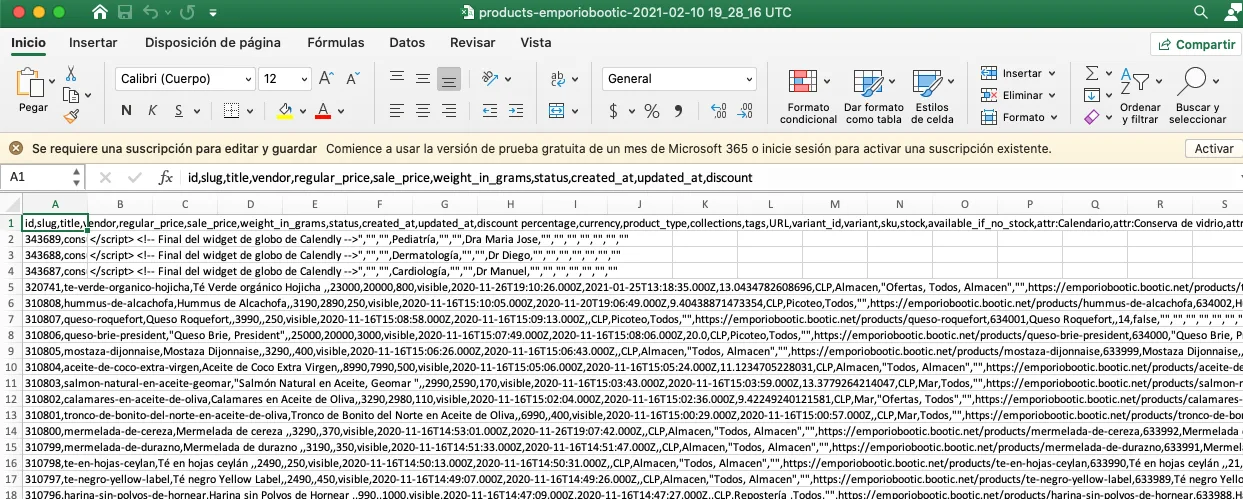
To view it correctly, there are two ways: set up the data source in Excel, or work in Google Sheets.
View in Excel
In Excel, if your version doesn’t make the change automatically, you can follow these steps
- Open the file in Excel
- Select the whole column A (where all the data is together).
- Go to the “Data” tab in the top bar and click “Text to Columns”.
- The wizard will open:
- Step 1: Select “Delimited”, then click Next.
- Step 2: Check the right delimiter
,(comma separated)
- Click Finish.
View in Google Sheets
If you have a Google account, download your CSV and go to Google Docs. Click New > File upload
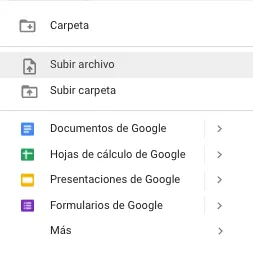
- Open Google Sheets and create a new sheet (click + Blank).
- Go to the top menu and click File > Import > Choose the “Upload” tab. Then click “Browse” and select your .csv file.
- A window with options will open. In the “Import location” field, select: “Replace current sheet” or “Insert new sheet”. Under Separator type, select: “Detect automatically”
- Click Import data and Google Sheets will automatically detect the delimiter.
With exportable spreadsheets you can easily access, filter and work with the key information about your operation.