Customers
Your customers’ information
From the admin panel, in the left-hand side menu, go to Customers.
In this section you will find the information of everyone who buys from your site, as well as customers who want more information about your store (by subscribing to the newsletter, filling out a form or starting the checkout process).
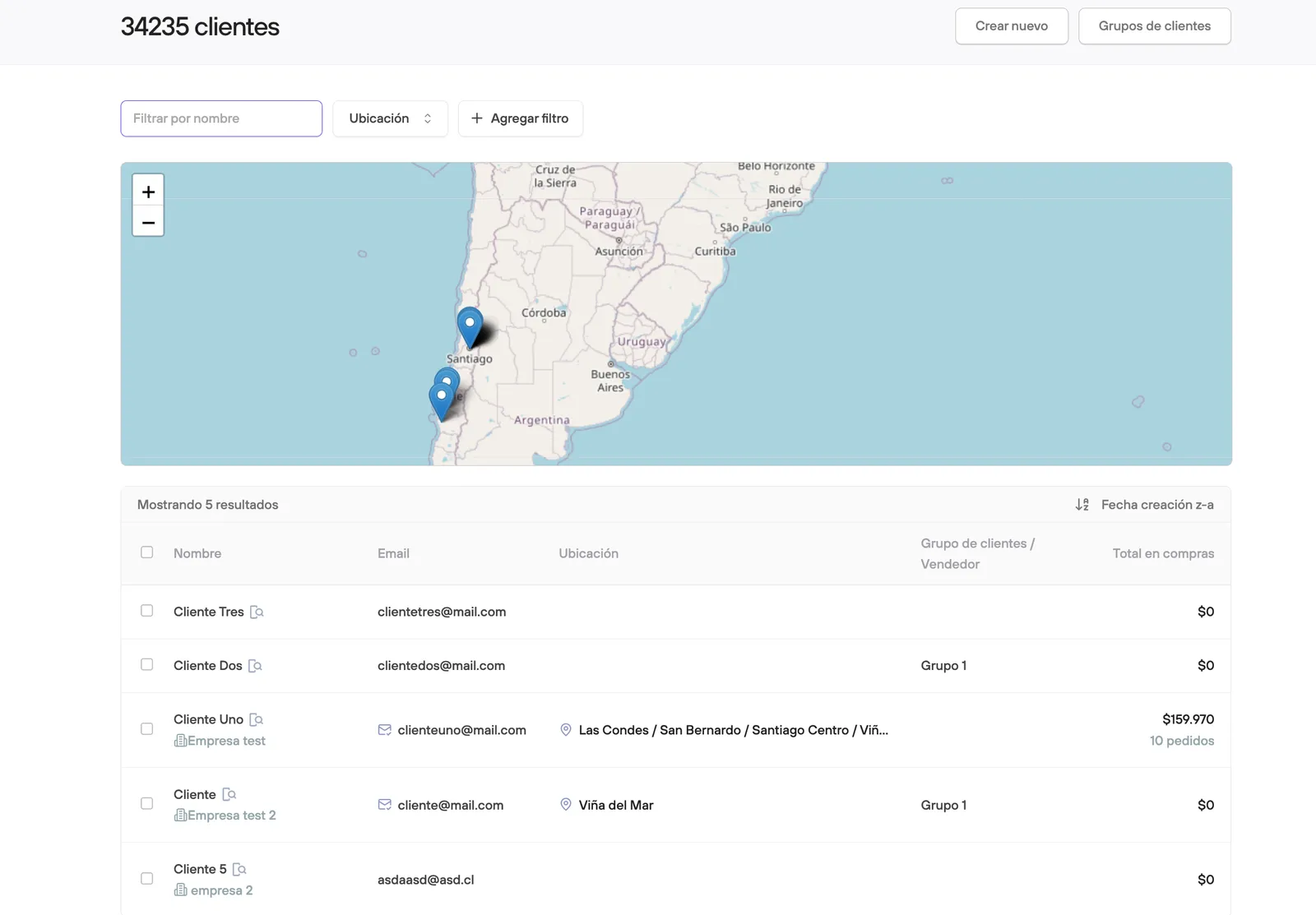
At the top you can see the total number of customers in your database, and on the right, the button to manually create a new user.
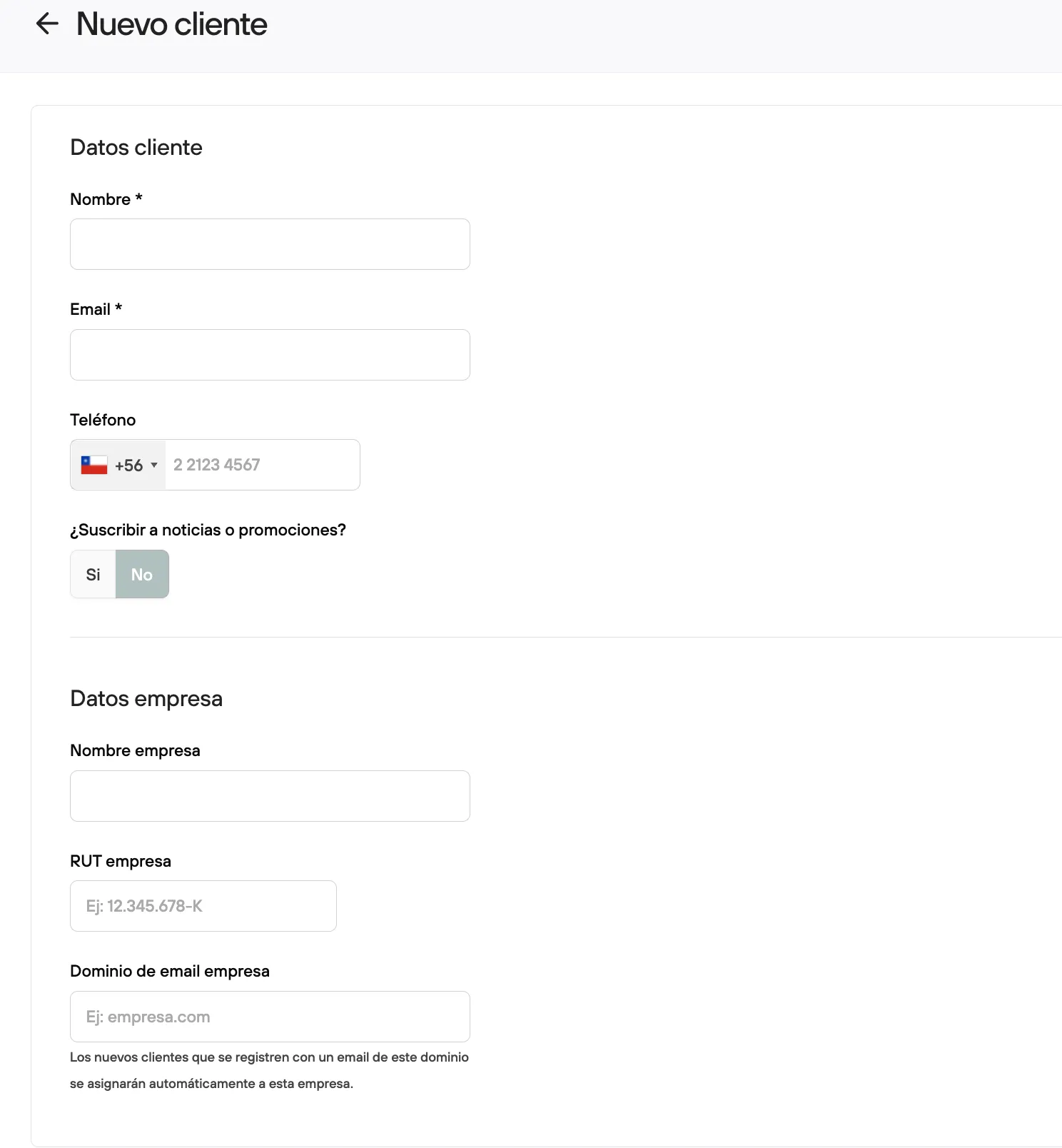
To create a new user, just complete the requested fields (required to create one) and save.

Above the map showing the location and distribution of your site’s users, you will find filters for custom searches, either by name or email, plus other conditions related to location, number of orders, total purchases, etc.
You can combine the filters you need for your work.
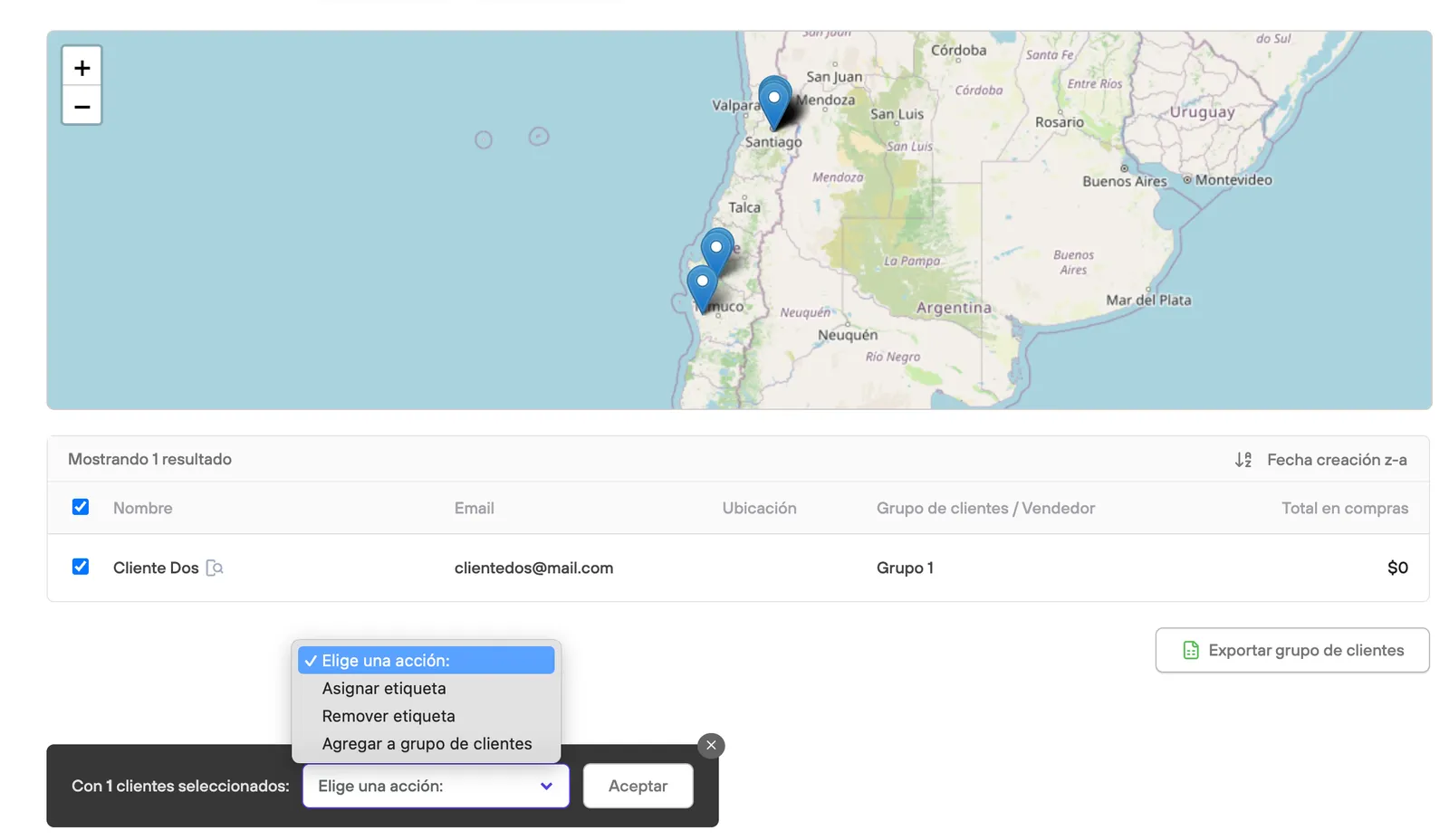
Just like in the Orders section, you can also run bulk actions here. In this case, you can remove or assign tags to each customer (so you can filter them more easily in the future).

You can also export the contact list while keeping the filters applied:
To see the details of each customer, open the full view by clicking the user’s name.
In this view you will find the following information and action buttons:
- The customer’s personal details, including the date of their first and last purchase.
- Shipping addresses used.
- Add/Remove tags.
- Order history, including a link to see the full list in the orders panel.
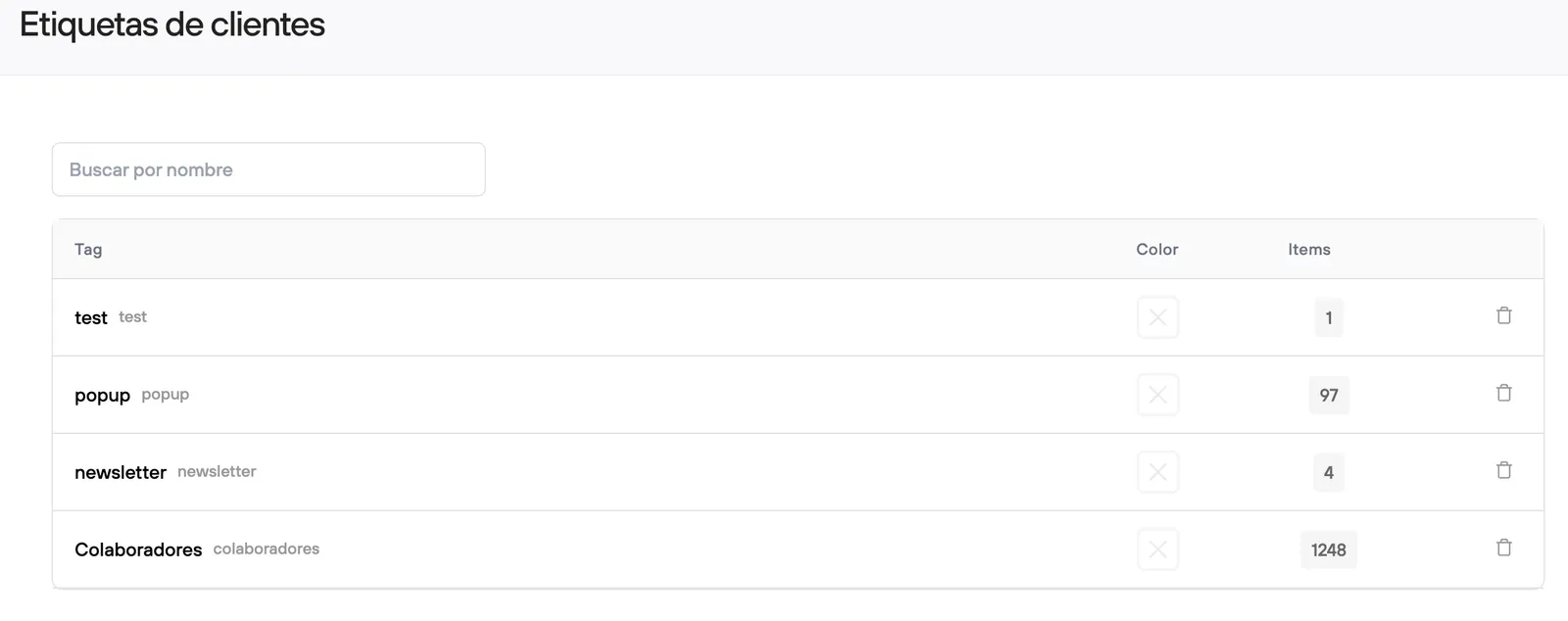
Going back to the panel, under customers you will find the Tags submenu.
Customer tags are used to group users who meet certain criteria that matter to you, and you can create as many tags as you need. This classification can be useful for applying promotions exclusive to a customer tag.