Promotions
Turn on Promotions in your store
A Promotion is a communication tool that lets you influence your customers’ buying behavior.
From the admin panel, go to the Promotions and discounts section.
In the top right corner you can create new promotions.
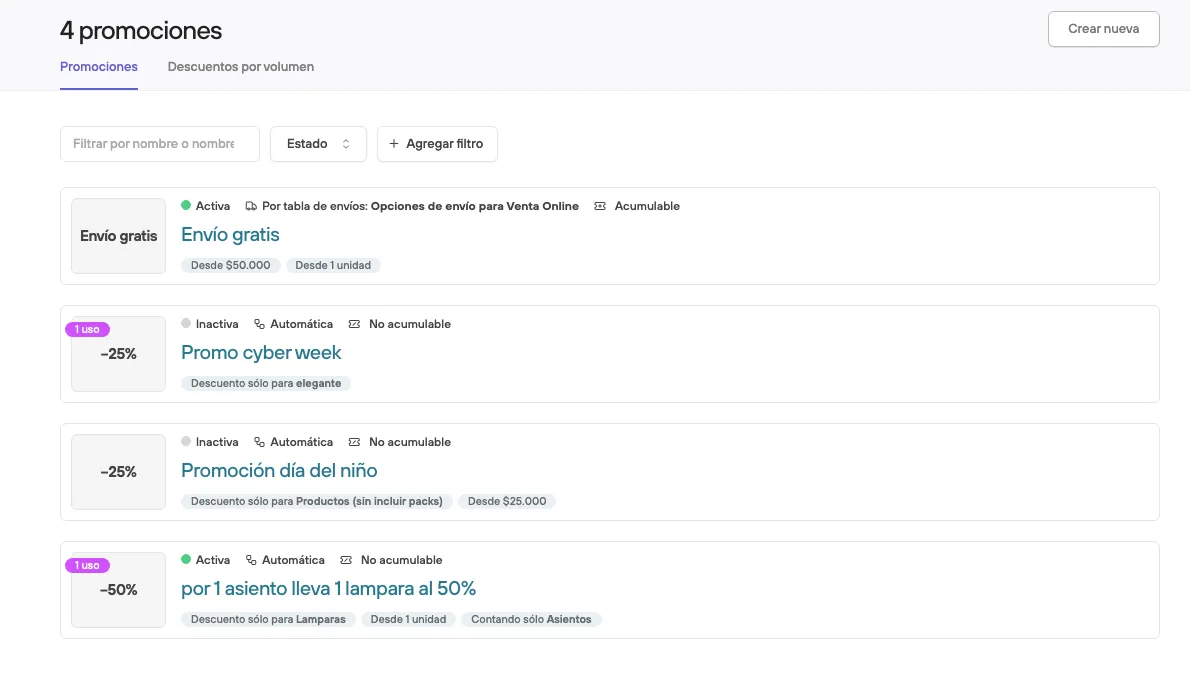
When you create a new promotion you will open the settings menu, which is split into different sections for detailed customization:
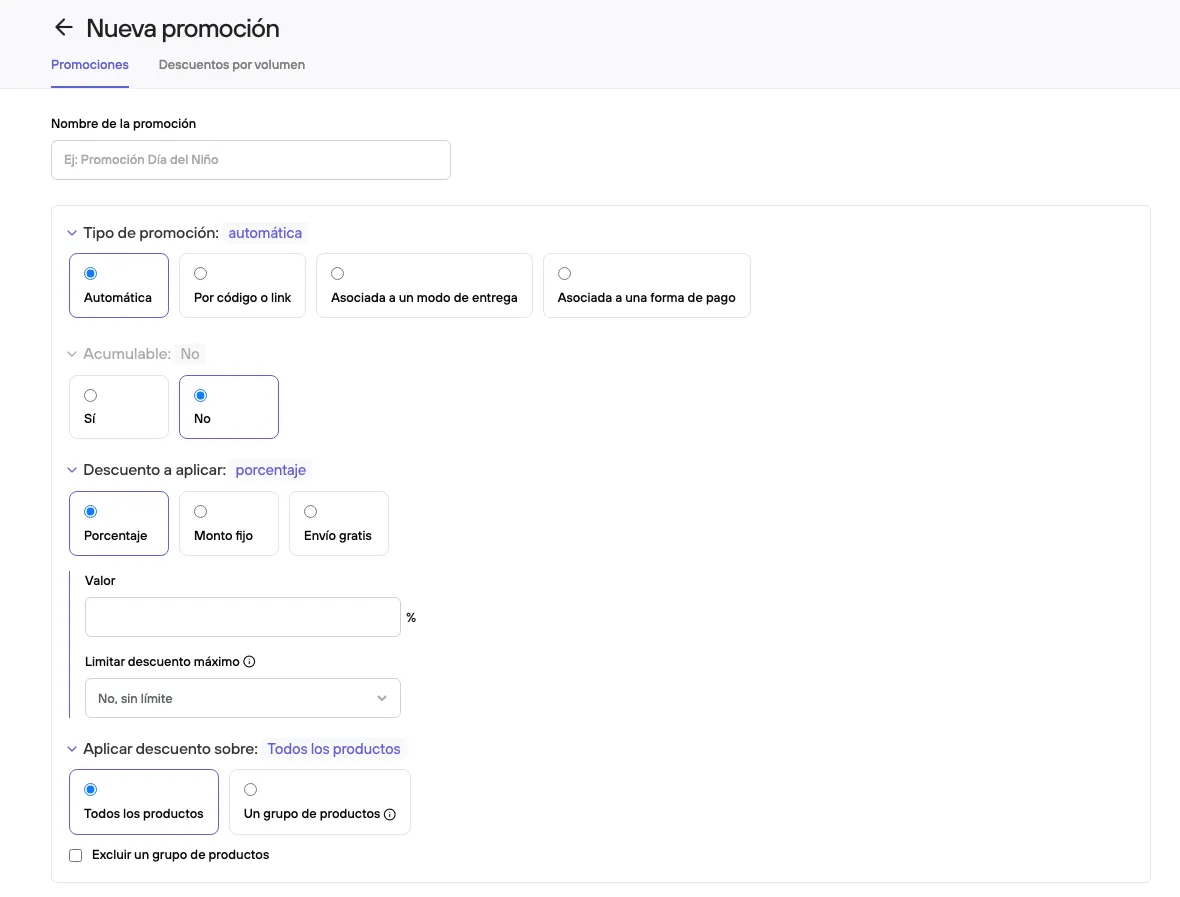
Name and initial setup
In this section you can define the basic activation and setup parameters of the promotion, such as:
- Promotion name
- Promotion type: The type of activation.
- Automatic, once the conditions defined in the following steps are met.
- By code or link, a code applied at checkout or by clicking a specific link.
- Linked to a delivery method, when a specific delivery method is selected while moving forward in checkout.
- Linked to a payment method: when a specific payment method is chosen in the last step of checkout.
- Can it be combined with other promotions? (only promotions with a different activation method can be combined)
- Discount to apply (percentage, fixed amount or free shipping)
- Maximum discount applicable (if you select a percentage discount)
- Apply discount to: Lets you apply the promotion to products that belong to a specific group ( All products including packs, Packs, Collection, Product type, Brand or Tags)
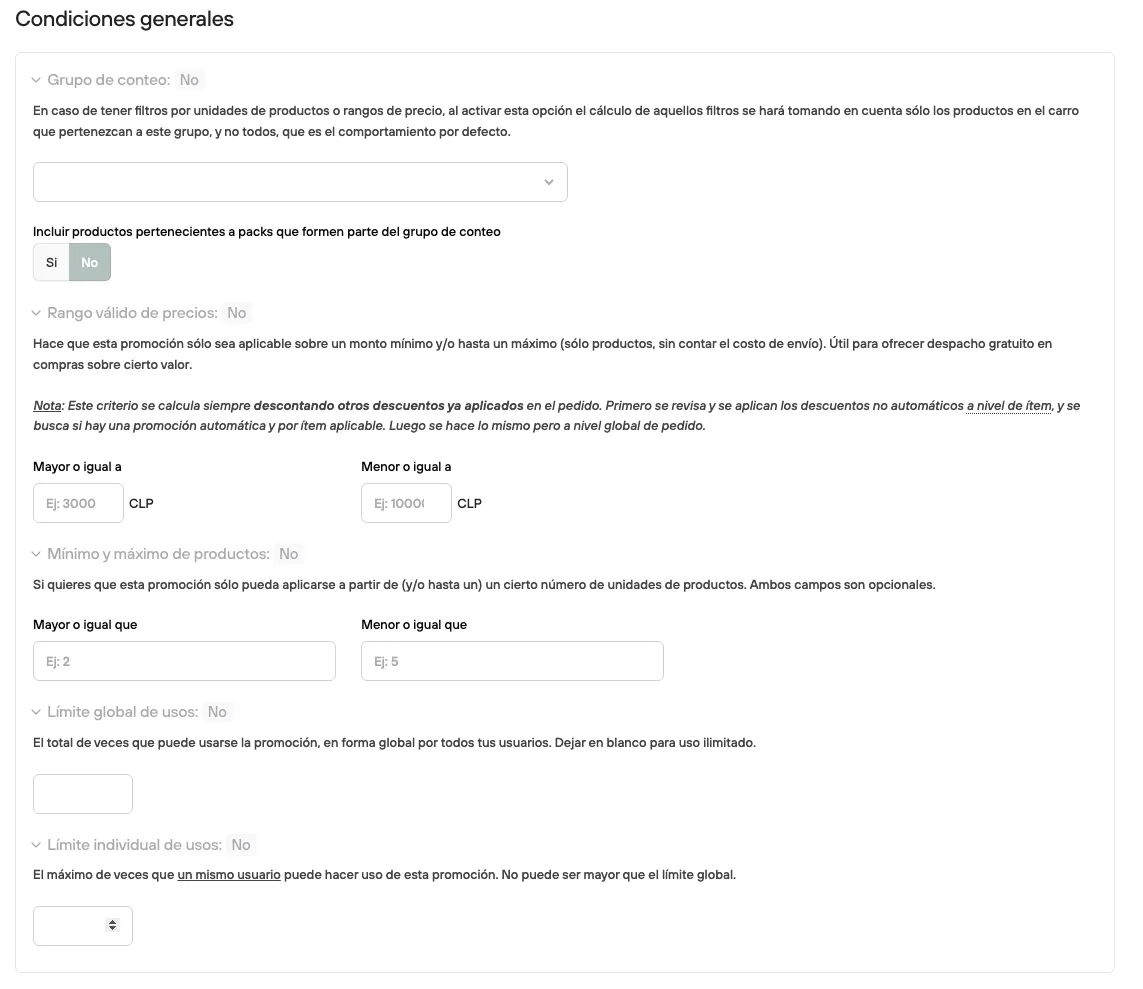
General conditions
- Counting group: when this option is on, those filters are calculated taking into account only the products in the cart that belong to this group.
- Valid price range: You can set the minimum and/or maximum amount at which the promotion takes effect.
- Minimum and maximum products: You can set a minimum and/or maximum number of products the order must include for the promotion to take effect. If the counting group is on, the minimum and maximum are calculated on the defined group and not the whole cart.
- Global usage limit: Maximum number of times the same promotion can be used
- Individual usage limit: Maximum number of times it can be used by the same customer.
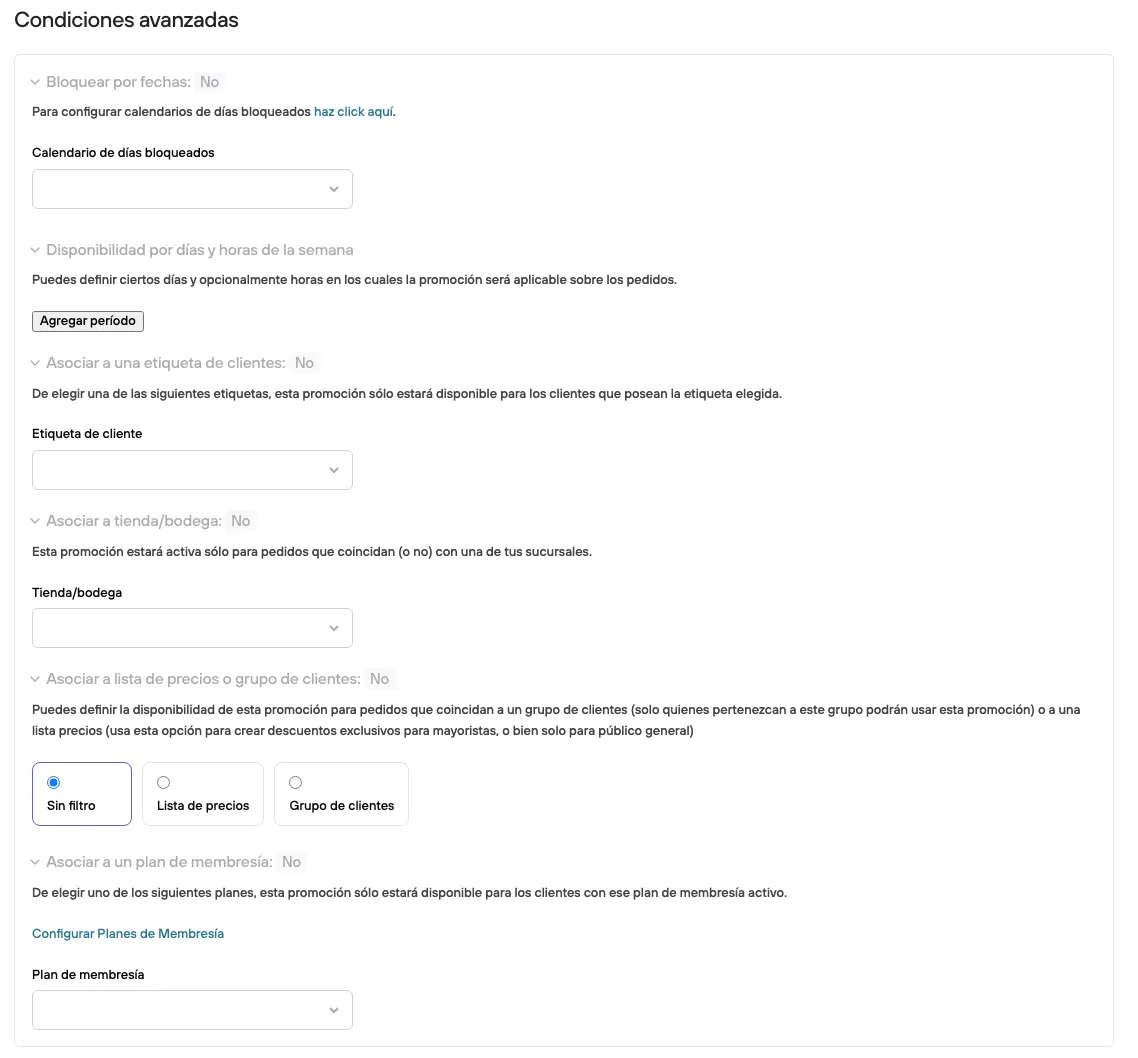
Advanced conditions
- Block by dates: You can link a blocking calendar to set specific days when the promotion won’t apply, even though it is active and meets the established requirements.
- Availability by days and hours of the week: Set specific hours and days when the promotion will be active, so you don’t have to turn it on and off manually.
- Link to a customer tag: When you select a customer tag, the promotion will apply only to customers who have the tag and meet the established conditions.
- Link to store/warehouse: An additional condition that lets you limit the promotion to a specific branch or warehouse.
- Link to price list or customer group: Setting for stores that work with Groups and Price lists, or the wholesale channel. It lets you limit the promotion to orders with or without a list/group.
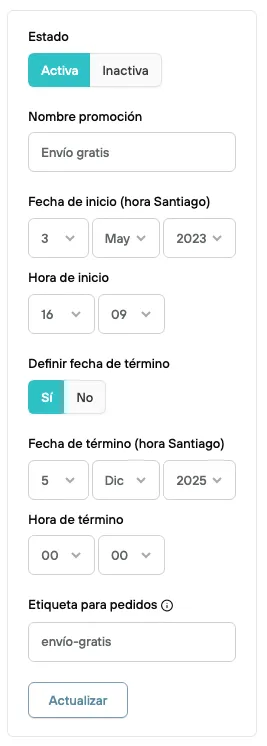
Once the promotion is created, on the right side you can set:
- Status: Active or inactive
- Promotion name: In case it needs changing
- Start date and time: If you don’t set a date, it will use the time/day of the last update. You can also set future dates.
- Set end date: When you turn this on, you can set the day and time the promotion ends
- Order tag: name of the tag used to identify the orders that use the promotion. In the orders section you can filter and review them.
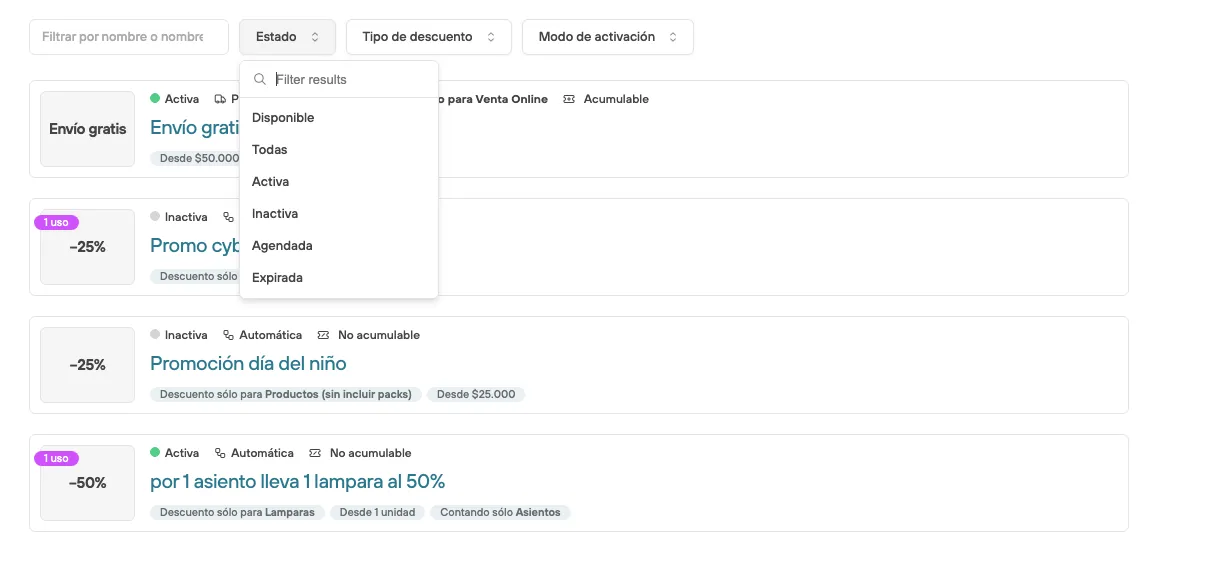
In the Promotions section you will find all the ones you’ve created, and you can filter by active, inactive, scheduled or expired.
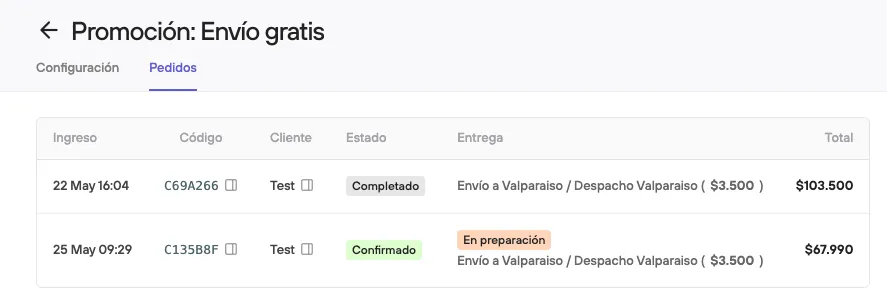
In addition, if you open the promotion’s details you will find a summary of its setup, as well as a list of the orders that have used this promotion