

Automatic notifications in Bolder
Bolder sends automatic emails to your customers based on what happens with each order: when it is pending payment, when it is confirmed, when it is shipped, and more. This guide shows you which ones are sent, when, and which ones you can turn on or off depending on your operation.
The emails sent from Bolder are grouped by block: Orders, Quotes, User accounts, Products, Promotions and Gift Cards and Subscriptions and memberships.
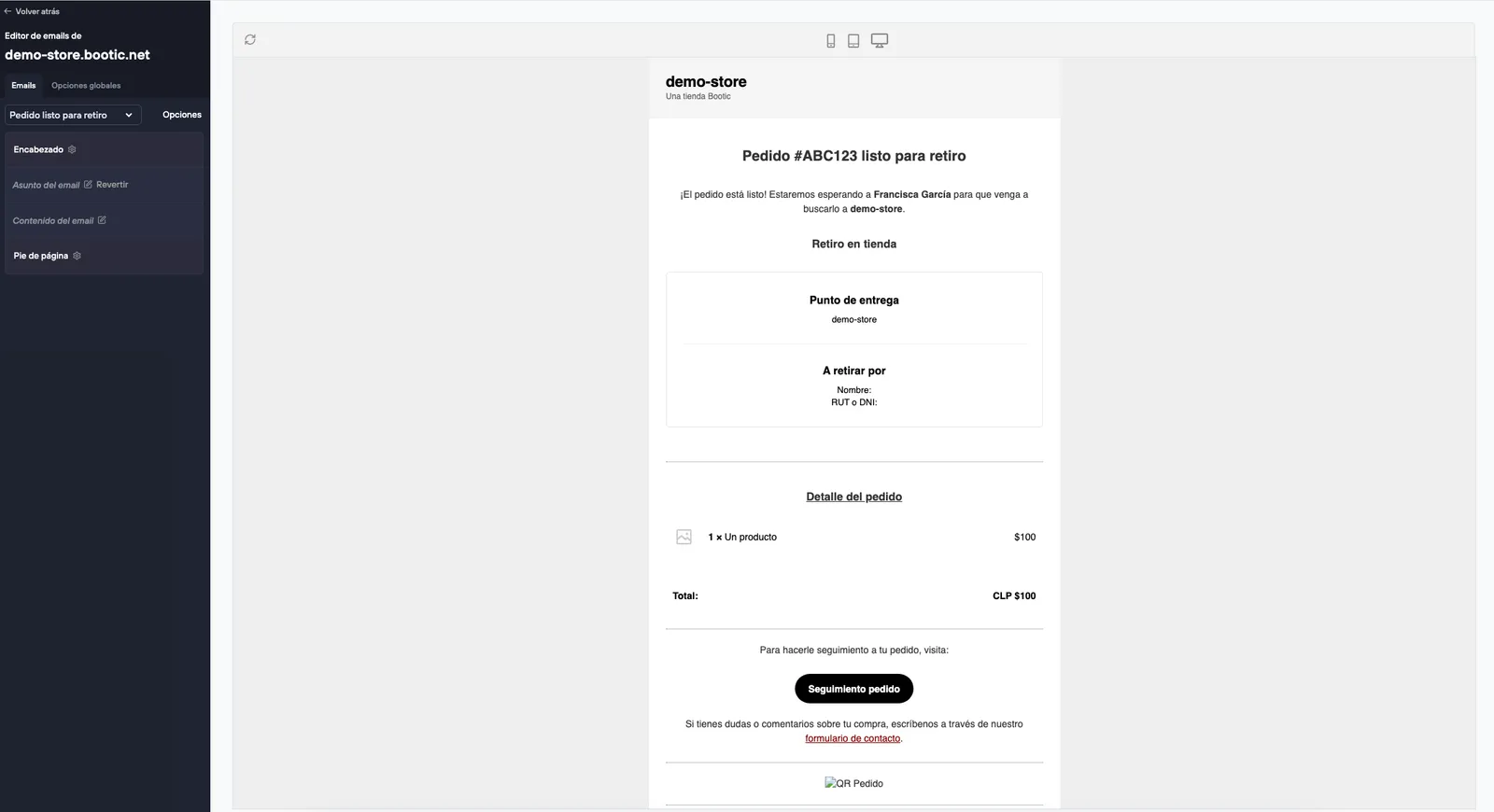
Order notifications
Notifications by payment status (main status)
Sent to customers who reached checkout and left contact details, but didn’t get to place the order. The email is sent after 24 hours without activity since their last interaction at checkout.
In the notifications list it appears as Incomplete order reminder (abandoned).
How to turn it on
- Go to Options.
- Open the Abandoned carts tab.
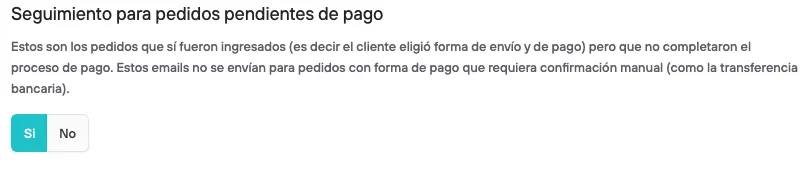
- In the Abandoned cart follow-up section, find Follow-up for incomplete orders.
- Select Yes.

This status has two notifications.
1. Automatic notification
It is always sent, with no setup needed. It is triggered 5 minutes after the customer submits the purchase request (that is, reaches the payment gateway) and one of these two things happens:
- There is no activity.
- The gateway doesn’t report a successful payment.
It appears in the list as Order pending payment.
2. Follow-up notification (optional)
It is an additional reminder sent when 24 hours pass without activity on the order. It appears as Pending order reminder (placed).
How to turn it on
- Go to Options.
- Open the Abandoned carts tab.
- In Abandoned cart follow-up, find Follow-up for orders pending payment.
- Select Yes.
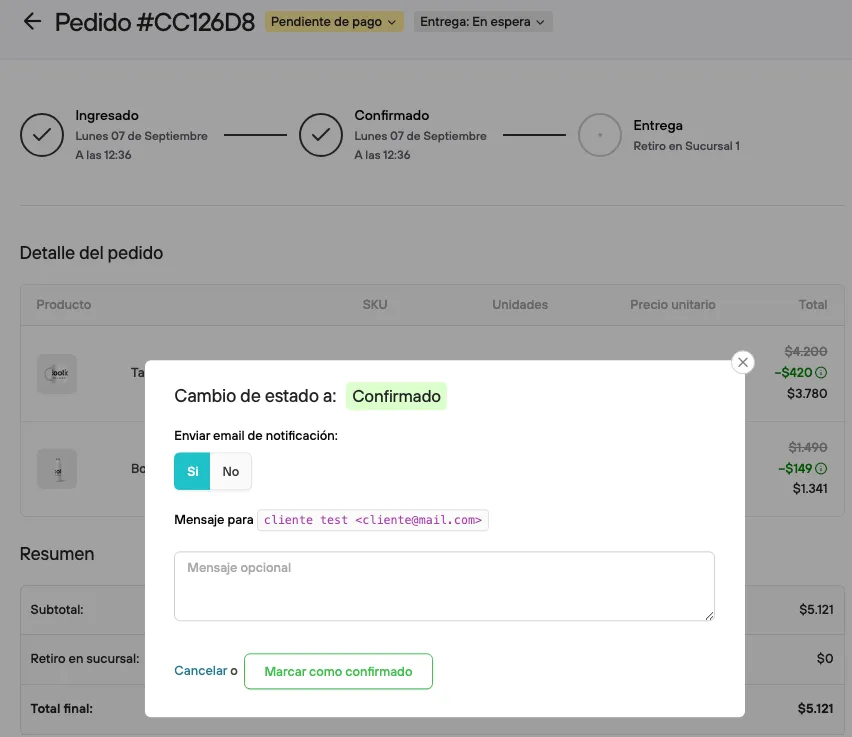
Sent automatically as soon as the order’s payment is registered through a payment gateway.
If you work with custom payment methods, which have no automatic verification, you decide whether the notification is sent when you change the order status. That option is available both when changing the status manually and in bulk.
Notifications by delivery status
All delivery statuses have an associated notification, and sending it is optional. The statuses are:
| Status | Notification |
|---|---|
| Preparing | Optional |
| Ready for pickup | Optional |
| Shipped | Optional |
| Delivered | Optional |
| Queued | Optional |
| Not shipped / delivered | Optional |
| Returned | Not available |
| Canceled | Not available |
The Returned and Canceled statuses don’t send a notification to the customer.
Stores with an integrated courier: if you work with integrated couriers, you can turn on automatic notifications. They will be sent based on the status change triggered by the courier, without you having to update the order manually.
It is an additional notification for pickup orders. It works like this: once the order ready for pickup notification has been sent, if the order does not change to the Delivered status, the email is sent again after 24 hours.
How to turn it on
- Go to Options.
- Open the Abandoned carts tab.
- Find Follow-up for orders pending pickup.
- Select Yes.

Quotes
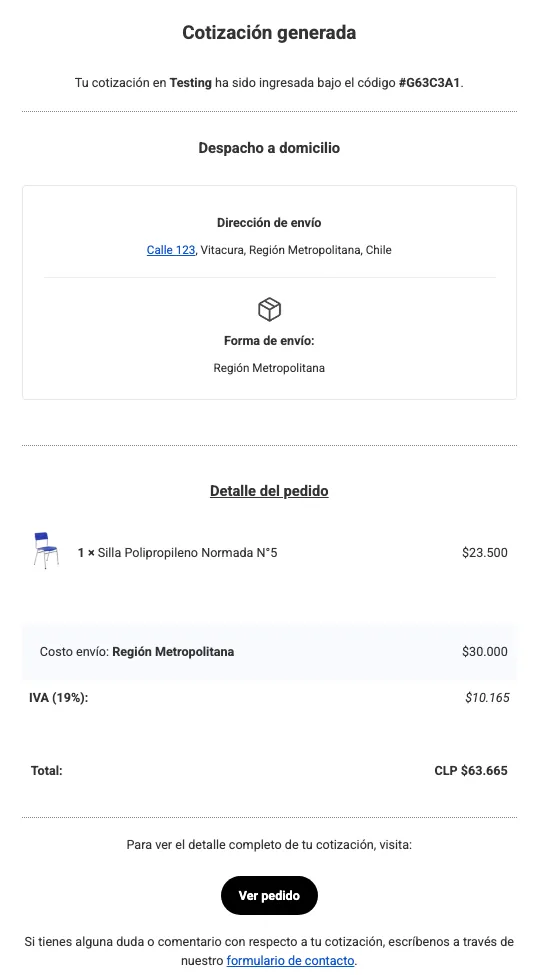
Emails tied to the quotes flow, to let the customer know when a quote is generated or when a new one is received.
- Quote generated
- New quote
User accounts
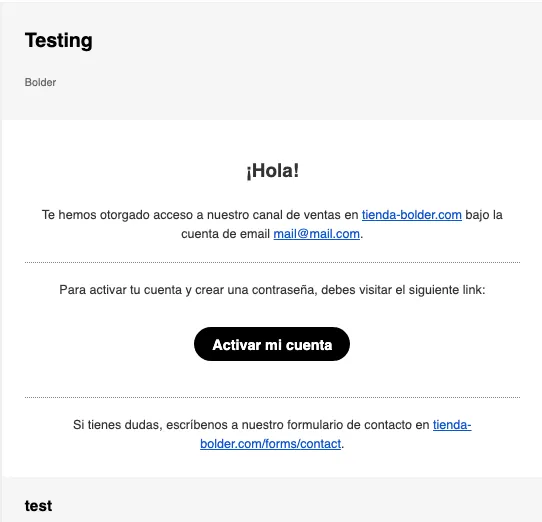
Emails related to the customer account’s lifecycle.
-
Account activation
-
Account activated
-
Password recovery
Products
Informational emails about products in your catalog.
- Product back in stock
Gift Cards
Emails to deliver benefits and gifts to your customers.
- Gift card delivery
Subscriptions and memberships
Emails for the full lifecycle of subscriptions and memberships: start, charges, status changes and cost updates.
- Subscription or membership started
- Free subscription or membership started
- Free subscription or membership ended
- Manual card charge
- Subscription charge failed
- Subscription canceled
- Subscription disabled
- Subscription renewal cost updated