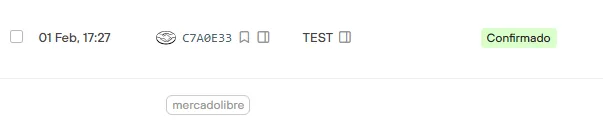
Classify or group orders
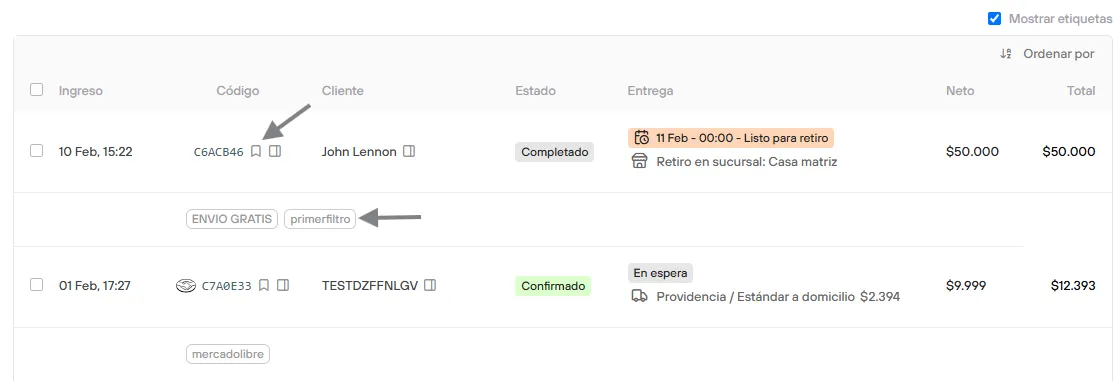
Tagging an order means giving it a quick classification for better management. For example: you want quick access to all the orders you consider a good opportunity for remarketing or for building loyalty by sending them a promotion code.
Bolder lets you add one or several tags to an order.
How to create a tag
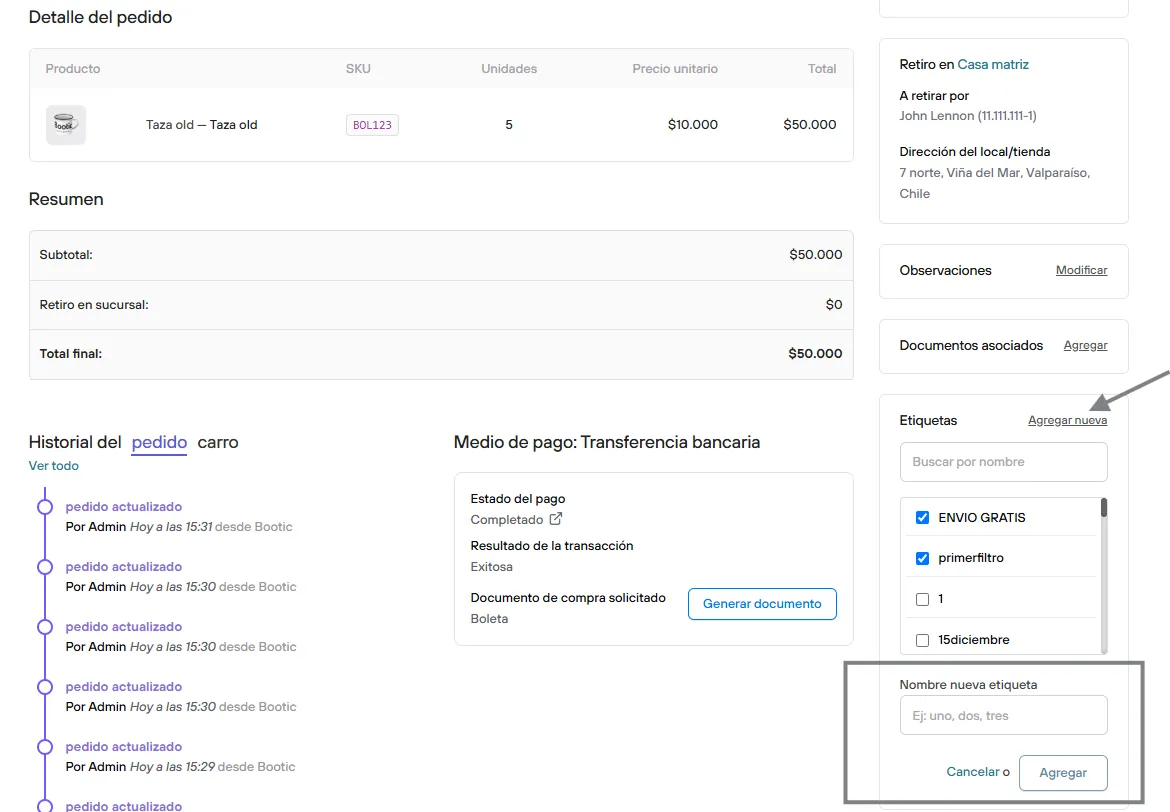
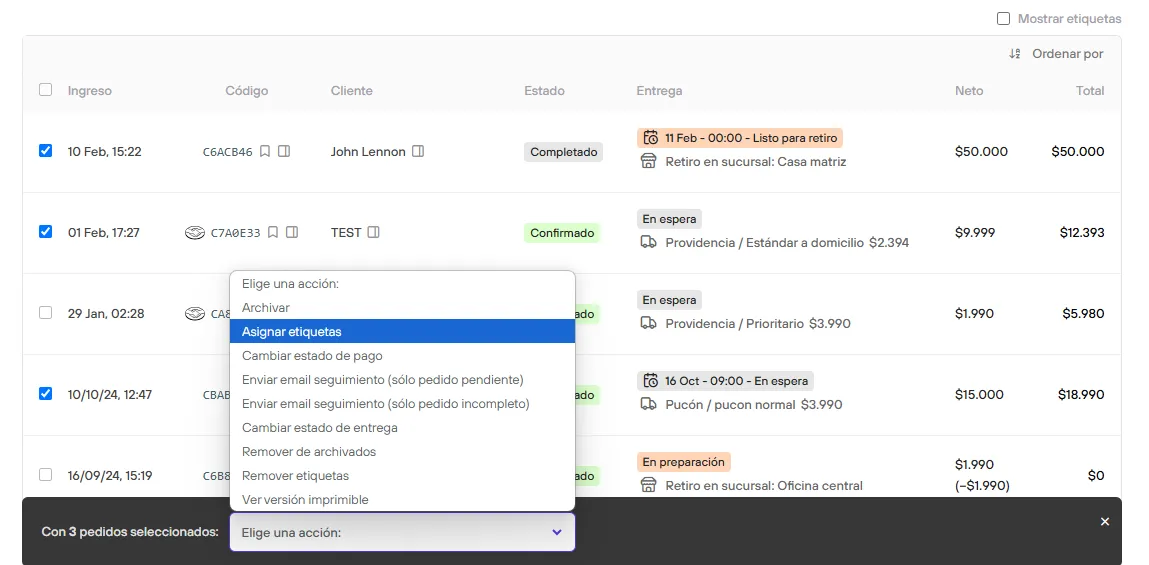
There are two ways to tag an order:
- In the order detail, on the right side.
- Using the bulk order editing tool.
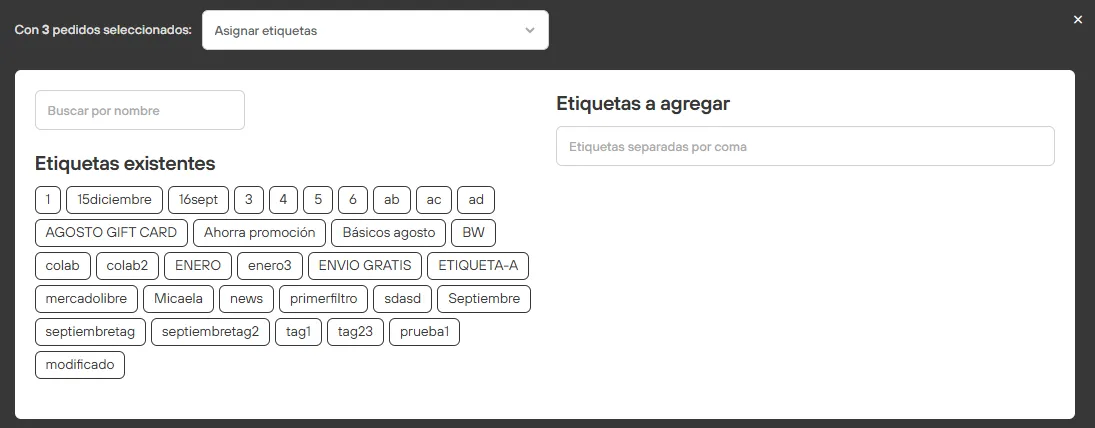
Remove a tag
Just like the creation process, you can remove assigned tags the same way.
If a tag is removed from all orders, it is automatically deleted.
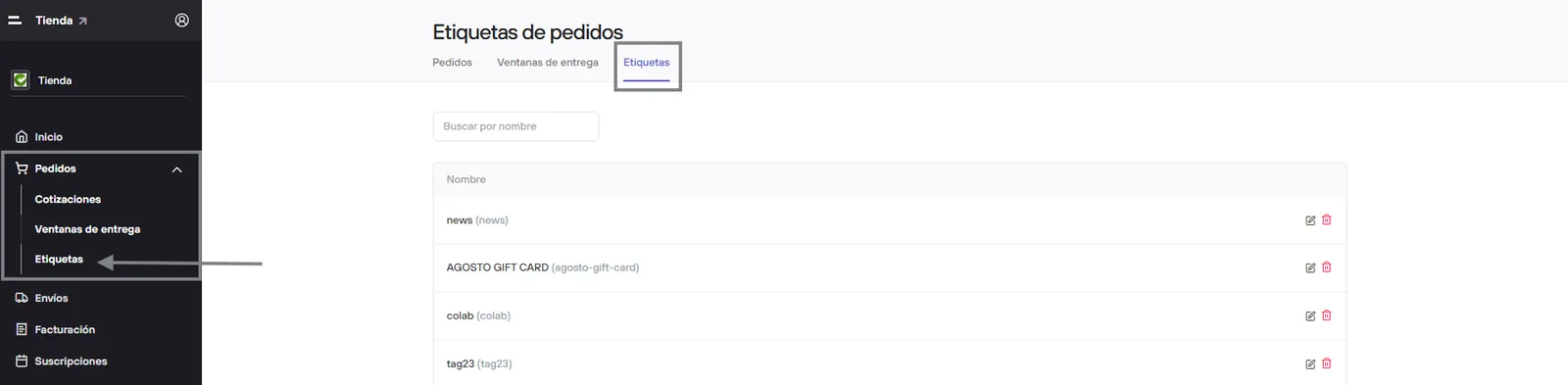
From the admin, in Orders > Tags, you can review and edit the existing tags.
If you open the detail of each one, you can see the associated orders and download the associated CSV.
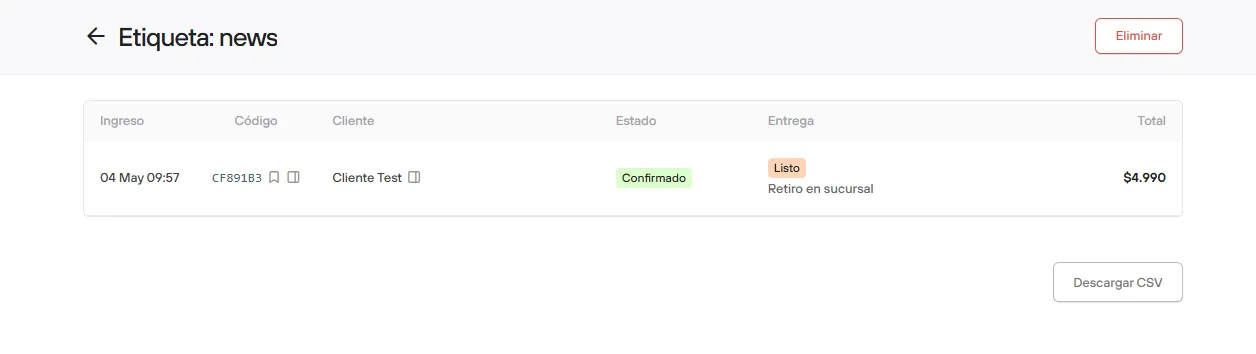
If you delete a tag, the products that had this tag are never deleted.
Filter by tags
You can get to the tagged orders in two ways:
-
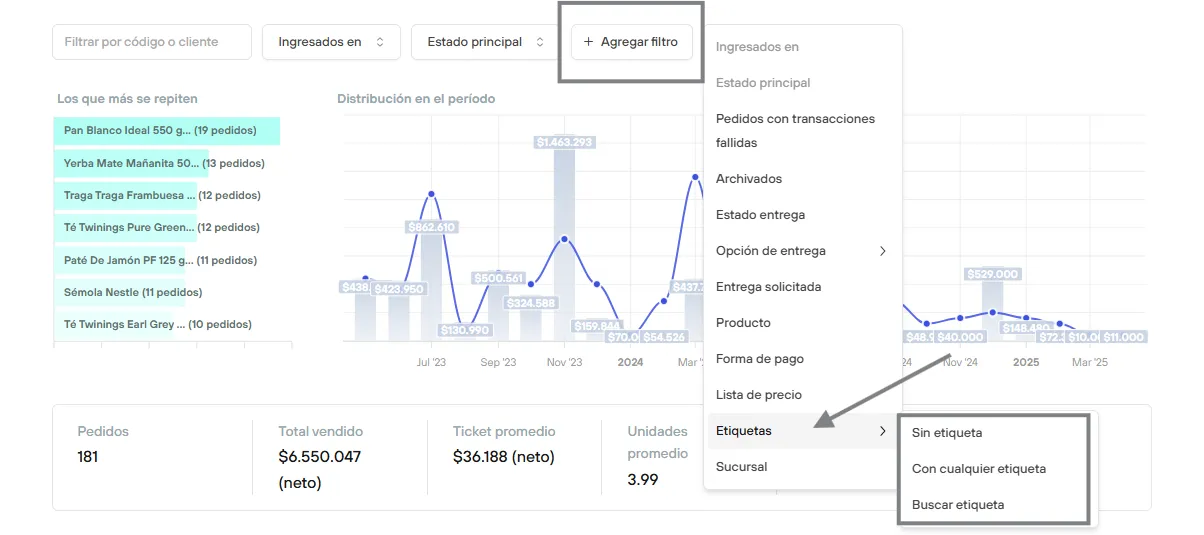
Using the filters menu
From Orders, you can add the Tags filter and choose between orders with no tag, with any tag, or search for a particular tag.
-
Clicking the tag icon
If you hover your mouse over the tag icon, you can see the tags the order has.

When you click it, the full view of the associated tags will open.