Order filters

Order filters let you organize, segment and view your orders by different criteria.
From the admin panel, in the orders section, you can apply them as you need.
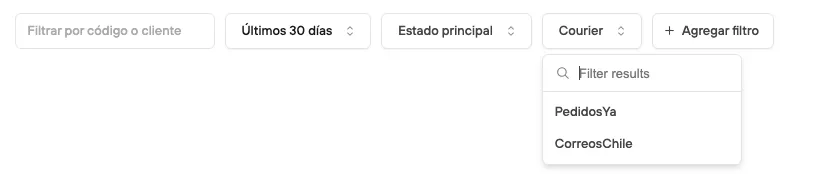
Filter: Courier
This filter lets you see all the orders assigned to a specific courier.
To use this filter properly, you must have your shipping options created with their respective courier.
If you are working with Fulfillments, this filter is useful for checking order statuses and tracking the corresponding deliveries.
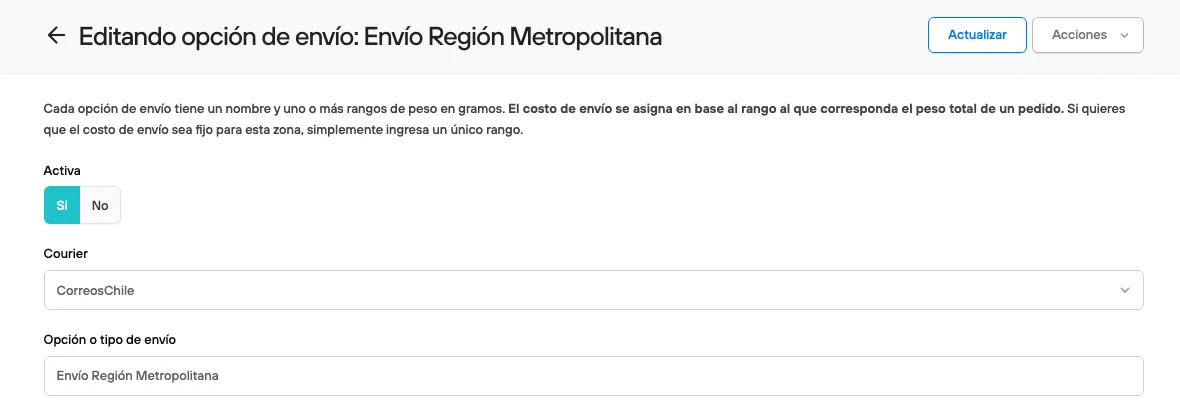
Once the courier is created, from orders > you can add the courier filter > and select the active option you need.
Filter: Document type
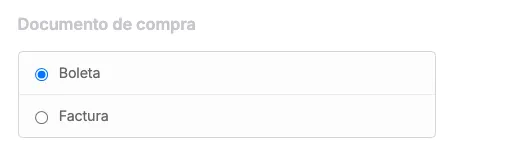
This filter lets you see orders by the type of document the customer requested when placing the order.
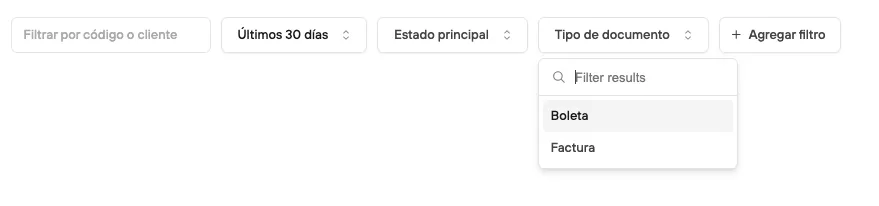
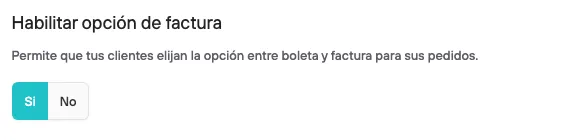
This applies to stores that natively operate with the Habilitar opción de factura option.
This filter only applies to orders. It can never be used to search by the document number assigned by the SII or the electronic invoicing system.
Filter: Device
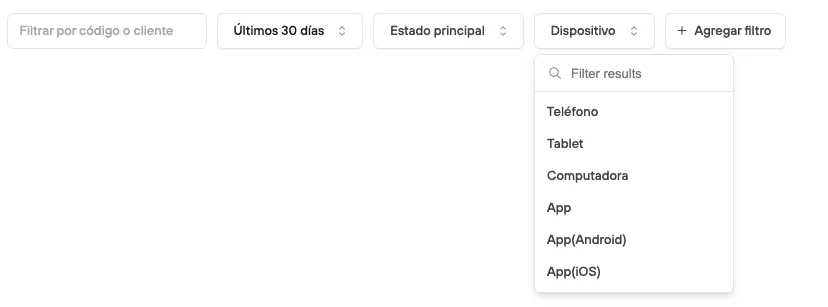
This filter lets you segment orders by the device they were placed from. It is especially useful for understanding where users are buying from and how that can influence their buying behavior.
Here you can filter between phone, tablet, computer, and browsing options in Apps.
The latter only applies to stores that operate with the Bolder App.
Filter: Orders with failed transactions
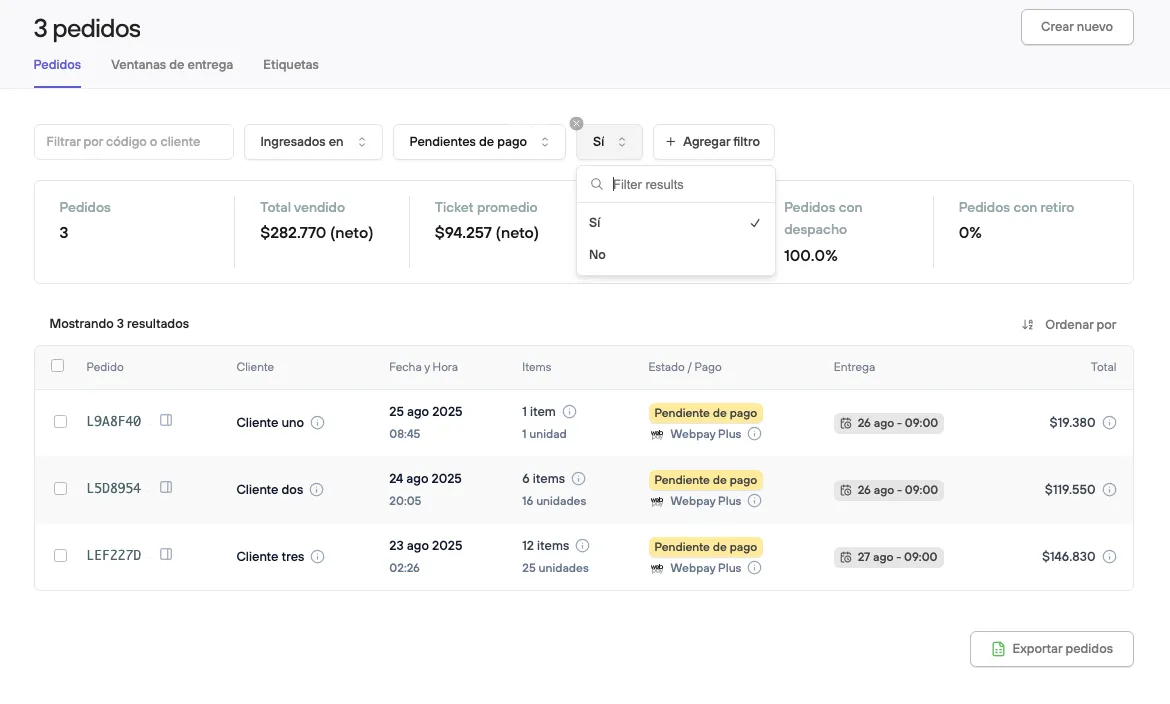
This filter shows orders whose transaction had errors and was rejected by Transbank, whether because of a card error, insufficient funds, or technical problems with the payment gateway or the card’s issuing bank.
This filter is useful for identifying pending orders, which could not be confirmed, and for seeing options to help the customer complete their purchase with another payment method.
When you select the Orders with failed transactions filter, you will have to choose between Sí /No .

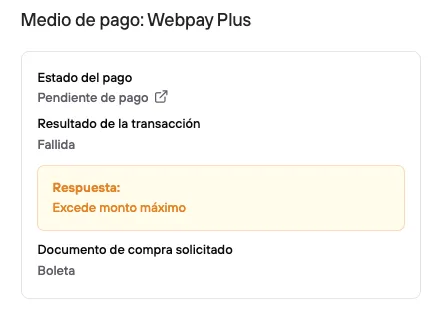
When you open each order’s detail, you can review the error associated with the transaction.
Filter: Archived
If you already use the feature to archive orders, here you will find the ones you want to remove from the overall order management.

Filter: Placed on

Filter that lets you see orders placed in different time periods. Here you can filter by:
- Any date (Shows the full historical total of orders)
- Last 24 hours
- Last 7 days
- Last 30 days (Default filter)
- Last 90 days
- This month
- Yesterday
- Last week
- Last month
- Date range (Lets you select specific days or periods to review)
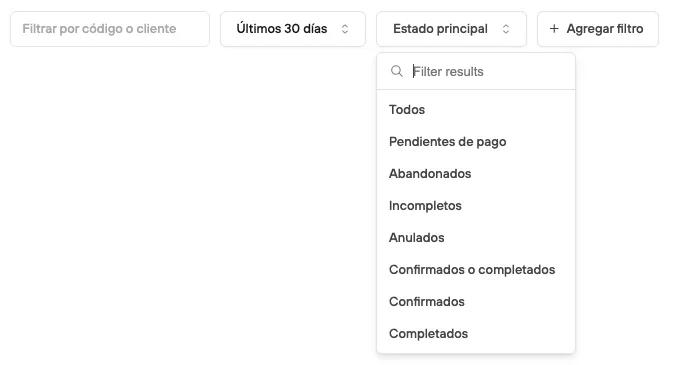
Filter: Main status
Filter that shows the payment status of orders. Here you can filter by:
- All (all orders, in any status)
- Pending payment (placed with no payment registered)
- Abandoned (the customer abandoned the order during the payment process)
- Incomplete (they abandoned the order at some step of checkout)
- Canceled
- Confirmed or completed (both statuses)
- Confirmed (payment confirmed)
- Completed (payment confirmed and order delivered)
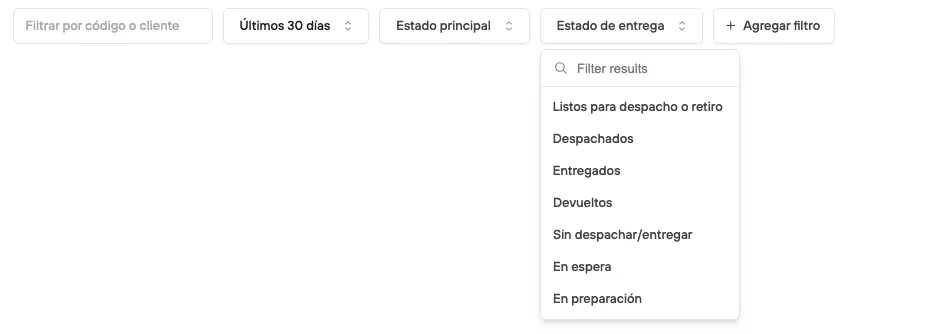
Filter: Delivery status
Filter that shows the shipping/delivery status of orders. Here you can filter by:
- Ready for pickup
- Shipped
- Delivered
- Returned
- Not shipped/delivered
- Queued
- Preparing
Filter: Delivery options
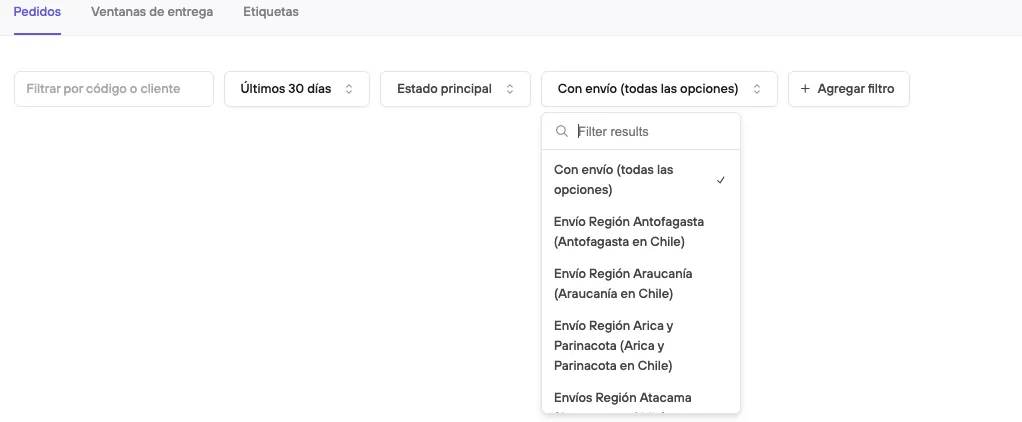
Filter that shows the delivery option the customer selected to receive their order. Here you can filter by each of the options you have created and available on your site, both pickup options and shipping options.
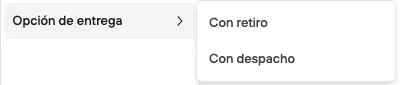
When you select the *Con retiro* option, you will filter the orders that selected in-store pickup, and from there you can select the branches enabled for it.
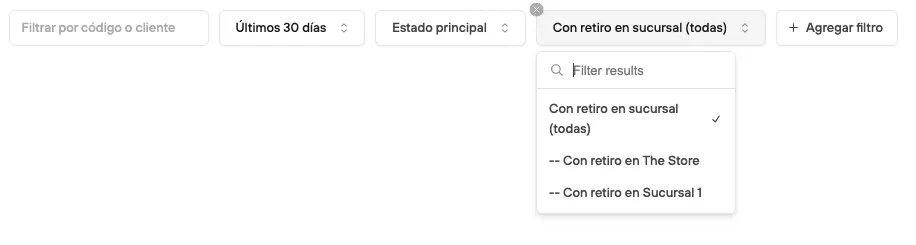
When you select the *Con despacho* option, you can filter between all the shipping options you have created and available on your site.
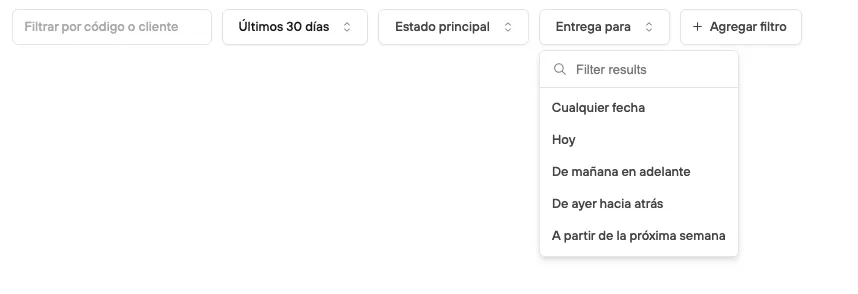
Filter: Requested delivery
Lets you filter orders that have a selected delivery or pickup window. Here you can filter by:
- Any date
- Today
- From tomorrow onward
- From yesterday backward
- Starting next week
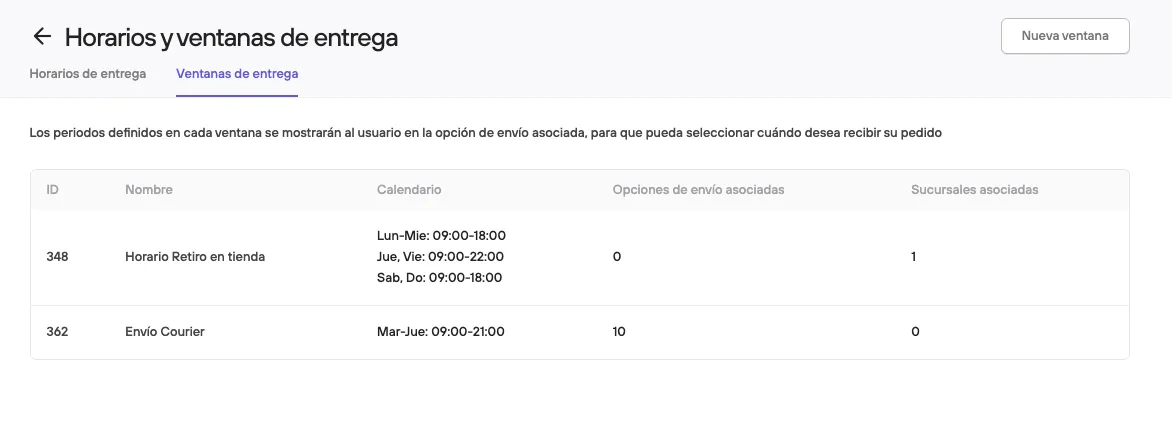
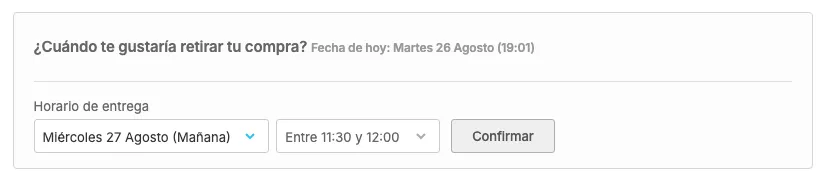
For this, you must have previously set up the delivery windows, so the customer can select the option when placing their order.
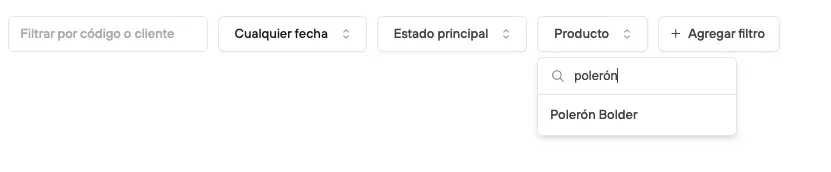
Filter: Product
Lets you filter orders that include a specific product.
You can search by name or by SKU.
Filter: Payment method
Lets you filter orders by the payment method the customer selected.
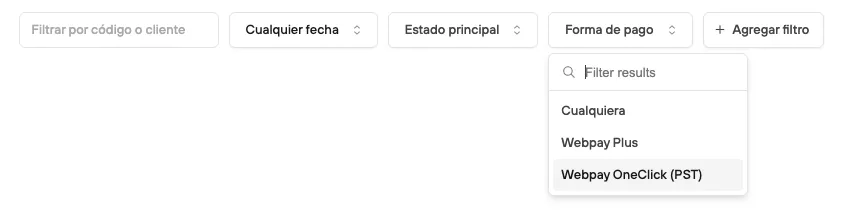
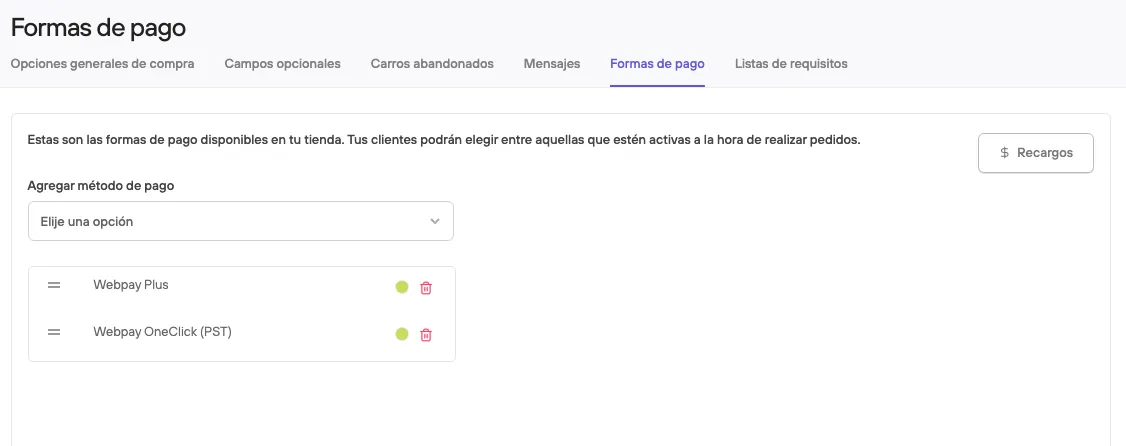
Here you can choose among the payment methods you have active and working on your site.
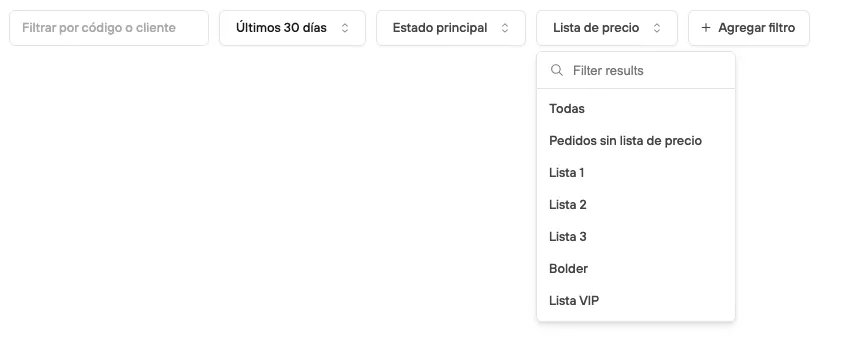
Filter: Price list
Filter that lets you see orders placed under a price list.
Here you can choose among the lists you have created.
It generally applies to businesses that work with a wholesale channel.
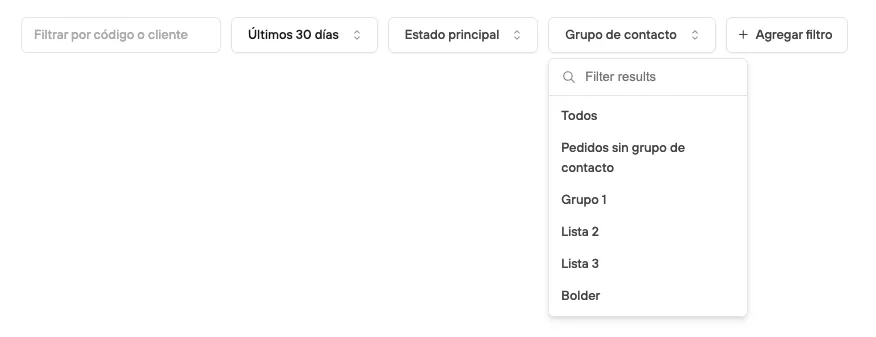
Filter: Customer group
Filter that lets you see orders placed by customers who belong to a specific customer group.
Here you can choose among the different customer groups you have created.
Filter: Tags
Filter that lets you see orders with or without assigned tags. Here you can filter orders:
- With no tag
- With any tag (all orders that have a tag)
- Search tag
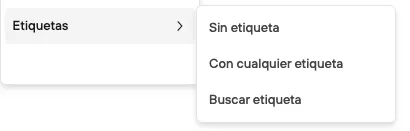
When you use the Search tag option, you will need to type the name of the tag you want to filter orders by.

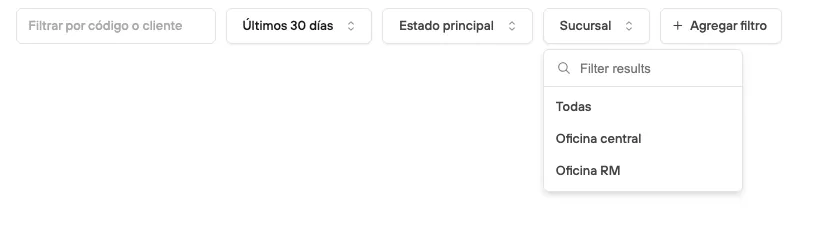
Filter: Branch
Filter that lets you see orders assigned to or created from a specific branch.
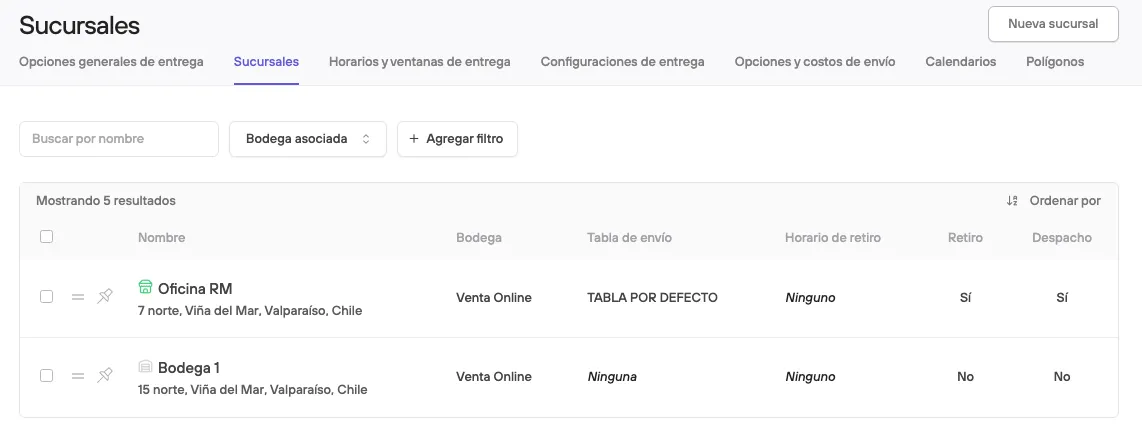
Here you will have the branches you have active and working, created from Sucursales , in the delivery settings.