

Surcharges
What is it?
Surcharges by payment method is a feature that lets you add an extra amount to the purchase subtotal, depending on the payment method the customer chooses. It helps cover the costs associated with certain gateways, such as credit cards or external services.
Activation
- Log in to your store’s admin panel.
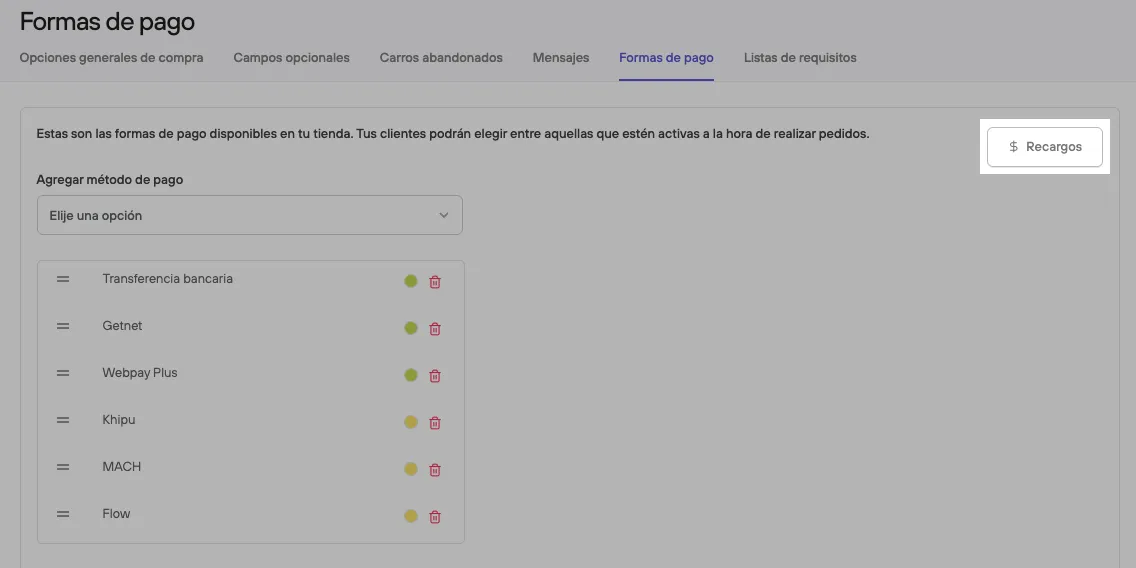
- Go to Preferences > Purchase options > Payment methods.
- Click the Surcharges button in the upper right corner.
Settings
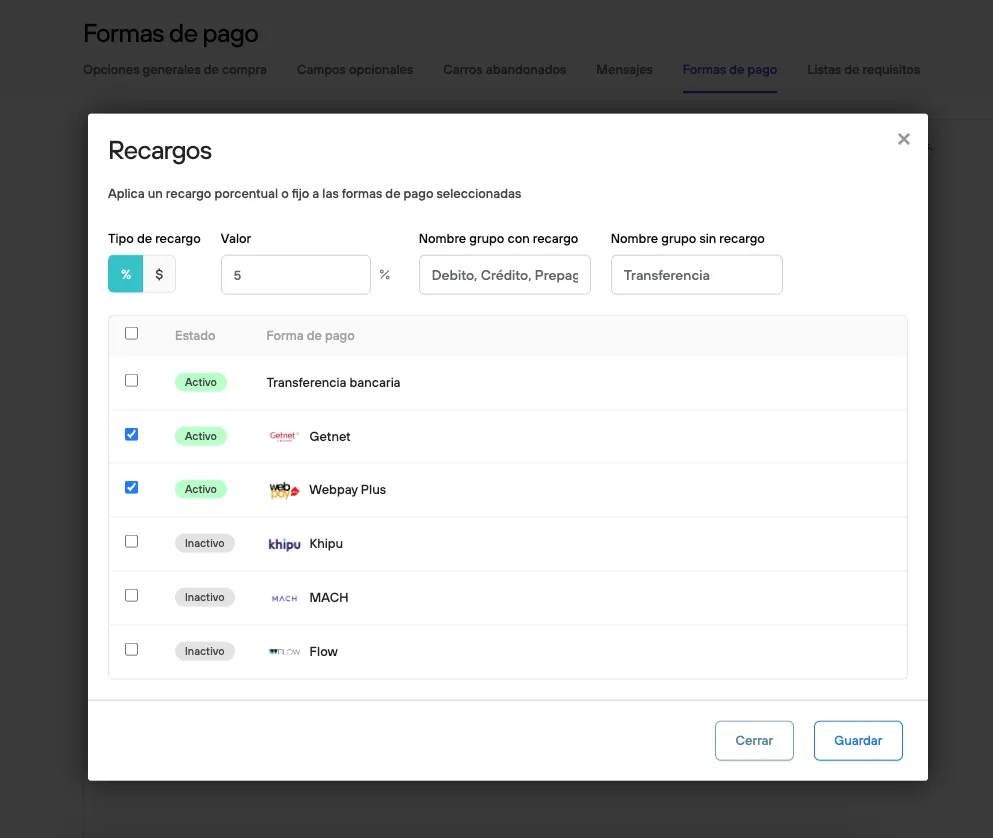
From the Surcharges panel you can define:
-
Surcharge type:
- Percentage (
%) - Fixed (
$)
- Percentage (
-
Surcharge value:
For example,
5%or$13.000. -
Name of the group with surcharge:
It will be shown at checkout for the methods with a surcharge (For example: “Debit, Credit, Prepaid”).
-
Name of the group without surcharge:
Customizable. It usually corresponds to bank transfers.
-
Affected payment methods:
Select which ones will be in the group with surcharge.
How does it work?
-
The surcharge is applied to the subtotal, after discounts or promotions are applied.
-
It does not directly affect the product price.
It is not applied to shipping or taxes such as VAT.
You can’t assign different percentages to each payment method. Only two groups are defined:
- With surcharge
- Without surcharge
The names of both groups can be shown at checkout and customized from the settings.
What do you see in the admin panel?
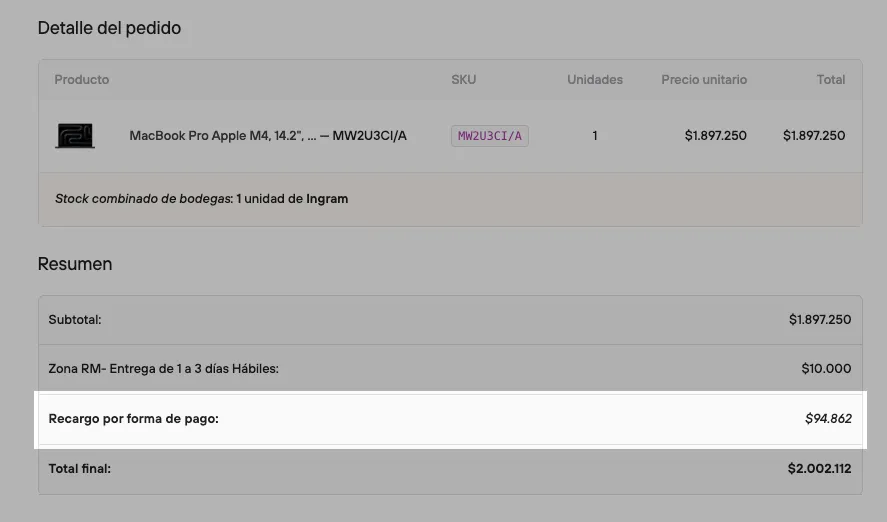
In each confirmed order, a new line appears in the summary with the surcharge applied, right before the final total.
What does the customer see?
- At checkout: the customer will see the surcharge detail associated with the payment method they selected.
- On the product page: you can optionally enable showing the final price including the surcharge.
Additional considerations
- Currently, you can’t apply different surcharges for each specific payment method.
- This feature will be kept simple and straightforward while future improvements are evaluated.