

View the orders list in Microsoft Excel
Export the orders list
In the Orders section of your Bolder control panel you can export the information in CSV format, which you can manage using Microsoft Excel.
Here are the step-by-step instructions.
Step 1: Download the CSV file
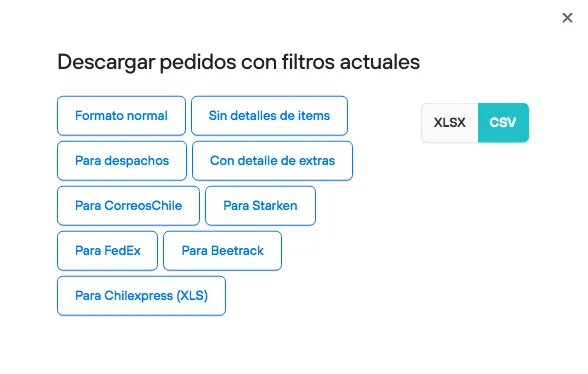
In the Orders section, at the bottom, you will find an “Export orders” link. Select CSV and a file in that format will download to your computer.
Step 2: Open Excel
Open the MS-Excel application. Then go to: File / New workbook. These previous steps are important.
Step 3: Import the CSV file
-
In the Excel menu go to File / Import
-
Select “CSV file” and click Import.
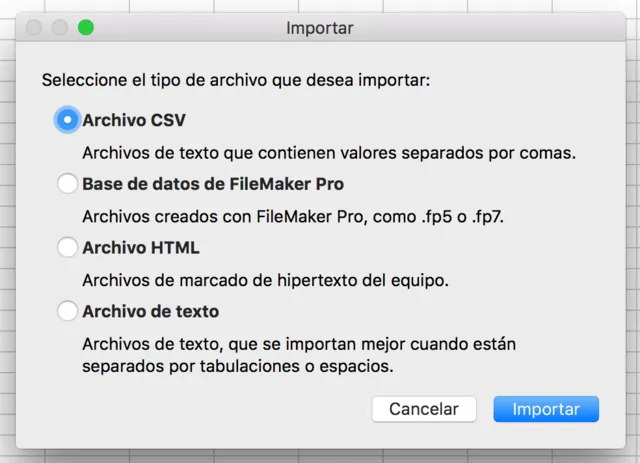
CSV file
-
Select the file from your computer
-
Under “File origin” select Unicode (UTF-8).
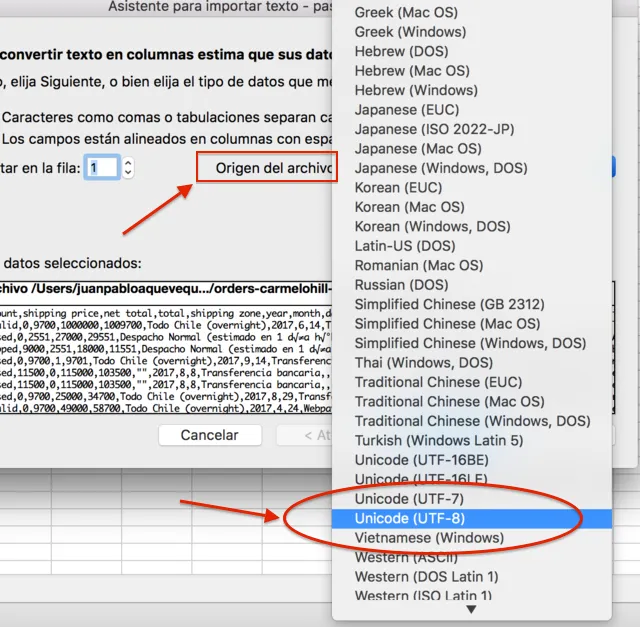
Selecting the file origin
-
Click “Next”
-
Under Delimiters choose “Other”, comma (,).
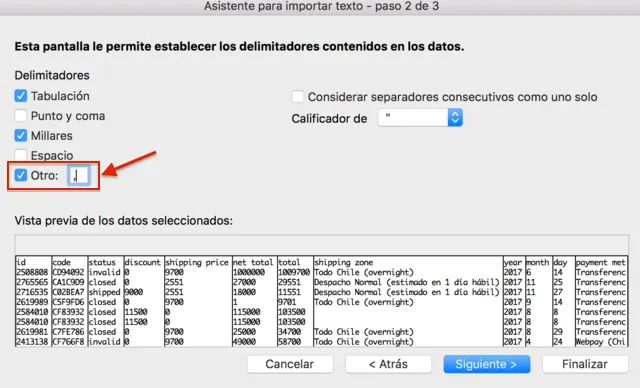
Delimiter, Other
-
“Next”
-
“Finish”
The end result, that is, the imported file, will be an Excel spreadsheet.
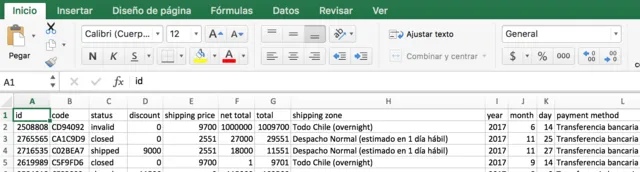
This is the end result, where you can see your spreadsheet in a tidy and clear layout.