

What an order is
An order is the purchase request a customer makes to buy one or more products from your store. Once the customer chooses the items they want to buy and enters the information needed to complete the transaction, that request is recorded automatically in your ecommerce admin panel.
From the Orders section you can view, manage and track each order, from the moment it is created until it is delivered. This section also gives you access to additional tools such as quotes, delivery windows and tags.
Orders overview
When you open the Orders section you will find a full summary of all the orders recorded on your site. The information is shown at two levels: a summary panel with metrics for the period and a table with the detailed list of each order.
Summary panel
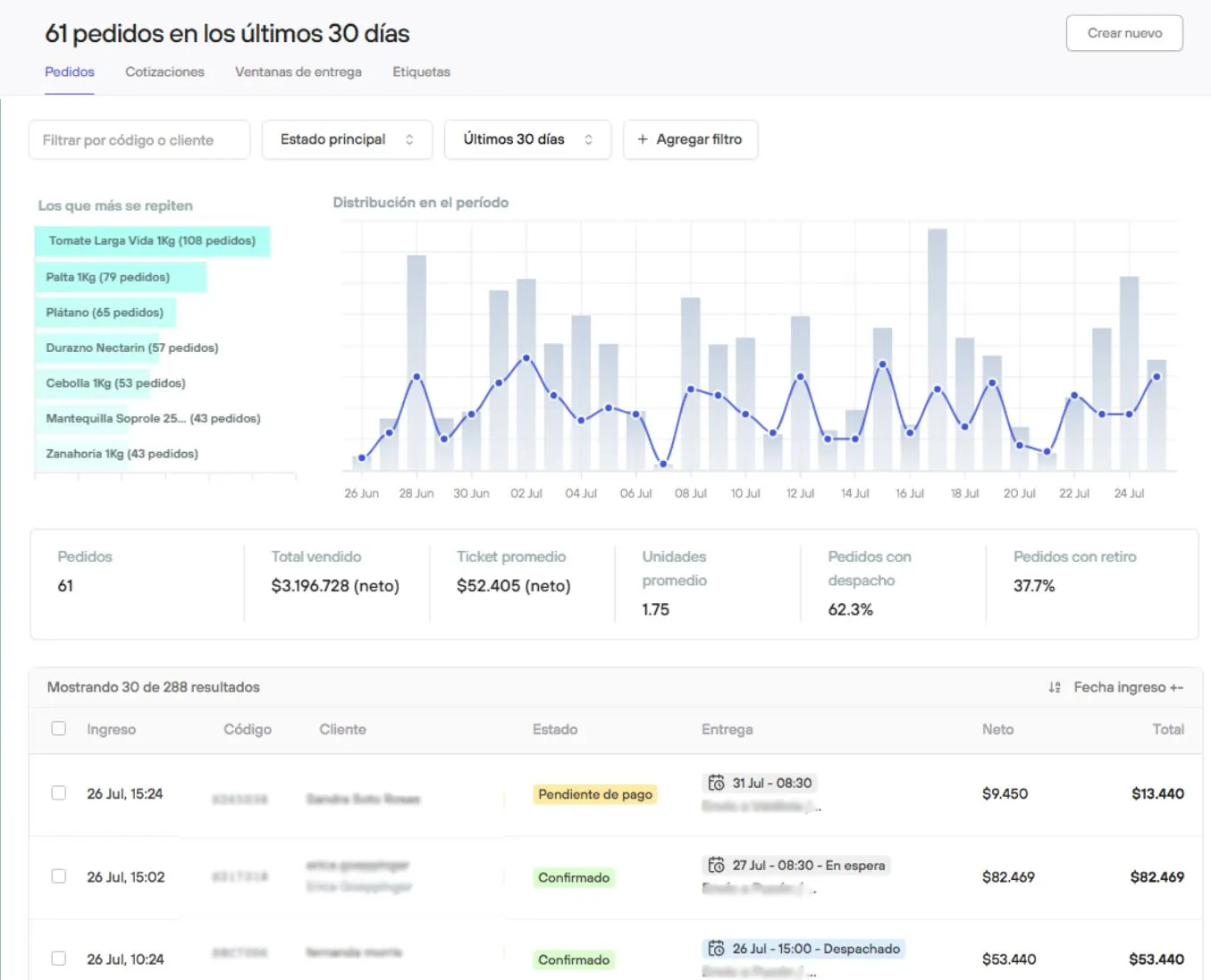
At the top of the section you will see a chart with the best-selling products and a breakdown of how sales were distributed over the period you are reviewing. By default, the information shown covers the last 30 days, but you can change the period using the available filters.
If you do not apply any filter, the summary panel will always show data for the last 30 days
Order log table
Below the summary panel you will find the table with the full list of your orders. You can search for specific orders or apply filters to get the information you want. The columns available in the table are:
| Column | Description |
|---|---|
| Created | Date on which the customer started the checkout process to place the order. |
| Code | Order number. It is the unique alphanumeric identifier of each order. |
| Customer | Name of the person who made the purchase. |
| Date and time | Day and time at which the order was placed (not confirmed) |
| Items | Number of items in the order and total units. |
| Status | Financial status of the order (for example: paid, pending, canceled). |
| Delivery | Preparation or shipping status of the order (for example: in preparation, shipped, delivered). |
| Total | Total value of the order, including shipping cost and any other associated charge. |
Export orders
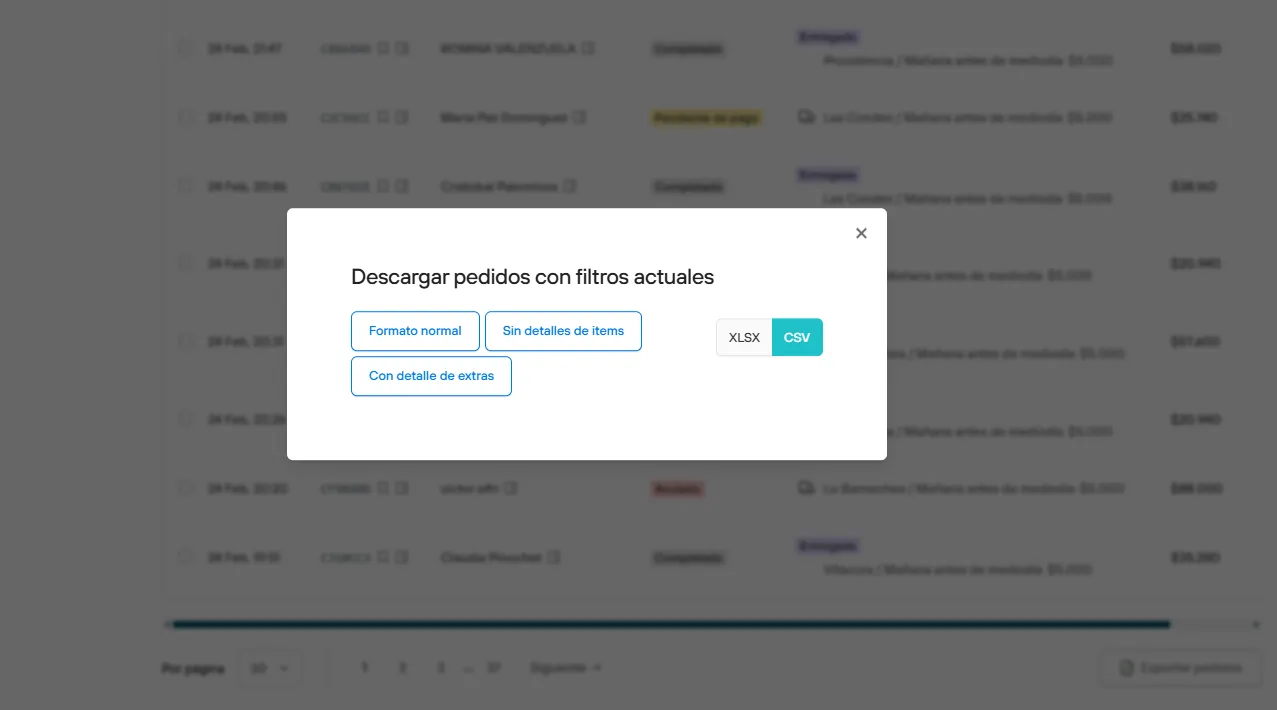
Below the orders table you will find the Export orders button. This lets you download your order information with the filters you need for the internal management of your business.
Export formats
When exporting, you can choose between three types of spreadsheet depending on the level of detail you need:
- Standard format — includes the full order detail and all its associated information.
- Without item details — gives a summary of the order without breaking down individual products.
- With extra details — adds extra order information, useful for more detailed analysis.
Depending on the integrations active on your site, you may see additional options linked to the different couriers you have connected. The spreadsheet can be downloaded as XLSX or CSV.
Order detail
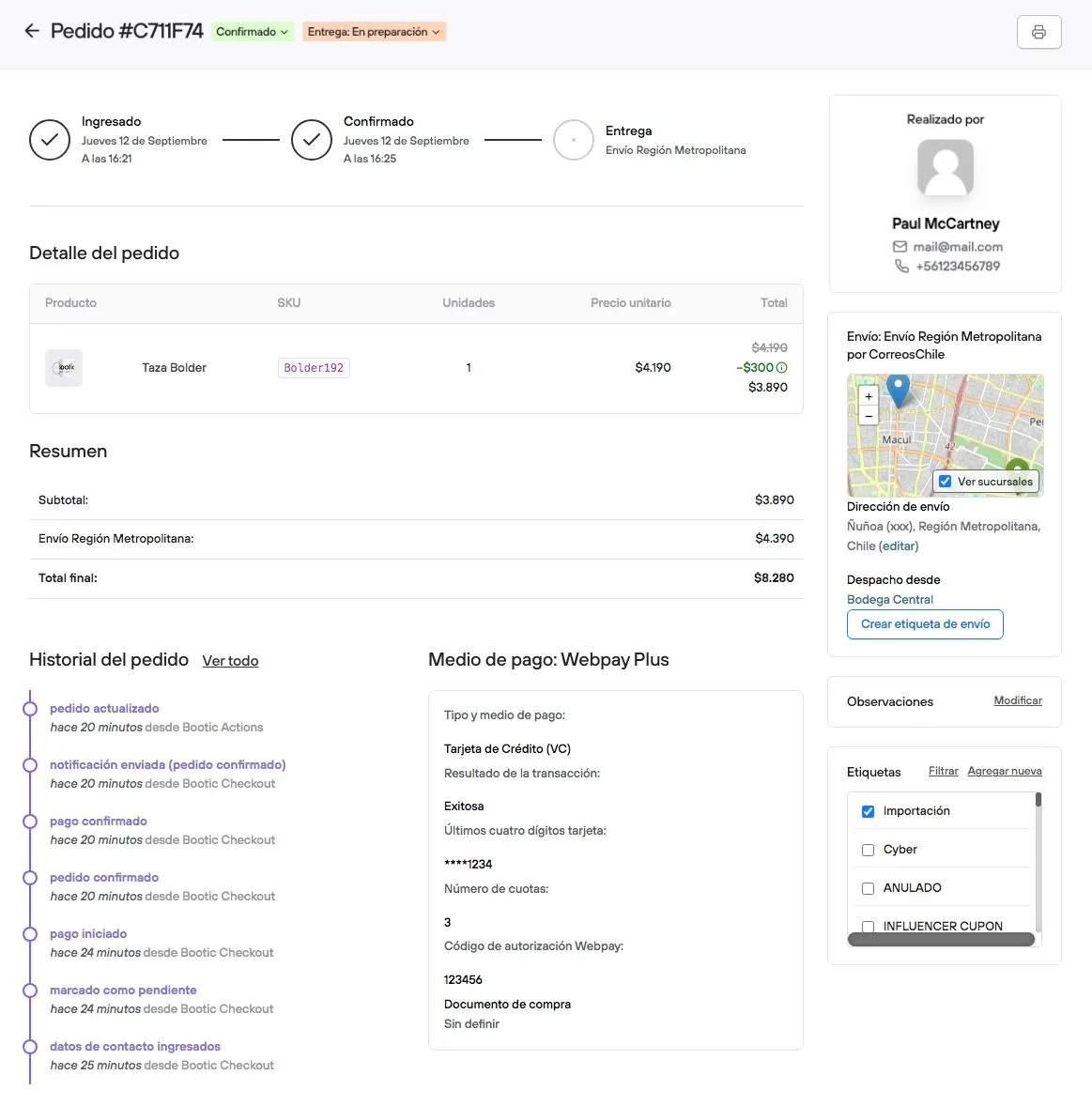
To see the full information of an order, click the date or the code of any order in the table. You will go to the detail view, where you will find all the data linked to that purchase: customer information, requested products, payment status, delivery status and more.
Orders menu
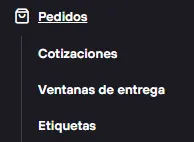
Orders section of the Bolder side menu
Besides the overview, the Orders section includes shortcuts to additional features from the panel’s side menu. Here is a summary of each one.
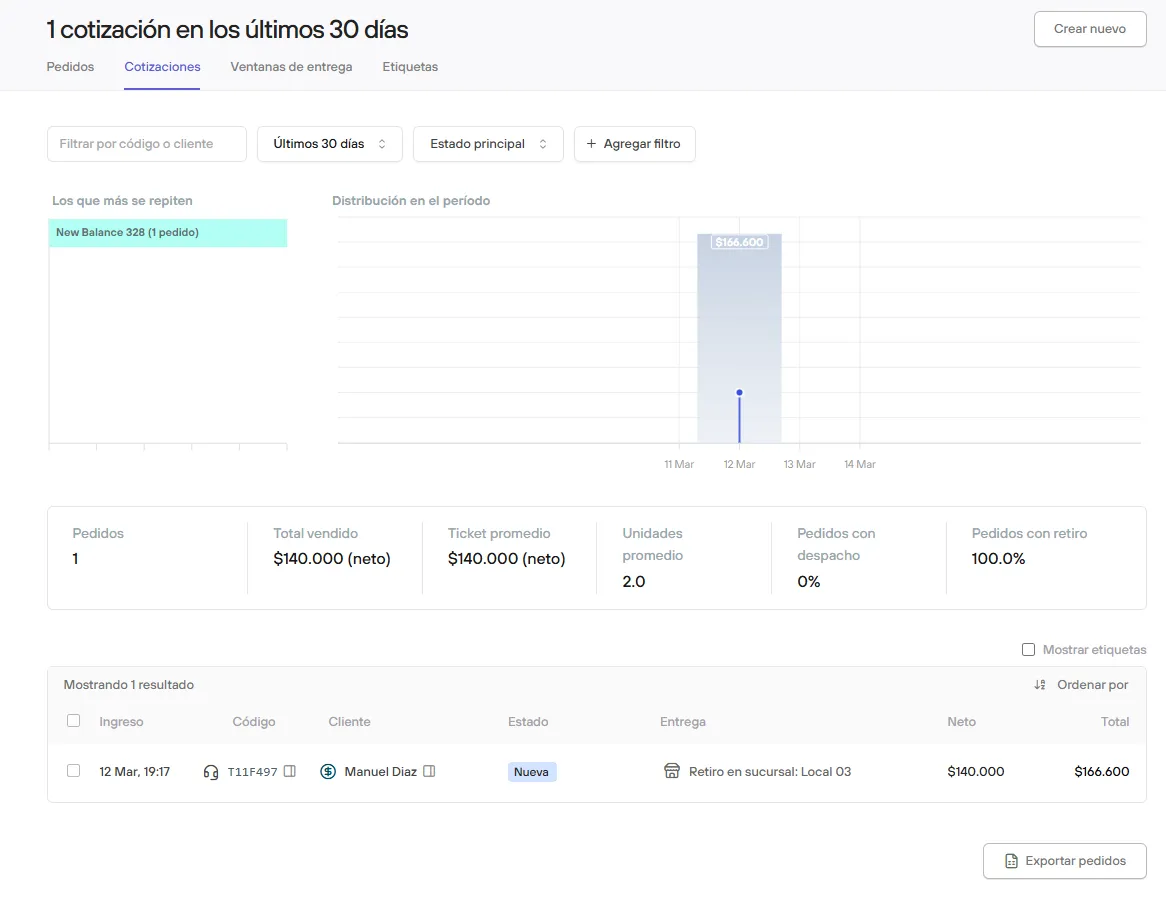
Quotes
Here you will find the orders that are in the quote phase, meaning requests that have not been confirmed yet and are under review, as final orders.
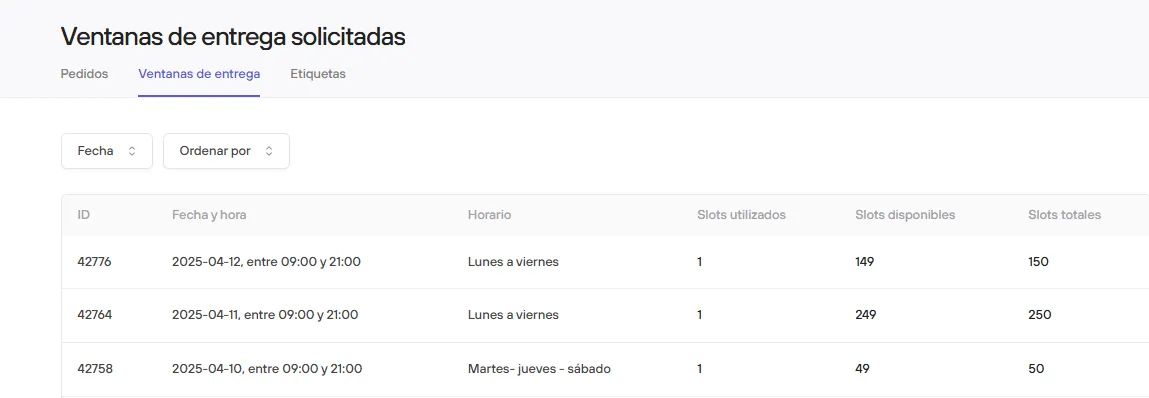
Delivery windows
Shows the orders scheduled in specific date and time blocks, based on the delivery window the customer chose when buying. The table shows the slots used and the slots available for each block.
Order tags
Tags are a categorization tool that makes it easier to identify and filter orders by specific characteristics or criteria. From this view you have direct access to all the tags you have created in your store.
Manage each order with precision and clarity
The Orders section in Bolder is designed to give you full control over every purchase request in your ecommerce, from the customer’s first click to final delivery. If you have questions about any feature or need help setting up your order flow, our support team is available to help.
Need personalized help? Write to us at help@onbolder.com or contact us directly from the panel.