

View CSV files in Google Sheets
Steps to view CSV files
Sometimes, when you download / export spreadsheets as CSV, the file opens in Excel and all the information appears bunched together and disorganized, making it impossible to understand. There is an easy way to make your CSV make sense and be useful to you, take note:
- Go to the view you need to download: Orders or Products
Orders: From the general view, at the end of the table you will find the Export orders option.
Here you must select the format you need
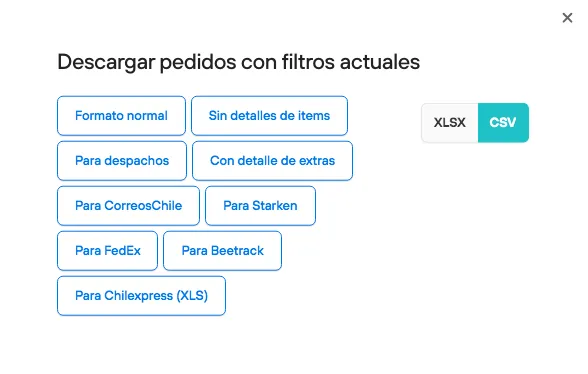
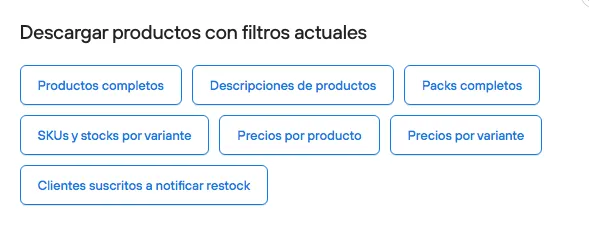
Products: From the general products view, at the bottom you will find the Export data button
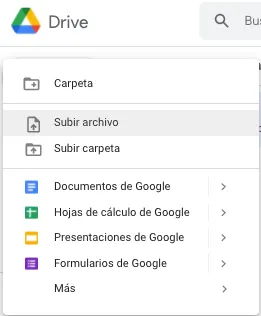
- Once you download the file, go to Google Drive and upload the file as an Excel sheet, as shown in the image:
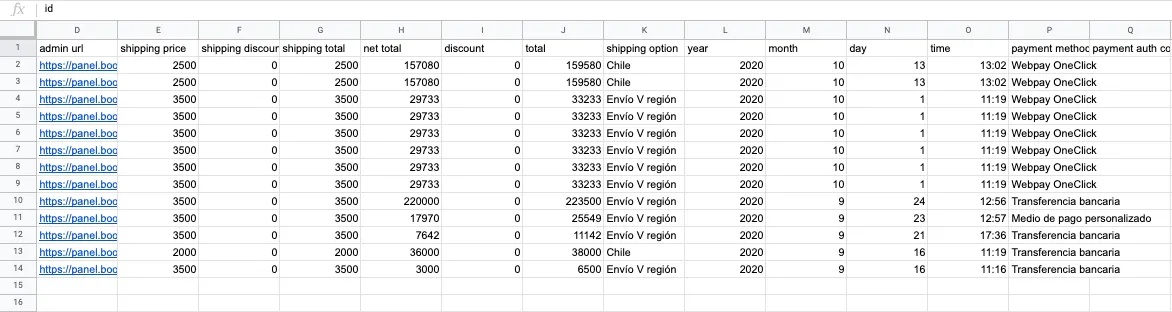
- Google Sheets will automatically detect the format to present the data and will open a spreadsheet with the information organized:
- Download this CSV again from Google Drive in .xlsx format and you will be able to open the file in Excel with all the information correctly organized.
We hope this information is useful to you and helps keep your orders in order.