

Enable Servipag as a payment method
Enabling process
Enabling the Servipag payment button requires the following steps:
- Signing up for the service with Servipag:
- Initial contact: Get in touch with Servipag to say you want to add their payment button to your online store. You can do it through their official website: https://portal.servipag.com/
- Formalizing the agreement: Work with a Servipag representative to sign the necessary contracts between your business and Servipag. This step formalizes the business relationship and sets the terms and conditions of the service.
- Enabling your Channel Code:
- Once the contract is signed, Servipag will create a unique identifier code for your business in its system, known as the “Channel Code”. This code is essential for the integration and will be provided by Servipag after the agreement is formalized.
- Getting the integration keys:
- Access to the Servipag portal: With the Channel Code in hand, you will need to log in to the Servipag portal to manage the integration. If you don’t have access yet, ask your account representative for the necessary credentials or contact Servipag’s support channels.
- Generating keys: Inside the portal, look for the section for payment method integration or API settings. There you will be able to generate the integration keys (for example, public and private keys) that allow secure communication between your Bolder store and Servipag’s systems.
Turn on Servipag in your Bolder store
With the information from the previous step, log in to your Bolder admin panel and go to Preferences > Purchase options > Payment methods
In the payment method selector choose Servipag
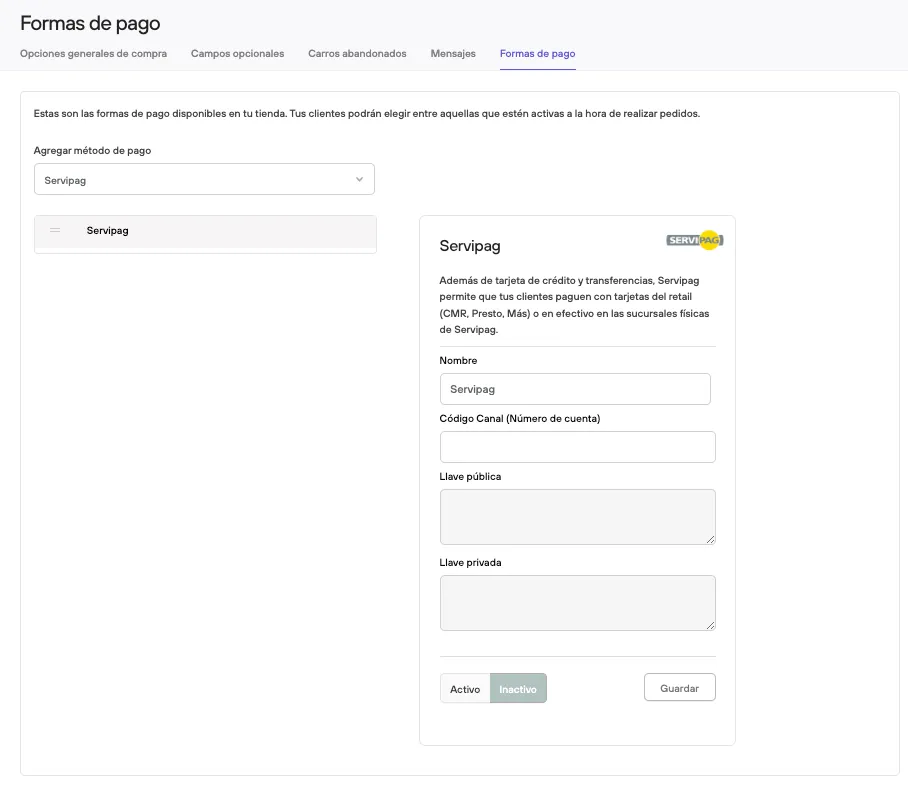
Fill in the channel code that Servipag gave you, then press Active and Save.
Before making it available to your customers, we recommend placing a test purchase and checking that everything works correctly (and that the amount paid reached the account set up in Servipag).