

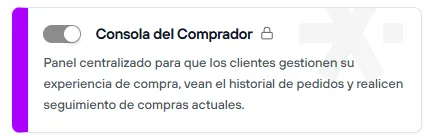
Customer Console
The Customer Console is a central panel that lets your customers manage their information in a clear, quick and secure way.
From this personal space, they can see their order history, track their current purchases, and find important information such as saved cards, delivery addresses, shipping status, and more.
Activation
Public view of the console
In your store, customers can open the user menu from the profile icon and go from there to their Customer Console.
The link can appear as a shortcut, or be available within the different active views of the user menu. You set these options in the Design editor > Widgets > Active user menu.
The console has several information views, which depend on the features you have enabled in your store.
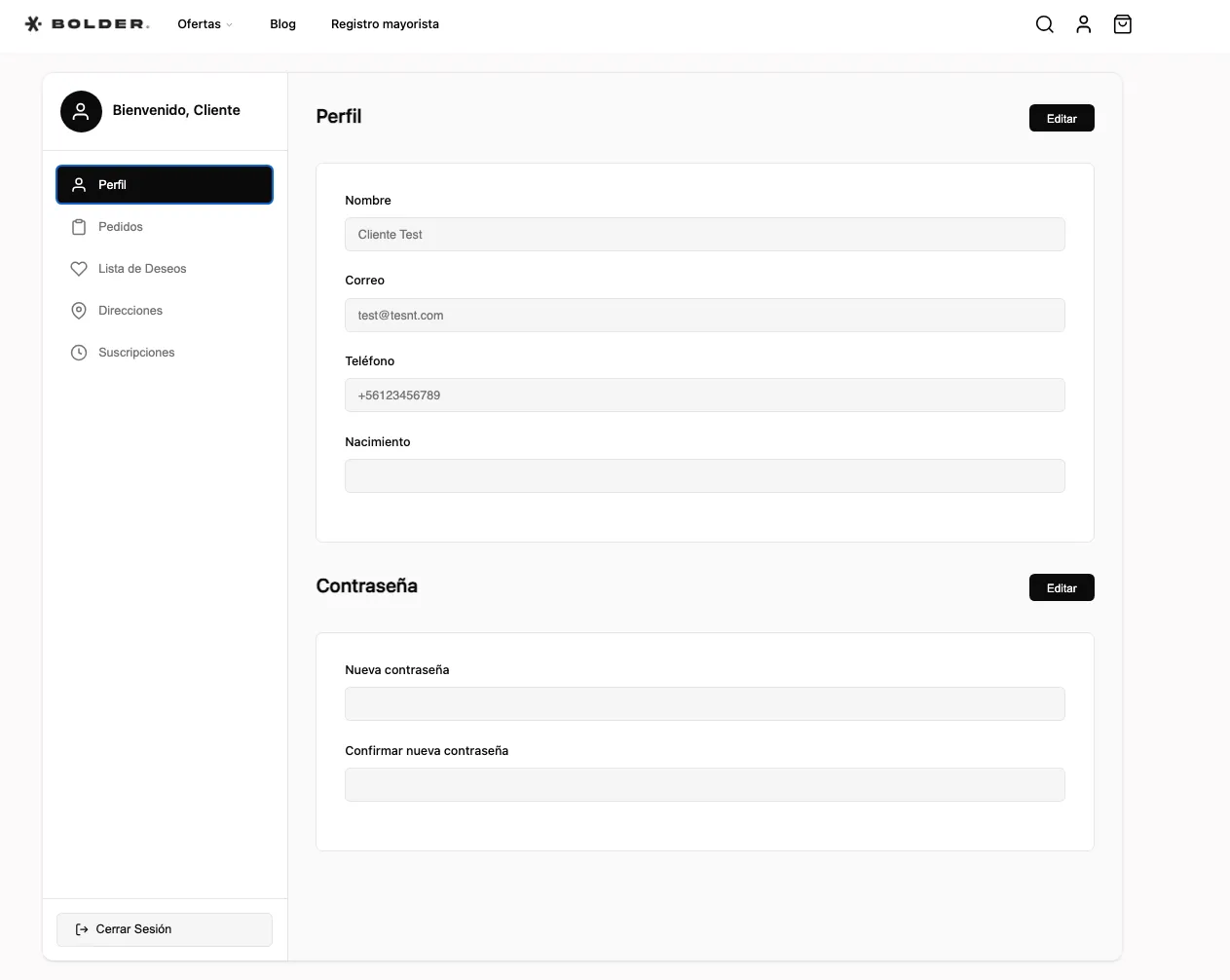
Profile: Personal information
In Profile, the customer can view and edit their basic account information, such as name, email, phone, and any additional custom fields you have enabled for customer sign-up.
Further down, they will find a Password section, where they can set and confirm a new password when needed.
Orders: Information about orders placed
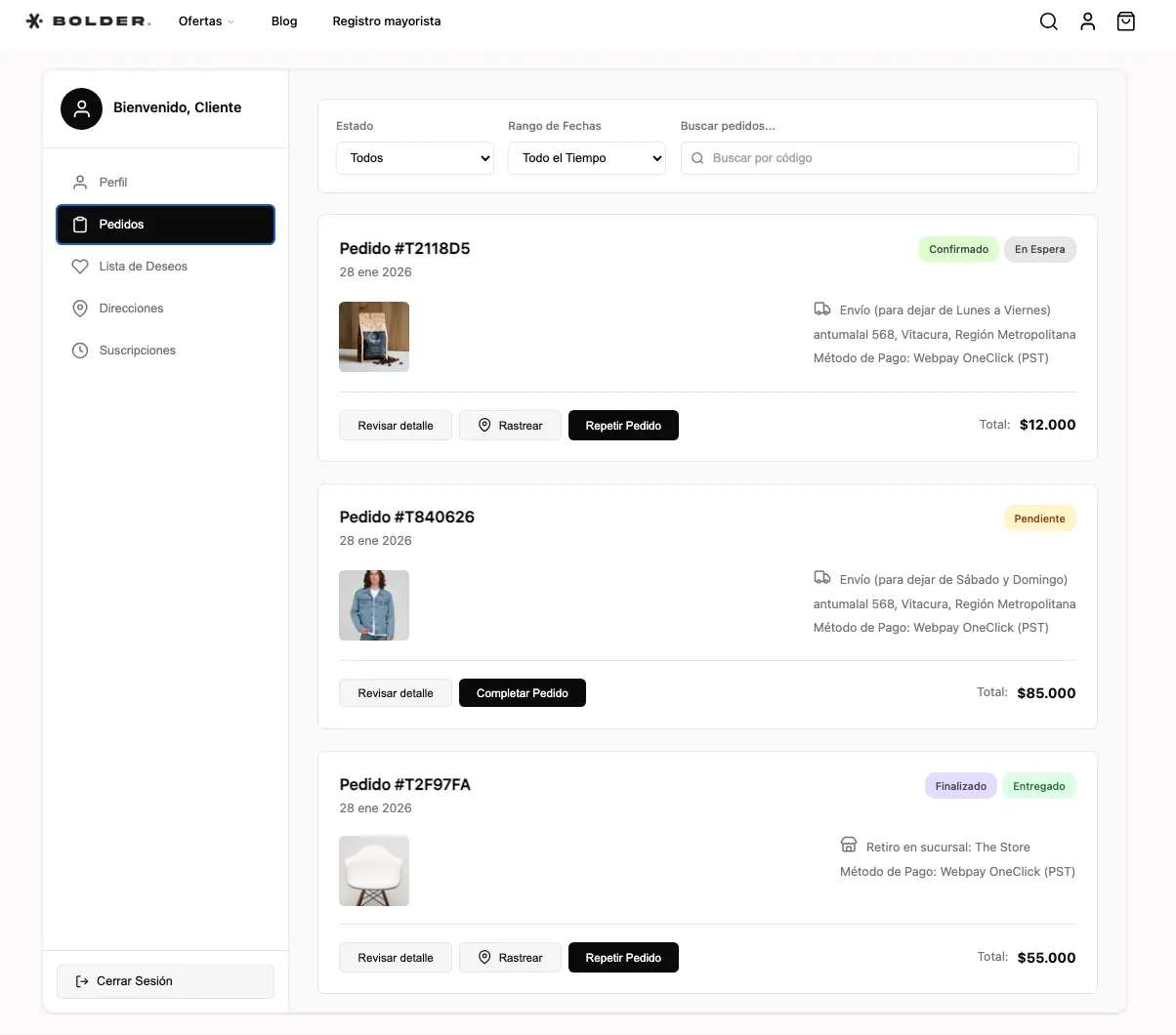
In this section, the customer can see the full history of orders placed in the store, regardless of their status.
From here they can:
- Search orders by code.
- Filter orders by status.
- Review the details of each order: date, products, shipping or pickup information, and payment method.
- Check the shipping status and tracking of the order. If you use an integrated courier, the customer will see the status provided by the carrier. If you have no active integrations, the customer will see the status you assign to the order from the admin panel.
- Repeat a previous order, adding to the cart the products that are in stock on the site.
Wishlist: Favorite products
In this section, the customer can save products as favorites to find them easily later.
From here they can:
- See all the products marked as favorites.
- Go quickly to the product details.
- Buy directly without having to search for them again.
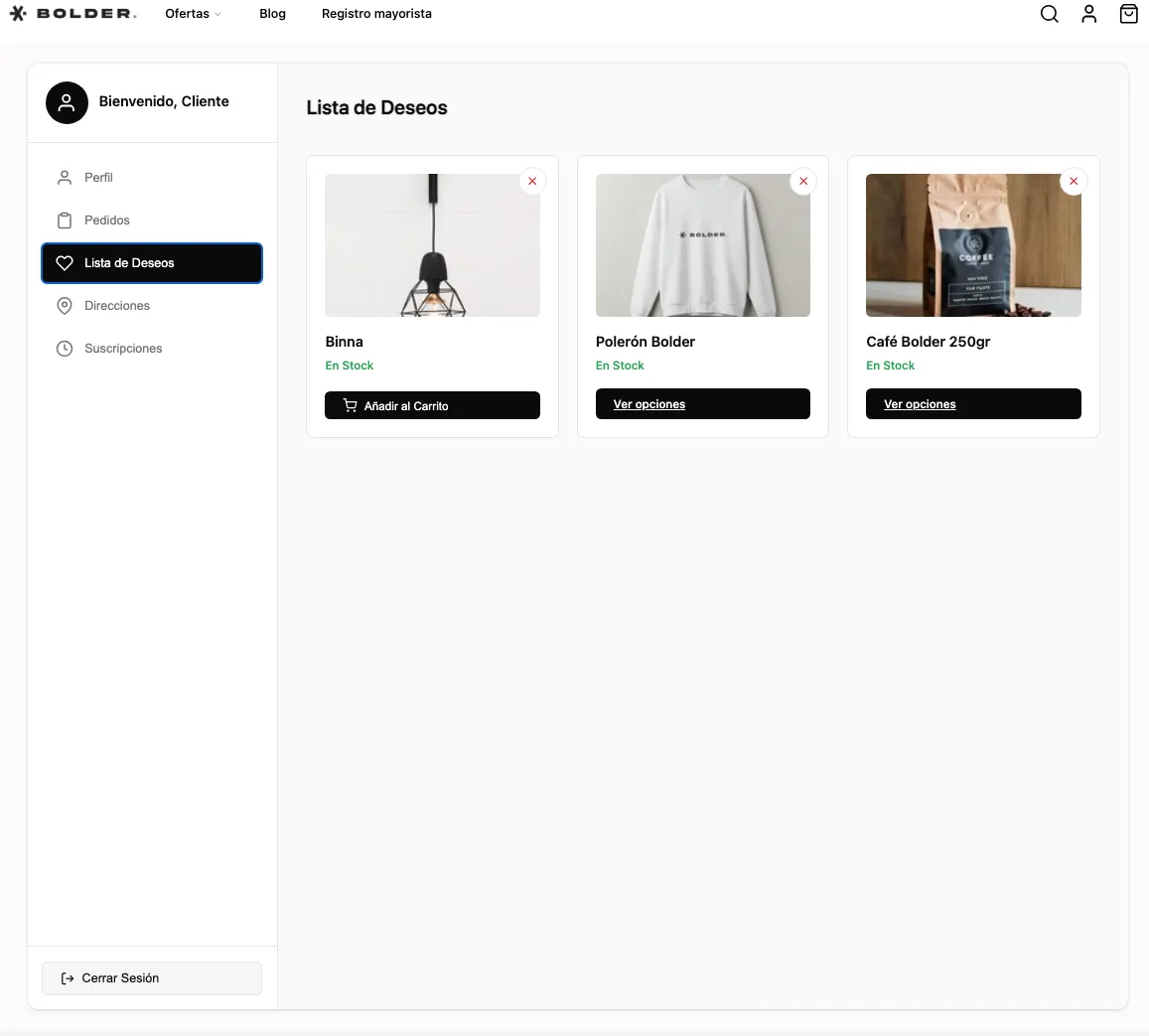
For this section to be visible in the console, and for products to have the option to be marked as favorites, you need to activate the corresponding widgets.
In the Design editor > Widgets > turn on Favorite Products, and check the Favorites option in the Active user menu widget.
Addresses: Delivery addresses
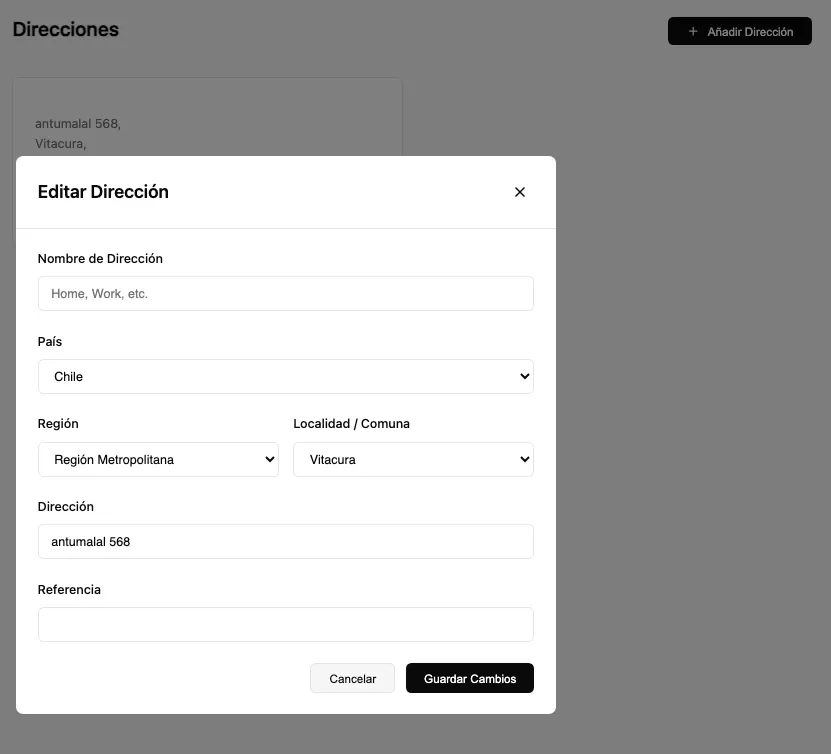
In this section, the customer can see the addresses saved in their account and edit the existing ones.
Addresses are created from:
- Orders placed in the store.
- Addresses assigned manually by an administrator.
These addresses can later be used to speed up the checkout process.
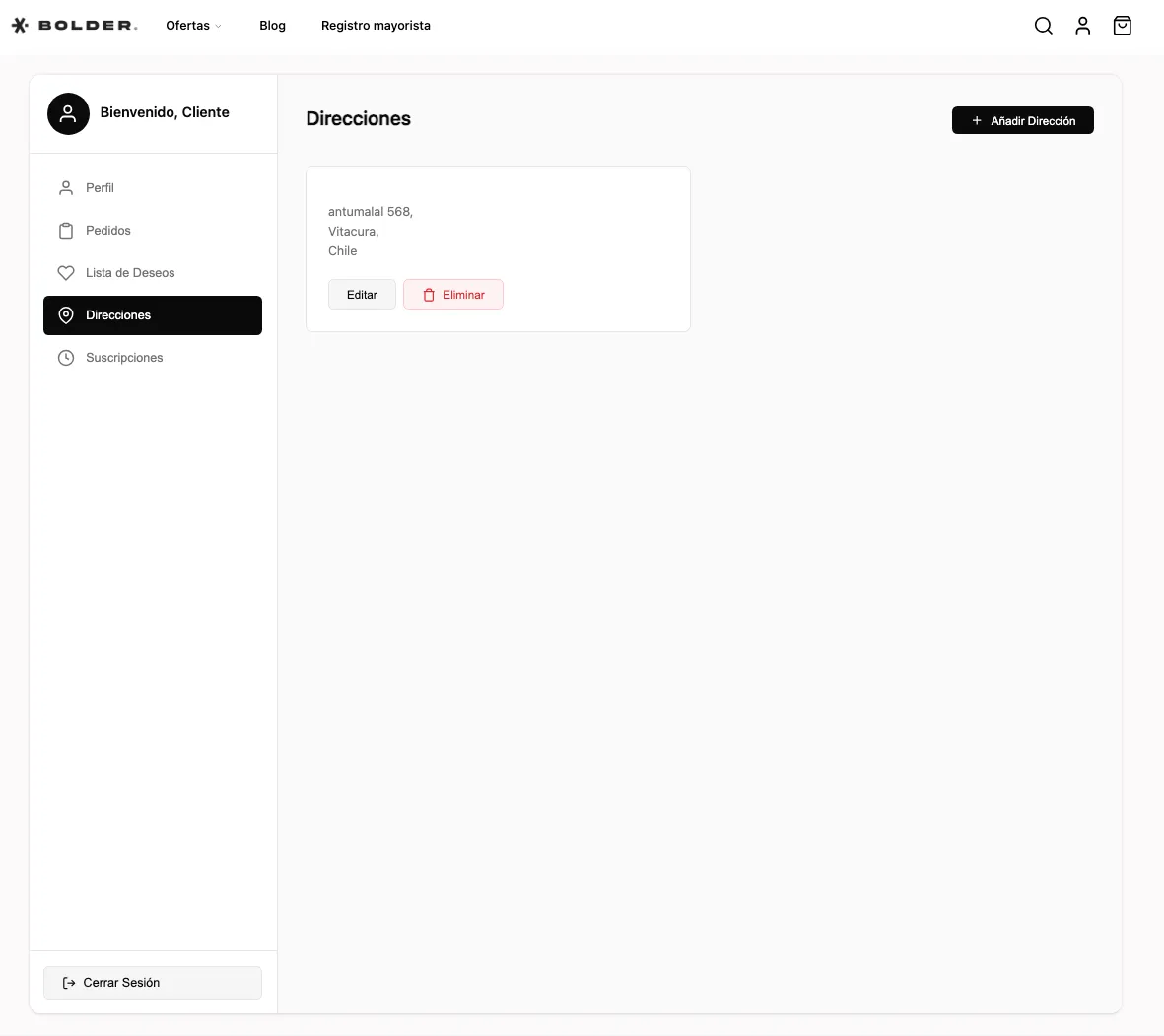
Every address created can be edited or deleted.
A change made to an address from this section will apply to future orders, but it will not affect or modify previous purchases or active subscriptions.
Subscriptions: Subscription or membership history
Available for sites with active memberships.
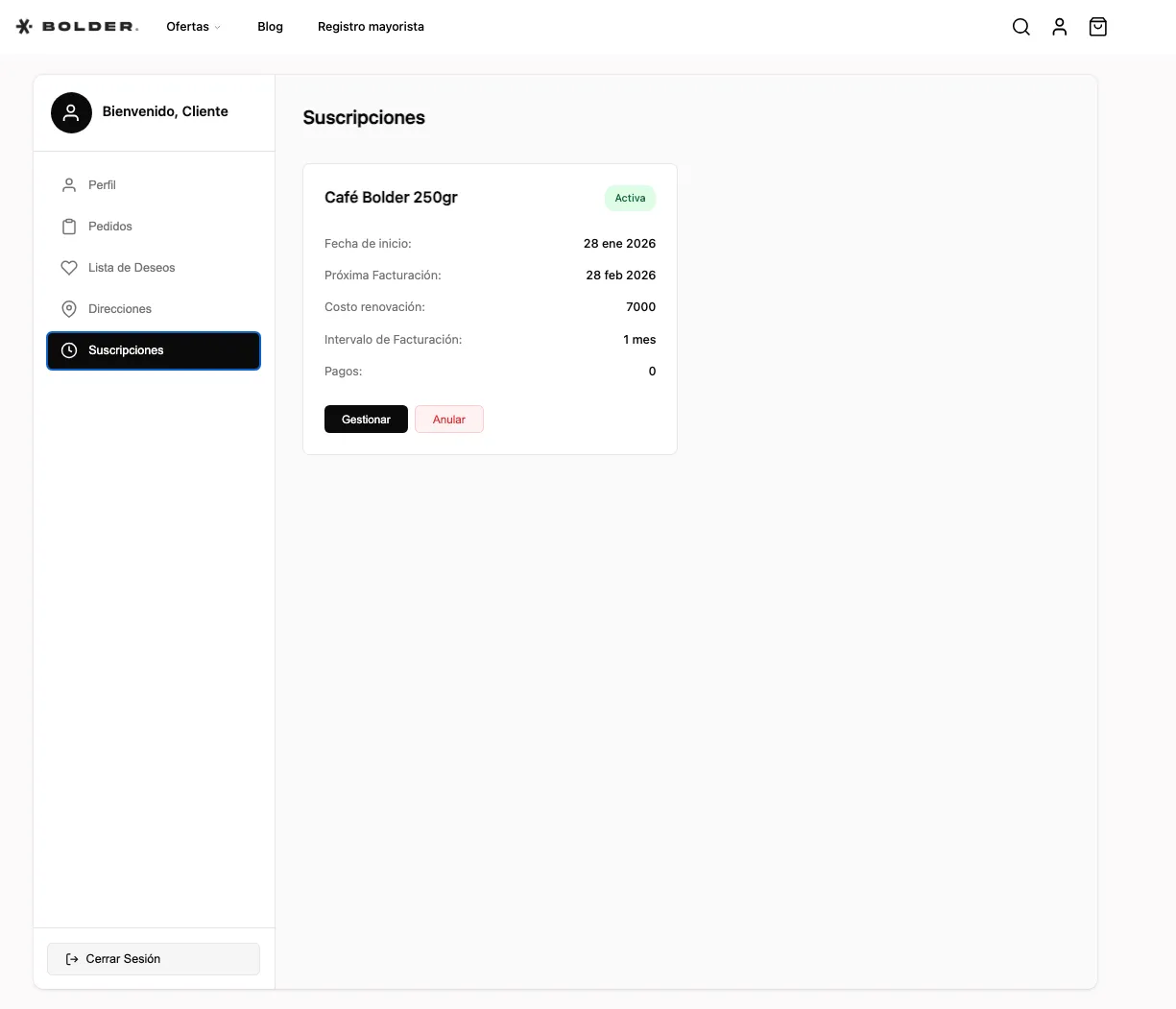
In this section, the customer can see the full history of their subscriptions or memberships, both active and past.
From here they can review:
- Subscription start date.
- Next payment.
- Renewal cost.
- Payment interval.
- Linked card.
- Edit options (depending on the store’s settings), to pause subscriptions.
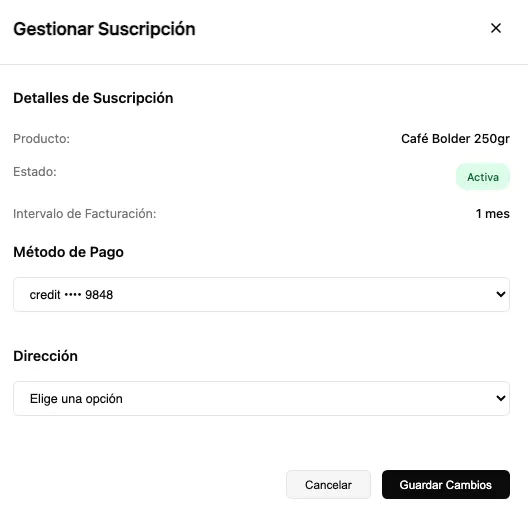
If your customer needs to change the payment card linked to the subscription, or needs to change the address linked to their active subscription, they must do it directly from this section.
This way, when the next charge is made, along with the renewal and shipment of their products, the correct card will be charged and the new address will be used, if both were changed.
If you have this feature available, it is essential that you pass this information on to your customers.
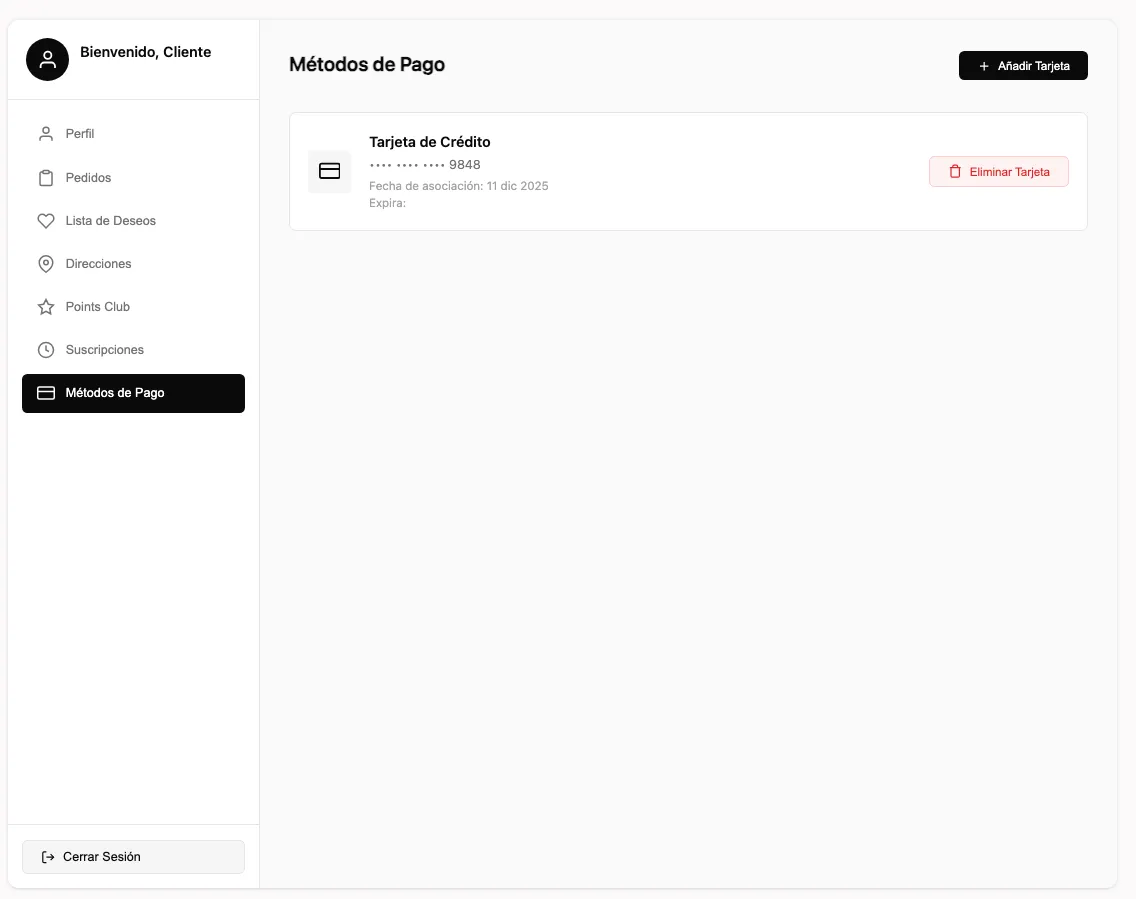
Payment methods: Linked cards
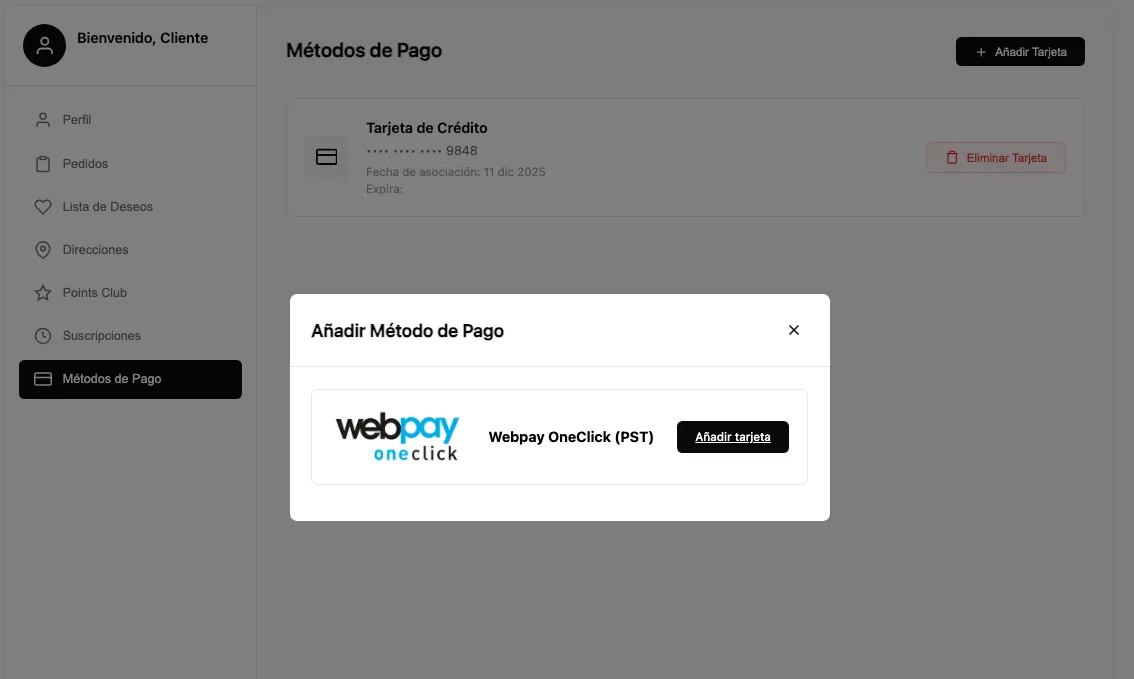
Whether this section, and the option to save cards, is available depends on the active payment methods in your store and the features enabled. For this you need Webpay OneClick, since it lets you save card details, process order payments, and make recurring charges for subscriptions.
From this section, the customer can:
- See their saved cards.
- Delete existing cards.
- Add new cards.
To store a card, the payment gateway runs a tokenization process, which consists of making a small verification charge to validate the card and keep the information safe.
Points: Points accumulated to date
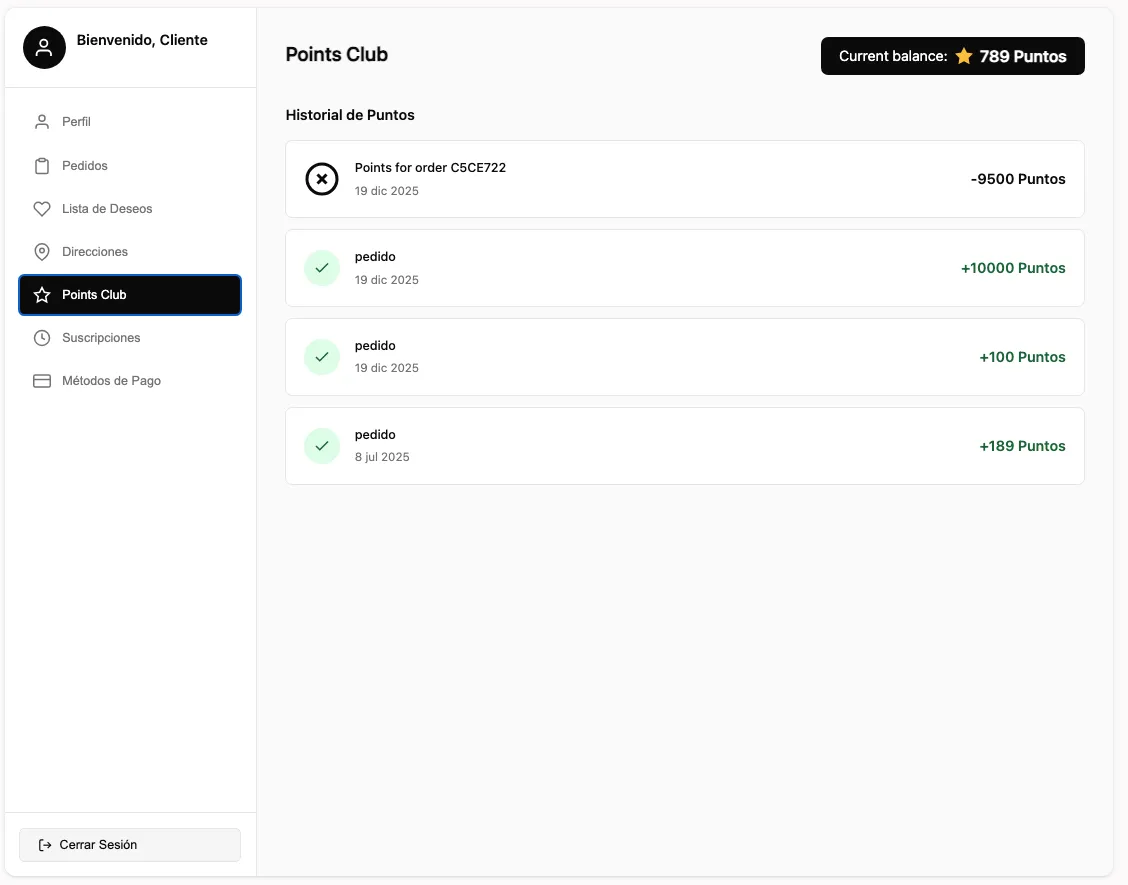
Available for sites with the Bolder Puntos feature.
In this section, the customer can see:
- Their accumulated points balance to date.
- Their transaction history, including points earned and redeemed.
The Customer Console brings all your customers’ information together and turns every interaction into a simpler, clearer and faster experience, making future purchases easier.