

Volume Discounts
Description
A native Bolder component built for one purpose: raising the average order value of your business. As your customers add more products to the cart, they unlock new discount levels, either fixed or percentage discounts, so they save progressively.
These discounts can apply to all orders, or only to some of them, depending on whether the customer sees the public view, a price list or belongs to a customer group.
Defining the Discount:
The discount can apply to each unit within the tiers you set, updating the selling price progressively, or to packs of units that you set, where the product’s base selling price stays the same.
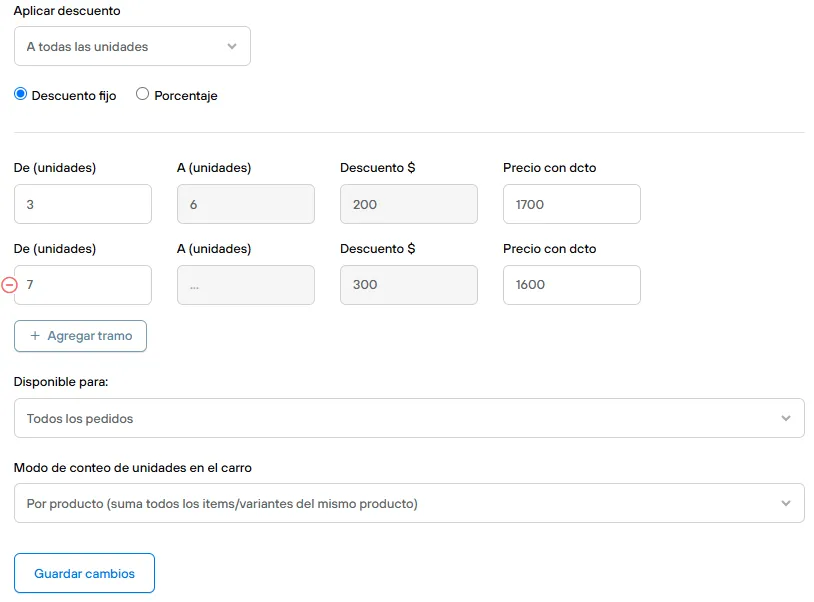
Apply discount: To all units:
- You set a fixed or percentage discount based on the value of the unit.
- It applies individually to each unit added to the cart within the “From” and “To” range.
- It updates the product’s base selling price while the quantity is within the range
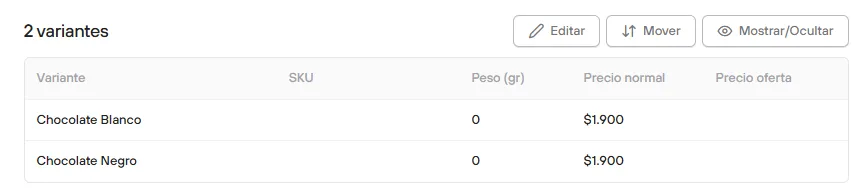
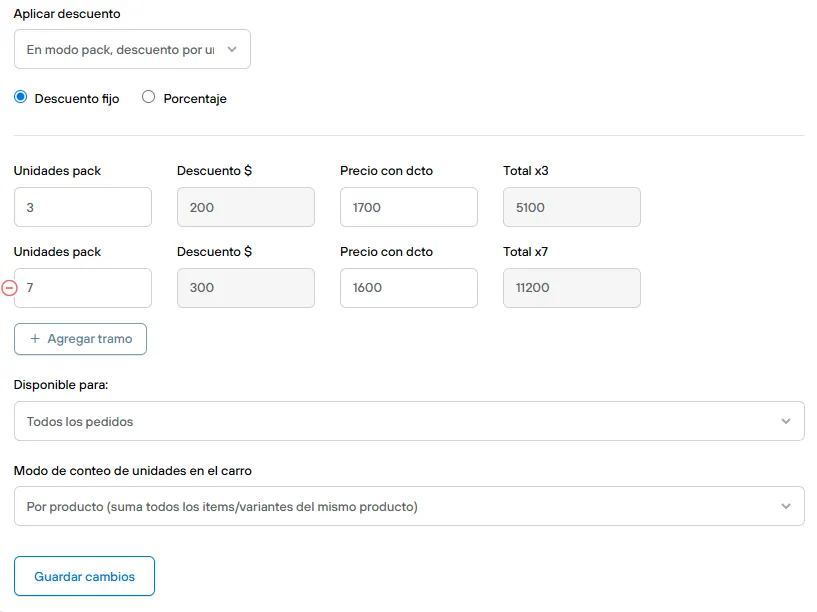
Apply discount: Pack mode, discount per unit:
- You set a fixed or percentage discount based on the value of the unit.
- It applies individually to each unit added to the cart, but only once the units defined in the “Pack units” field are reached
- It gives the discount without updating the product’s base selling price
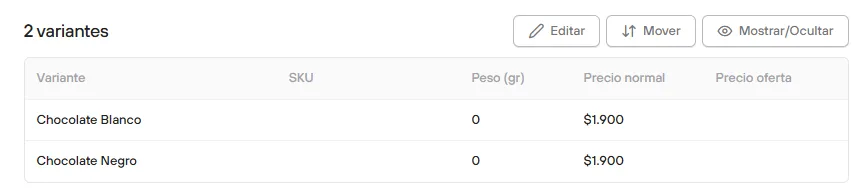
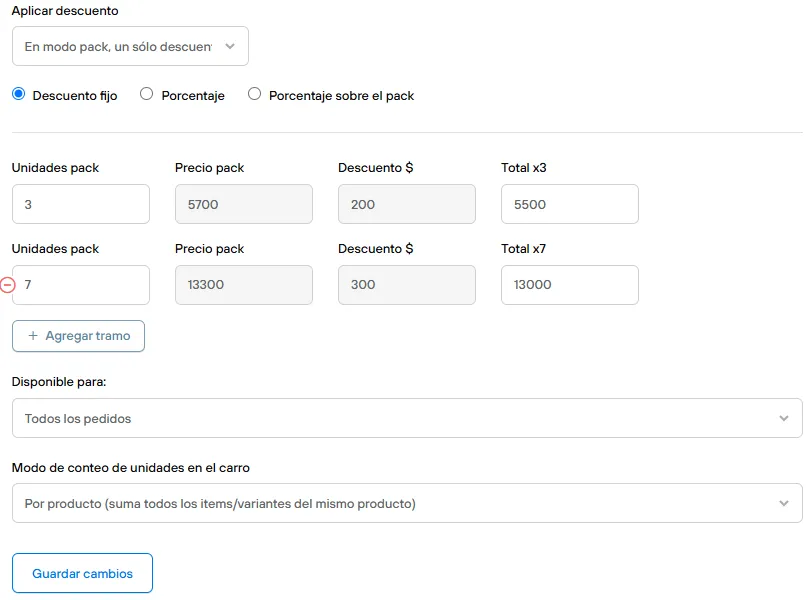
Apply discount: Pack mode, single discount:
- You set a fixed or percentage discount based on the total value of the pack, according to the units set for each tier. Alternatively, you can set the discount based on the value of the unit, for more control.
- It applies individually to each unit added to the cart, but only once the units defined in the “Pack units” field are reached
- It gives the discount without updating the product’s base selling price
Defining the Count:
You can create as many volume discounts as you want for each product or group of products, depending on your needs. Each volume discount lets you choose a counting mode to reach the tier you set. The counting options are:
Counting mode: Individual
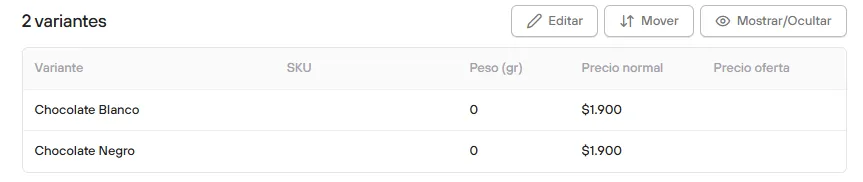
Counts the units added to the cart per variant.
Counting mode: By product
Counts all the units added to the cart from any of the product’s variants.
Counting mode: Global
Counts all the variants of all the products linked to a specific volume discount.
Linking
You can link volume discounts to products, and remove those links, from the “Products” tab using bulk actions
Compatibility
You can link a single volume discount with “Global” counting to as many products as you want, regardless of each product’s price. However, to make sure the discount is applied and never exceeds the value of each unit, the system will create subsets of products for counting, using the base selling price as a reference. This way, you don’t need to worry about pricing for the products linked to a global volume discount.
Setting Up Tiers
Depending on the type of discount you want to apply, the nature of the linked products and, above all, your customers’ usual buying behavior for a given group of products, you can choose between unit-range tiers or Packs
Multiple tiers
You can create up to 5 tiers with progressive discounts, available for all 3 application modes and all 3 counting modes.
Single tier on loop
This is the ideal option if you want to offer a discount every time a specific number of units is added to the cart, especially “2x1” type discounts or similar.
Only available for the pack mode options:
- In pack mode, discount per unit
- In pack mode, single discount
Managing your volume discounts
List of volume discounts

You can see all your volume discounts, and filter them by name, from the Promotions > Volume discounts tab in a table with:
- The discount name
- The linked products
- The number of tiers
- The discount type
- The application
- Counting mode
Individual view of a volume discount

You can open this view by clicking the name in the discount list, or from the edit page of a linked product.
In this view you can edit every aspect of the volume discount, updating the behavior across all its linked products.

How does it look in your store?
Depending on the application mode and tier setup, there will be small differences in how the discount is promoted:
To all units
- The price and units of the next tier are always shown dynamically as the goal, unless it is the last one: “$.$$$ from X un.”
- Once the first tier is reached, the discount is added to the selling price.
- The total saved on each product is shown once a tier is reached.
- The discount badge changes to “Up to” and shows the discount percentage of the last tier
- When the first unit of the product is added, a countdown starts to reach the tier: “X more to get the discount”
- When the first tier is reached and there is another one: “You’re saving $.!"** + **"Add X and get the price of $.”
- When all available tiers are reached: “You saved $.$$$!”
Pack Mode, single discount
- The units of the next tier and the discounted pack price are always shown dynamically as the goal, unless it is the last one: “Get X for $.$$$”
- It does not affect the base selling price
- The total saved on completed packs is shown
- The discount badge changes to “Up to” and shows the discount percentage of the last tier
- When the first unit of the product is added, a countdown starts to reach the tier: “X more to get the discount”
- When the tier is reached: “You’re saving $.$$$!”
- If there is an additional tier, this is also added: “Add X and upgrade your pack”
- If the tier is set to repeat indefinitely: Add X and complete another pack”
- When all available tiers are reached: “You saved $.$$$!”